Developer Hub
Asha, operations lead at Acme Support, wants to connect other systems and AI tools to her Perfox workspace:
- Server-to-server REST calls — her order system uploads product manuals into the knowledge base and pulls conversation transcripts every night.
- MCP clients — her team wants to use the workspace's tools straight from Claude, ChatGPT or Cursor.
- Background job health — she wants to see that her email inbox listener and her nightly knowledge-base sync are still running.
The Developer page (Admin → Developer, /developer) covers all three in three tabs: API keys, MCP and Scheduled Jobs. It appears for members with the View settings permission.
1. API keys
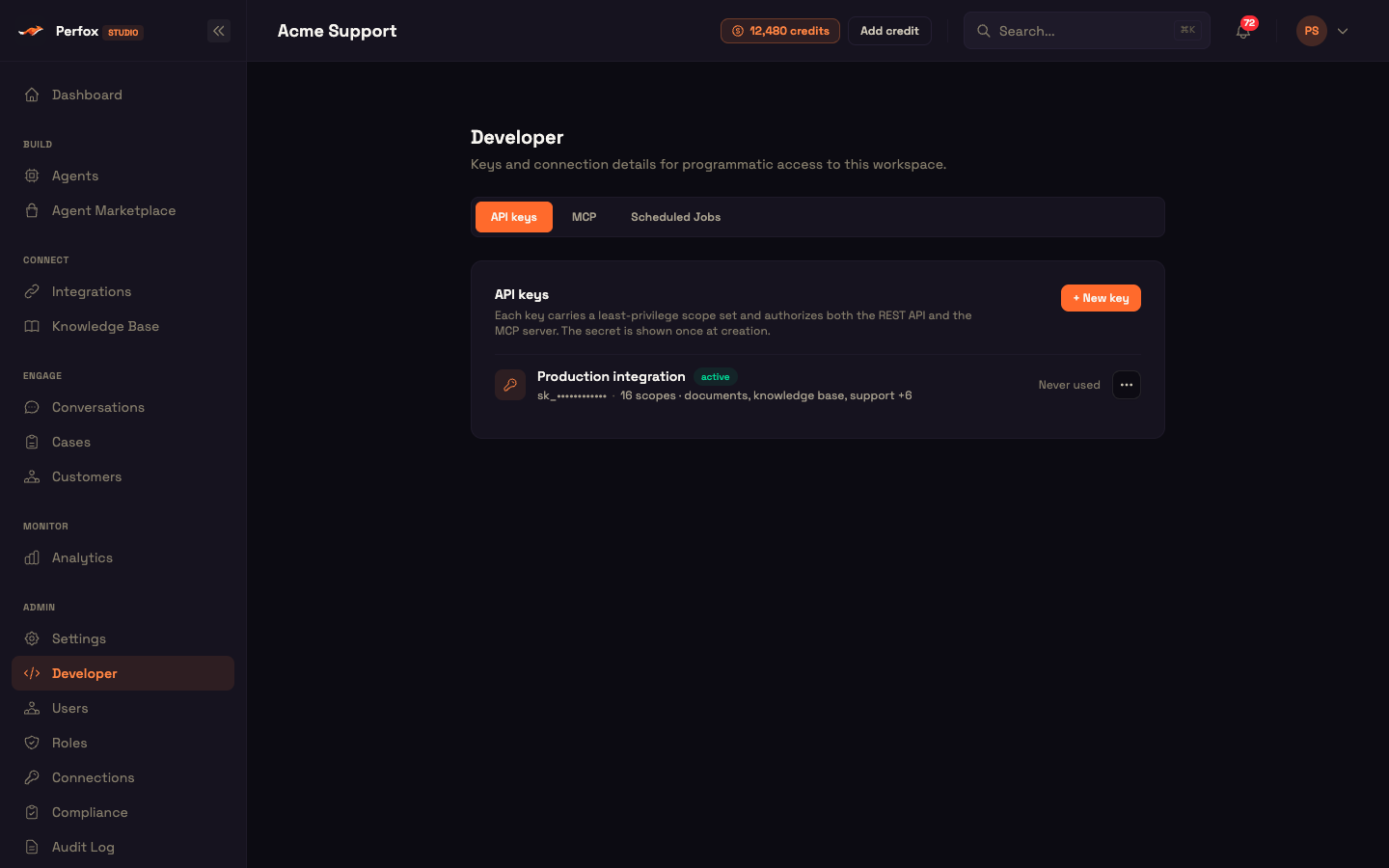
Each key carries a least-privilege set of scopes and works for both the REST API and the MCP server.
Creating a key
- Click + New key.
- Enter a Name (for example
production-webhook). - Tick the Scopes the key needs — the heading shows how many are selected. Create key stays disabled until the key has a name and at least one scope.
- Click Create key. The API key created dialog shows the full key with a Copy button. Copy it and store it somewhere safe.
Managing keys
Each row shows the key name, an active badge, the masked prefix (sk_••••), a scope summary (for example "16 scopes · documents, knowledge base, …") and when it was last used ("Never used", "Used 3 mins ago"). The ⋯ menu offers:
- Copy key — copies the full key to your clipboard without displaying it. Keys created before secure copy was introduced show no Copy option; rotate them to enable it.
- Rotate — issues a new secret for the same key (name and scopes unchanged). The old secret stops working immediately, and the API key rotated dialog shows the new one.
- Delete — permanently deletes the key after a confirmation. Any integration still using it starts getting
401errors.
Scope catalog
| Group | Scopes you can grant |
|---|---|
| Agents | Read agents · Create & edit agents · Publish agents |
| Knowledge Base | Read Knowledge Base · Upload & manage Knowledge Base |
| Customers | Read customers · Create & update customers |
| Conversations | Read conversations & transcripts · Write conversations |
| Credentials | Read provider credentials · Register provider credentials |
| MCP Servers | Read MCP tool servers · Register MCP tool servers |
| Documents | Structured document extraction |
| Analytics | Read analytics |
| Support | Read support tickets · Raise & reply to support tickets |
| Webhooks | Read webhook subscriptions · Manage webhook subscriptions |
A new key starts with Structured document extraction, Read Knowledge Base and Upload & manage Knowledge Base ticked — untick anything you don't need. Full admin access can never be granted to a key. The API reference lists which endpoints each scope unlocks.
Send the key on every request as:
http
Authorization: Bearer sk_...2. MCP server
The MCP tab turns your workspace into a Model Context Protocol (MCP) server. Claude, ChatGPT, Cursor, the MCP Inspector and any other MCP client can discover and use your workspace's tools — the same tools as the REST API.
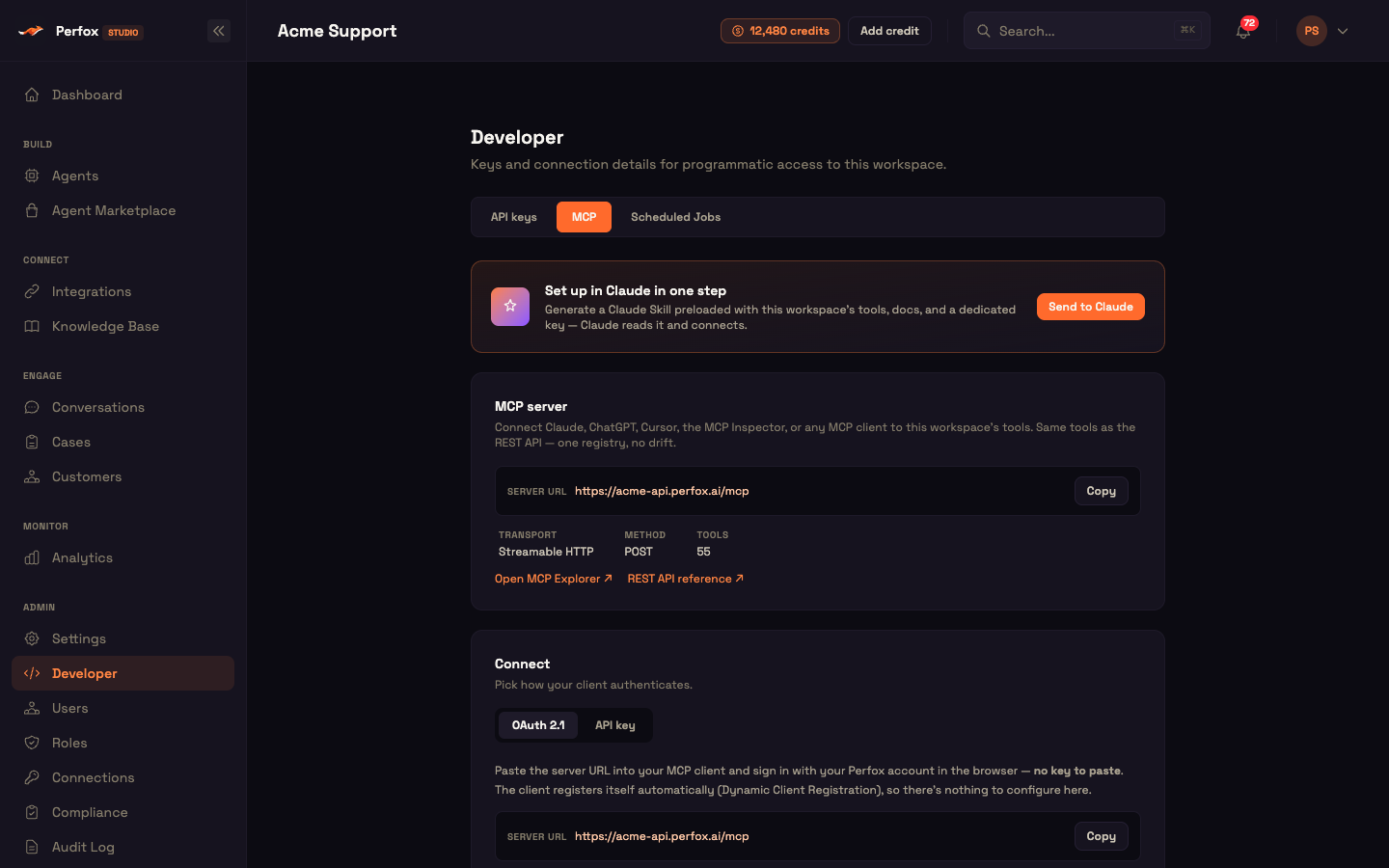
The MCP server card shows:
- Server URL —
https://<your-workspace>-api.perfox.ai/mcp, with a Copy button - Transport — Streamable HTTP; Method — POST
- Tools — how many tools are currently available
- Open MCP Explorer ↗ and REST API reference ↗ links
Connect with OAuth 2.1 (recommended)
Choose OAuth 2.1 under Connect. There is no key to paste — the client registers itself automatically:
- In Claude: Settings → Connectors → Add custom connector (ChatGPT: Settings → Connectors; Cursor / MCP Inspector: add an HTTP server).
- Paste the Server URL. Leave Client ID and Client Secret blank.
- A Perfox sign-in page opens — sign in with your workspace email (magic link) and approve access.
- The workspace tools appear in your client.
The connection acts with your own role's permissions, so every team member signs in as themselves.
Connect with an API key
For a client that can't open a browser sign-in, choose API key, pick a key under Key, and copy the connection string as either:
- an Authorization header —
Authorization: Bearer sk_..., or - a full URL —
https://<your-workspace>-api.perfox.ai/mcp?key=sk_...for clients that accept only a URL.
The key value stays hidden — Copy puts the ready-to-use string on your clipboard. A key that predates secure copy shows "(rotate to enable)"; rotate it on the API keys tab first.
Send to Claude
The Set up in Claude in one step card has a Send to Claude button. It generates a Claude Skill preloaded with your workspace's tools, docs and a dedicated key:
- Click Send to Claude and choose the key to embed.
- Click Download .zip (or Copy SKILL.md).
- In claude.ai → Settings → Capabilities → Skills, click Upload and choose the .zip. For Claude Code, unzip it into your project's
.claude/skills/folder.
3. Scheduled Jobs
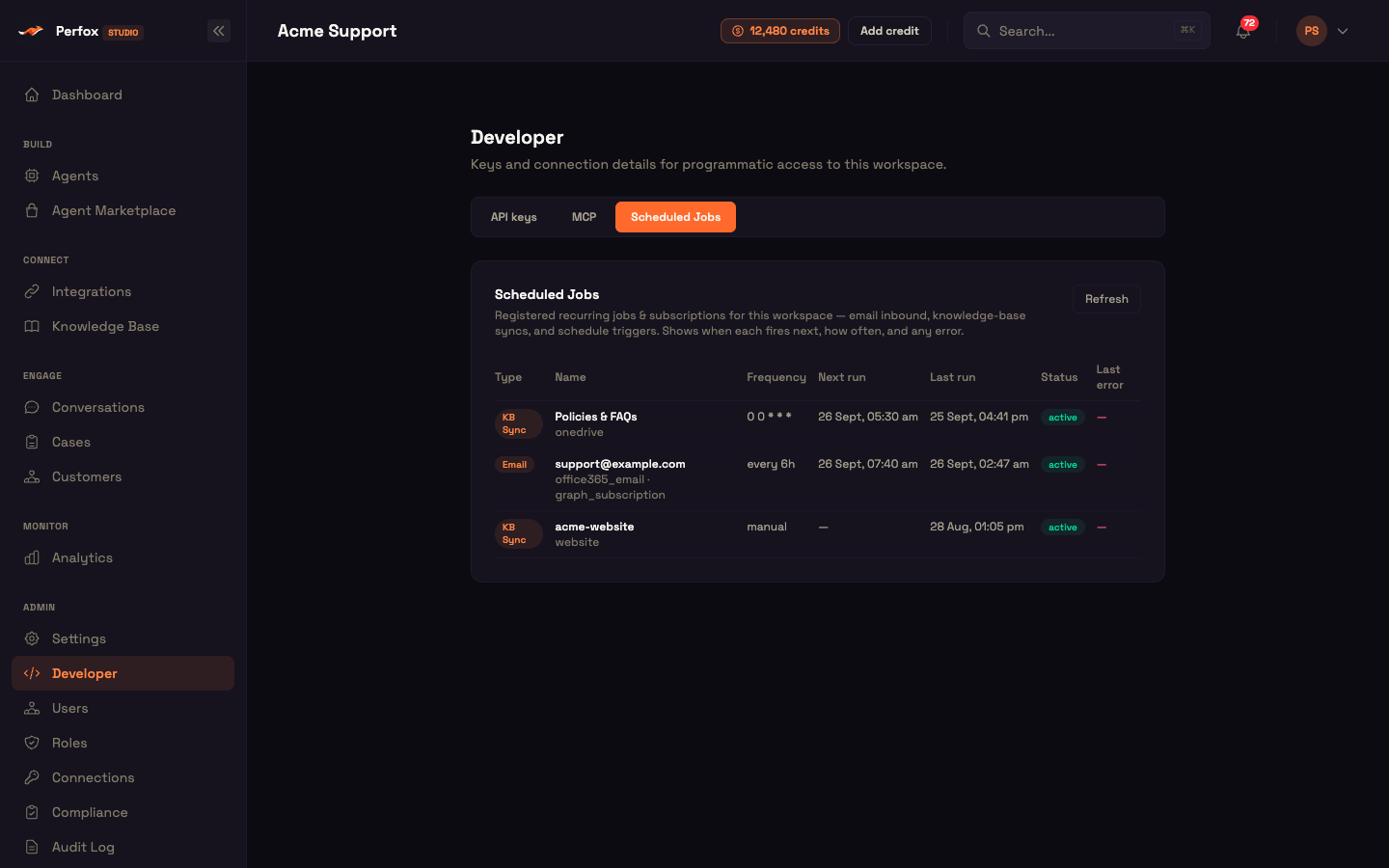
The Scheduled Jobs tab lists the recurring jobs and subscriptions registered for your workspace, with when each runs next, how often, and any error. Click Refresh to reload.
| Type | What it is |
|---|---|
| The inbox listener for an email connection that receives mail — for example a Microsoft 365 mailbox subscription (renewed automatically) or a Gmail / IMAP mailbox check. | |
| KB Sync | A knowledge-base connector sync — OneDrive / SharePoint, Google Drive, S3 or a website crawl — on its schedule, or "manual". |
| Schedule | An agent's Schedule trigger. |
Columns: Type, Name (with a detail line such as the connector or provider), Frequency (for example every 6h or a cron expression like 0 0 * * *), Next run, Last run, Status (active, pending, error) and Last error.
Two extra red badges flag jobs that need attention:
- not scheduled — the job is recorded but not actually registered to run, so it will never fire.
- orphaned — the job runs but nothing owns it any more.
If the list can't be loaded, the tab says so and offers Try again — an empty list always means there is genuinely nothing scheduled.
Worked example: using Acme Support's tools from Claude
Setup: Asha opens Admin → Developer → MCP and copies the Server URL, https://acme-support-api.perfox.ai/mcp.
Action: In Claude she opens Settings → Connectors → Add custom connector, pastes the URL, and leaves Client ID and Client Secret blank. A Perfox sign-in page opens; she signs in with her work email and approves access.
Result: Acme Support's workspace tools — the same set the REST API offers, such as knowledge-base search, agents, customers and conversations — appear in Claude. She asks, "What does our returns policy say about opened items?" and Claude answers from the knowledge base.
What just happened: Claude registered itself with the workspace, Asha signed in as herself, and every tool call runs with her own role's permissions — no shared key involved.
For a headless script, she would instead create a key with only the scopes it needs and use the API key option.
Good practice
- Grant only the scopes a key needs. Create separate keys for separate integrations so you can rotate or delete one without affecting the others.
- Rotate keys periodically — Rotate keeps the name and scopes, so nothing else needs reconfiguring.
- Prefer OAuth for personal tools such as Claude, ChatGPT or Cursor, so actions carry each person's own permissions.
- Check Scheduled Jobs after connecting a mailbox or a knowledge-base source, and whenever inbound mail or syncs seem to stop.