One Agent, Every Channel
Priya chats with Acme Store on the website at lunch, then messages the same business on WhatsApp that evening from her phone. She doesn't repeat herself, because the agent already knows her. That's the idea on this page: one agent, reachable everywhere, with every customer recognised as one person across channels.
By the end you'll have taken a single agent live on web, WhatsApp, phone, SMS and email at once, sharing one personality, one set of tools, one knowledge base, and one identity per customer.
Who this is for
You're an admin like Asha who already has a working agent and wants it to answer on more than one channel, without building and maintaining a separate agent per channel. If you haven't built an agent yet, start with the FAQ Agent or Customer Service from your Website recipe, then come back.
What you'll build
One AI Agent reached through several triggers, one per channel, plus a sender for each messaging channel so the agent can reply there.
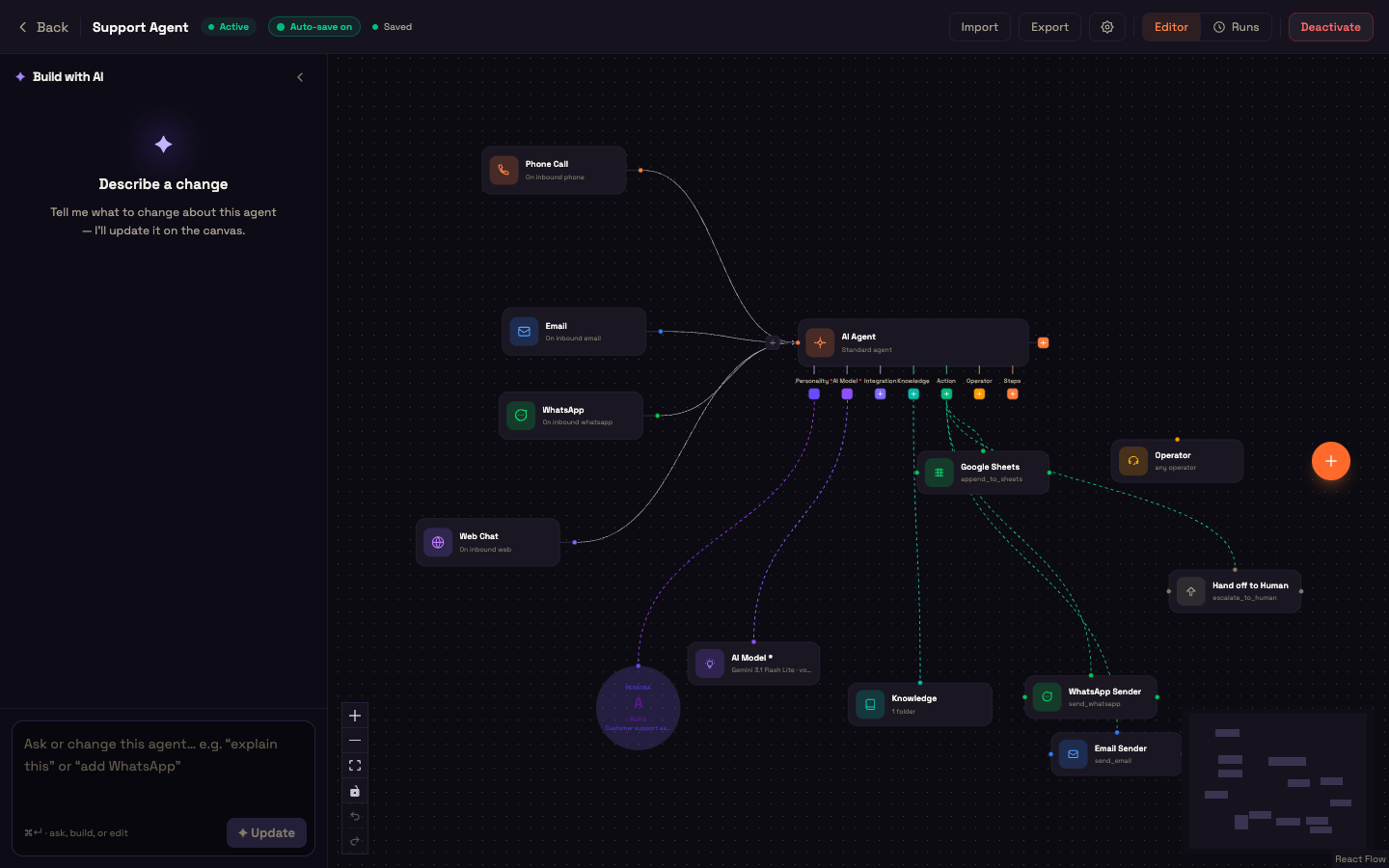
How one agent serves every channel
Every text channel reaches the agent the same way: Perfox removes duplicate deliveries, identifies the customer, matches the trigger that watches that number or address, and runs the agent. Providers sometimes deliver the same message twice (email forwarders re-send; SMS and WhatsApp retry), but the customer still gets only one reply. A message that no published trigger watches gets no reply. There's no catch-all default agent.
Replies come back in two ways:
- Web chat and voice reply inline: in the chat window, or spoken on the call.
- Email, SMS and WhatsApp reply through a sender on the AI Agent's Action port: Email Sender, SMS Sender or WhatsApp Sender. Without one, the message still reaches the agent, but nothing is sent back, and the canvas warns you before you publish.
Before you start
- A working agent, from the FAQ Agent or Customer Service recipe.
- For WhatsApp, SMS and phone: a Plivo connection on Admin → Connections, with the numbers you'll use.
- For email: an email provider connection on Admin → Connections (AWS SES, Microsoft 365, Gmail, SMTP / IMAP and others), with the inbox customers write to.
- For web chat and browser voice: nothing extra. Both are included.
Steps
1. Start from a working agent
Open your agent. It already has its Personality, AI Model and any Knowledge attached.
2. Add a trigger per channel
For each channel, click + → Triggers, pick the channel's trigger, connect it to the same AI Agent node, and open it to choose the business contact it watches:
| Trigger | Watches | Needs |
|---|---|---|
| Web Chat | your website widget | nothing extra |
| a WhatsApp number | Plivo connection | |
| Phone Call | a phone number | Plivo connection |
| SMS | an SMS number | Plivo connection |
| an inbox address | email provider connection |
Each number or address routes to one agent, so two agents can't both claim the same WhatsApp number.
3. Add a sender for each messaging channel
Click the + under the AI Agent's Action port and add a WhatsApp Sender, an SMS Sender and an Email Sender for the channels you're adding. On each, set Send from to your business number or address and Send to to The person in this conversation. See Messaging actions.
4. Set up the voice
For phone and browser voice, open the AI Model sub-node and look at Voice agent model:
- Live: one speech-to-speech model (Gemini Live or OpenAI Realtime) plus a Voice.
- Pipeline: Speech-to-text (Sarvam or ElevenLabs), a Voice brain model, and Text-to-speech (Sarvam or ElevenLabs) with a wide choice of voices, which suits Indian languages.
Under While the caller waits, choose what callers hear while the agent looks something up. On a call the agent uses the same personality, tools and knowledge base as in chat. See Voice Providers.
5. Activate
Click Activate. Every channel is live at once.
A day in the life: Priya reaches Acme Store three ways
Setup. Asha's agent, Rhea, has a Knowledge Base of Acme's shipping and returns policies. She adds Web Chat, Phone Call and WhatsApp triggers to the same AI Agent, a WhatsApp Sender on its Action port, and clicks Activate.
Action: the web chat. At 12:40, Priya opens the chat on Acme's site:
Priya: Can I return shoes if I've worn them outside?
Rhea: Unworn items can be returned within 30 days. Worn items can only be exchanged for a defect. Would you like help starting a return?
Action: the phone call. At 12:45 Priya calls Acme's number from her phone to ask about refunds. Rhea answers by voice, drawing on the same Knowledge Base as the chat a minute ago.
Action: WhatsApp that evening. At 19:10 Priya messages Acme's WhatsApp number from the same phone:
Priya: OK, I'd like to exchange them. They have a torn seam.
Rhea: Sorry about that, Priya. A torn seam counts as a defect, so an exchange is fine. Shall I arrange a pickup?
What just happened. Priya used three channels, but Perfox recognised her phone number on the call and on WhatsApp, so they belong to one customer, and the agent carried the conversation forward instead of starting over. If her earlier conversation was still open, the new messages joined it. If it had closed, a new one started and the agent still remembered her. The WhatsApp reply went out through Asha's own Plivo number because the WhatsApp Sender was connected.
Test it before you activate
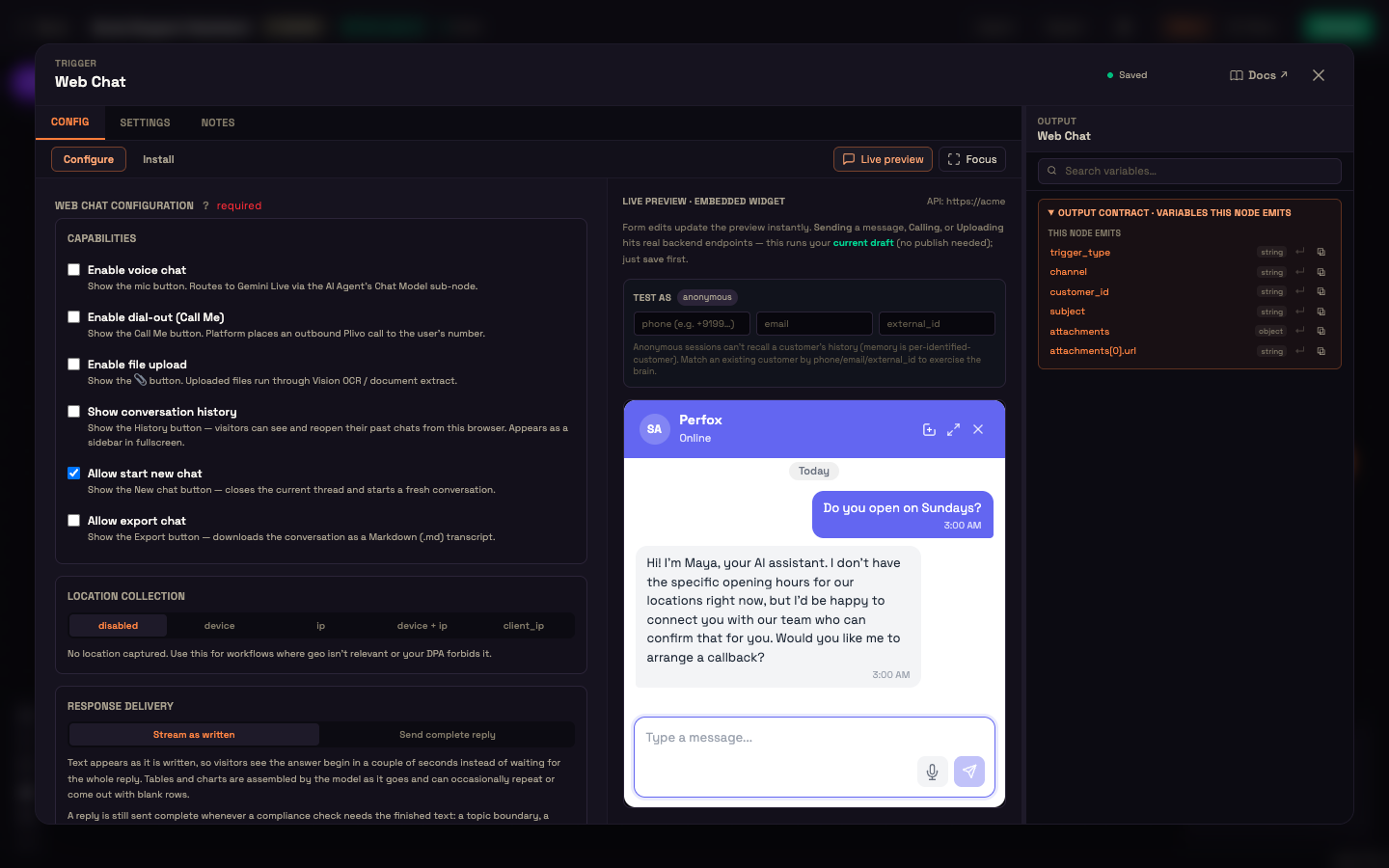
Click the Web Chat node and open Live preview to chat with your current draft. Fill in Test as with the same phone number or email you'll use on WhatsApp, have a short conversation, then (once activated) message your WhatsApp number from that phone and check that the agent picks up where the chat left off.
Variations
- Different instructions per channel. In the Personality's system prompt, turn on Channel-specific prompts to write a different prompt for phone, web and other channels. A phone agent and a web agent want different styles.
- Add channels later. Add another trigger and its sender to the same agent at any time; there's no new agent to build.
- Keep memory separate for an unrelated agent. If one of your agents covers an unrelated area, turn on Keep this agent's memory separate in its Memory section.
You're set — where to go next
You can now run one agent across web, WhatsApp, phone, SMS and email, with each customer recognised as one person everywhere they reach you.
- Channels Overview — triggers, senders and identity on every channel.
- Voice Providers — choose and tune the voice for calls.
- Agent Memory — how the agent remembers a returning customer.
- Web Chat (Widget) — embed the widget and use Test as.