Generate a Report & Email It
A customer types "email me a PDF summary of my order history", and a minute later a neatly formatted PDF is in their inbox, without anyone at your desk lifting a finger. That's the flow you'll build on this page: an agent that makes a file, then emails it, with the new file attached automatically.
This page is for an admin setting up one agent. By the end, you'll have an agent that creates a PDF, a spreadsheet or a report on request and sends it from your own email account. If you're new to the builder, Getting Started covers the canvas basics.
The two halves
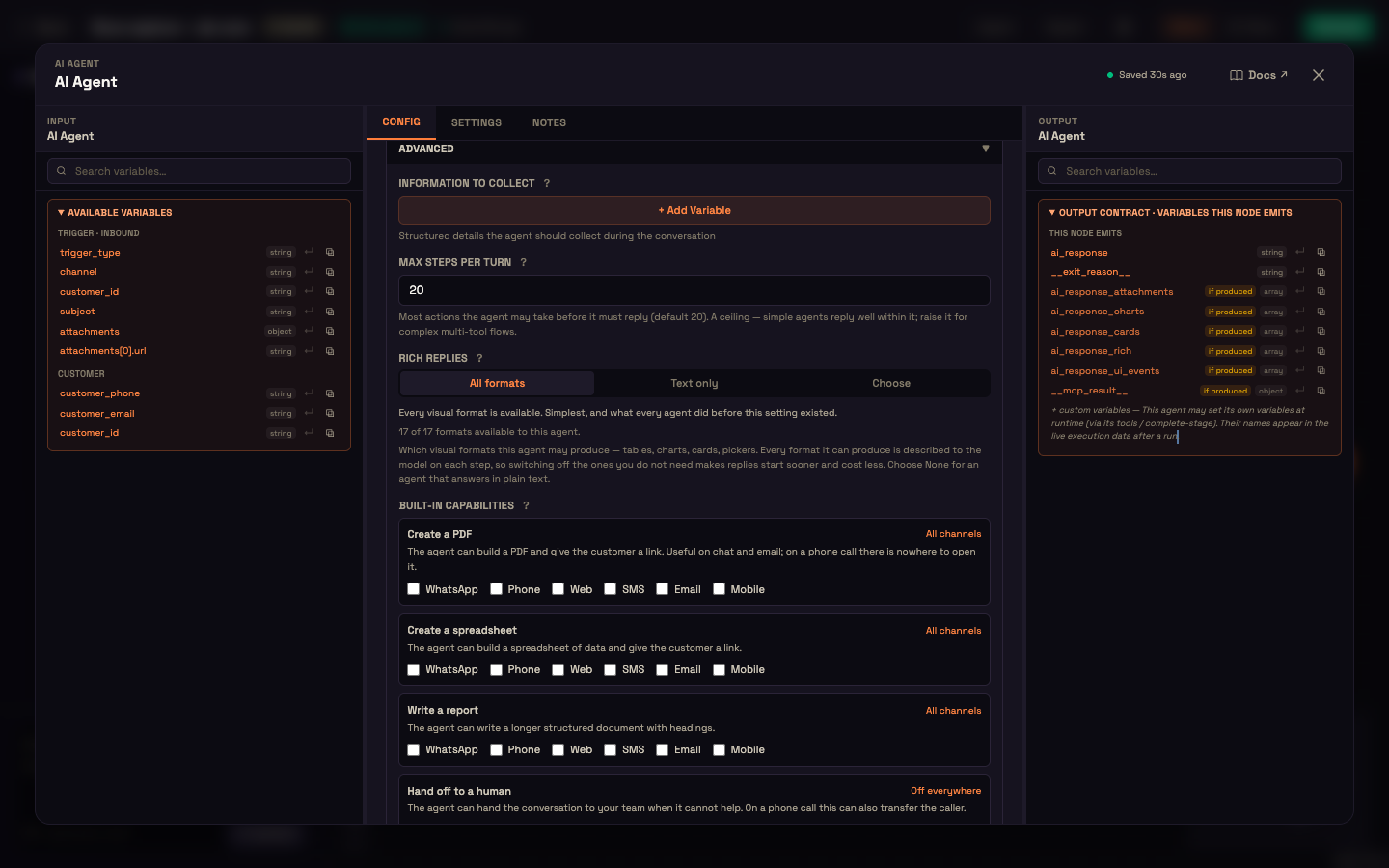
Creating the file is a built-in capability. There's no node to add. You switch it on, per channel, in the AI Agent's Advanced → Built-in capabilities:
| Capability | What the agent makes |
|---|---|
| Create a PDF | A formatted PDF |
| Create a spreadsheet | A spreadsheet (CSV) of data |
| Write a report | A longer structured document with headings (a Markdown file, not a PDF) |
These are off by default, because each capability you enable is described to the AI on every turn, which costs a little time and credit. Enable them only on the channels where they make sense. A PDF is useful on chat and email, but on a phone call there's nowhere to open it. Each file is stored privately, and the customer gets a secure download link.
Emailing the file is an Action node. That's the Email Sender, attached to the AI Agent's Action port. It gives the agent a way to send an email from your address.
How the attachment works
When the agent creates a file, Perfox remembers it for the rest of that turn. If the agent then sends an email without naming an attachment, the file it just made is attached automatically (a PDF is preferred if it made several). So the whole flow is create → email. If you want a PDF attached, have the agent use Create a PDF. Write a report produces a Markdown file.
Before you start
- An email connection on Admin → Connections, with an address you can send from. Any of the email providers there works: AWS SES, Resend, SendGrid, Postmark, Mailjet, Mailgun, Gmail / Google Workspace, SMTP / IMAP or Microsoft 365. Emails go out through your own account. If it isn't connected, Perfox tells you which connection to add instead of sending nothing silently.
Build it, step by step
Meet Asha, an admin at Acme Store. She wants customers to ask for a PDF of their order history and get it by email, with no person in the loop.
1. Connect your email provider
Asha goes to Admin → Connections, finds her email provider under Email, clicks Connect and fills in its fields. She clicks Test Connection to confirm it works. See Email Providers.
2. Build the agent
In Build → Agents she creates an agent with a Web Chat trigger, an AI Agent, and its Personality and AI Model sub-nodes. In the Personality's system prompt she says when to create and email a file:
When the customer asks for a report or summary, create a PDF and email it to them. Always confirm the email address first.
3. Switch on "Create a PDF"
She opens the AI Agent node, expands Advanced, and under Built-in capabilities ticks Create a PDF for Web and Email. (All channels ticks every channel at once.)
4. Add an Email Sender
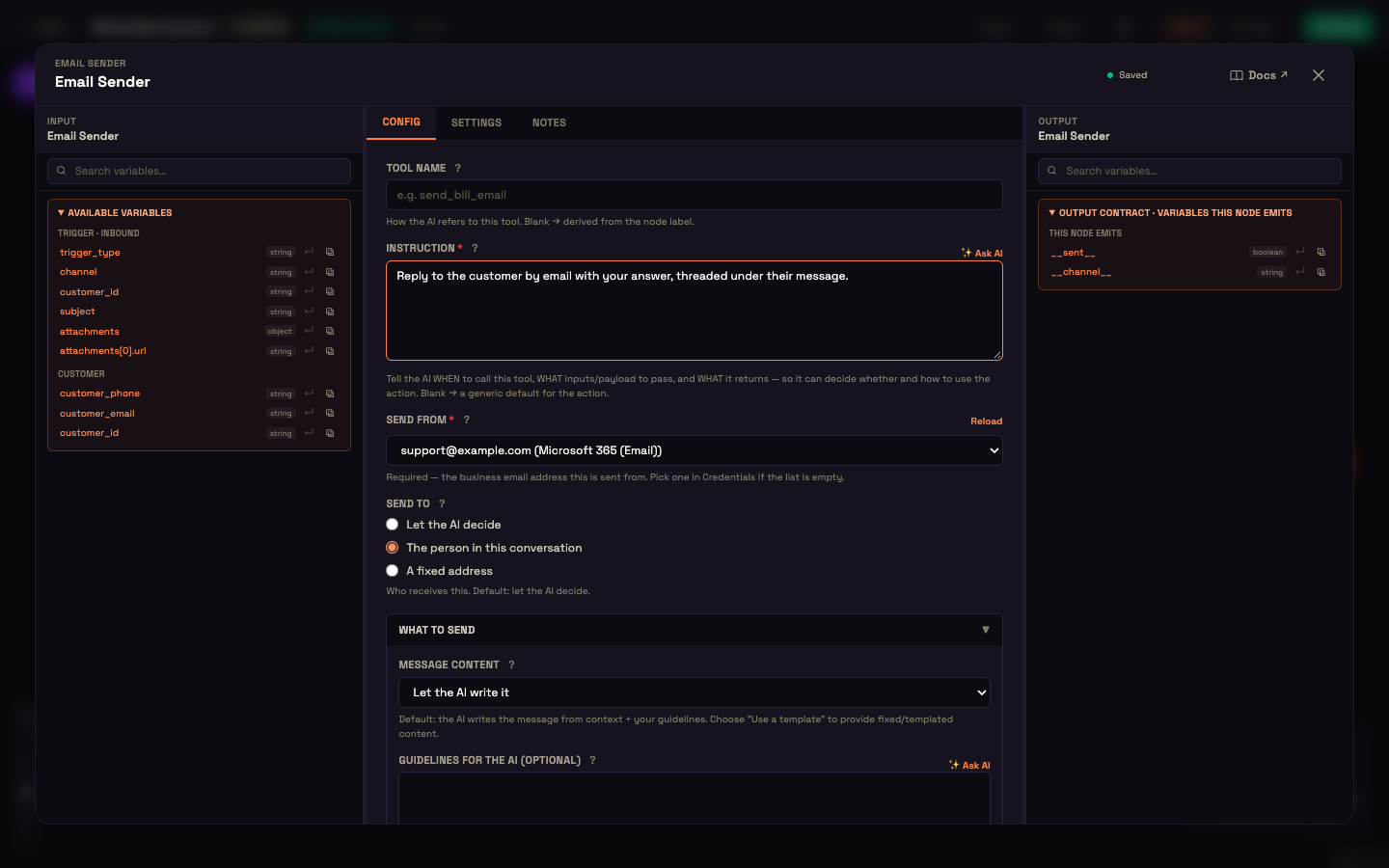
She clicks the + under the AI Agent's Action port and chooses Email Sender (under Messaging), then opens it:
| Field | What to set |
|---|---|
| Tool name | Optional. How the AI refers to this action. |
| Instruction | When the AI should use it, for example "Email the customer the file they asked for." |
| Send from | The address the email comes from, chosen from your email connections. Required. |
| Send to | The person in this conversation, A fixed address (the AI can never change it), or Let the AI decide. |
| What to send → Message content | Let the AI write it (the default), with optional Guidelines for the AI, or Use a template or fixed text. A fixed body with no {{placeholders}} is sent exactly as written; one with placeholders is a template the AI fills in. |
| Attach a file the AI generated earlier | Makes the automatic attachment explicit. |
Since the customer will type the address in chat, Asha sets Send to to Let the AI decide.
5. Test, then activate
She opens the Web Chat node's Live preview, asks for a PDF, and checks her own inbox. Then she clicks Activate.
What the customer sees
Setup. Asha's agent is live on Web Chat, with her email provider connected, Create a PDF switched on for Web, and an Email Sender on the Action port.
Action. Priya types:
Email me a PDF summary of my orders to priya@example.com.
Result. The agent confirms the address, as instructed, creates the PDF and sends the email. In the chat, Priya sees:
Sure, I'll send a PDF summary to priya@example.com. … Sent, check your inbox.
A moment later an email from Acme Store's address arrives with the PDF attached.
What just happened. The agent did two things in one turn. First it created the PDF, which was stored privately with a secure link. Then it used the Email Sender without naming an attachment, so Perfox attached the PDF it had just made. Priya asked once, in plain words, and got a file in her inbox.
Variations
- Spreadsheet export. Enable Create a spreadsheet instead, and the CSV attaches the same way.
- Fixed wording. Set Message content to Use a template or fixed text with a fixed subject and body, for messages whose wording must not change.
- Send by SMS or WhatsApp. Use an SMS Sender or WhatsApp Sender instead, with your Plivo connection. The customer gets the download link in the message. Automatic attachments are email-only.
You can now
You can build an agent that creates a PDF, spreadsheet or report on request and emails it from your own account, with the file attached automatically.
- AI Agent Node — every section of the AI Agent panel, including Built-in capabilities.
- Messaging actions — the Email, SMS and WhatsApp senders in detail.
- Outbound Notifications — messages your customer didn't ask for in the moment, such as a scheduled summary.
- Bring Your Own Provider — why every send uses your own provider account.