Document Actions
A customer sends in a PDF invoice mid-chat, and instead of putting them on hold while you manually key in the numbers, your agent reads it, pulls the line items, and continues the conversation without missing a beat. That's what the Extract Document action is for.
This page covers the two document actions (Extract Document and Upload Document) and the built-in PDF, spreadsheet and report capabilities. You'll learn how to attach each to your AI Agent, how to pick the right extraction mode, and when to use the Document Processing node instead.
It's the conversational counterpart of the Document Processing node: that node is a deterministic step in a flow, while this is a tool the agent chooses to call when a document shows up mid-conversation. Both share the same extraction engine and the same document-type catalog.
Like every action, Extract Document attaches to the AI Agent's Action port, and the agent decides when to use it.
Adding the action
Open your agent under Build → Agents.
Click the + on the AI Agent's Action port. Under Documents pick one of:
- Extract Document: the AI decides what to pull. You can focus it with an instruction.
- Detect Document Type: the AI picks the document type (invoice, resume, medical report…) at call time and extracts that type's fields.
- A specific document type, such as Medical Report, Invoice / AP, Resume / ATS, Contract / Legal, Product Catalog, Financial Statements, Insurance Claim, Compliance / Audit, RFP / Tender, or Research Paper. This pins the node to that type's fields.
These are all the same action with a different starting setup. You can change the mode later in the panel.
In Instruction, tell the agent when to use it, for example "When the customer shares an invoice, extract its details before answering questions about it."
Check the How to extract mode (below). The agent only ever supplies the document. Everything else is set by you on the node.
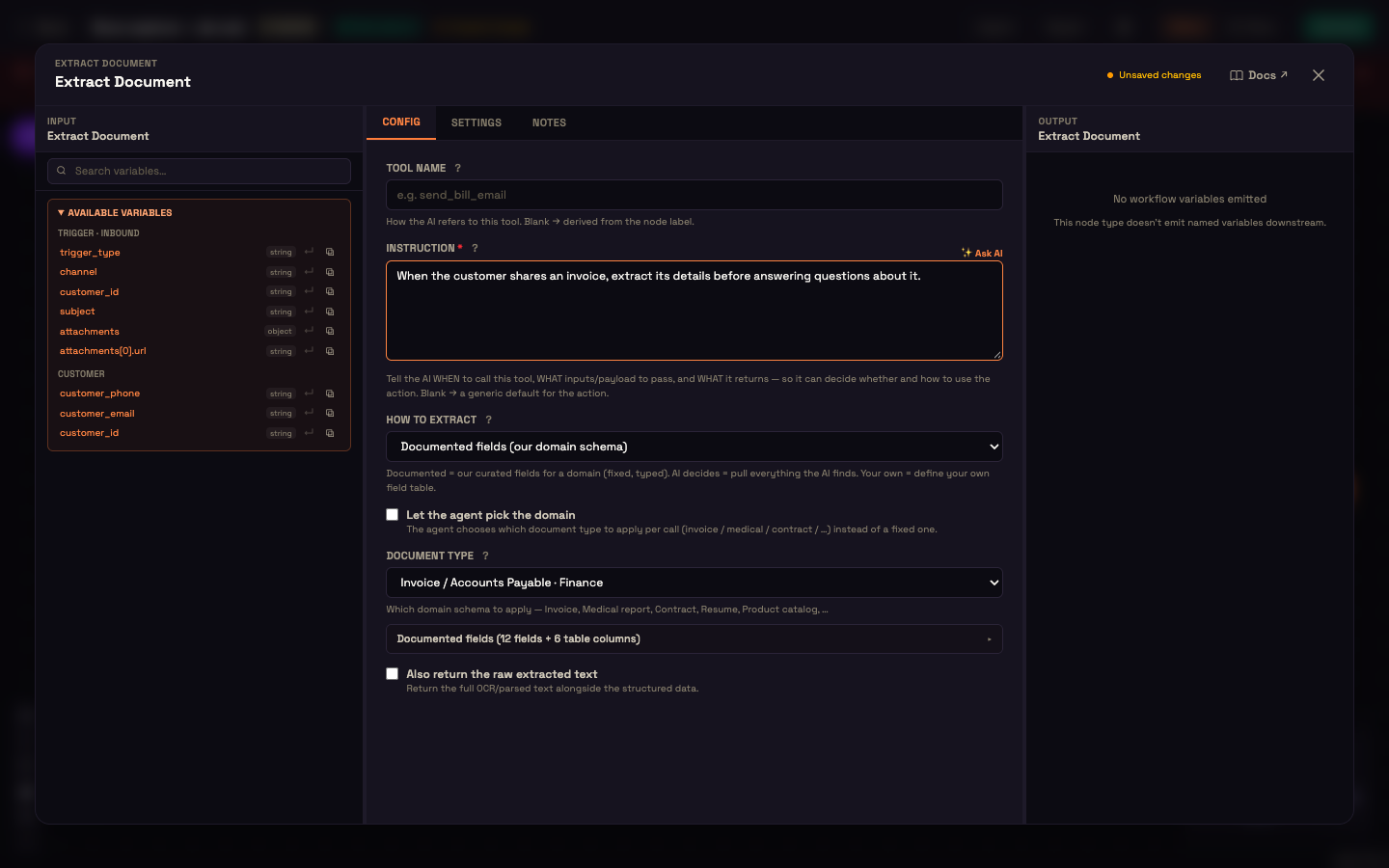
How to extract
| Mode | What it returns |
|---|---|
| Documented fields (our domain schema) | One built-in document type's fixed, typed fields. Pick the Document type, or tick Let the agent pick the domain to have the agent choose the type per call. A summary row shows how many fields and table columns the type returns. |
| AI decides (comprehensive) | Pulls everything it finds. Add an optional Focus the extraction note to narrow it, for example "extract the patient demographics and every lab test with value, unit, reference range, and flag". |
| Your own fields | Your own Fields to extract table. Tick Extract a list (many rows) to return one row per subject, such as one per line item, instead of a single record. |
In every mode you can tick Also return the raw extracted text to get the full parsed text alongside the structured result. The model that performs the extraction can be chosen on the AI Model card. It defaults to the platform's recommended model.
The Instruction field shapes tool use
Like every action, Extract Document carries a required Instruction field. It becomes the description the agent reads when deciding whether and how to call the tool. Say when to use it and what it returns.
Worked example — processing a lab report at Acme Diagnostics
Setup: Asha, an admin at Acme Diagnostics, adds the Extract Document action to her patient-intake agent. She sets How to extract to Your own fields, lists fields like patient_name, test_name, result_value, unit, and reference_range, and turns on Extract a list (many rows) so the agent returns one row per test rather than a single object. Her Instruction reads: "When the customer shares a lab report PDF, extract all test results before responding."
Action: Priya, a customer, sends a PDF of her recent blood panel in the chat.
Result: The agent calls Extract Document, gets back a structured list of test rows, and immediately replies: "I can see your haemoglobin is 11.2 g/dL, which is slightly below the reference range of 12–16 g/dL. Would you like to book a follow-up appointment?"
What just happened: The agent spotted the file, called the action automatically based on Asha's Instruction, and used the typed results to give Priya a specific, accurate answer — no copy-pasting, no manual lookup.
Upload Document
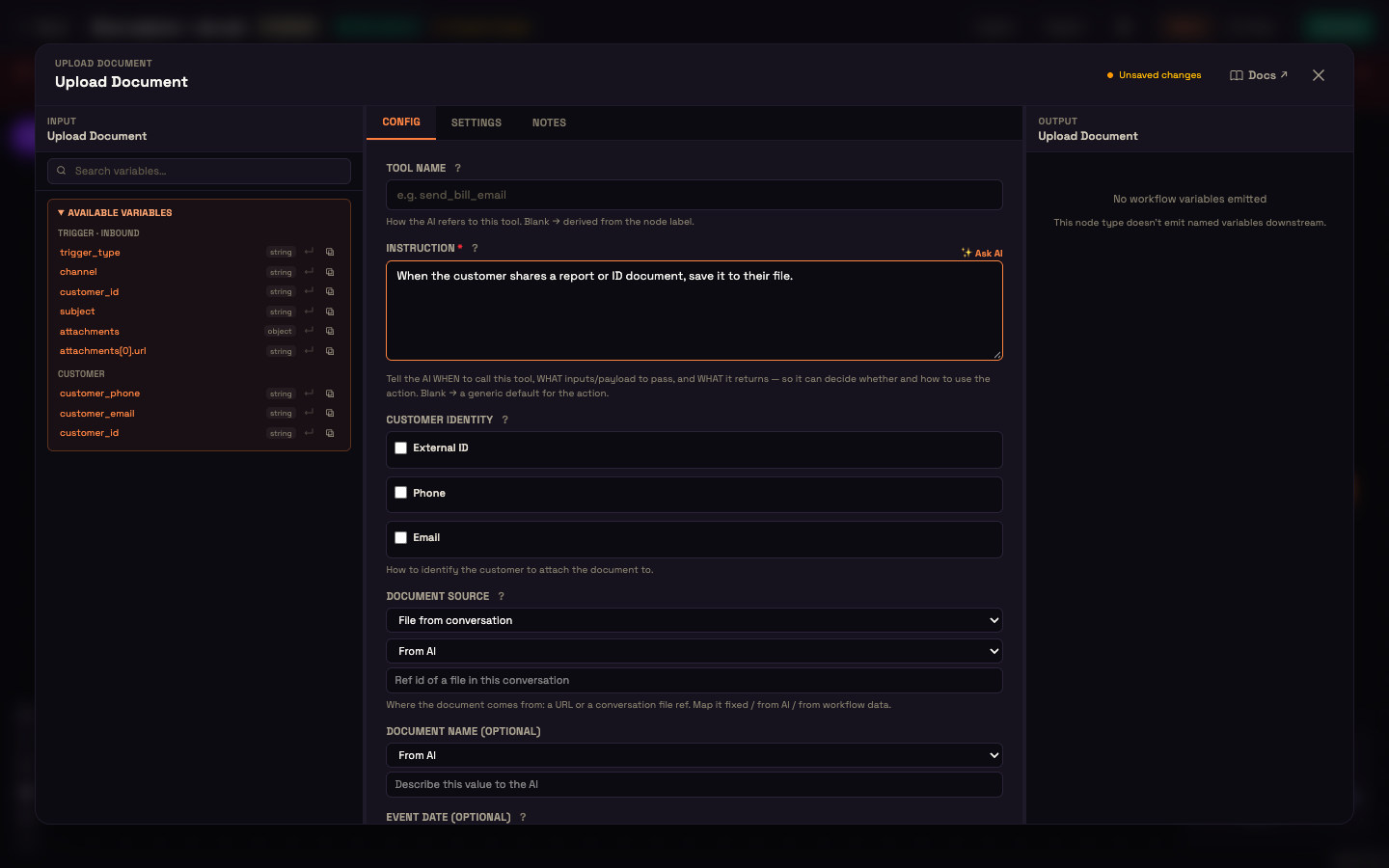
Upload Document (under Actions → Memory in the picker) saves a document into a customer's file. It appears on that customer's Documents tab under Customers, and it's searchable when an agent later answers questions about that customer.
| Field | What it does |
|---|---|
| Instruction (required) | When the agent should save a document, for example "When the customer shares a report or ID document, save it to their file." |
| Customer Identity | How to find the customer to attach the document to: tick External ID, Phone and/or Email, and set how each value is filled. Leave them all unticked to attach it to the customer in the current conversation. |
| Document source | File from conversation (a file the customer sent in this chat) or URL. Each is filled From AI, a Fixed value, or From workflow data. |
| Document name (optional) | A friendly name for the document. |
| Event date (optional) | The date the document relates to, such as the date of a report. |
Saving happens in the background: the document is stored straight away and becomes searchable a moment later.
PDF, spreadsheet and report creation
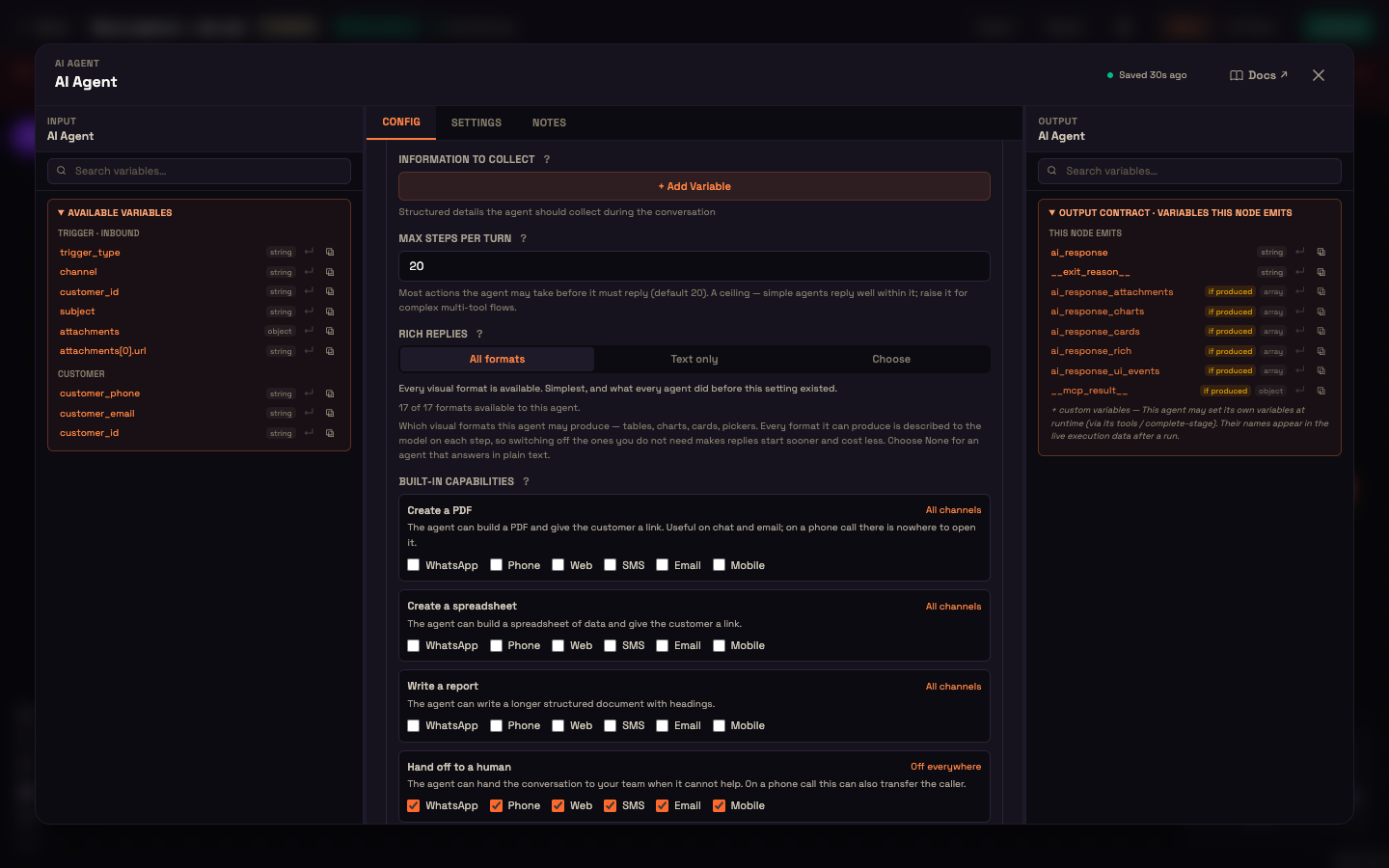
Creating a PDF, a spreadsheet, or a longer structured report isn't a node you add. These are built-in capabilities of every AI Agent, and you switch them on per channel in the AI Agent's Advanced → Built-in capabilities:
| Capability | What the agent can do | Default |
|---|---|---|
| Create a PDF | Build a PDF and give the customer a link. | Off |
| Create a spreadsheet | Build a spreadsheet of data and give the customer a link. | Off |
| Write a report | Write a longer structured document with headings. | Off |
| Hand off to a human | Hand the conversation to your team (see Hand off to Human). | On, every channel |
Tick the channels where each one makes sense. A PDF is useful on web chat or email, but on a phone call there's nowhere for the customer to open it. All channels and Off everywhere set a row in one click. Each capability you enable is described to the model on every step, so leave off anything the agent won't use.
To email a generated file, add an Email Sender with Attach a file the AI generated earlier ticked.
Beyond the agent
Need the same extraction outside a conversation? Use it as a flow step with the Document Processing node, or call the server-to-server endpoint POST /api/v1/documents.extract_structured from your own backend with a Perfox API key.
Next steps
You can now let your agent read and reason over any document a customer shares, in the mode that fits your use case.
- Document Processing node — use this when extraction should happen as a fixed step in a flow, not triggered by the agent mid-conversation.
- Document-type catalog — see the full list of built-in document types and the typed fields each one returns, useful when you choose Documented mode.
- AI Agent node: how the agent decides which action to call, and the full Built-in capabilities section.
- Messaging actions: send what the agent produced.