Lead Capture → Demo / Human Handoff
Priya lands on Acme Store's site at 9pm with a question about pricing. Nobody's at the sales desk — but by the time she leaves, she's given her name, work email, and what she's shopping for, and the chat is already waiting in Asha's queue for the morning. No form. No "we'll get back to you." By the end of this page you'll have built that same flow: a Web Chat agent that qualifies a visitor, captures their lead details as they talk, then hands the chat to a real person.
Who this is for
This is for an admin like Asha who wants warm leads captured and routed to a human — without writing code or dropping a form on the page. You'll build a published Web Chat agent, collect a typed set of lead fields conversationally, write that identity back to the customer's profile, and hand the conversation to your team in Conversations for an operator to pick up.
Before you start
- A Perfox workspace with a Web Chat site — the Getting Started gets you there.
- Nothing else to connect: web chat and the AI model are included.
Build the agent
Go to Build → Agents, click + New Agent, and build the four-piece agent from Getting Started: a Web Chat trigger, an AI Agent, and its Personality and AI Model sub-nodes. That's the whole cast: a trigger that decides when the agent talks, and an agent that talks.
Tell it what fields to collect
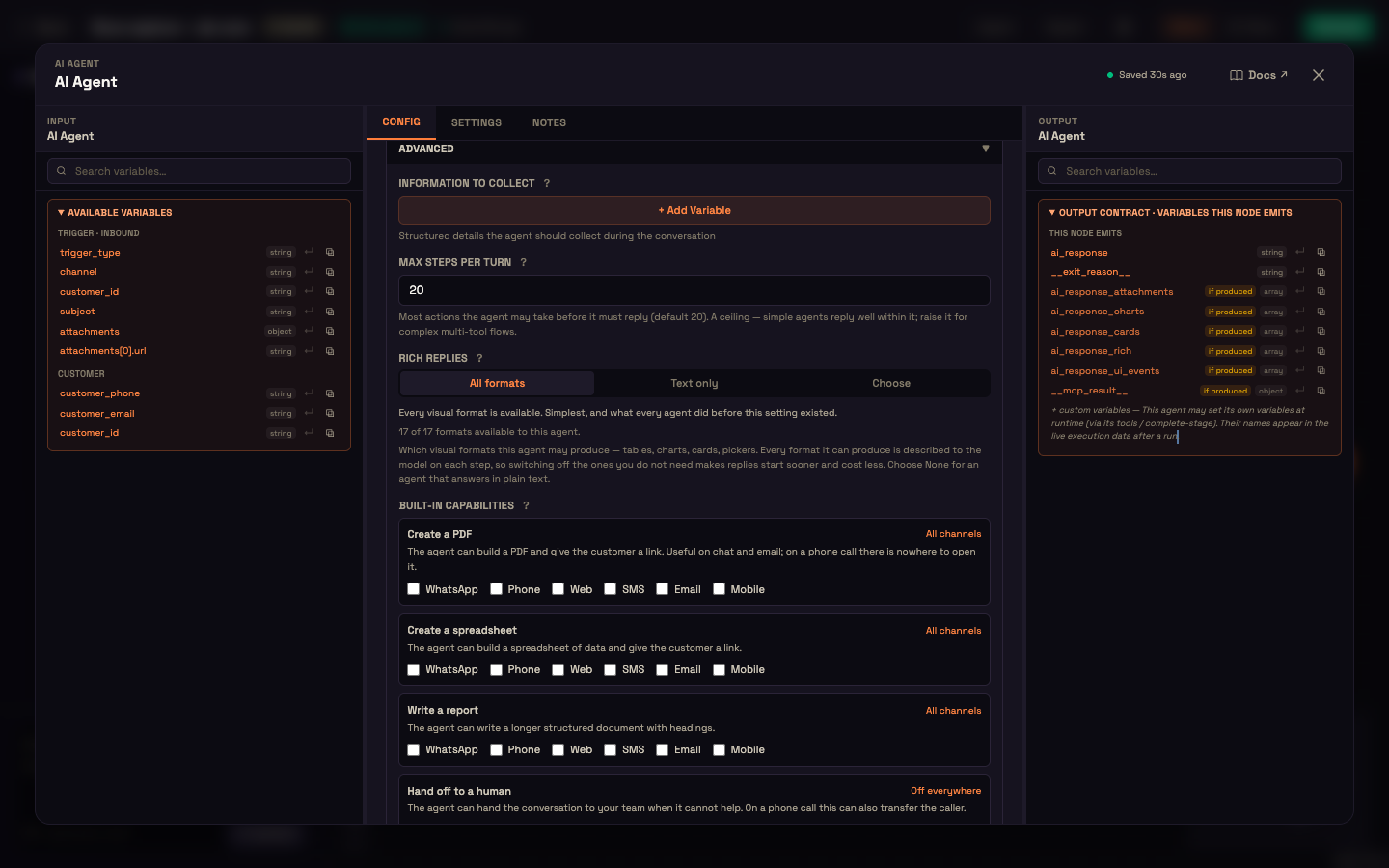
Open the AI Agent node, expand Advanced, and under Information to Collect click + Add Variable for each lead field you want the agent to capture. Each field has a Field name, a Type, a Required flag and a Prompt (the question the agent asks), plus an optional validation pattern and allowed values.
For Acme Store's sales flow, Asha adds these:
| Name | Type | Required | Prompt |
|---|---|---|---|
name | string | yes | What's your name? |
email | yes | What's the best email to reach you? | |
company | string | no | Which company are you with? |
team_size | number | no | Roughly how many people are on your team? |
use_case | string | no | What are you hoping to use Perfox for? |
A field's Type can be String, Number, Boolean, Date, Enum (fixed choices), Phone, Email, PAN or Aadhaar. The agent collects these conversationally — it never drops a form on the visitor. It also skips any field whose value is already known: if the persona prose or the host page already supplied a value, the agent won't re-ask for it. Collected values are written back to the customer's profile and forwarded downstream, so they're available to any CRM you call through an MCP tool. Collection is bounded, so the agent won't loop forever chasing an unwilling visitor.
Write the persona
On the Personality sub-node, make the sales behaviour explicit:
You are Acme's sales assistant. Greet the visitor, understand what they need, and collect their name, email, company, and use case along the way. Once you understand their need, offer to book a demo or connect them with a human. Be helpful and concise — don't be pushy.
While that runs, the agent's built-in update_customer_profile tool captures identity as the conversation goes — name, phone, email, external id, preferred language, tags, and a free-form attributes blob — writing straight into the customer's profile. It waits gracefully until a customer is identified, so it simply does nothing when there's no one to attach the details to yet. That means the persona-driven capture and the typed field gate work together: the prose triggers profile capture, and the field list enforces the must-have typed fields.
Add the human handoff
There are two ways to bring in a person. Most lead flows use the first.
Let the agent hand off when it's time. Open the AI Agent node, expand Advanced, and check Built-in capabilities → Hand off to a human. It's on for every channel by default. The agent can then hand the conversation to your team whenever the visitor asks for a person or it can't help. The conversation appears in Engage → Conversations for an operator to pick up. To route handoffs to a specific person or team, add an Operator sub-node on the AI Agent's Operator port. See Operator.
Or add a Human Handoff step. For a hard stop in the flow, add a Human Handoff node after the AI Agent. It creates a task, pauses the conversation, and waits for a person:
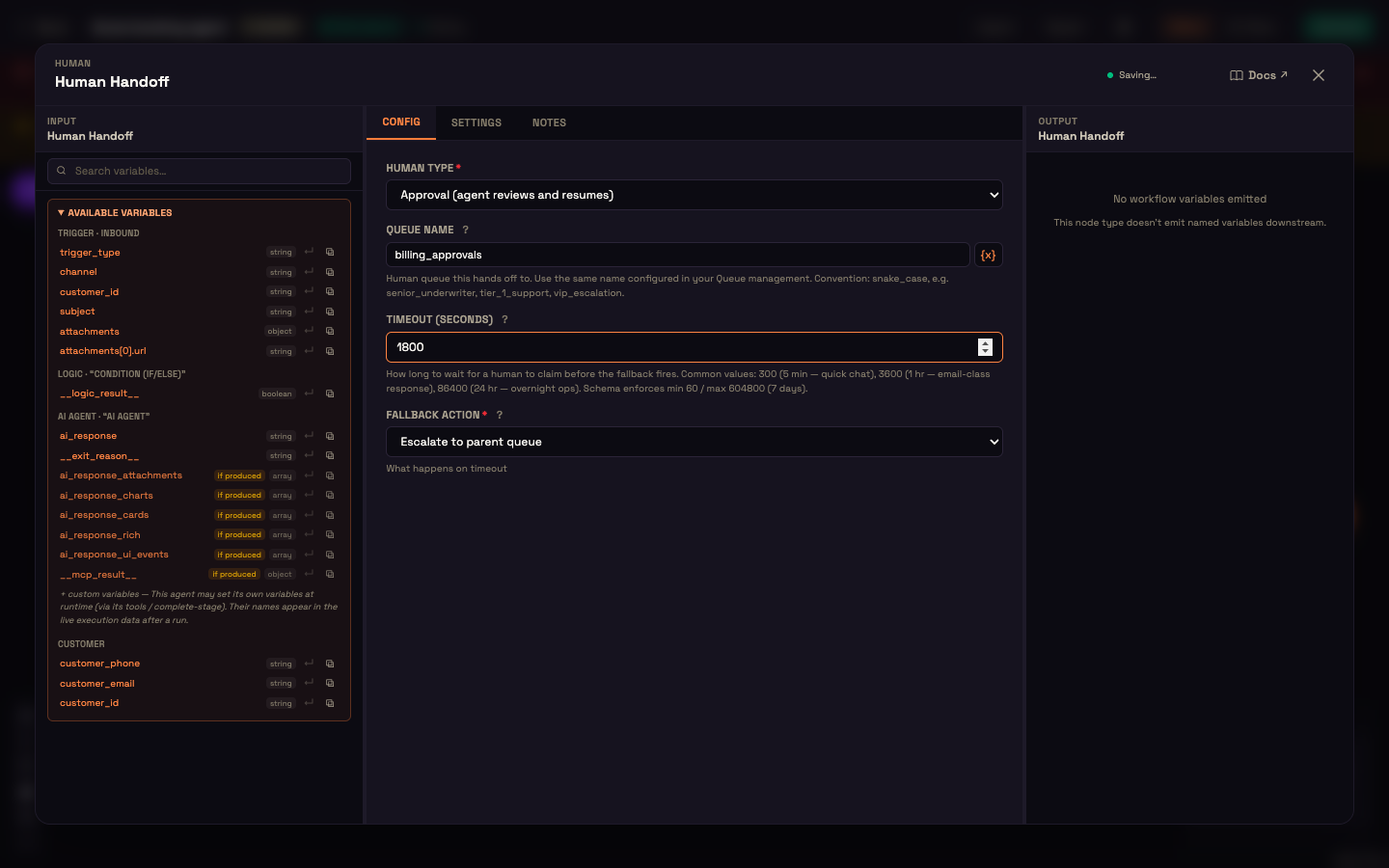
| Field | Meaning |
|---|---|
| Human Type | Handoff (a person takes over) or Approval (a person reviews and the agent resumes). |
| Queue Name | Which team's queue it lands in, e.g. sales. |
| Timeout (seconds) | How long to wait for someone to claim it. |
| Fallback Action | What happens if nobody does: Return to AI agent, End conversation or Escalate to parent queue. |
Add the trigger and activate
Add a Web Chat trigger wired into the AI Agent, if you haven't already, and click Activate.
What Priya sees
Here's the flow end-to-end, from Priya's first message to the chat landing in Asha's queue.
Setup. Asha has activated the agent above for Acme Store. The persona is the sales prose; the fields are name, email, company, team_size, use_case; a Human Handoff node sits after the AI Agent.
Action. Priya opens the site chat at 9pm and types.
Priya: Hi — do you have a plan for a small team? About 6 of us.
Acme assistant: We do. To point you at the right one, what are you hoping to use Perfox for?
Priya: Mostly answering customer questions on our site.
Acme assistant: Got it. I can set up a quick demo for that. What's your name, and the best email to reach you?
Priya: Priya. priya@acme.co
Acme assistant: Thanks, Priya. Want me to book a demo, or connect you with someone on our team right now?
Priya: Connect me with someone.
Result. The agent hands the conversation to Asha's team, and it shows up in Engage → Conversations, with Priya's name, email, team_size (6) and use_case already captured on her customer profile.
What just happened. Priya never saw a form. The agent wove the field questions into a normal chat, only asked for what it still needed, and wrote every answer to her profile as she went. Because it already knew her team size from her opening line, it didn't ask again. When she chose the handoff, the conversation went to a real person with the lead details attached, so Asha starts the morning knowing exactly who Priya is and what she wants.
Test it
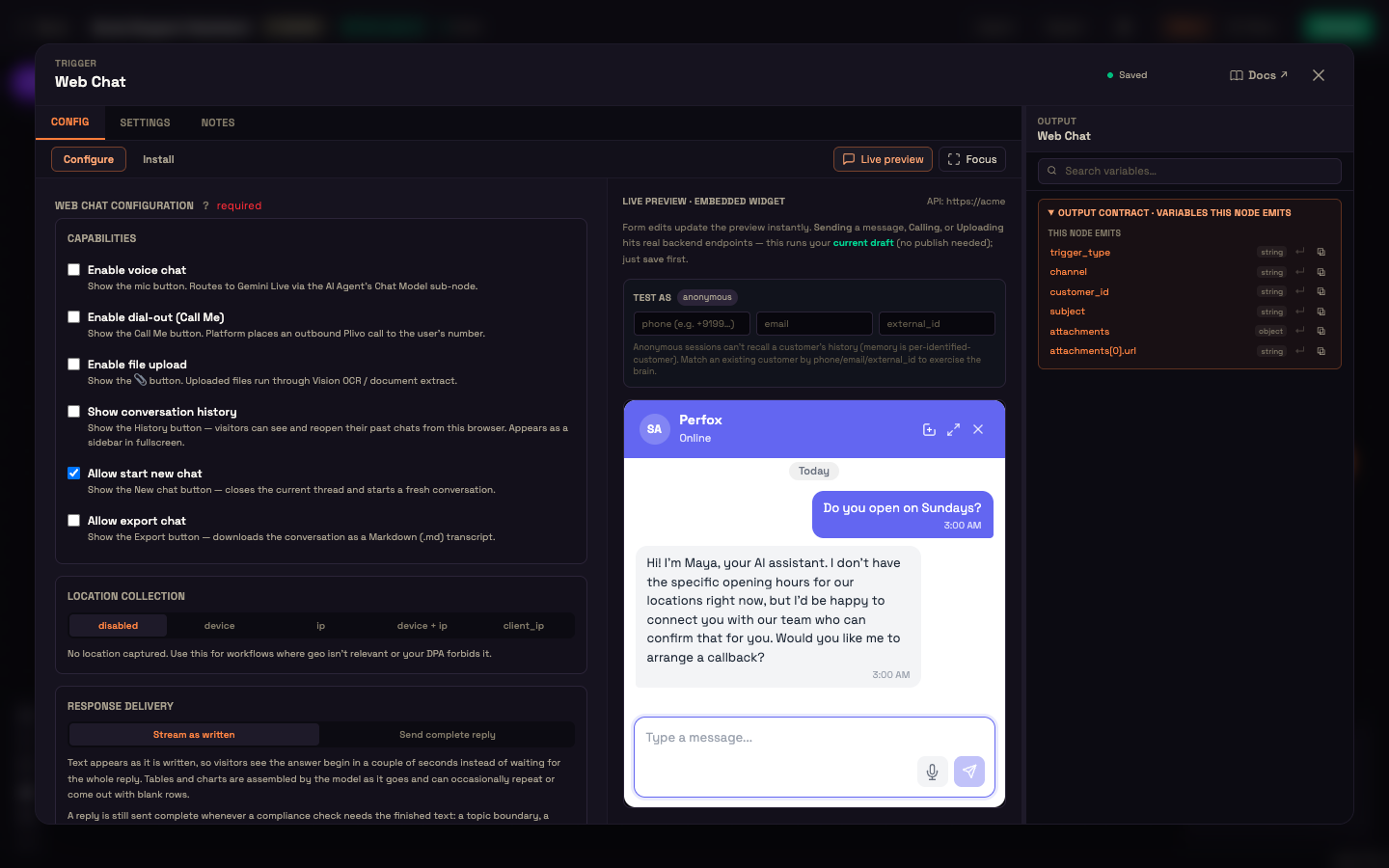
Open the Web Chat node and click Live preview. Chat as a visitor — ask about the product and watch the agent weave in the field questions naturally. Once it has what it needs, it offers a demo or the handoff; choose the handoff and confirm the conversation appears in your Conversations queue.
Variations
- Only hand off when qualified — with a Human Handoff step, put a Condition (IF/ELSE) node between the AI Agent and the Human Handoff, branching on the agent's exit reason, so unqualified visitors don't reach a person.
- Make the fields a hard gate — for must-have fields, add a Collect Info node as a deterministic hard gate that blocks progress until the required values are captured, rather than relying on conversational collection alone.
- Carry the lead across channels — because captured identity is matched to a single customer across phone, email, and WhatsApp (with phone numbers normalized to one canonical form), the same person is one customer across web, WhatsApp, phone, and email. When Priya comes back next week over WhatsApp, she's recognized rather than re-qualified.
You can now
You've built a Web Chat agent that qualifies a visitor, captures typed lead fields as they talk, saves them to the customer's profile, and hands a warm lead to a human. From here:
- AI Agent node — tune the persona, model, and the Information to Collect list you just used.
- Human Handoff — the handoff step's queue, timeout and fallback options.
- Customer Identity — see how one person stays one customer across every channel.
- Getting Started — set up the Web Chat site if you skipped it.