Google Sheets
When Asha's agent finishes taking a lead's name, email and enquiry, she wants that row to appear in a Google Sheet her team already uses, with no copying or exporting. This page gets your Google account connected. Once it's connected, any agent can work with your sheets through the Google Sheets action.
This page is for workspace admins connecting Google Sheets for the first time. You need a Google Cloud account and about ten minutes for the one-time setup.
How the connection works
Google Sheets is listed under Integrations on Admin → Credentials. It uses your own Google app: you create an OAuth app in your Google Cloud project, paste its Client ID and Client Secret into Perfox, and sign in with Google. Perfox keeps only the resulting connection token, never your Google password. It uses your app to reach your sheets and has no Google key of its own. The connection belongs to your workspace.
Step 1: Create your Google app
On Admin → Credentials, click Connect on the Google Sheets row (or Add another Google Sheets if you already have one). The Connect Google Sheets window lists the one-time setup, with copy buttons for everything you need to paste into Google:
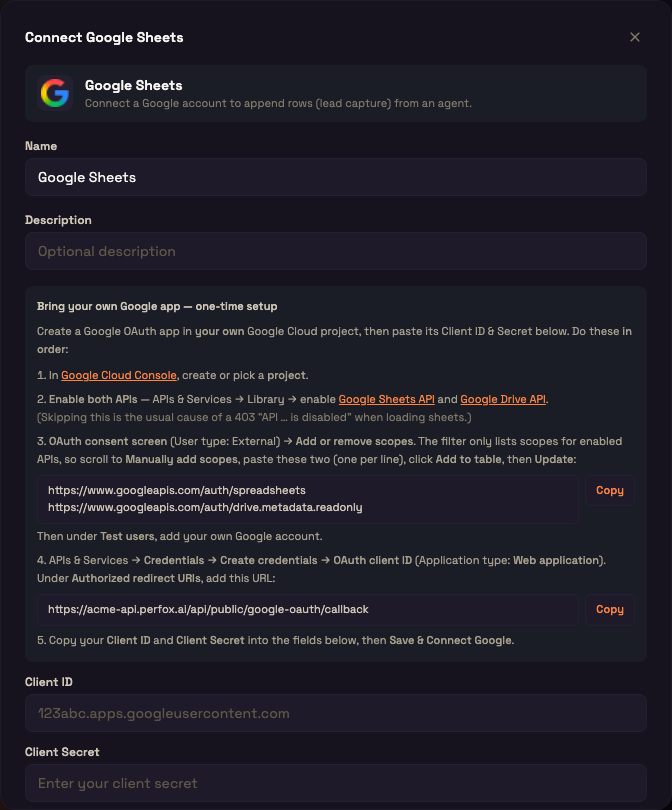
Complete these steps in the Google Cloud Console, in order:
- Create or pick a project.
- Enable both APIs in APIs & Services → Library: the Google Sheets API and the Google Drive API. Skipping this is the usual cause of an "API … is disabled" error later.
- OAuth consent screen (User type: External) → Add or remove scopes. The scope filter only lists scopes for APIs you've enabled, so scroll to Manually add scopes, paste the two scopes below (one per line), click Add to table, then Update. Under Test users, add your own Google account.
- APIs & Services → Credentials → Create credentials → OAuth client ID, with Application type Web application. Under Authorized redirect URIs, add the URL shown in the window.
- Copy the Client ID and Client Secret into the window.
The two scopes Perfox asks for:
text
https://www.googleapis.com/auth/spreadsheets
https://www.googleapis.com/auth/drive.metadata.readonly| Scope | Why |
|---|---|
spreadsheets | Read and write the sheets and tabs you point an agent at. |
drive.metadata.readonly | List your spreadsheets by name so you can pick one. Perfox never opens file contents through Drive. |
The redirect URL is your workspace's API address followed by the callback path:
text
https://<your-workspace>-api.perfox.ai/api/public/google-oauth/callbackCopy it from the window rather than typing it. If it doesn't exactly match what's registered in Google, the sign-in fails.
Step 2: Connect
- In the window, enter a Name (optional Description), then your Client ID and Client Secret. Both are required. Leave either blank and Perfox asks you to enter them first.
- Click Save & Connect Google. You're taken to Google's consent screen.
- Choose your Google account and approve.
You come back to Credentials with the card showing Connected and the description Connected to <your Google email>.
The sign-in link works once and expires after 10 minutes. If you leave it too long or open it twice, start again from the card. After sign-in, Perfox only sends you back to a Perfox address. If it can't, it shows a page telling you the connection is done and you can close the tab.
Step 3: Test the connection
Click Test Connection on the card. This is a real check against Google. Perfox signs in with your connection and lists your spreadsheets. If it works, you see:
✓ Connected — Connected as <email> — Google Sheets reachable (N spreadsheet(s) visible)
The count stops at 10+. If the test fails, the banner says what to fix. The most common message:
Enable the Google Sheets API and Google Drive API in your Google Cloud project (APIs & Services → Library → enable both), then try again.
The same message appears when an agent uses the sheet, and when you pick a spreadsheet or tab in an agent, so forgetting step 2 always gives you the fix, not a bare error.
The Google Sheets card
| Badge | Meaning |
|---|---|
| Connected (green) | Signed in and working. |
| Error (red) | The last test or use failed, for example because the token expired. |
| Not configured (grey) | Saved, but Google sign-in hasn't been completed yet. |
Actions on the card:
- Connect Google / Reconnect: signs in to Google again on the same connection. The button reads Reconnect when the card is connected and Connect Google otherwise.
- Test Connection: the live check above.
- Edit (Configure until sign-in is complete): change the name, description, Client ID or Client Secret.
- Delete (bin icon): removes the connection after you confirm. This can't be undone, and any agent using it loses its Google connection.
- Expand (arrow): shows the saved settings, when the connection was last tested, and which agents use it.
Staying connected
Perfox refreshes your Google access in the background, so you never deal with tokens. Every use and every test renews access automatically when it's close to expiring.
The one thing to watch: Google's 7-day limit in Testing mode. If your Google app's publishing status is still Testing, Google cancels its sign-ins after 7 days, and saving to the sheet stops. When that happens you'll see:
Google connection expired or revoked (apps in "Testing" mode expire tokens after 7 days). Fix: click Reconnect. Publish your Google app to Production to stop the 7-day expiry.
Click Reconnect to sign in again on the same connection, so every agent that uses it keeps working without changes. To stop this happening every week, publish your Google app to Production on the OAuth consent screen in Google Cloud.
Use it in an agent
Add a Google Sheets action to an agent, choose this Google connection, and pick the spreadsheet and tab from lists. You never paste an ID. Each Google Sheets action does one job, which you choose under What this node does:
| Group | Options |
|---|---|
| Write | Add a row · Add several rows at once · Add a row, or update the person if they are already there · Update an existing row |
| Read | Find rows by a column value · Read rows |
| Destructive (only add these deliberately) | Blank a row's values (keeps the row) · Delete a row entirely |
| Structure | Add a tab to this spreadsheet · Create a new spreadsheet |
If an agent needs to both write and read, add two Google Sheets actions. For Add a row, you choose whether the AI decides the columns or you map each column yourself. The full action reference is in Integrations.
Worked example: capturing leads for Acme Support
Setup. Asha wants every enquiry her agent handles to land as a row in the Lead Tracker spreadsheet.
Action.
- In Admin → Credentials → Integrations → Google Sheets, she clicks Connect, follows the five setup steps in Google Cloud, pastes her Client ID and Secret, and clicks Save & Connect Google.
- She approves on Google's consent screen. The card shows Connected, and Test Connection reports her spreadsheets are reachable.
- She publishes her Google app to Production so the connection doesn't expire after 7 days.
- In her agent, she adds a Google Sheets action set to Add a row, picks the connection, Lead Tracker and the Inbound tab, and leaves the row on Let the AI decide. In the agent's prompt she writes: "Save the customer's name, email and enquiry to the sheet."
Result. Priya asks about pricing. The agent collects her name, email and question, and a new row (Priya Sharma | priya@example.com | Pricing question) appears on the Inbound tab.
Troubleshooting
| Symptom | Fix |
|---|---|
| Google's sign-in page shows redirect_uri_mismatch | The redirect URL registered in Google doesn't exactly match the one in the Connect window. Copy it again. |
| "API … is disabled" or the enable-both-APIs message | Enable both the Google Sheets API and the Google Drive API in the same Google Cloud project. |
| The card turns Error about a week after connecting | Your Google app is still in Testing. Click Reconnect, then publish the app to Production. |
| Google won't let you sign in with your account | Add the account under Test users on the consent screen, or publish the app. |
| Perfox asks for the Client ID and Secret first | Enter both on the connection (Edit) and connect again. |
What's next
- Integrations: configure the Google Sheets action in an agent.
- Connections: the Credentials page, badges and card actions for every provider.
- Provider Matrix: every provider you can connect.