Studio Tour
Asha, an admin at Acme Support, has just signed in for the first time and wants to know where everything lives before she builds anything. This page is that walk-through. By the end, you'll know which screen does which job, in the order you'll meet them in Getting Started.
You don't need to build anything yet, just get your bearings. The Studio is where you build, run and watch your agents. You sign in with your own login, and everything you see (agents, conversations, customers, keys) belongs to your workspace alone.
The sidebar
Everything is one click away in the left sidebar, grouped by what you're doing:
| Group | Pages | What you do there |
|---|---|---|
| — | Dashboard | See conversation volume, resolution rate, response time and channel mix at a glance. |
| Build | Agents, Agent Marketplace | Build agents on the canvas, or start from a ready-made one. |
| Connect | Integrations, Knowledge Base | Connect your own tools (MCP servers and third-party apps), and upload or sync the documents your agents answer from. |
| Engage | Conversations, Cases, Customers | Follow every conversation, work cases with your team, and look up customers. |
| Monitor | Analytics | Dig into performance, engagement and usage. |
| Admin | Settings, Developer, Users, Roles, Connections, Compliance, Audit Log | Configure your workspace, API keys, team access, provider accounts and compliance. |
| Accounts | Billing, Transactions, Usage | Your credit balance, top-ups and invoices, and what you've spent by channel. |
| Support | Support Center | Raise and track tickets with the Perfox team. |
Across the top of every page you'll find your credit balance with Add credit, a Search box (press ⌘K), the notifications bell, and your account menu.
Dashboard — where you land
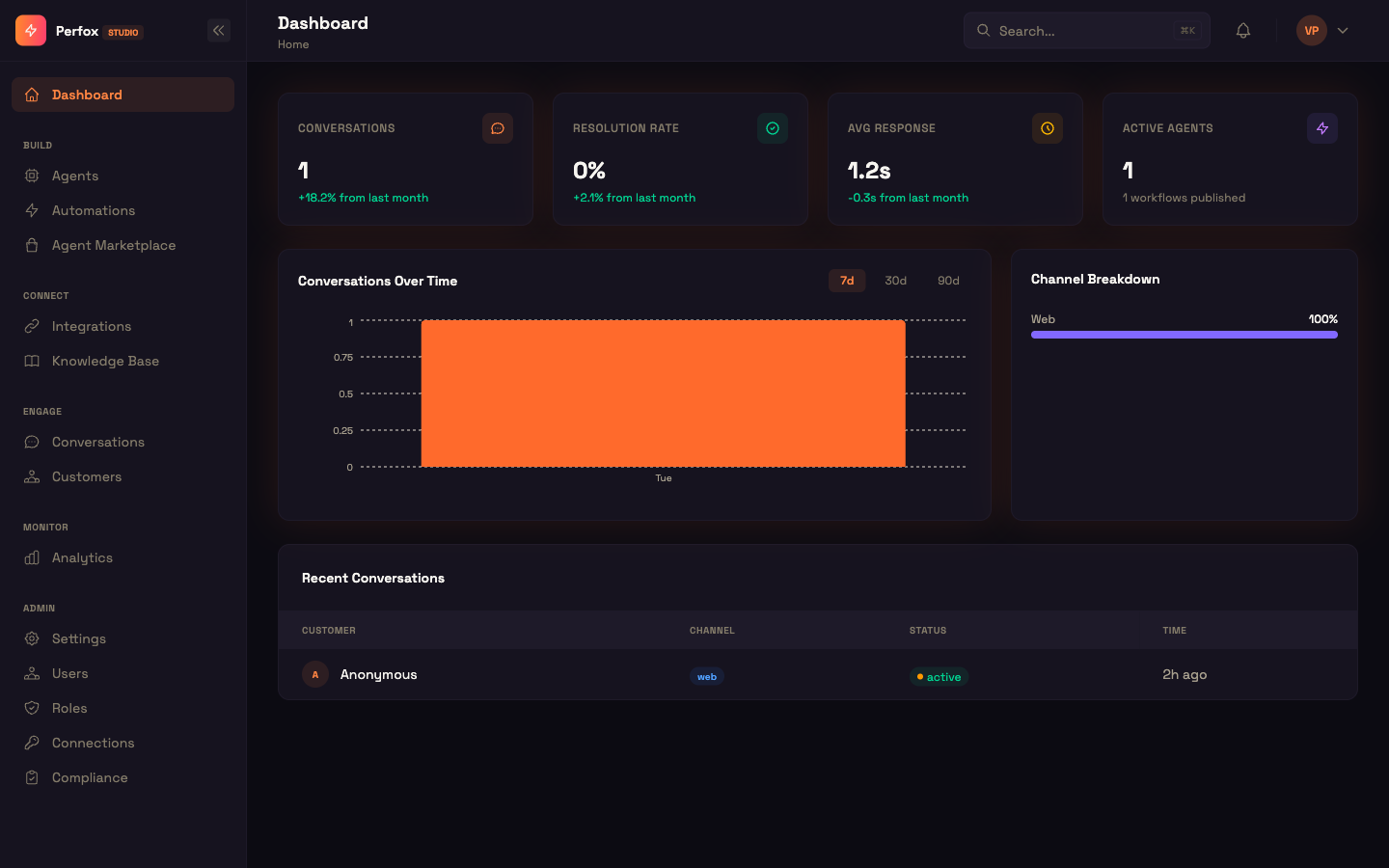
The dashboard is the first screen after you sign in. Glance at it to see how your agents are doing, then move to whichever section you need. See Dashboard.
Agents
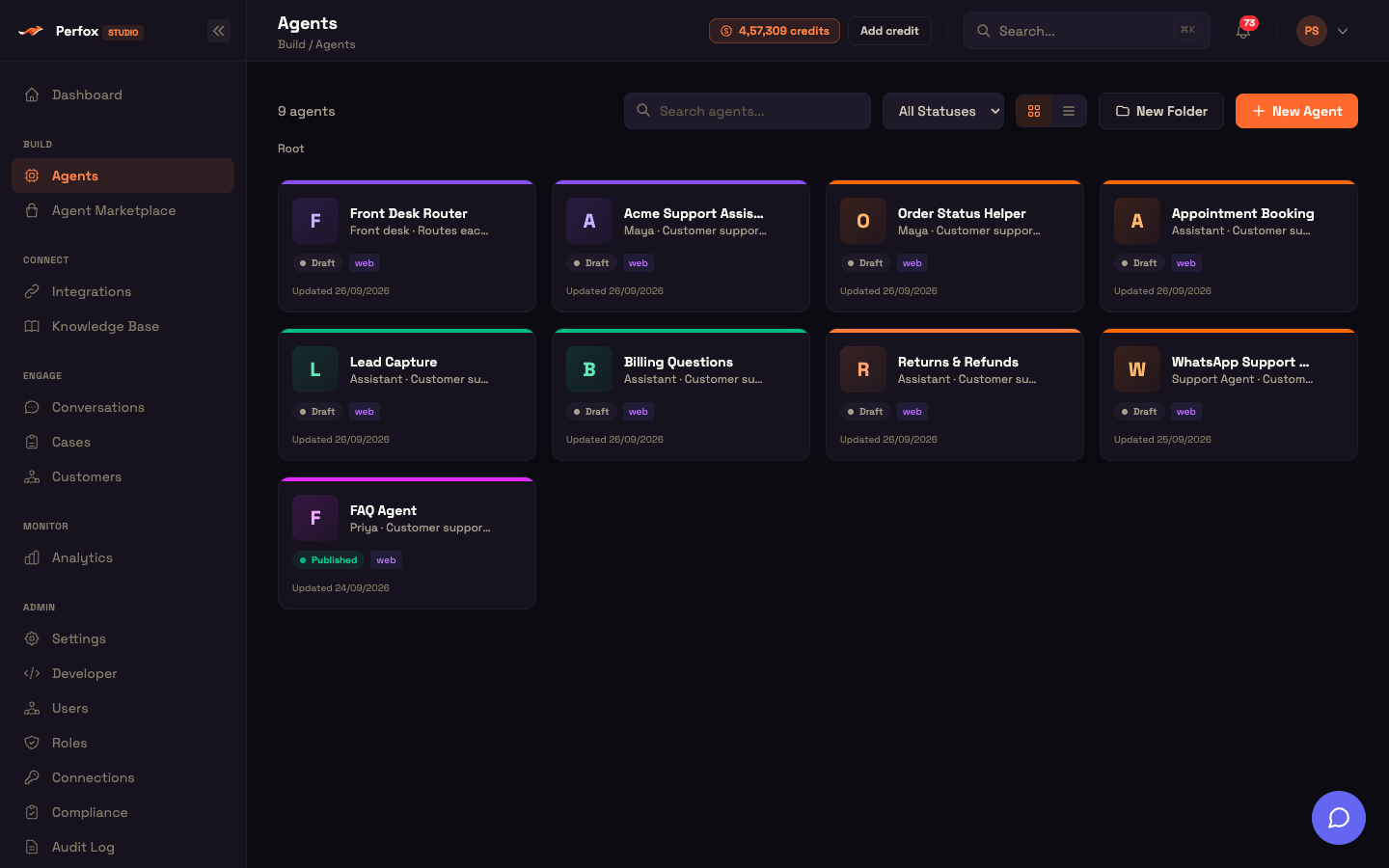
Every agent you build is listed here as a card with its name, personality, status and last update. Click + New Agent to open a blank canvas, or New Folder to organise agents. The status filter and the grid/list toggle help once you have many.
When Asha builds her "Order help" agent, it starts as a Draft. Once she's happy with it and clicks Activate on the canvas, the card shows Published and the agent answers real customers.
Conversations
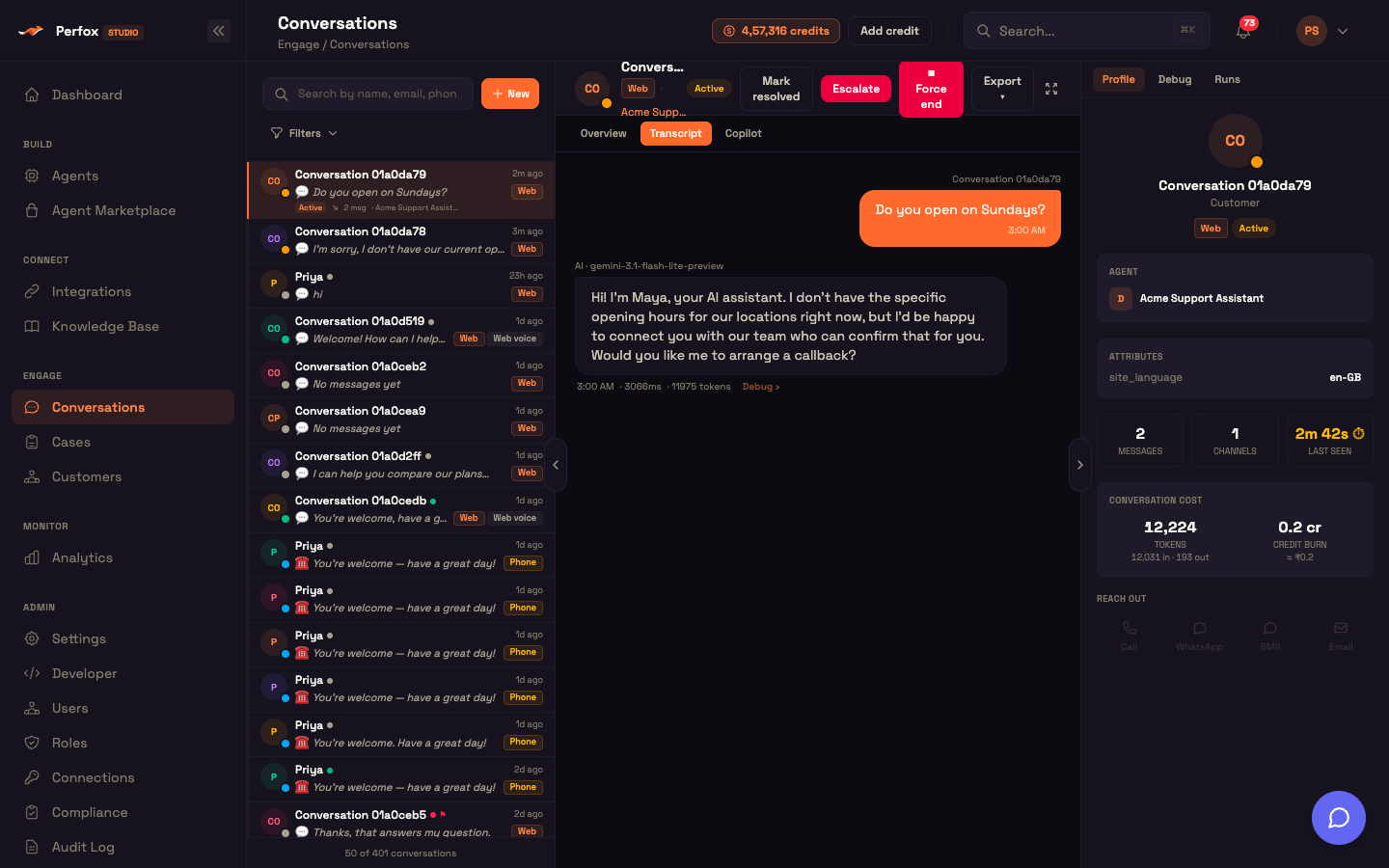
This is your inbox for every channel: web, SMS, WhatsApp, email and voice. Pick a conversation to read the Transcript, see which agent handled it and what it cost, and act on it with Mark resolved, Escalate or Force end. The Copilot tab helps a person who takes over a live conversation.
Because Perfox recognises a customer by phone, email and WhatsApp, the same person on different channels appears as one customer. If Priya chats on the website and then messages your WhatsApp number while that chat is still open, her WhatsApp message lands in the same conversation. See Conversations.
Customers
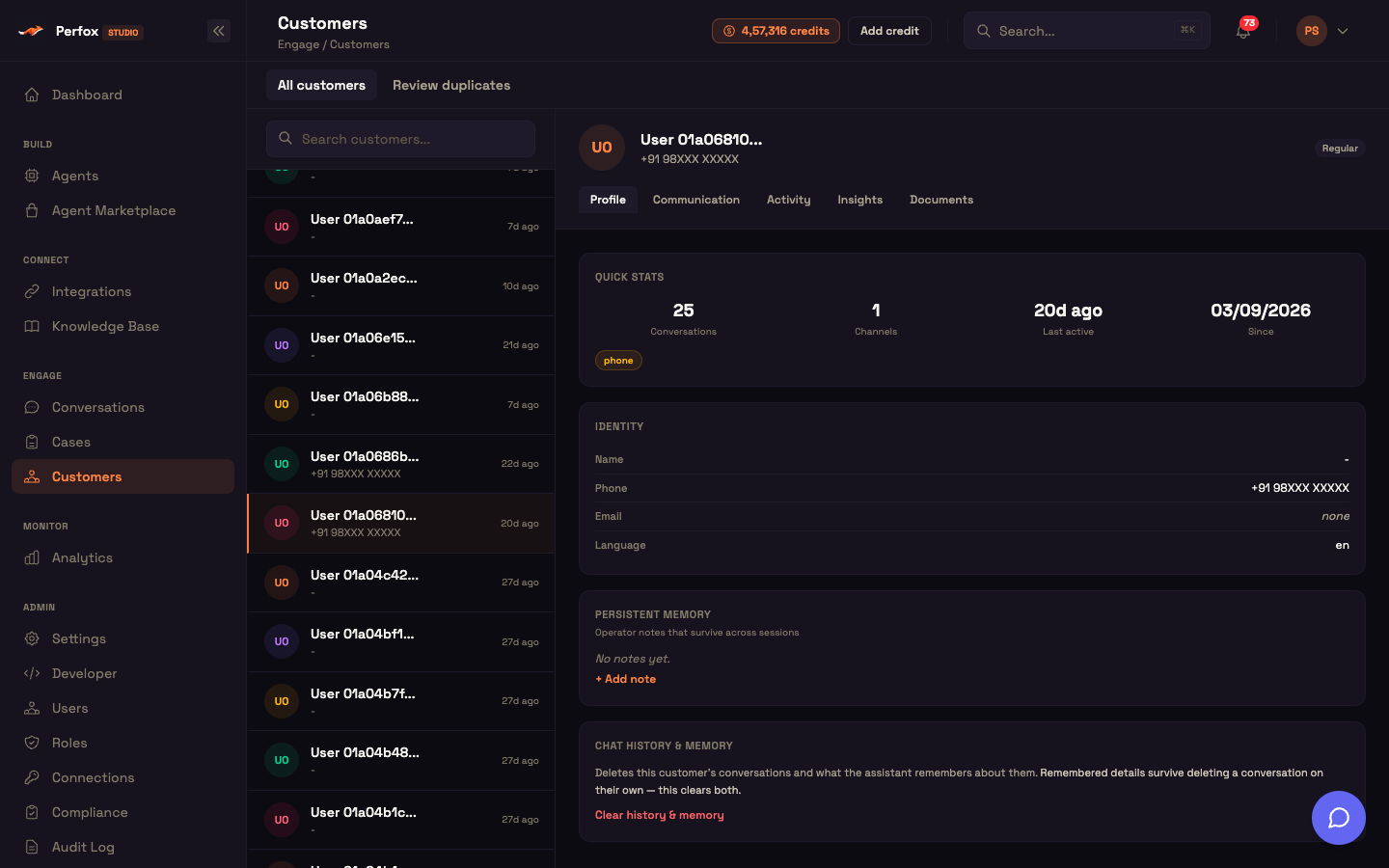
The customer directory lists everyone your agents have talked to. Anonymous website visitors appear as temporary records until they identify themselves. Review duplicates helps you merge records that belong to one person. Open a customer to see the tabs Profile, Communication, Activity, Insights and Documents. On Profile you can keep Persistent memory notes about the customer and clear their chat history and remembered details. See Customers and Agent Memory.
Developer — API keys and more
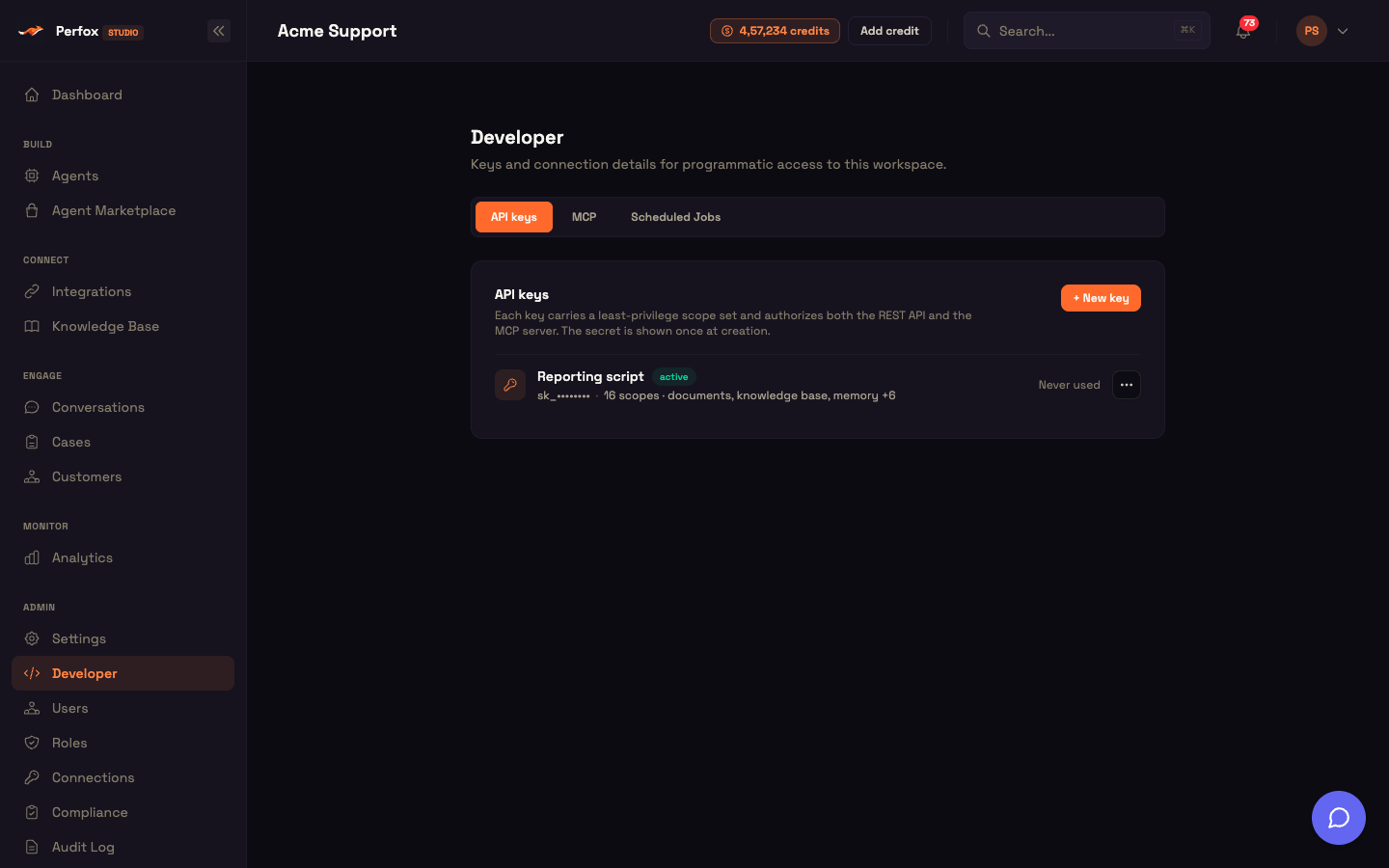
Admin → Developer holds everything for programmatic access:
- API keys: create a key with + New key. Each key carries only the scopes you give it (for example documents or knowledge base), works for both the REST API and the MCP server, and its secret is shown once, when you create it. A key can only reach what its scopes allow.
- MCP: the server URL for connecting Claude, ChatGPT, Cursor or any other MCP client to your workspace's tools, signing in with OAuth 2.1 or an API key.
- Scheduled Jobs: every recurring job in your workspace (scheduled agents, knowledge-base syncs, email inbox listeners), with when each runs next and any error.
So if Asha wants a script that only uploads documents, she creates a key with just that scope. If the key ever leaks, the damage is limited to what it could do. See API Keys.
Connections
Admin → Connections is where you connect your own provider accounts: Plivo for phone, SMS and WhatsApp, your email provider, your file storage and databases. The AI model is included and managed by Perfox, so it isn't listed here. See Bring Your Own Provider.
Where to go next
You can now find your way around the Studio: land on the dashboard, build on Agents, follow traffic in Conversations, look people up in Customers, and manage keys under Developer.
- Getting Started — build and embed your first agent end to end.
- Welcome & First Agent — the starter-agent picker you see on first sign-in.
- Bring Your Own Provider — connect your own provider accounts.
- API Keys — script the Perfox API.