Customer Service from your Website
Priya lands on the Acme Store site at 11pm with a question that's already answered on your shipping page, but she'd rather ask than hunt for it. By the end of this page you'll have a Web Chat agent that reads your live website and answers her from your own content.
This page is for anyone who wants the agent to speak from the pages you've already published. You'll point Perfox at a URL, let it crawl the site, and attach the result to an agent. You won't write any content twice.
What you'll build
A Web Chat support agent backed by a Website source. You give it a URL, Perfox crawls the site, and each page is prepared for search just like a file you upload. When your website changes, you re-sync, and the agent's answers follow.
Before you start
- A Perfox workspace. The AI model is included; no provider connection is needed.
- A public website URL. The Website source reads public pages with no credential, unlike the AWS S3, Google Drive and OneDrive sources, which reach private files through an account you connect on Admin → Connections.
Steps
1. Add a Website source
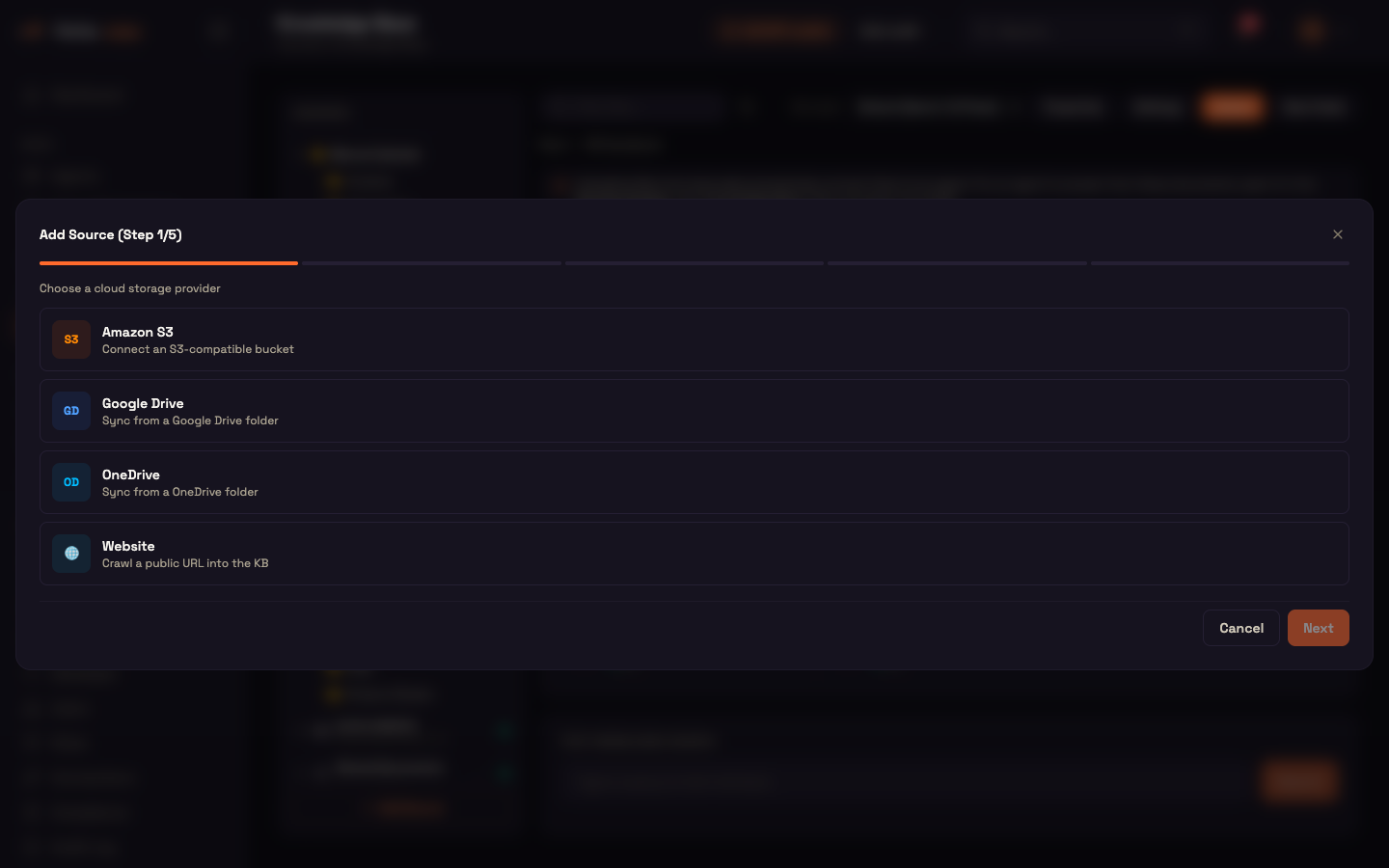
Go to Connect → Knowledge Base and click + Add Source at the bottom of the Sources list. Choose Website.
2. Configure the crawl
The wizard asks how to crawl:
| Setting | Meaning |
|---|---|
| URL | Where the crawl starts. Public pages only; login walls and paywalls aren't supported. |
| Crawl depth | 0 = just that URL; up to 4 = follow links that many levels deep. |
| Same domain only | On by default: skip links to other websites, so you index your site, not the wider web. |
| File types to index | Page text is always indexed. Optionally also download and index linked PDFs, Images, Documents (Word, Excel, PowerPoint) and Other supported files. |
| Max file size / Max total files | Skip files over a size (25 MB by default) and cap the files per crawl (500 by default). |
| Page indexing depth | Lite (fast and low cost, recommended for large sites) indexes page text for search; the richer option adds per-page AI enrichment at a higher credit cost. Downloaded files always get full indexing. |
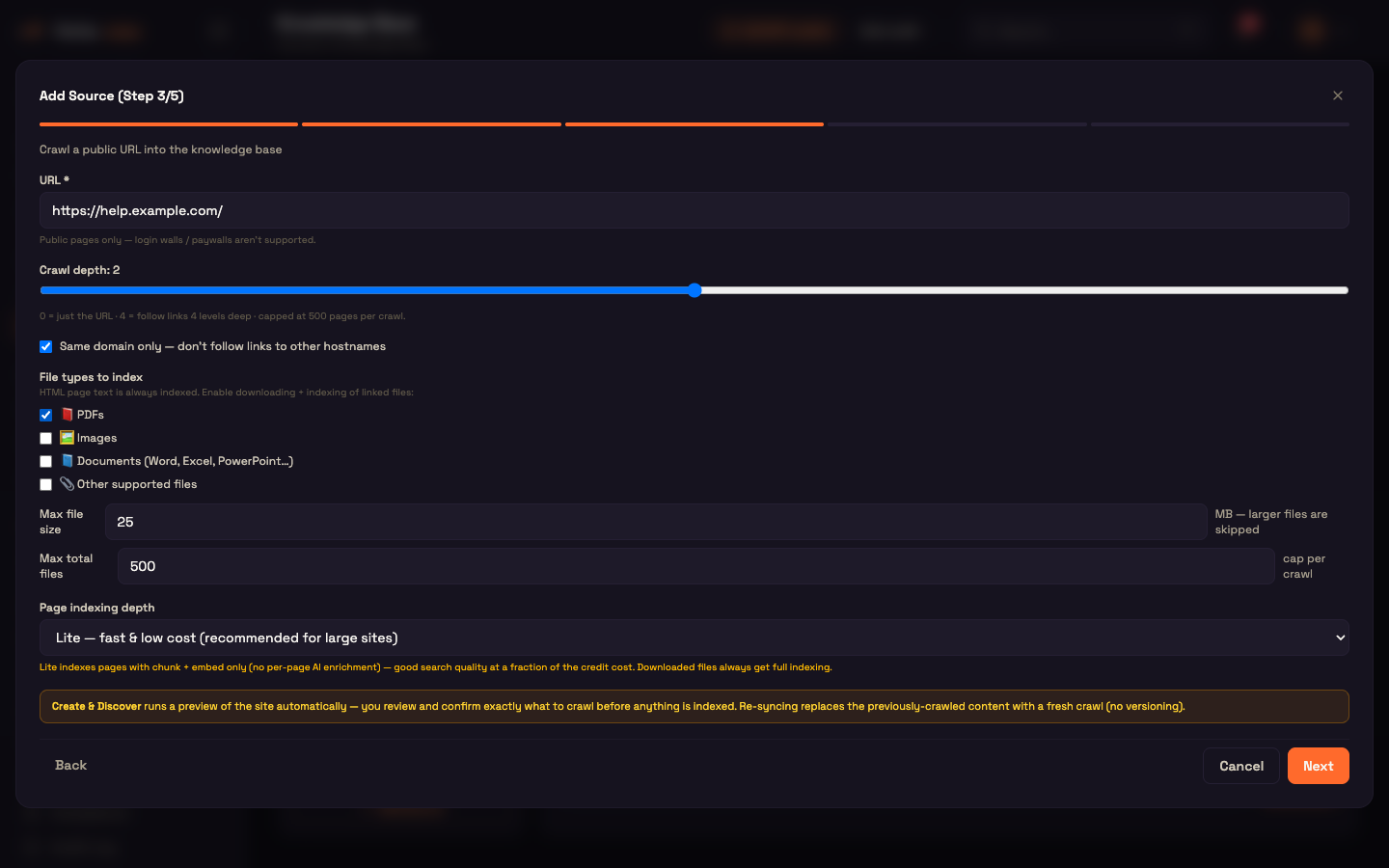
Create & Discover runs a preview of the site first. You review and confirm exactly which pages to crawl before anything is indexed. A single crawl is capped at 500 pages. If the cap is reached, the crawl stops cleanly with a warning on the source rather than failing. Narrow the URL or lower the depth to stay under it.
The crawled pages land in the source's own folder in the Sources list.
3. Build the agent
Same shape as the FAQ recipe: a Web Chat trigger, an AI Agent, a Personality with a support persona such as:
You are Acme's support assistant. Answer from the knowledge base. If something isn't covered, say so and offer to connect a human.
and an AI Model left on Platform default.
4. Attach the website folder
Click the + under the AI Agent's Knowledge port, add a Knowledge sub-node, and under Folders tick the website source's folder.
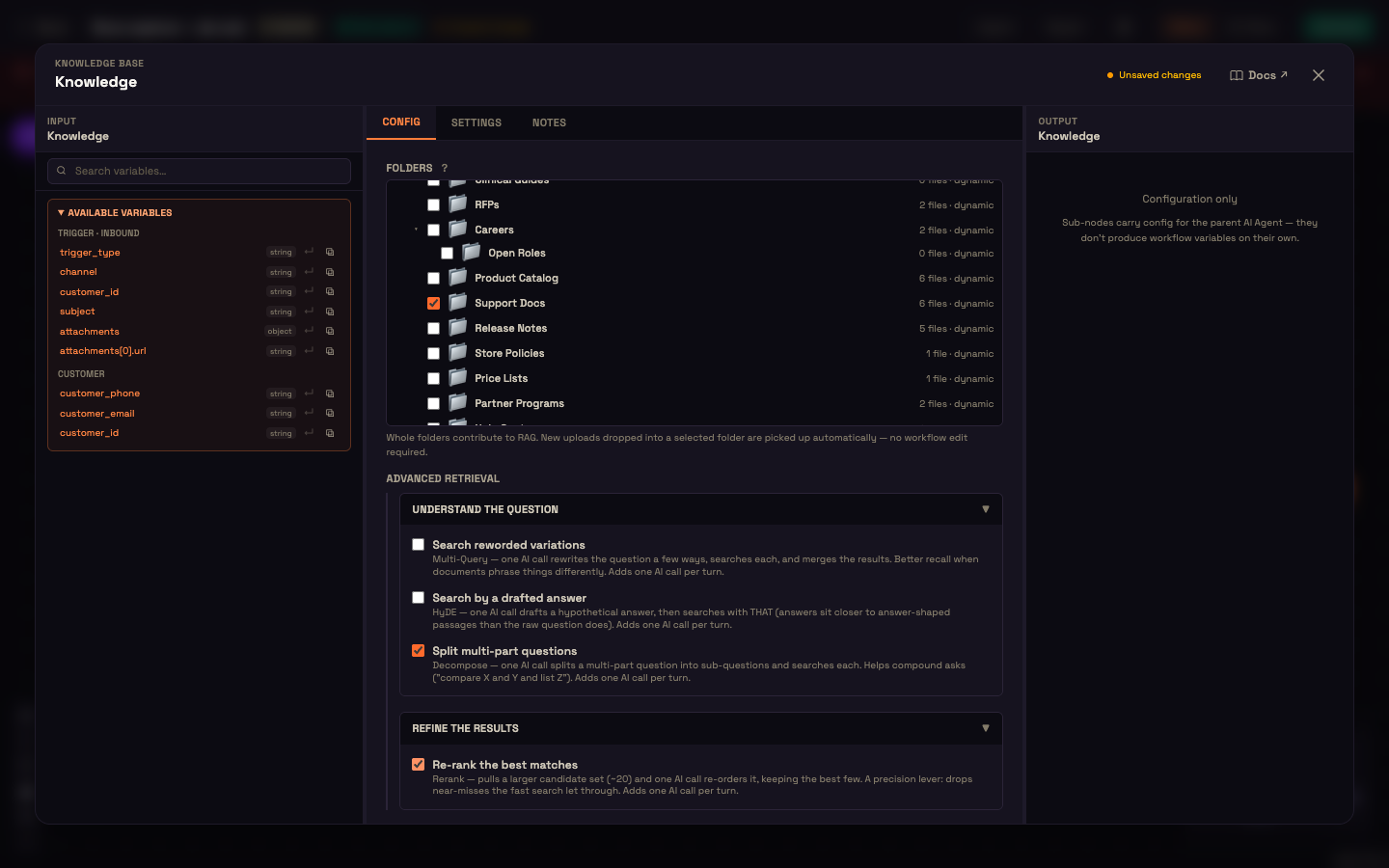
Search is limited to the folders ticked here. When the source re-crawls and refreshes the folder, the agent uses the new content automatically, with no change to the agent.
5. Test, then activate
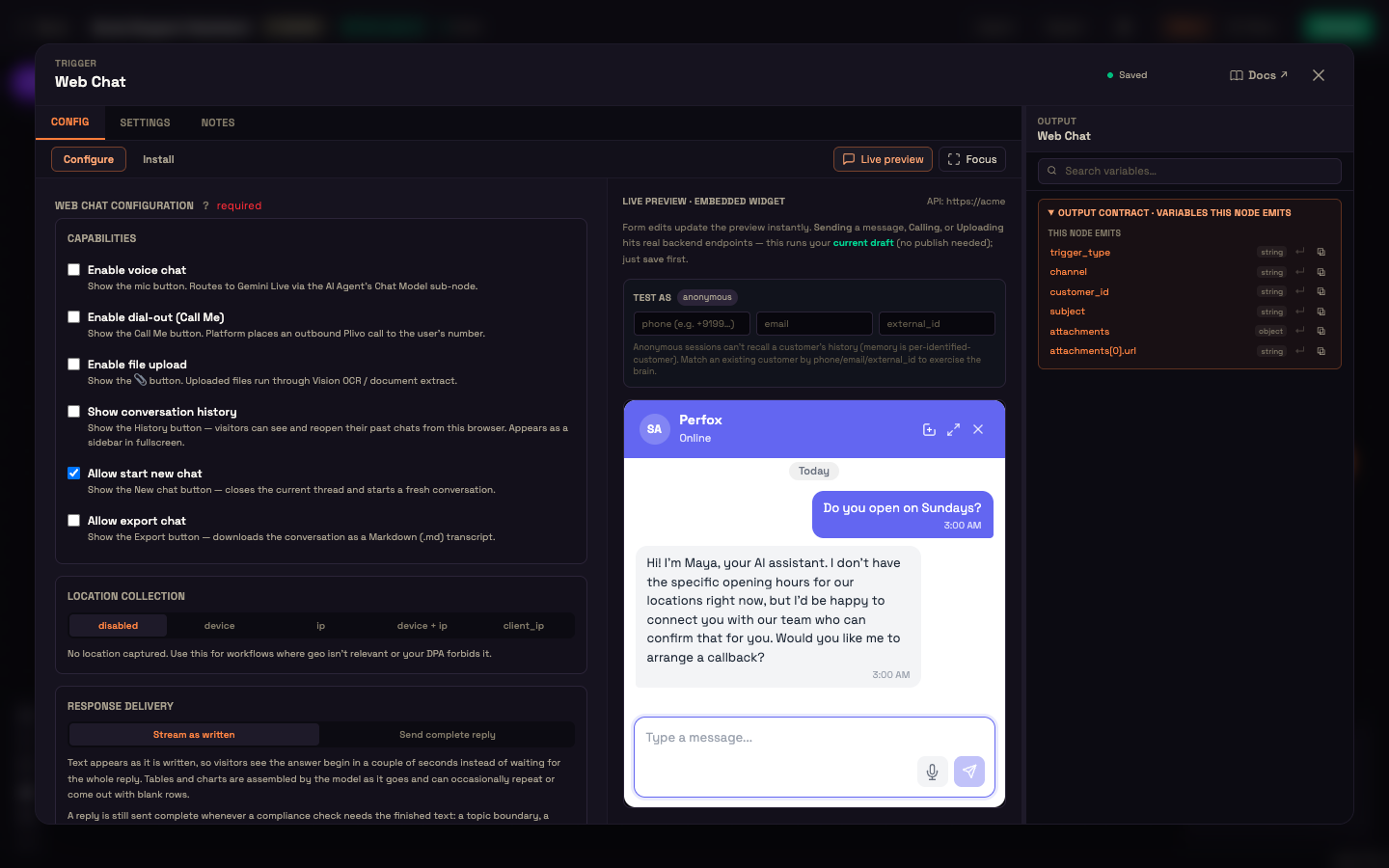
Click the Web Chat node, then Live preview, and ask something only your site can answer. When you're happy, click Activate.
A day in the life: Acme Store answers a real question
Setup. Asha, an admin at Acme Store, adds a Website source for https://shop.example.com with crawl depth 1, Same domain only on and Lite indexing. Create & Discover finds 74 pages, including the shipping and returns pages, and she confirms the crawl. She builds the support agent, ticks the website folder on its Knowledge sub-node and activates it.
Action. That night, Priya opens the chat bubble on the Acme Store site:
Do you ship to Pune, and how long does it take?
Result. The agent finds the shipping page in the website folder and replies:
Yes, we ship across India, including Pune. Standard delivery is 3–5 business days, and you'll get a tracking link by email once your order ships. If it hasn't arrived in 7 days, I can connect you with a human to check on it.
What just happened. The Knowledge sub-node limited the search to the crawled website folder, the agent found the matching shipping content, and the persona answered in a support tone, from Acme's own page rather than a guess. When Asha updates that page and re-syncs, the next customer gets the new answer.
Crawl limits and re-syncing
- Public pages only. No credential is used, so pages behind a login are out of reach.
- 500 pages per crawl. Hitting the cap stops the crawl with a warning rather than a failure.
- Re-syncing replaces the previous crawl. Each sync is a fresh snapshot; website pages aren't versioned individually.
For the sources that use a connected account (AWS S3, Google Drive, OneDrive), a sync also follows folder changes in the source: creates, renames, moves and deletes. You can schedule these to sync regularly. See Connectors.
Variations
- Combine crawled and uploaded content. Tick both the website folder and a hand-curated upload folder (FAQ recipe) on one agent.
- Tighten or widen the crawl. Adjust crawl depth and the same-domain option.
- Index linked documents. Tick PDFs or Documents under file types so brochures and manuals linked from your site are searchable too.
Where to go next
- FAQ Agent — combine crawled pages with documents you upload.
- Connectors — the Website, S3, Google Drive and OneDrive sources in depth.
- Knowledge Base & RAG — the concepts behind retrieval.
- Knowledge sub-node — every setting on the sub-node you attached in step 4.