Agent Marketplace
You know what your agent needs to do — now you'd rather start from something real than a blank canvas. The Agent Marketplace is a gallery of ready-made agent templates that get you to a working draft in a few clicks.
After you pick a template you land on the canvas, so skim Canvas Basics if you haven't used it yet.
Browsing the gallery
Open Build → Agent Marketplace. Each card shows the template's name, industry category, a short description, how it works (Chat, Voice or Background), the channels it uses, and whether it's Free or Paid. Templates provided by Perfox carry a STARTER badge; templates your team saved appear alongside them.
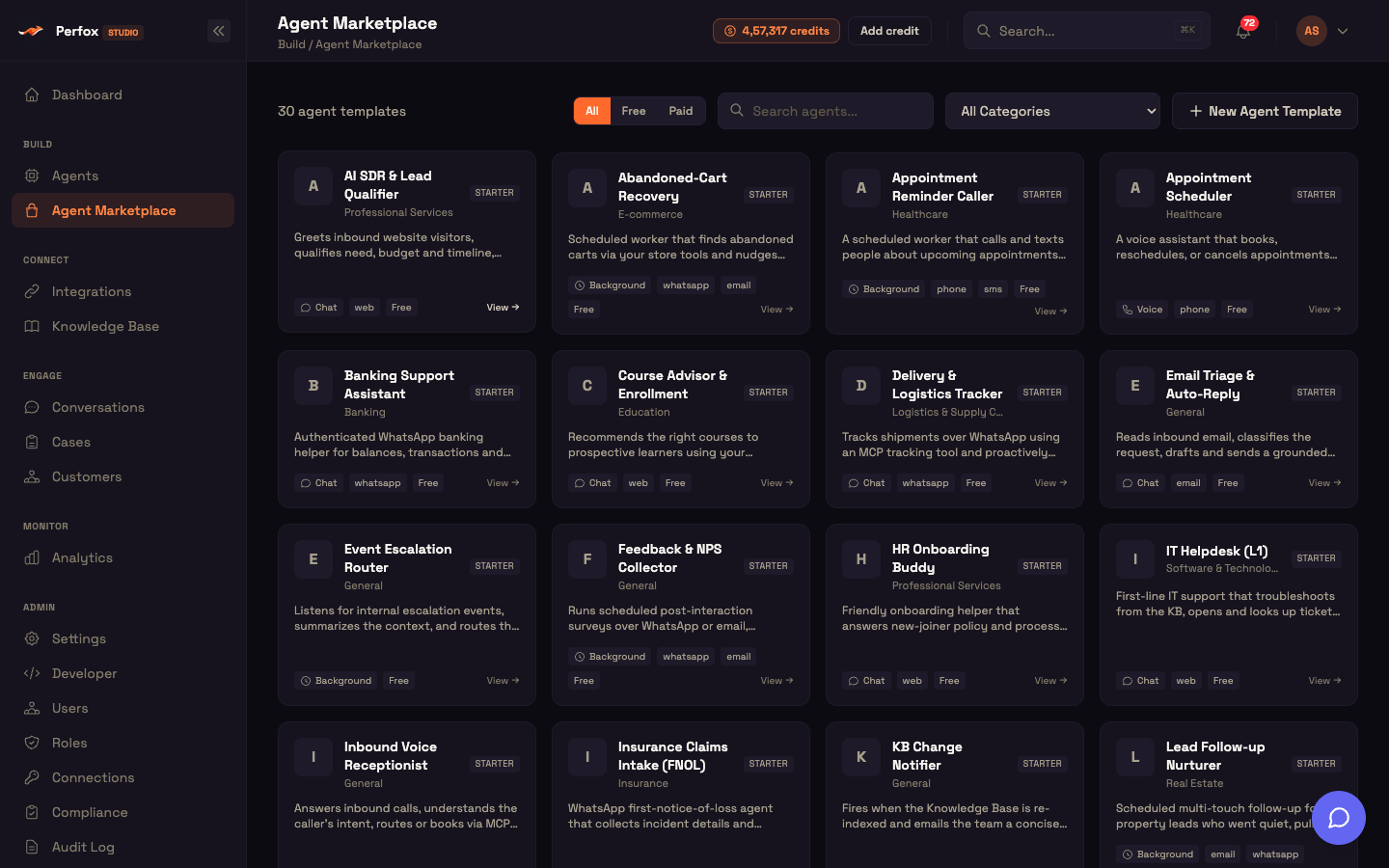
Narrow the list with the All / Free / Paid switch, the Search agents… box, and the All Categories menu (Banking, Insurance, Healthcare, E-commerce, Education, Real Estate, Travel & Hospitality, and more). The starter set covers common jobs — web support, WhatsApp support, email triage, appointment booking and reminders, order tracking, returns, lead qualification and follow-up, IT helpdesk, HR onboarding, feedback and NPS, payment reminders, claims intake, webhook lead intake, and others.
A template's page
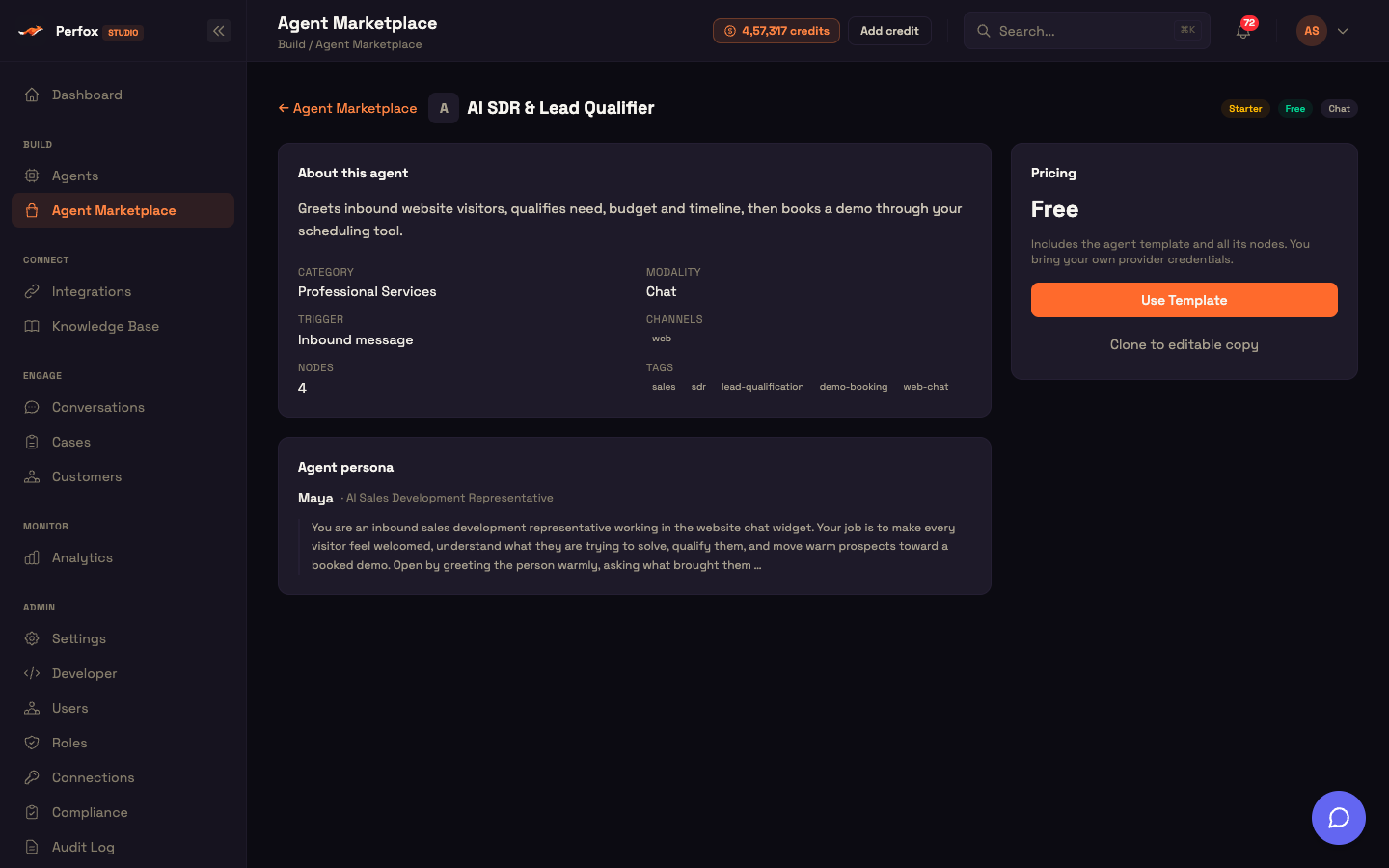
Click View → on a card to open its page:
- About this agent — the description, Category, Modality, Trigger, Channels, number of Nodes, and Tags;
- Agent persona — the persona's name and role and the start of its instructions, so you can see how it will talk;
- Pricing — Free or Paid, and a reminder that you connect your own provider accounts.
Starting from a template
Click Use Template. Confirm the new agent's name, description and tags, choose where it runs (Standard, Premium or Dedicated), and click Create Agent. Perfox copies the template's nodes and connections into a new agent and opens it on the canvas.
Business contacts (your phone numbers and inboxes) and provider keys aren't carried over, so pick your own on the trigger and connect providers on Connections. If anything in the copy needs your attention — say, a folder or integration you don't have — the page lists it with an Open agent button.
Once created, the agent is exactly like one you built by hand.
Worked example — Asha sets up WhatsApp support for Acme Support
Setup: Asha opens the Marketplace, searches "WhatsApp", and opens WhatsApp Support Agent.
Action: She clicks Use Template, names it "Acme WhatsApp Support", and clicks Create Agent. On the canvas she opens the WhatsApp trigger and picks Acme's WhatsApp number, points the Knowledge part at the "Help Center" folder, and adjusts the persona's tone.
Result: She clicks Activate. The next time Priya messages Acme on WhatsApp, the agent answers from the Help Center.
What just happened: The template supplied the layout and wiring; Asha only filled in what's specific to Acme.
Your own templates
- Save an agent as a template. In any agent, open the settings gear → Reusable agent → Save this as reusable agent. Give it a name, description, category and tags. Business contacts and provider keys are removed so the template is portable; the persona, model choices, integrations, knowledge references and all other settings are kept.
- Create one from scratch. In the Marketplace, click New Agent Template — enter a name, description, category and tags, and the template opens in the editor.
- Clone a template to edit it. On any template page, Clone to editable copy makes your own copy (named "… (copy)") and opens it in the editor.
- Manage your templates. On your own templates' pages, use Edit details, Open in editor →, or Delete. Starter templates can't be edited or deleted — clone them instead.
Or describe it and let Build with AI draft it
If you'd rather describe the agent than browse, create a new agent and use the Build with AI panel on the canvas: pick a recipe or type what the agent should do, check the plan, and click Build it →. See Canvas Basics.
Next steps
- Canvas Basics — edit the agent a template creates.
- AI Agent Node — what each agent is made of.
- Trigger Nodes — connect the template's triggers to your own numbers and inboxes.