Notifications
The Notifications center is your workspace's in-app inbox for alerts that need your attention — a new conversation arriving, a conversation that needs a human, an out-of-credits warning, a reply on your support ticket, and other system messages. Instead of watching every page, you get one place where these events pile up, and a bell in the top bar that tells you at a glance whether anything is waiting.
Notifications are raised automatically by real activity in your workspace. You never create them by hand — they appear as events happen.
The bell
A bell icon sits in the top bar of the Studio, on every page. When you have unread notifications, a red badge shows the count (it caps at 99+). The count refreshes on its own every 30 seconds, so you see new alerts without reloading the page.
Click the bell to open a quick dropdown with your 10 most-recent notifications:
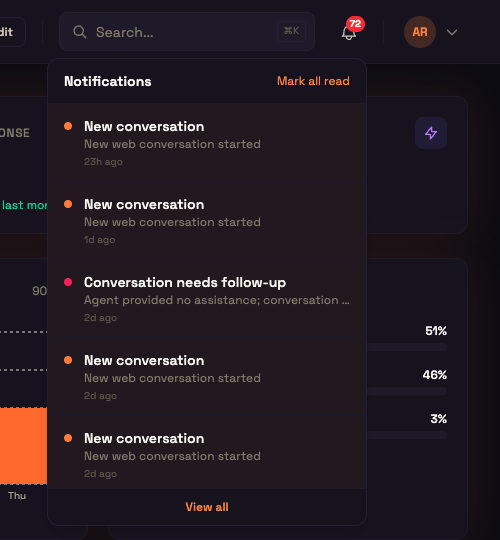
- Each row shows a title, a short body, and how long ago it arrived (for example "5m ago"). Unread rows carry a coloured dot for their category.
- Unread rows are highlighted; read rows are dimmed.
- Click a row to open whatever it points to — a conversation, a case, a billing page — and it is marked read at the same time.
- Mark all read clears the highlight on everything at once.
- View all takes you to the full Notifications page.
The dropdown shows No notifications when there is nothing to show, and closes when you click outside it or press Escape.
The Notifications page
Open Notifications from the bell's View all link (or go to /notifications) for the complete history. It works like the dropdown but adds filters and loads older notifications on demand.
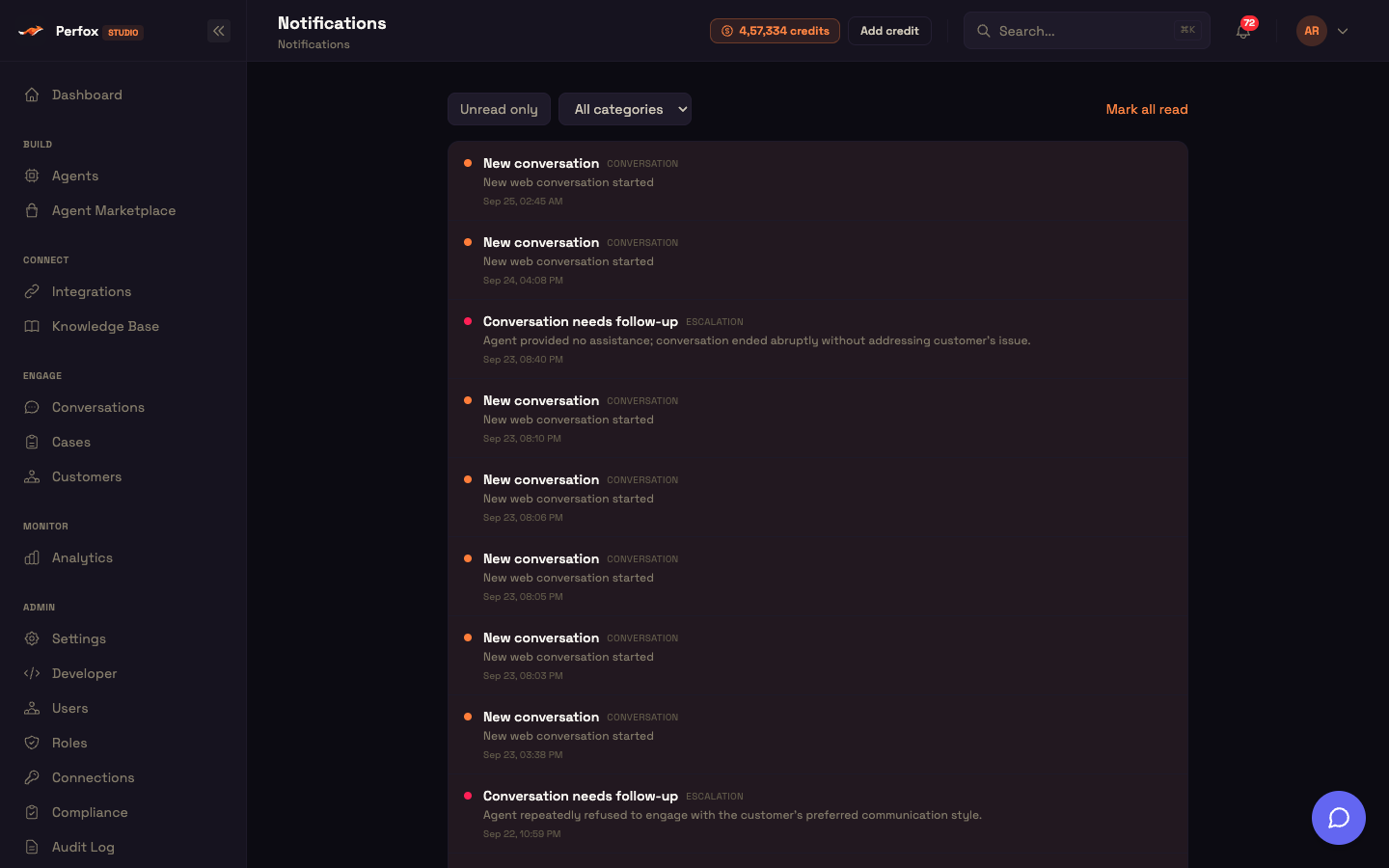
Each notification row shows:
| Element | What it tells you |
|---|---|
| Title | A one-line summary of the event |
| Body | A short description with the detail |
| Category tag | Which kind of event this is (see below) |
| Dot | Shown only while unread, in the category's colour |
| Timestamp | The date and time it arrived, for example Sep 25, 02:45 AM |
| Highlight | Unread rows are highlighted and bold; read rows are plain |
Clicking a row marks it read and, if the alert links somewhere, navigates you there.
Categories
Every notification belongs to one category, each with its own colour so you can scan the list quickly:
| Category | Colour | Typical trigger |
|---|---|---|
| Conversation | Indigo | A new conversation starts on one of your channels ("New conversation — New web conversation started") |
| Escalation | Rose | An agent hands a conversation to a human, a human task times out, or a finished conversation is flagged "Conversation needs follow-up" because the customer left unhappy with the issue unresolved |
| Billing | Amber | Your credits run out and an incoming message is blocked ("Out of credits") |
| Support | Sky blue | The Perfox team replies to, or changes the status of, one of your support tickets |
| System | Slate | The AI couldn't answer because of a problem with the AI provider |
| Campaign | Emerald | Still listed in the filter, but nothing currently raises it |
Filtering and marking read
Two controls at the top of the page narrow what you see:
- Unread only — a toggle that hides everything you've already read, so you can focus on what's outstanding.
- All categories — a dropdown to show a single category (Conversation, Escalation, Campaign, Billing, System or Support) at a time.
Mark all read clears every highlight in one click. You can combine the toggle and the category filter — for example, "unread Escalations only".
Loading more
The page loads the newest 20 notifications first. When there are older ones below, a Load more button appears at the bottom; click it to append the next page. This keeps the list fast even after a long history has built up.
When nothing matches your filters, the page shows No notifications — You're all caught up.
How a notification reaches you
Some notifications are addressed to you specifically; others are workspace-wide and seen by everyone on your team. Either way, your own read/unread state is tracked per person — marking one read for yourself doesn't clear it for a teammate.
Tips
- The red badge is your prompt — if it's showing a number, something is waiting.
- Use Unread only to burn down a backlog, then Mark all read to reset.
- Filter to Escalation to keep an eye on conversations handed to a human or flagged for follow-up, and Billing to catch out-of-credit blocks as soon as they happen.
- Clicking a notification is the fastest way to jump straight to the conversation, case, or page it refers to.