Copilot (Human-in-the-loop)
A customer asks a billing question your agent can't quite answer, and a person needs to step in, but that person could use a quick answer to what the customer just asked. That's what Copilot is for: someone on your team talks to the customer on the phone, while the AI listens silently and puts answers, drawn from your agent's knowledge, on the operator's screen. The AI never speaks to the customer.
This page is for admins setting up copilot calls and for operators learning what Copilot does during a call. By the end you'll know how calls reach your team, what the AI does while they talk, and what's saved afterwards.
How it works
Copilot calls happen on the Conversations page. There are three ways in:
| Call | How it starts |
|---|---|
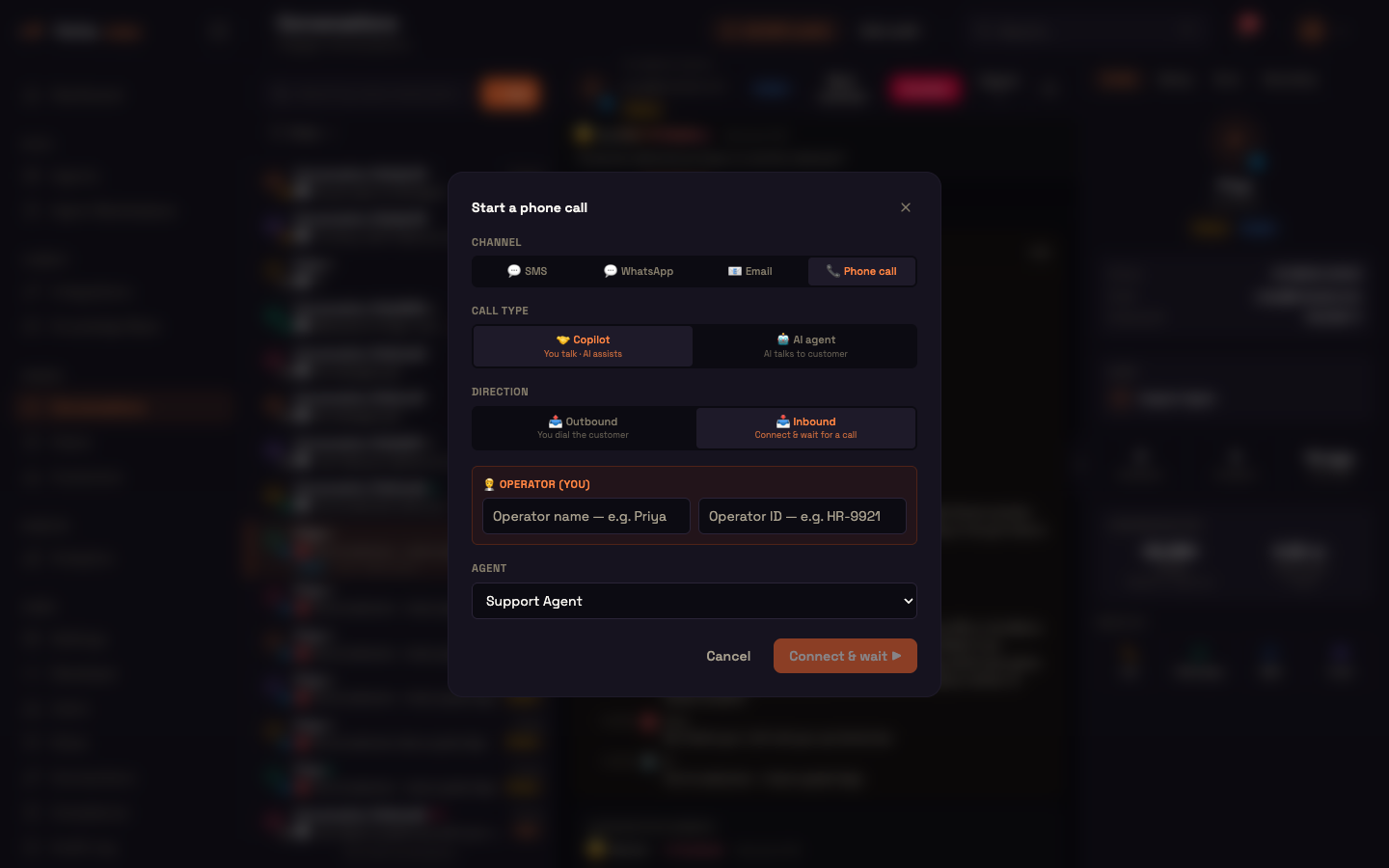
| Outbound | An operator clicks + New (or Call under Reach out on a conversation), chooses Phone call → Copilot → Outbound, and dials the customer. |
| Inbound, waiting | An operator chooses Phone call → Copilot → Inbound, picks an agent, and clicks Connect & wait. When a customer calls that agent's number, the operator's screen rings. |
| Inbound, routed by the agent | When an agent has an Operator sub-node, calls to it go to an available operator first, and fall back to the AI voice (or voicemail, or hanging up) if nobody answers. |
During the call:
- The operator and the customer talk normally. The operator hears the customer through the browser, so headphones are recommended.
- The AI transcribes both sides of the call, labelling who said what.
- When the customer asks something, the AI works out an answer and shows it to the operator as a card.
- The operator can also ask the AI their own questions, typed or dictated, without the customer hearing.
The AI answers as your agent would: it uses the persona, knowledge base, and integrations of the agent the call belongs to. So the operator gets the same grounded answers your AI agent would give, framed as short points to read or say.
What the operator sees
The live call panel and the Copilot view are described step by step on the Conversations page. In short:
- Call controls: a call status (
Connecting…,Calling…,Live · MM:SS, or the outcome if it didn't connect), Mute, Hold (plays a hold tone and mutes the operator), Transfer to another operator, and End. See The live call panel. - AI assist controls: turn the AI on or off, choose how long its answers are (Sharp, Short, Medium, or Detailed), switch tables and charts on or off, and pick the Language the operator reads the customer's question and the answer in, or Mirror the customer's language.
- AI answers: one card per customer question, showing the question, the answer as Key points, and a 📋 Copy button, plus the knowledge-base articles used.
- Ask the AI: a box for the operator's own questions during the call, with Hold to talk dictation.
See Copilot view for the details and a screenshot.
The starting values for the AI assist controls (whether it's on, the answer length, rich views, and the language) are set on the agent's Operator sub-node, and each operator can change them during a call.
If the AI assist stops working mid-call, the call carries on and the panel shows "AI assist unavailable". The phone call never depends on the AI.
Worked example: Asha takes a billing call
Setup: Asha is an operator at Acme Support. The Acme Support agent has a knowledge base of billing policies and an Operator sub-node with AI suggestions on by default.
Action: Asha opens Conversations, chooses + New → Phone call → Copilot → Inbound, enters her name and operator ID, picks the Acme Support agent, and clicks Connect & wait. When Priya calls about being charged twice, Asha's screen shows Incoming call, and she clicks Answer. Priya asks, "Why was I charged twice this month?" A card appears with the question and the key points from the billing policy: a failed payment retry can cause a duplicate charge, and it's refunded automatically within five working days.
Result: Asha explains the cause and the refund in under three minutes, then clicks End. The whole call is in the conversation's transcript, and the conversation is scored when it closes.
What just happened: the AI heard Priya's question, answered it as the Acme Support agent would, from the same knowledge base, and showed Asha the answer, while Priya only ever heard Asha.
Routing calls to your team
To have an agent send its phone calls to people instead of the AI voice, add an Operator sub-node to its AI Agent in Build → Agents. The full field reference is on Operator (Copilot). In short:
- Skill / queue limits which operators can take the agent's calls. Leave it blank for any available operator.
- Routing picks the operator: round robin, or best skill match.
- Ring timeout is how long one operator is rung before the call moves on (5–120 seconds, default 25).
- If no operator answers decides what happens when nobody picks up: the AI voice answers (the default, so no caller is dropped), the caller leaves a voicemail, or the call ends.
- Allow outbound calls lets operators dial out for this agent.
When a call comes in to an agent with an Operator sub-node, Perfox checks whether an eligible operator is available right now:
- If one is, the AI voice doesn't answer. The caller hears ringing while Perfox rings one operator at a time. The first to answer joins the call.
- If nobody is available, the call goes to the AI voice straight away, so an unstaffed line behaves like a normal AI agent.
Who counts as available. An operator is available for an agent while they're waiting on it with Connect & wait in Conversations. They stop being available when they click Stop waiting, answer a call, or leave the page. Operators waiting in Conversations take calls for any skill queue. If your team uses its own operator console (see the Operator sub-node's Operator app tab), that console can register operators with specific skills.
What's saved
- The transcript. Every finished line of the call is saved to the conversation's transcript as it happens, labelled operator or customer, so the call reads like any other conversation. See The transcript.
- The AI's answers. The answers the AI gave, and the operator's own questions and answers, stay in the Copilot view as a history.
- The recording. Phone calls are recorded like any other voice call, with separate caller and operator tracks. See Recording.
- A post-call recap. When the call ends, the AI writes a short recap of the call: what happened, the recommended next step, the customer's sentiment, and any facts learned (such as names, amounts, or dates). It's saved with the conversation.
- The quality verdict. Like every conversation, the call is scored when it closes. See QA outcome verdict.
Usage. Transcribing a copilot call uses credits, like any voice call, and each AI answer is an agent turn. As a safety net, a copilot session that is somehow left running stops itself after 60 minutes.
The dictation console
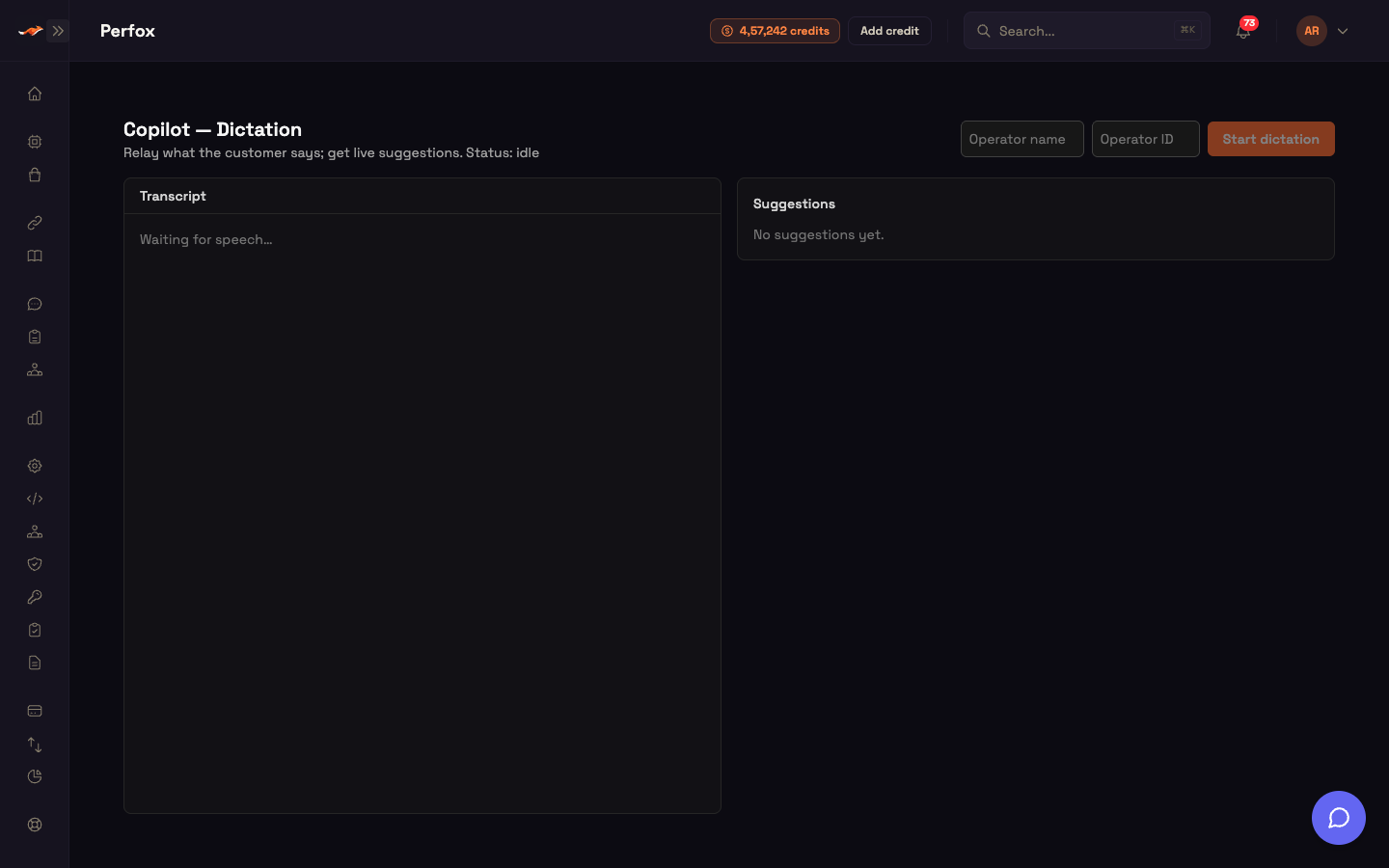
For calls that don't go through Perfox (for example, on a desk phone), there's a standalone Copilot — Dictation console at /copilot in your Studio. The operator repeats aloud what the customer says, and the AI answers on screen. The AI never speaks to the customer.
- Enter your Operator name and Operator ID.
- Click Start dictation and allow microphone access. The status changes from
idletolistening. - Speak what the customer asks. The Transcript panel shows what you said (it reads "Waiting for speech…" until you start), and Suggestions and Knowledge fill in on the right.
- Click Stop to end the session.
Using the console needs the Conversations: write permission.
Where to go next
- Conversations: where operators wait for calls, dial out, and use the live call panel.
- Operator (Copilot): every setting for routing an agent's calls to people.
- Cases: the ticket-queue view for following up after the call.