Accounts & Billing
When Asha, an admin at Acme Support, wants to know why her AI agent spend jumped this month, she opens Accounts → Transactions, expands a usage row, and lands directly on the conversation that used the credits — three clicks. That's what this area is for.
Perfox runs on prepaid credits. There are no plans, seats or quotas: you top up a credit balance and your agents spend from it as they work. Everything credit-related lives under Accounts — check your balance, buy credits, see exactly what was charged and why, and download GST invoices.
What's in Accounts
The Accounts section of the Studio sidebar has three pages:
| Page | Route | What it holds |
|---|---|---|
| Billing | /accounts/billing | Credit balance, buy credits, usage estimate, redeem a code, auto-recharge, and your GST billing details |
| Transactions | /accounts/transactions | Your full credit history with downloadable GST invoices |
| Usage | /accounts/usage | What this month's credits are being spent on |
The old /billing-usage link redirects to /accounts/billing.
Every Accounts page requires admin access. A member without it sees "You need admin access to view billing" (or transactions / usage), and the same check is enforced on the server for every billing action.
How credits work
- 5,000 free credits to start. Every new workspace receives 5,000 free credits when you sign up — no credit card required. The grant appears in your credit history as a Granted entry, so you can build and test your first agent straight away.
- Top up when you need more. Buy credits at any time, or turn on auto-recharge.
- No overdraft. A balance at or below zero pauses every metered action until you top up (see Out of credits). Browsing and building in the Studio stay free.
- Credits never expire. You only pay for what you use.
- Fractional precision. Small debits (a fraction of a credit per message) are tracked exactly; the display rounds for readability.
Billing page (/accounts/billing)
Credit balance card
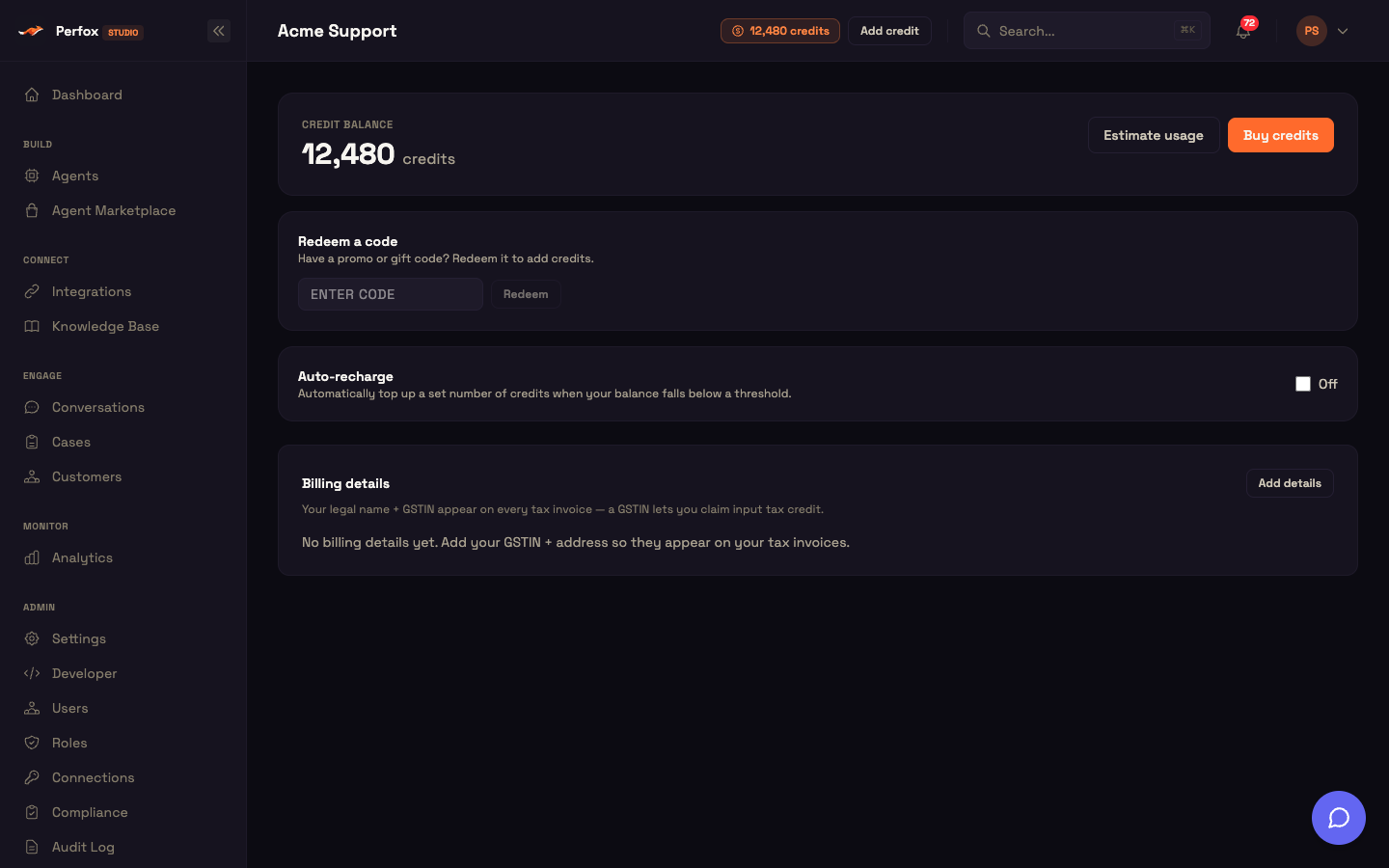
The top of the page shows your live Credit balance (Indian number format) with two buttons: Estimate usage and Buy credits.
The same number appears in the credit badge at the top of every Studio page (next to Add credit) and inside the Add credits dialog — a top-up refreshes all of them at once. The balance also refreshes quietly every 30 seconds while the tab is visible, so usage debits show up as they land.
The balance is colour-coded:
| State | When | Colour | Message |
|---|---|---|---|
| Out of credits | balance ≤ 0 | red | "You're out of credits — services are paused until you top up." |
| Low balance | at or under your auto-recharge threshold | amber | "Your balance is running low — consider topping up." |
| Healthy | above the threshold | neutral | — |
Buy credits
Buy credits (or Add credit in the header) opens the Add credits dialog.
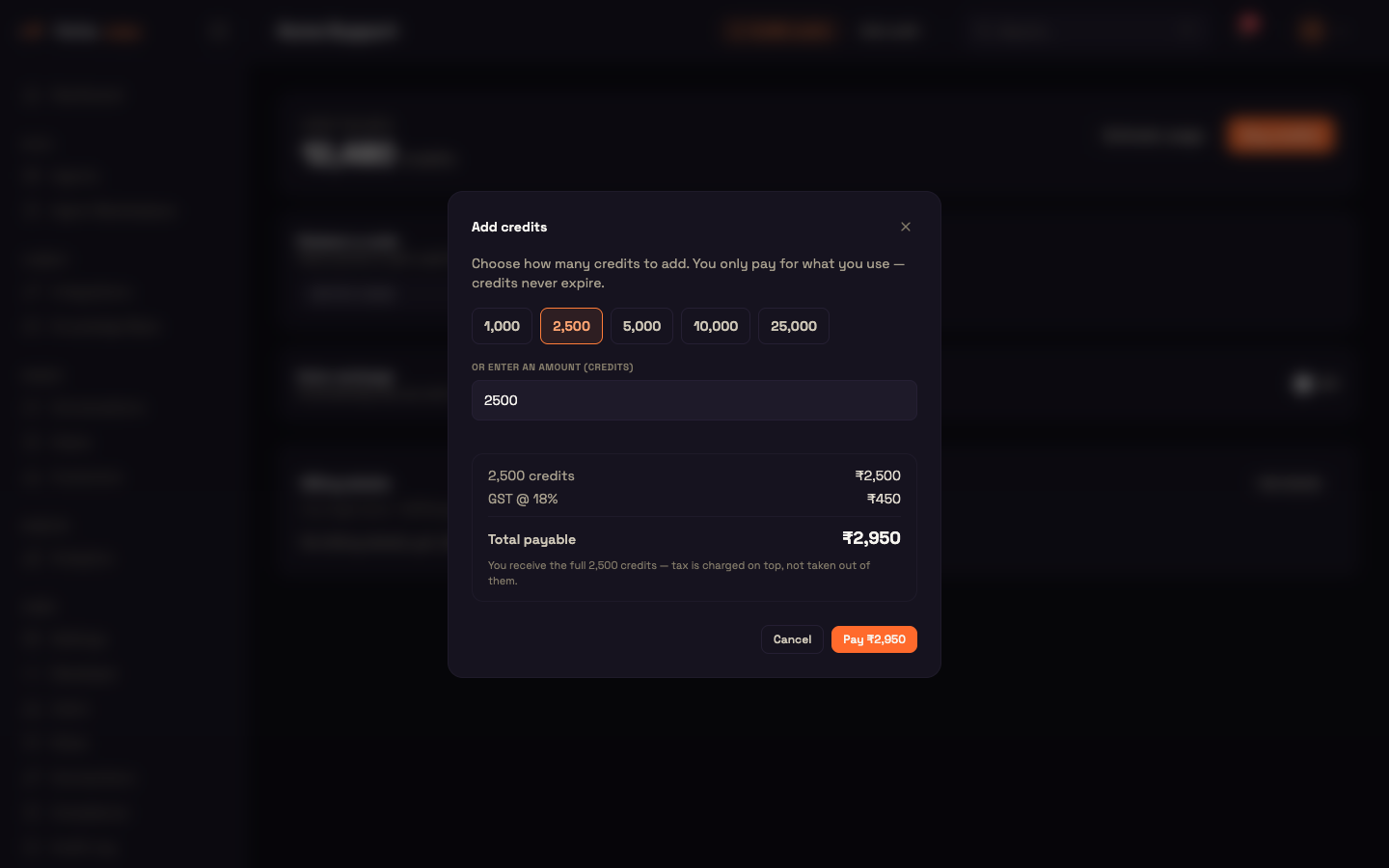
Your first purchase asks for billing details first. If your workspace has no billing details yet, the dialog opens on a short form — legal name, GSTIN (optional), registered address, state and billing email (optional) — with a Save & continue button. Your state decides whether the invoice shows CGST + SGST or IGST, so Perfox asks before taking payment rather than after.
Then choose an amount:
- Presets: 1,000 / 2,500 / 5,000 / 10,000 / 25,000 credits (2,500 is pre-selected), or type any amount under Or enter an amount (credits).
- Range: 100 to 1,000,000 credits. Outside that range the dialog shows "Enter between 100 and 1,000,000 credits." and the pay button stays disabled.
- Price summary: the credits' price, GST @ 18%, and the Total payable. Tax is charged on top — you always receive the full number of credits you chose.
Click Pay ₹… to open Razorpay Checkout. The order is priced on the server, so the amount charged always matches your rate. When the payment succeeds, Perfox verifies it, adds the credits to your balance, and issues a GST tax invoice straight away.
A worked example — topping up
Setup: Asha's balance shows 320 credits in amber. Auto-recharge isn't set up, so she tops up manually.
Action: On /accounts/billing she clicks Buy credits, keeps the 2,500 preset, checks the total with GST, and clicks Pay in Razorpay Checkout.
Result: The dialog closes and the balance reads 2,820 credits in neutral colour; the header badge shows the same number. On Transactions, a new Top-up row sits at the top with a downloadable GST invoice.
Estimate usage
Estimate usage opens a calculator that projects your monthly credit spend at your own rates — it uses the same pricing that bills you, so the estimate is honest.
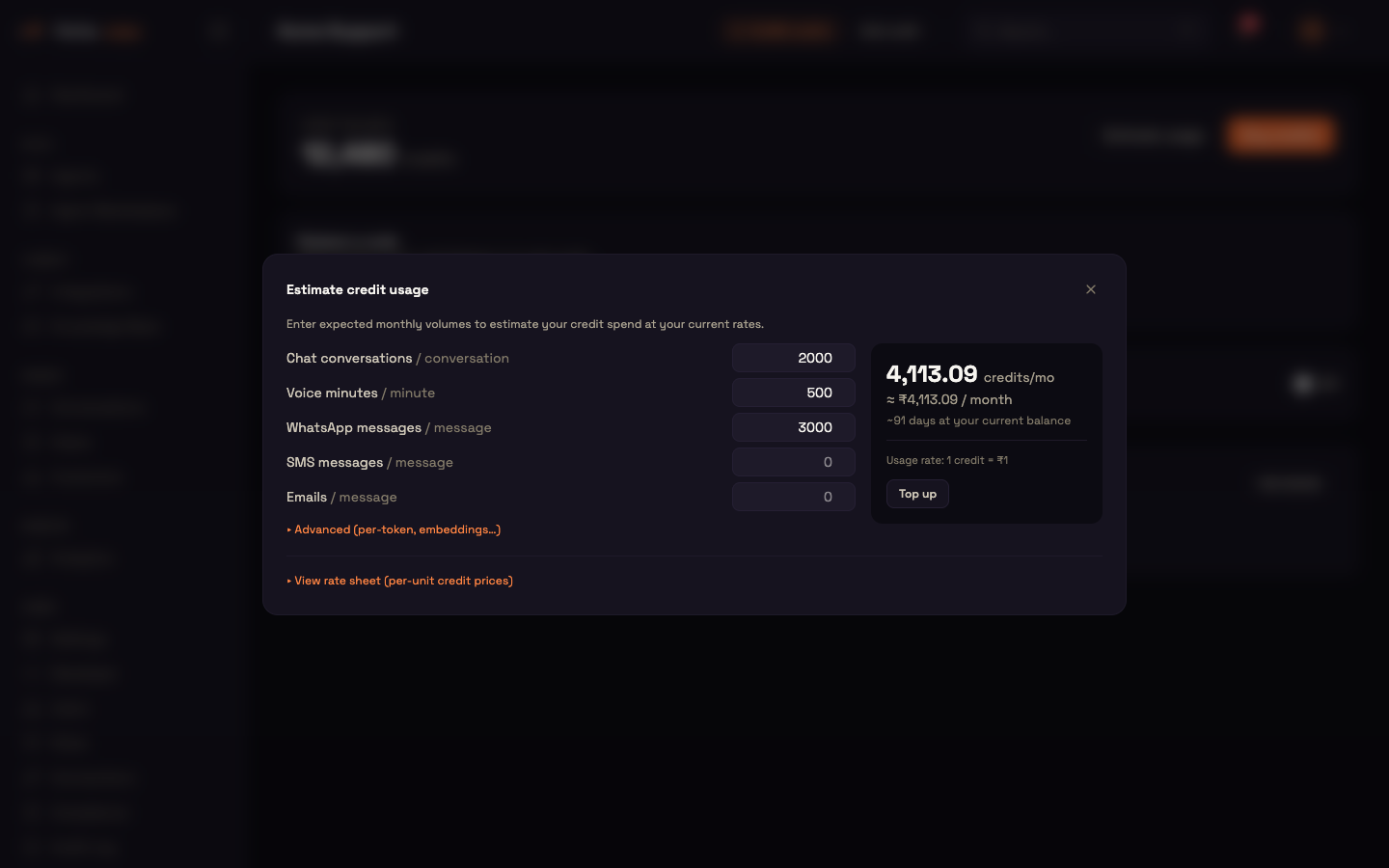
- Everyday drivers — Chat conversations, Voice minutes, WhatsApp messages, SMS messages and Emails, each with a "/ unit" hint.
- Advanced (per-token, embeddings…) — raw per-unit inputs grouped as LLM, voice, WhatsApp, SMS, email and platform.
- Result — credits/mo, ≈ ₹ / month, and (when you have a balance) "~N days at your current balance", plus the usage rate (1 credit = ₹…) and a Top up shortcut.
- View rate sheet (per-unit credit prices) — every billable component with its unit and credits per unit.
Your rate sheet
The prices in the calculator and the rate sheet are your effective per-unit credit prices — exactly what a unit of usage costs your workspace. Chat-model prices are shown for a representative model; embeddings and voice are priced at their own models.
Redeem a code
The Redeem a code card adds credits without a payment. Type the code (it's upper-cased automatically) and press Enter or click Redeem. On success you see "Added N credits! New balance: …". An invalid, expired or already-used code shows a red message.
| Kind | How it works | Shows in your history as |
|---|---|---|
| Promo code | Reusable, until it expires or reaches its redemption cap. | promo |
| Gift card | Single use, with a fixed credit value. It may be locked to a specific email address. | gift |
Auto-recharge
Auto-recharge tops up your balance automatically when it falls below a threshold. Tick the Off / On checkbox to turn it on, then set:
| Field | Meaning |
|---|---|
| When balance below (credits) | The threshold. It also drives the amber low-balance warning. |
| Top up (credits) | How many credits to add each time. |
Click Save. Auto-recharge can only charge once a payment method is on file. Until saved-card billing is available, an amber note explains that your preferences are saved and you should top up with Buy credits in the meantime.
Billing details (GST bill-to)
The Billing details card holds the legal identity printed in the "Bill to" block of every GST tax invoice. Click Add details (or Edit):
| Field | Required | Notes |
|---|---|---|
| Legal / company name | Yes | — |
| GSTIN | No | Checked against the 15-character GSTIN format. A GSTIN lets you claim input tax credit. |
| Registered address | Yes | — |
| State | Yes | Decides CGST + SGST vs IGST. |
| Billing email | No | — |
This is separate from the business profile on Settings, which is informational only.
Transactions page (/accounts/transactions)
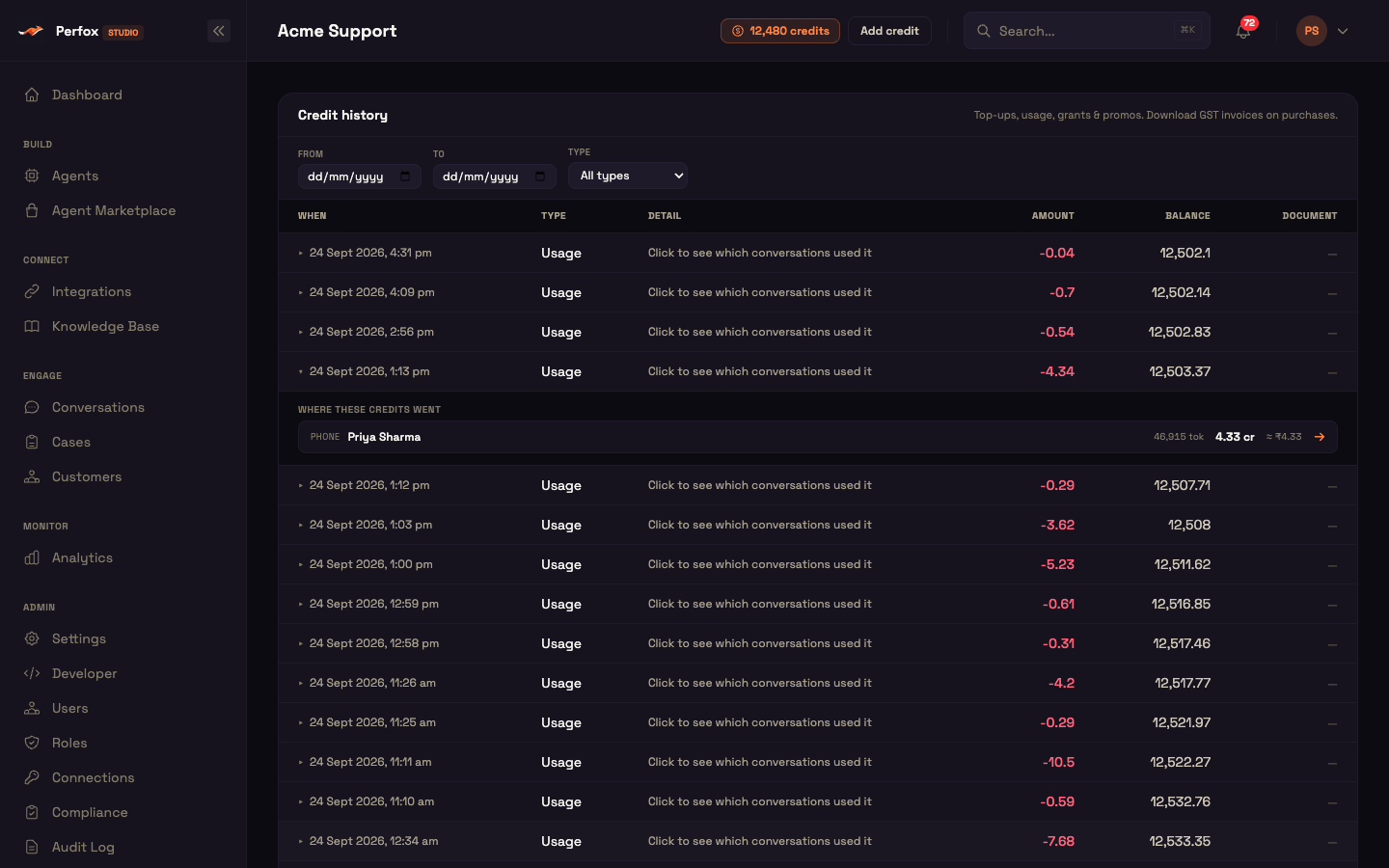
The Credit history card lists every credit and debit, newest first. Nothing is ever edited or deleted.
Columns
| Column | Contents |
|---|---|
| When | Date and time |
| Type | The transaction type (below) |
| Detail | The reason — on usage rows, "Click to see which conversations used it" |
| Amount | + for credits added, − (red) for debits |
| Balance | Your balance after this transaction |
| Document | GST invoice or credit note, where there is one |
Transaction types
| Label | Source |
|---|---|
| Top-up | A Buy credits purchase |
| Auto-recharge | An auto-recharge top-up |
| promo | A redeemed promo code |
| gift | A redeemed gift card |
| Granted | Credits granted by Perfox — including your 5,000 free signup credits |
| Adjustment | An adjustment made by Perfox support |
| Usage | Metered spend (see below) |
| Reversal | A refund or reversal |
Filters, paging and invoices
- Filters: From / To dates and a Type dropdown (All types, or one type). Changing a filter reloads from the first page.
- Load more fetches older entries.
- Invoices: a top-up row has a downloadable GST tax invoice; a refunded or reversed order has a credit note. Click to download the PDF.
Refunds
Credit purchases are final, except for duplicate, incorrect or undelivered charges, which are refunded in full — see the refund policy. A refunded purchase appears as a Reversal in your credit history, with a downloadable credit note.
Which conversations used the credits
Click a Usage row to expand it. Under Where these credits went you see each conversation that used credits in that window, with its channel, the customer's name (or phone, email or ID), tokens, credits, and the ≈ ₹ value. Click a conversation to open it on Conversations.
When a window has no conversation-attributable usage — for example background jobs or knowledge-base indexing — the row says so.
Usage page (/accounts/usage)
/accounts/usage shows what your credits are being spent on this month, with the period and a "Resets on the 1st." note.
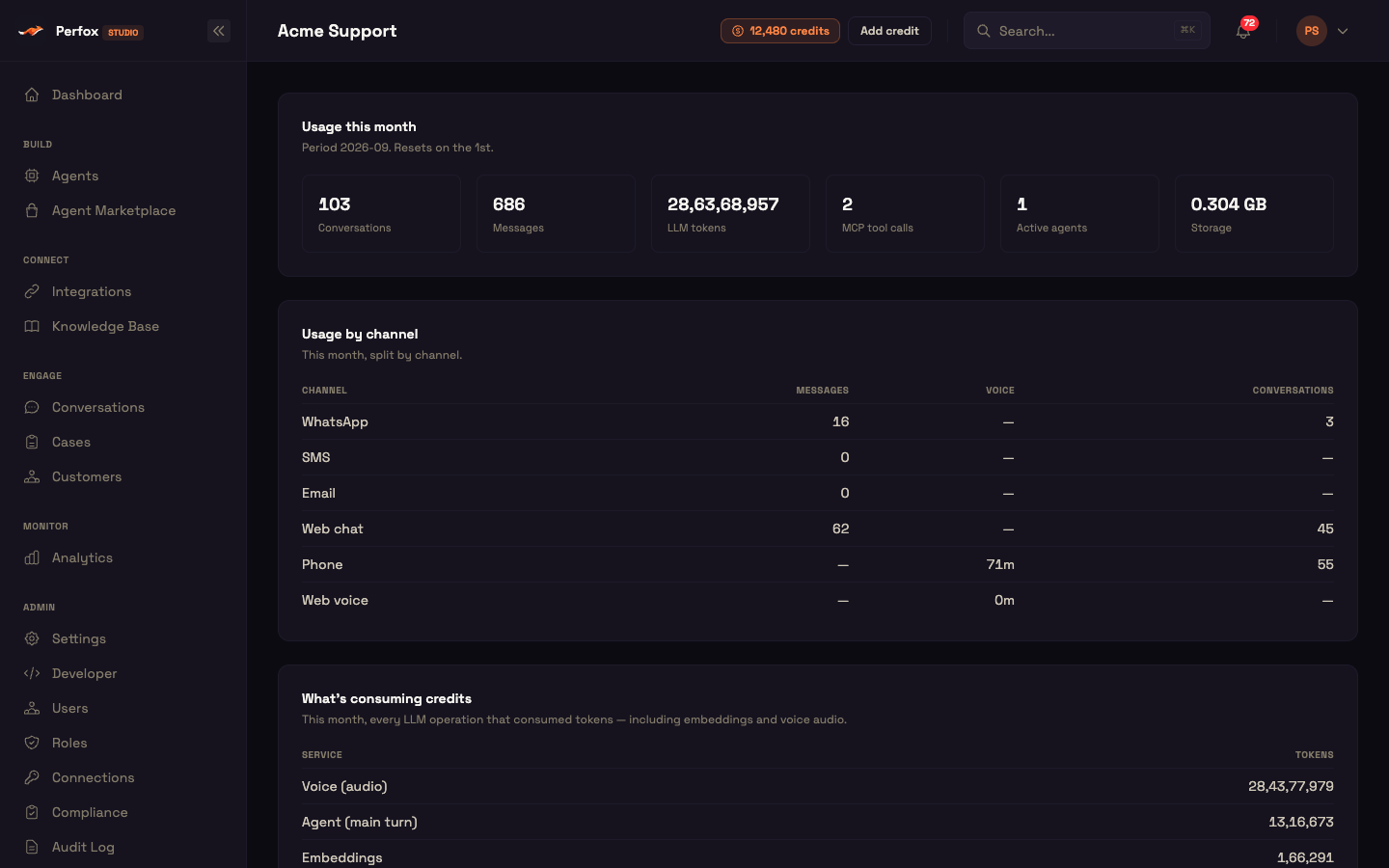
Usage this month
Six headline counts — these are informational, not limits:
- Conversations
- Messages
- LLM tokens
- MCP tool calls
- Active agents
- Storage (GB)
Usage by channel
One row per channel — WhatsApp, SMS, Email, Web chat, Phone and Web voice — with Messages, Voice minutes (phone and web voice only) and Conversations.
What's consuming credits
Every AI operation that used tokens this month — including embeddings and voice audio — with its token count. Labels include Agent (main turn), Voice (audio), Embeddings, Conversation summary, Ask AI, KB extraction and enrichment, Document extraction, Structured generation, and voice greetings.
Use it to see which part of your setup drives spend, then tune model choice, reply length, history depth or persona size.
Out of credits
When your balance reaches zero, every metered action pauses — agent replies, tests, voice calls, sends, uploads and invites — until you top up. Browsing and building in the Studio stay free.
When a Studio action is refused for lack of credits, an Add credits pop-up opens automatically and names what you just tried, for example:
| You tried to… | Pop-up title |
|---|---|
| Test an agent | Add credits to test your agent |
| Publish an agent | Add credits to activate your agent |
| Upload a file | Add credits to upload files |
| Invite a teammate | Add credits to invite your team |
| Send a message | Add credits to send messages |
| Start a call | Add credits to start a call |
| Anything else | Add credits to continue |
Topping up or redeeming a code clears the block immediately. A temporary problem reading your balance never blocks you by mistake. If you embed the chat widget, it receives an HTTP 402 response with out_of_credits while your balance is empty.
Feature reference
| Feature | Where | Key values |
|---|---|---|
| Signup credits | New workspace | 5,000 free credits, no card; shown as Granted |
| Credit balance | /accounts/billing + header badge | red ≤ 0, amber at/under threshold; refreshes every 30 s |
| Buy credits | Balance card, header Add credit, out-of-credits pop-up | Presets 1,000–25,000 (default 2,500); 100–1,000,000; GST 18% on top; billing details asked before the first payment |
| Refunds | perfox.ai/refunds | Purchases are final except duplicate, incorrect or undelivered charges (refunded in full) |
| Estimate usage | Balance card | Drivers + Advanced; credits/mo, ≈ ₹/month, ~N days; rate sheet |
| Redeem a code | Billing page | Promo (reusable, capped) or gift card (single use) |
| Auto-recharge | Billing page | Threshold + top-up amount; needs a saved payment method |
| Billing details | Billing page | Legal name*, GSTIN, address*, state*, email (* required) |
| Credit history | /accounts/transactions | Date + type filters; Load more; GST invoice / credit note |
| Usage drill-down | Usage rows | Per conversation: channel, customer, tokens, credits, ≈ ₹ |
| Usage | /accounts/usage | 6 counts, by channel, by operation; resets on the 1st |
Next steps
- Cost & Throttling — what drives your usage and how to reduce it
- Users — who has admin access, which every Accounts page requires