Messaging Actions
Messaging actions let your agent send on a channel (email, SMS or WhatsApp) or place an outbound phone call. They also decide something more basic: whether your agent can reply on email, SMS and WhatsApp at all.
You attach them to your AI Agent's Action port. The agent then uses them like tools: when the moment is right, whether that's a reply, an order confirmation, or a follow-up, it calls the action and the message goes out through your connected provider.
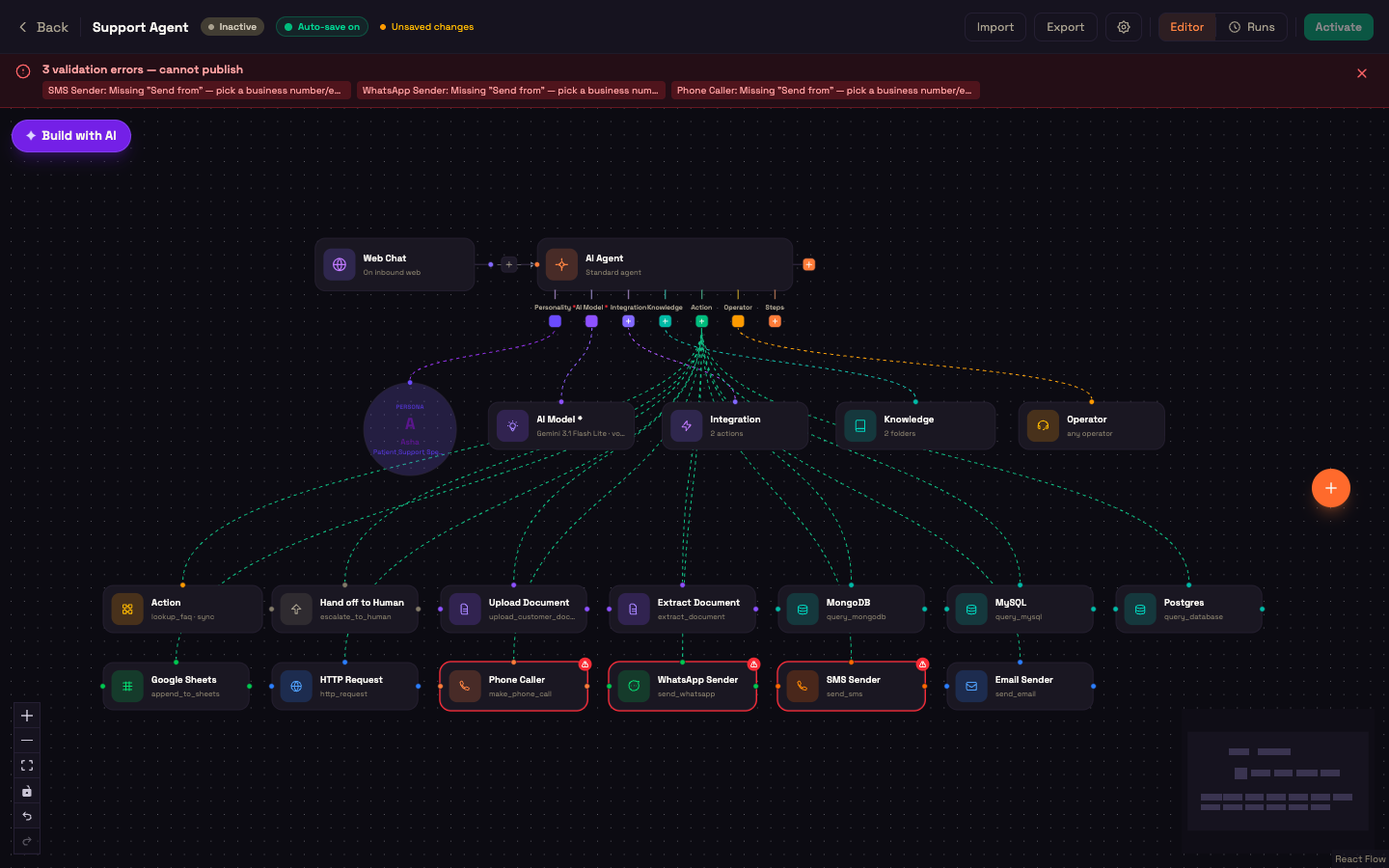
There are four messaging actions, under Actions → Messaging in the node picker, plus the Hand off to Human action under Operations:
| Node | What it does |
|---|---|
| Email Sender | Sends an email (subject, body, optional attachment). |
| SMS Sender | Sends an SMS. |
| WhatsApp Sender | Sends a WhatsApp message. |
| Phone Caller | Starts an outbound AI phone call. |
| Hand off to Human | Hands the conversation to your team, and on a phone call can transfer the live caller to a number you set. See below. |
Your agent needs a sender to reply on email, SMS and WhatsApp
This is the most important rule on this page. An agent only sends on email, SMS or WhatsApp when the matching sender is wired to it:
| Inbound on… | Agent replies only if this is on its Action port |
|---|---|
| Email Sender | |
| SMS | SMS Sender |
| WhatsApp Sender | |
| Web chat, web voice, phone | Nothing needed. Replies are delivered directly in the chat or on the call. |
Without the sender, an inbound message on that channel still starts the agent. The workflow runs, but nothing is sent back. That's deliberate: it lets you build agents that only take messages in, such as "log every WhatsApp enquiry to a sheet, never reply", without them unexpectedly messaging customers.
Because it's easy to forget, the canvas warns you. If an agent has, say, a WhatsApp trigger but no WhatsApp Sender, it shows a warning on the AI Agent explaining that replies will not be delivered on WhatsApp and telling you to add the sender. It's a warning, not a block, so a trigger-only agent can still be published.
Shared configuration
All four messaging nodes share the same settings.
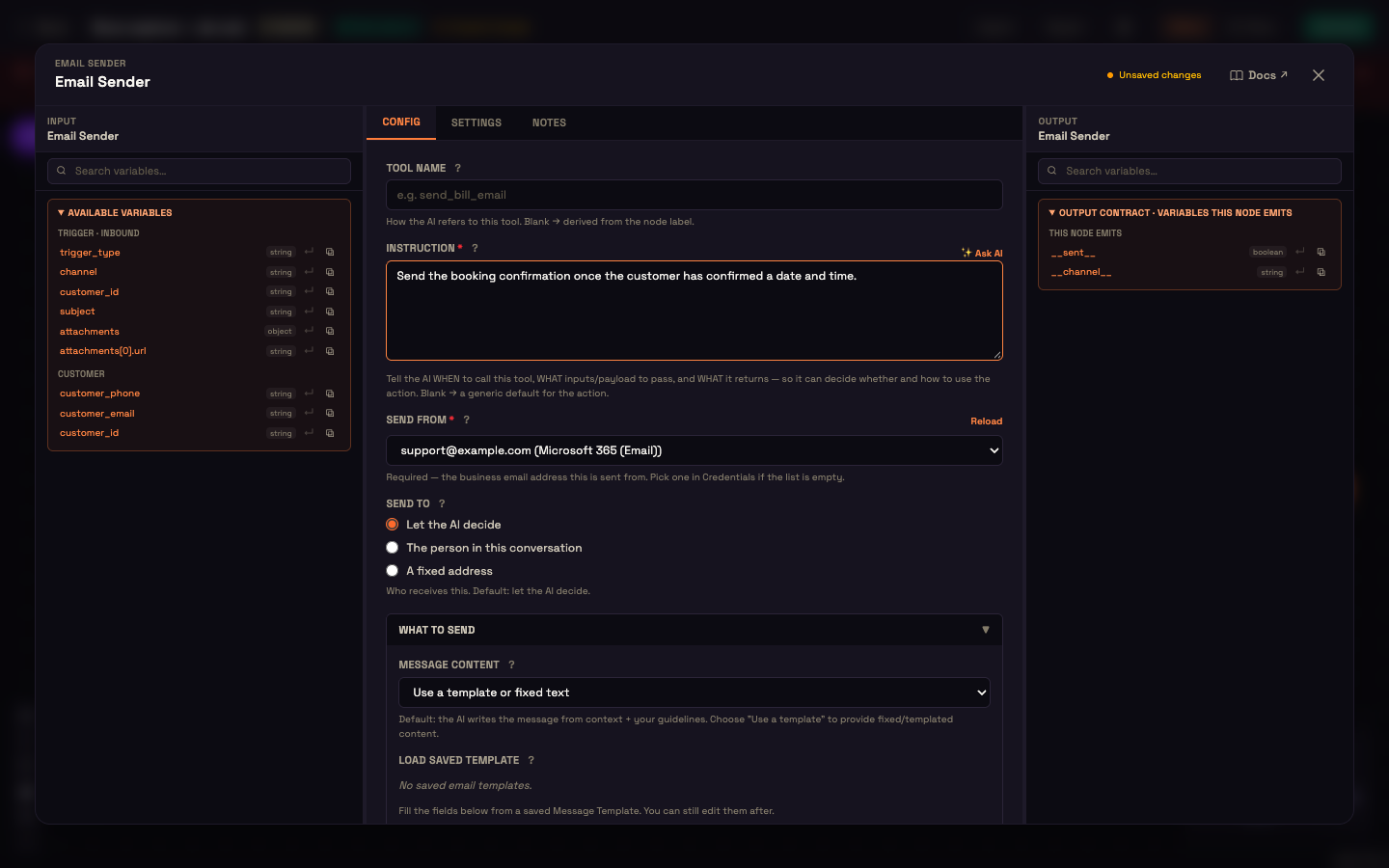
Tool Name and Instruction
- Tool Name (optional): how the AI refers to this action, for example
send_booking_confirmation. Leave it blank to use the node's label. Give each one a distinct name when an agent has two senders for the same channel, such as a bill email and a reminder email. - Instruction (required): tells the AI when to use this action, what to pass, and what it returns. For example: "Send the booking confirmation once the customer has confirmed a date and time." The ✨ Ask AI link drafts one for you.
Send from / Call from (required)
The business email address or number the message is sent from, or on Phone Caller, the caller ID the call shows. Pick one from the list, which is filled from the numbers and addresses on your Connections. Each entry shows which connection it belongs to. Use Reload after you add a new one.
This is required. A sender without it can't be published, and the canvas outlines it in red with "Missing 'Send from' — pick a business number/email". If the list is empty, add the provider on Connections first.
Send to / Call
Who receives it:
- Let the AI decide (default): the agent chooses the recipient at send time from the conversation.
- The person in this conversation: the contact you're already talking to.
- A fixed address / A fixed number: always the same recipient, such as a shared inbox or an on-call line.
On Phone Caller the choices read Let the AI decide who to call, The person in this conversation, and A fixed number.
What to send
Message content has two modes:
- Let the AI write it (default): the agent writes the message from the conversation and your guidelines.
- Use a template or fixed text: you provide the wording. Extra fields appear:
- Load saved template: fills the fields below from a saved message template. You can still edit them afterwards.
- Subject (email only) and Body / Message: fixed or templated text.
{{ placeholders }}are filled at send time. Leave a field empty and the agent writes that part.
Guidelines for the AI (optional) is soft guidance (tone, length, what to mention) that the agent follows whenever it writes any part of the message.
Placeholders vs. fixed text
Text with no placeholders is sent exactly as written, which is useful for approved or regulatory wording. Text with {{ placeholders }} is a template the agent fills from the conversation.
Per-node extras
Email Sender
- Subject: supports placeholders. Leave it empty and the agent writes the subject.
- Attach a file the AI generated earlier: when ticked, the most recent file the agent generated earlier in the turn, such as a PDF, is attached. (File creation is a built-in capability you turn on per channel on the AI Agent.)
SMS Sender and WhatsApp Sender
A single message body, no subject. Keep SMS short. On WhatsApp, a message sent outside the 24-hour customer-service window needs an approved template.
Phone Caller
Phone Caller places an outbound call and hands it to the agent. Instead of message content, it has a What to do on the call section:
- Call objective: Let the AI decide the objective (default), or I'll specify the objective to script it.
- With I'll specify, two fields appear: Call objective, which is what the call should accomplish, and Opening line (optional), the first thing the agent says when the call connects.
Using a sender as a flow step
Senders can also sit in the flow, after an AI Agent or any other step, to send a message when the workflow reaches that point. An example is sending a summary email after a call ends. Configuration is identical, and Send from is required there too. As a flow step, a sender reports whether it sent and on which channel, so later steps can use the result.
A sender in the flow does not authorize the agent's own conversational replies, because a conversational agent answers each message without advancing the flow. To let the agent reply on a channel, wire that channel's sender to its Action port as described above.
Hand off to Human
Escalating to a person is a built-in capability of every agent. It's on for every channel by default, and you can switch it off per channel in the AI Agent's Built-in capabilities. Add the Hand off to Human action when you want to control how the agent escalates:
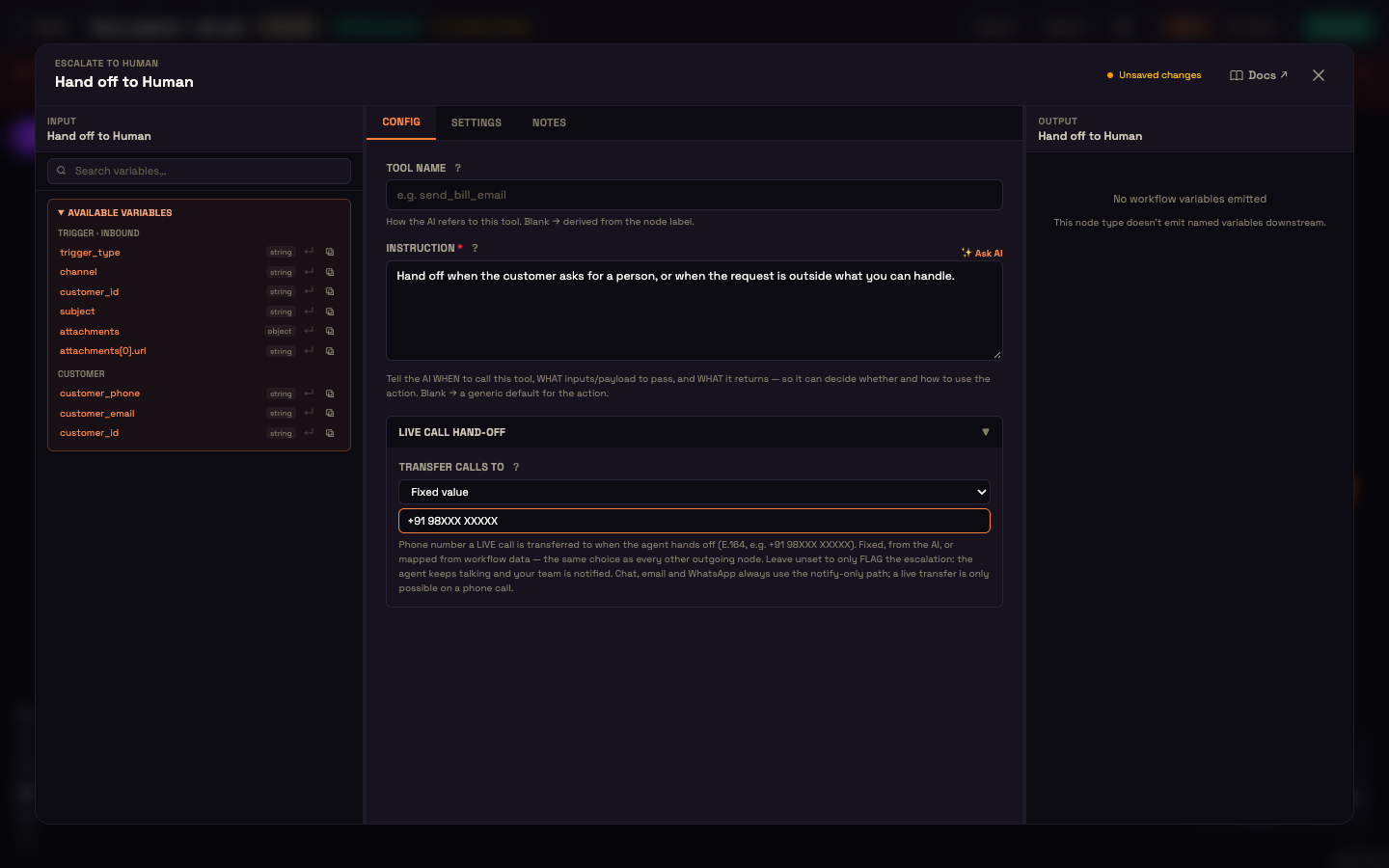
- Tool Name and Instruction: your wording replaces the built-in escalation description, so the agent hands off exactly when you say, for example "when the customer asks for a person, or the request is outside what you can handle." The agent still only ever sees one hand-off action.
- Transfer calls to (under Live call hand-off): the phone number a live call is transferred to when the agent hands off. It can be a Fixed value, From AI, or From workflow data. Use the full international format, for example
+91 98XXX XXXXX.
If you leave Transfer calls to empty, a hand-off only flags the conversation: the agent keeps talking and your team is notified. Chat, email and WhatsApp always use this notify-only path. A live transfer is only possible on a phone call.
This is different from the Human Handoff node in the Core group, which pauses the workflow until a person acts. See Human Handoff.
Related
- Email, SMS, WhatsApp, and Voice (for Phone Caller): provider setup and channel behaviour.
- Connections: connect the providers these actions send through.
- Operator (Copilot): route calls to live operators instead of the AI.