Customers
Priya contacts Acme Support on WhatsApp, calls a week later, then emails a receipt. Without one customer record spanning all three, your team would piece her history together from three separate threads. The Customers page keeps it in one place: one row per person across every channel, with an inspector that walks from who they are, through every conversation and event, to their health metrics and private documents.
If you work in Studio → Engage → Customers, this page is your reference. By the end you'll know how to find a customer, read their history and insights, add notes, upload a private document, clear their history, and review possible duplicates.
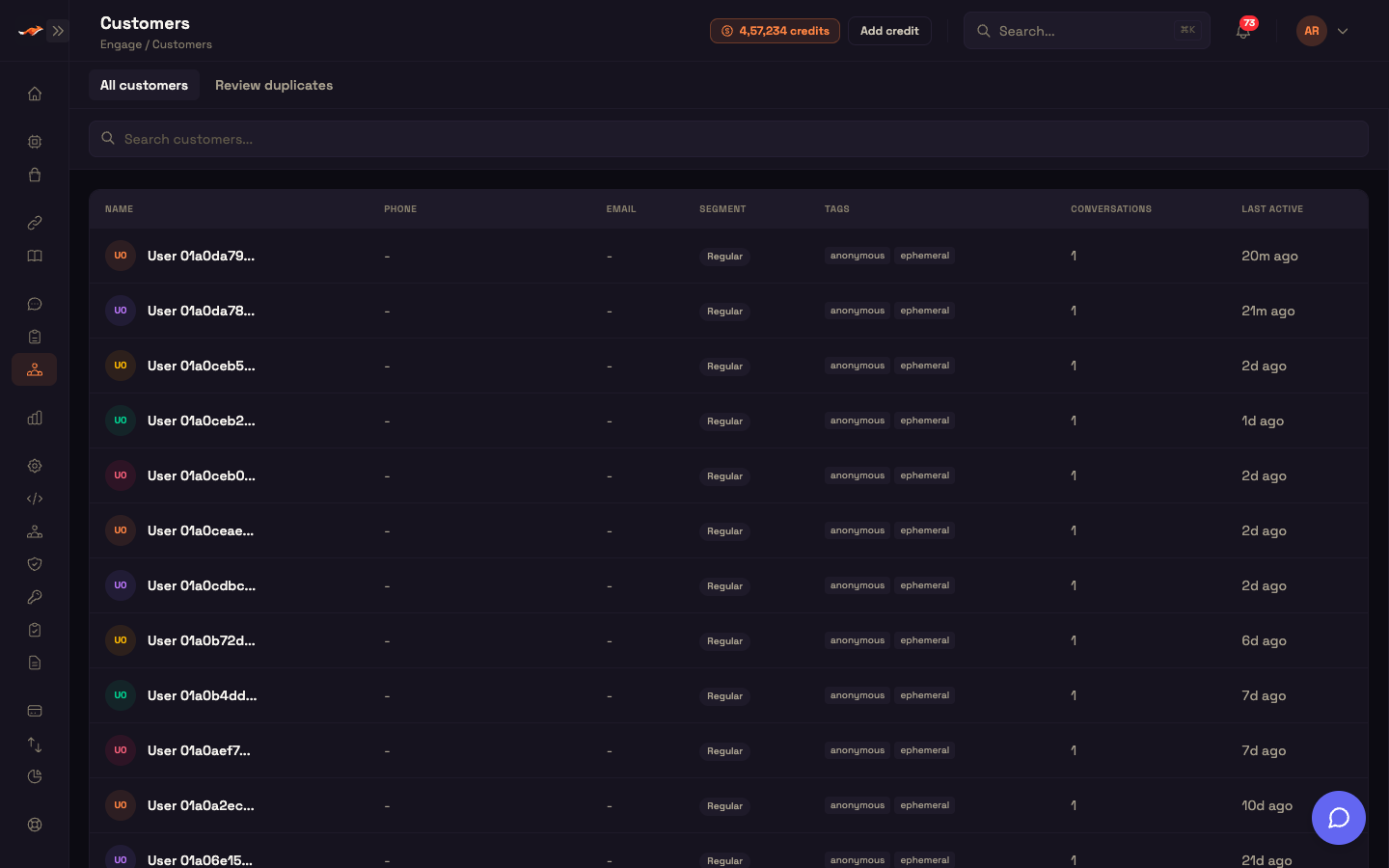
What you see on arrival
Everyone who has talked to your agents, by phone, WhatsApp, SMS, email, or web chat, becomes one customer record. The record ties together their conversations, the events along the way, and the documents they've shared.
The page has two parts:
- The list: a searchable table of every customer. Above it, All customers and Review duplicates switch to a queue of records that may be the same person.
- The inspector: opens when you click a customer, with five tabs: Profile · Communication · Activity · Insights · Documents.
Viewing the page needs the Customers: read permission; without it you'll see an insufficient-permissions message. Uploading documents, editing notes, and clearing history need Customers: write (or Admin).
The customers list
The table shows 50 customers per page, with these columns:
| Column | Contents |
|---|---|
| Name | Initials and name |
| Phone | Phone number in international format, or - |
Email, or - | |
| Segment | A badge: Premium (indigo), VIP (yellow), or Regular (gray, the default) |
| Tags | Tag chips. Visitors who chatted without identifying themselves are tagged anonymous and ephemeral. |
| Conversations | How many conversations they've had |
| Last Active | How long ago they were last active, for example 5m ago |
When no name has been captured yet, the list shows a short User … label so every row has something readable to click.
Search
The search box searches as you type. While there's a search, the table shows the matches; clear the box to go back to the full list.
Opening a customer
Click any row to open that customer (the address becomes /customers/<id>). The list shrinks to a narrow column on the left, showing each customer's name, contact detail, and last-active time, so you keep your place while you read one record.
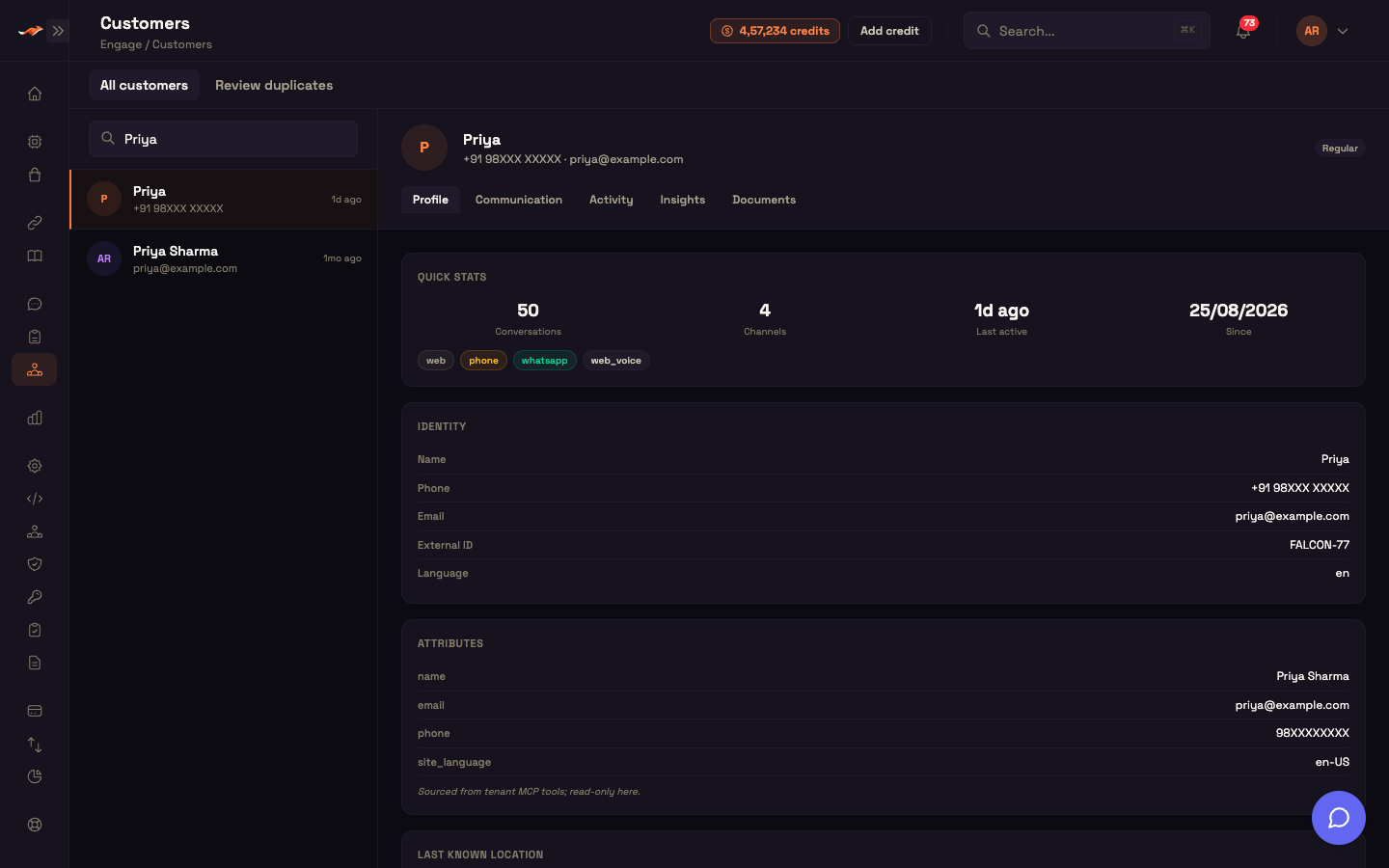
The customer inspector
The inspector's header shows the customer's initials, name, phone · email (or "no identifier"), and segment badge, above five tabs:
Profile · Communication · Activity · Insights · Documents
- The open tab is saved in the page address, so you can share a link straight to a customer's Activity or Insights.
- The inspector refreshes in the background every few seconds and only redraws when something actually changed, so nothing flickers while you read. It pauses while the browser tab is hidden.
Profile tab
The customer's details and your notes, as a stack of cards:
- Quick stats: number of conversations, number of channels, when they were last active, and the date of their first contact, plus a chip for each channel they've used.
- Identity: name, phone, email, and, when known, external ID and preferred language. A missing phone or email shows as "none".
- Attributes: extra details gathered across their conversations, where the latest value wins. These come from your connected tools and integrations and are read-only here. There's no fixed list, so your agents can record whatever details matter to your business.
- Last known location: the most recent location shared in a conversation, as a Google Maps link with its source, accuracy, and when it was captured.
- Tags: shown when the customer has any.
- Persistent memory: notes from your team that stay with the customer across conversations. Click + Add note, enter a key and a value, and Save; click ✕ on a note to remove it. Changes save straight away.
- Chat history & memory: deletes this customer's conversations and what the assistant remembers about them from earlier chats. Deleting a single conversation elsewhere doesn't remove what the assistant remembered, so use this when you want a customer to start completely fresh. Click Clear history & memory, then Yes, clear it. This can't be undone. The customer record itself is kept; the confirmation tells you how many conversations and runs were removed, and their next message starts fresh.
Communication tab
Every conversation this customer has had, on every channel, newest first.
Filter by status with All / Active / Resolved / Escalated / Abandoned. The filter covers their whole history, not just what's on screen.
Each row shows:
- Channel chips.
- A status badge.
- The message count.
- The last message.
- "Started <date> · Last activity <time ago>".
Click a row to open the full conversation in Conversations. If nothing matches the filter, the tab says so, for example "hasn't been in any resolved conversations".
Activity tab
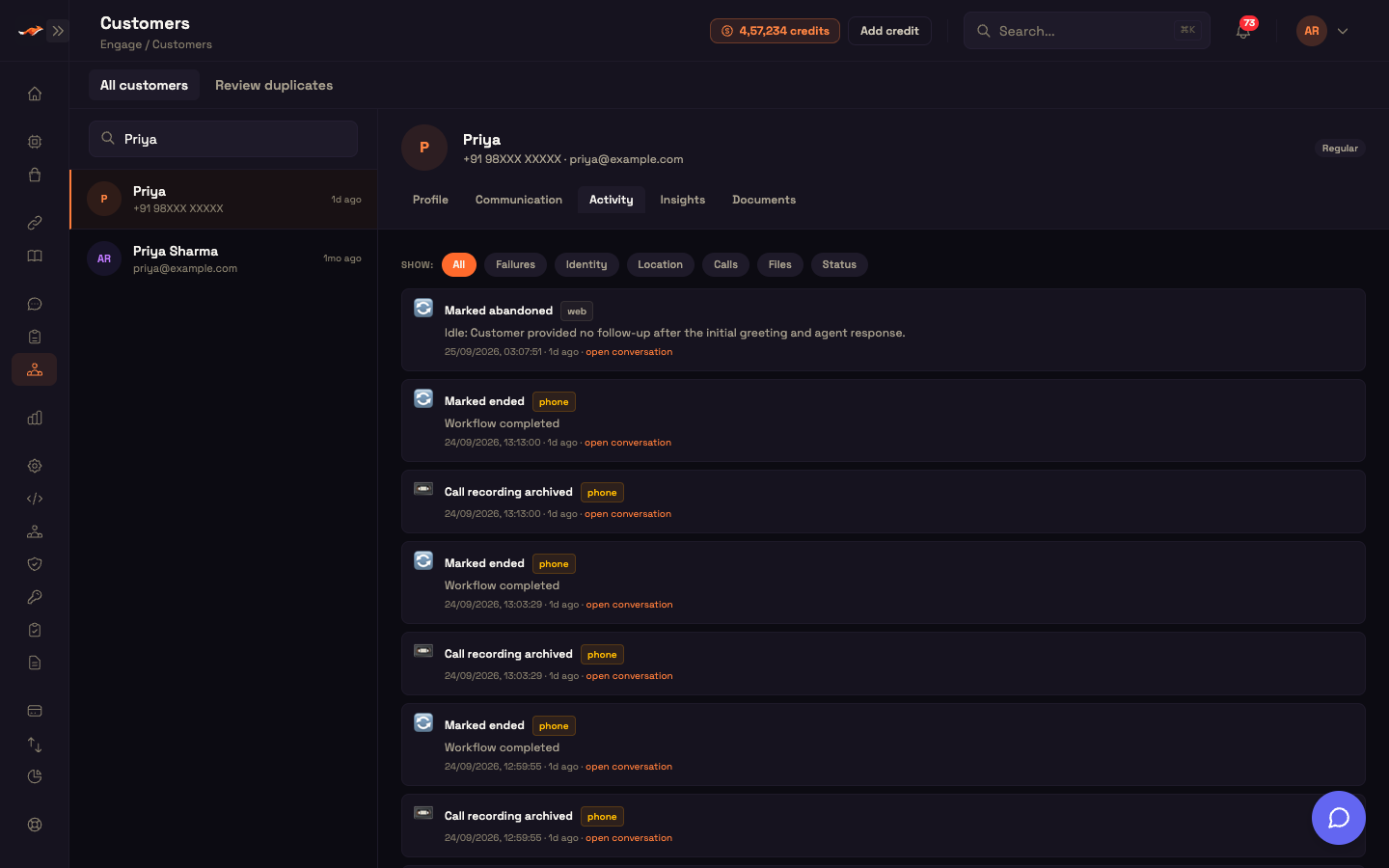
A timeline of events across all of this customer's conversations, up to the latest 100. It's the audit trail for one person: failed deliveries, identity confirmations, locations, calls, files, and status changes in one place.
Filter by event type:
| Filter | What it shows | Icon |
|---|---|---|
| All | Everything below | — |
| Failures | Messages that failed to deliver | ⚠️ / ✉️ |
| Identity | When the customer was identified or renamed | 👤 |
| Location | Locations shared | 📍 |
| Calls | Recorded calls | 📼 |
| Files | Files shared | 📎 |
| Status | Conversation status changes | 🔄 |
Each entry has an icon, a title (for example "Renamed: A → B", "Delivery failed", "Marked resolved", "Call recording archived", or "File: receipt.pdf"), a detail line (such as the reason a conversation was closed, a delivery error, or a file type), the channel, the date and time with how long ago it was, and an open conversation link.
Insights tab
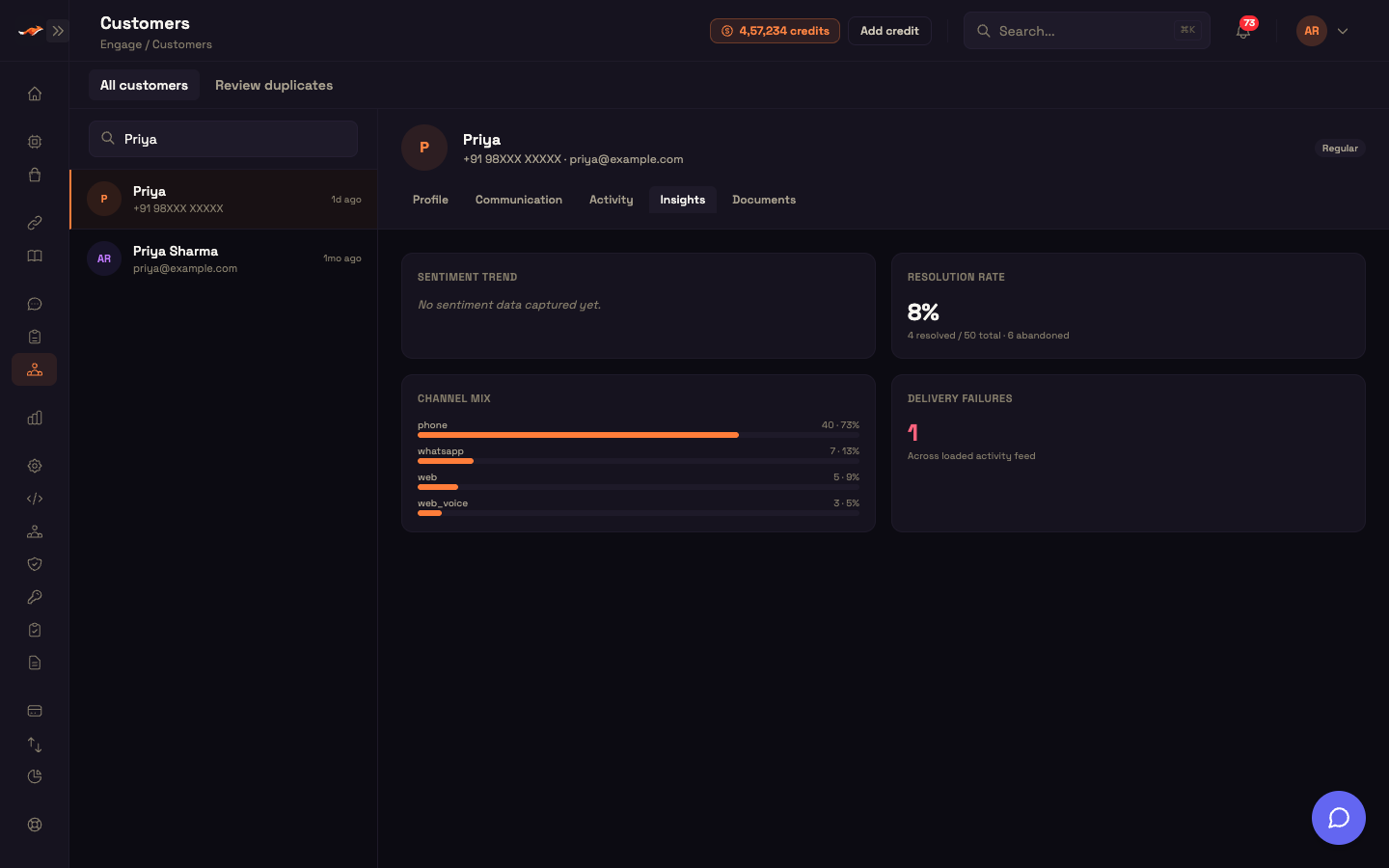
Four cards summarising this customer:
- Sentiment trend: their average sentiment across scored conversations, with a small chart of the last 30 scores.
- Resolution rate: the share of their conversations that were resolved, with "X resolved / Y total · Z abandoned".
- Channel mix: a bar per channel, sorted by volume, with the count and percentage.
- Delivery failures: how many messages to them failed to deliver, shown in red, or "All outbound messages delivered".
Until the customer has had a conversation, the tab shows Not enough data yet.
Documents tab
Files that belong to this customer, separate from your shared Knowledge Base. Each file is added to this customer's private knowledge, so your agents can use it only in this customer's conversations, never with anyone else.
- Upload document opens a file picker for the supported document types (listed on the empty tab). The file appears straight away with a
pendingstatus. - The table shows Name (with the error message if processing failed), Status, Size, and Added date, with Download and Delete on each row.
| Status | Badge |
|---|---|
pending | gray |
processing | amber |
active | emerald |
error | rose |
- Download (for
activefiles) gives you a secure, short-lived link. Delete removes the file from the customer. - While a file is processing, the tab refreshes every few seconds until it becomes
active(orerror).
The text is extracted in the background by an AI model that's included and managed by Perfox; there's nothing to set up. If a file can't be processed, its row shows the error; try uploading it again.
Worked example: uploading Priya's receipt
Setup. Asha, a support agent at Acme Support, opens Priya's record and goes to Documents. Priya emailed a PDF receipt, and Asha wants the agent to have it the next time Priya gets in touch.
Action. Asha clicks Upload document and picks priya-receipt-march.pdf. The row appears straight away as pending.
Result. A few seconds later it changes to processing, then active. The next time Priya contacts Acme Support, on any channel, the agent can look up what the receipt says. Asha can Download it again whenever she needs to.
What just happened. Perfox extracted the text in the background and added it to Priya's private knowledge. No other customer's conversations can see it.
Review duplicates
Review duplicates at the top of the page switches to a queue of records that may be the same person. When there are any, the label shows how many groups, for example Review duplicates (2).
Each group is an "is this the same person?" card with chips for the signals that matched:
| Signal | Meaning |
|---|---|
| same name | The records share a name |
| same machine | The records came from the same device |
| near location | The records were in about the same place |
A badge shows how confident the match is: High confidence (green), Medium confidence (yellow), or Low confidence (gray).
Each record in the group is an option showing its name, contact details, and conversation count. The record with the most conversations is selected as the one to keep.
- Merge into one folds the others into the selected record.
- Keep separate dismisses the group so it isn't suggested again.
After a merge, both the duplicates queue and the customer list refresh. When there's nothing to review you'll see No possible duplicates.
How records join up automatically
Perfox also joins records on its own while a conversation is happening. When the agent learns who someone is (a phone number entered at sign-in, or a name or email returned when it looks up their profile), Perfox moves the whole conversation, and its history, onto that person's existing customer record and drops the temporary anonymous one. This fixes the split records a late identification would otherwise leave behind.
Where to go next
- Conversations: read full transcripts, delivery receipts, and quality verdicts.
- Cases: the ticket-queue view of the same conversations.
- Authentication & Auth Broker: how customers are identified, and so when records join up automatically.
- Knowledge Base: shared files your agents use with everyone, compared with the private documents on a customer.