KB Index Node
Your product list lives in another system and changes every day. Your agent answers questions from a Knowledge Base. The KB Index node connects the two: it takes data from an earlier step, or fetches it from a URL, and indexes it into a Knowledge Base folder so agents can search it.
You'll find it under Data in the node picker.
It's the storing counterpart of Document Processing: Document Processing reads a document once and keeps nothing, while KB Index adds content to a Knowledge Base folder where it stays searchable.
Settings
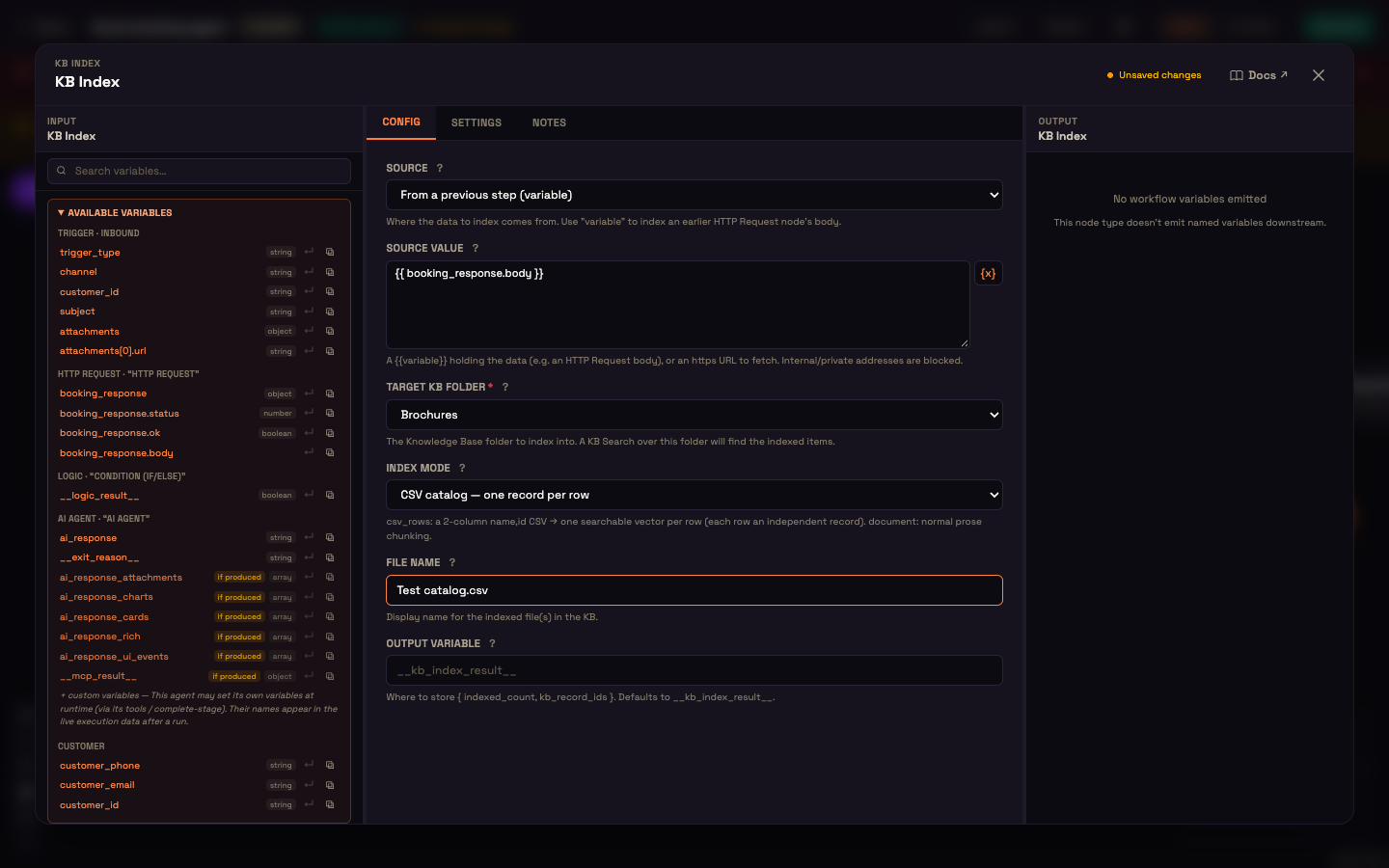
| Setting | What it controls |
|---|---|
| Source | From a previous step (variable): index data an earlier step produced, such as an HTTP Request's response. Fetch a URL: download it from an https address. |
| Source Value | For a variable, the value to index, for example {{ http_response.body }}. For a URL, the address. Internal and private addresses are blocked. |
| Fetch headers | Shown for Fetch a URL: headers to send with the download, such as an auth key. Values accept {{ variables }}. |
| Target KB Folder | The Knowledge Base folder to index into. Required. |
| Index Mode | Document (normal chunking): treat the data as ordinary text. CSV catalog, one record per row: treat a two-column name,id CSV as a list of separate records, one per row. |
| File Name | The name the indexed data gets in the Knowledge Base, for example Test catalog.csv. |
| Output Variable | Where the result is stored. Defaults to __kb_index_result__. |
Which Index Mode?
- Use CSV catalog, one record per row for a lookup list: products and their codes, tests and their ids, branches and their numbers. Each row becomes its own searchable record, so a search for one product returns that row and its id.
- Use Document (normal chunking) for prose: policies, descriptions, FAQs.
Large CSV files are split into parts of about 900 rows, each shown in the folder as its own file (Test catalog.csv (1), (2), …).
Re-runs replace, not duplicate
Each time the node runs, it first removes the files it indexed into that folder on its previous run, then indexes the new data. A scheduled workflow therefore keeps one fresh copy of the feed instead of piling up duplicates. Files you uploaded to the folder yourself aren't touched.
What you get back
The Output Variable holds indexed_count (how many pieces were indexed), kb_record_ids, and parts (how many files were created). If the source is empty, the download fails or indexing fails, the run continues and the variable carries an error instead.
Worked example: a daily test catalog at Acme Diagnostics
Setup. Acme's lab system publishes its test list as a CSV of test names and codes. Asha builds a workflow: Schedule trigger (daily) → HTTP Request (GET the CSV) → KB Index with Source From a previous step, Source Value {{ http_response.body }}, Target KB Folder Test catalog, and Index Mode CSV catalog.
Action. Every morning the workflow runs and re-indexes the list.
Result. When Priya asks the booking agent "Do you do a vitamin D test?", the agent finds the matching row in the Test catalog folder, with its current code, and answers from it.
What just happened. Each row became a separate searchable record, and yesterday's copy was replaced by today's.
Make sure the agent that should use the data has that folder selected on its Knowledge sub-node.
Next steps
- HTTP Request: fetch the data to index.
- Knowledge Base overview: folders, files and how agents search them.
- Knowledge sub-node: give an agent access to the folder.