Uploading & Formats
Asha at Acme Diagnostics has 4,000 lab-report PDFs, a folder of scanned images and a few audio recordings she wants her support agent to draw on. She drags the whole folder onto the Knowledge Base page and lets it process — no scripts, no staging. This page shows you how to do the same, which file types are accepted, and how to choose between speed and cost.
The Upload window
Go to Connect → Knowledge Base, select the folder you want to add to, and click Upload — or drag files or a folder anywhere onto the page. Everything goes through one window, Upload to Knowledge Base.
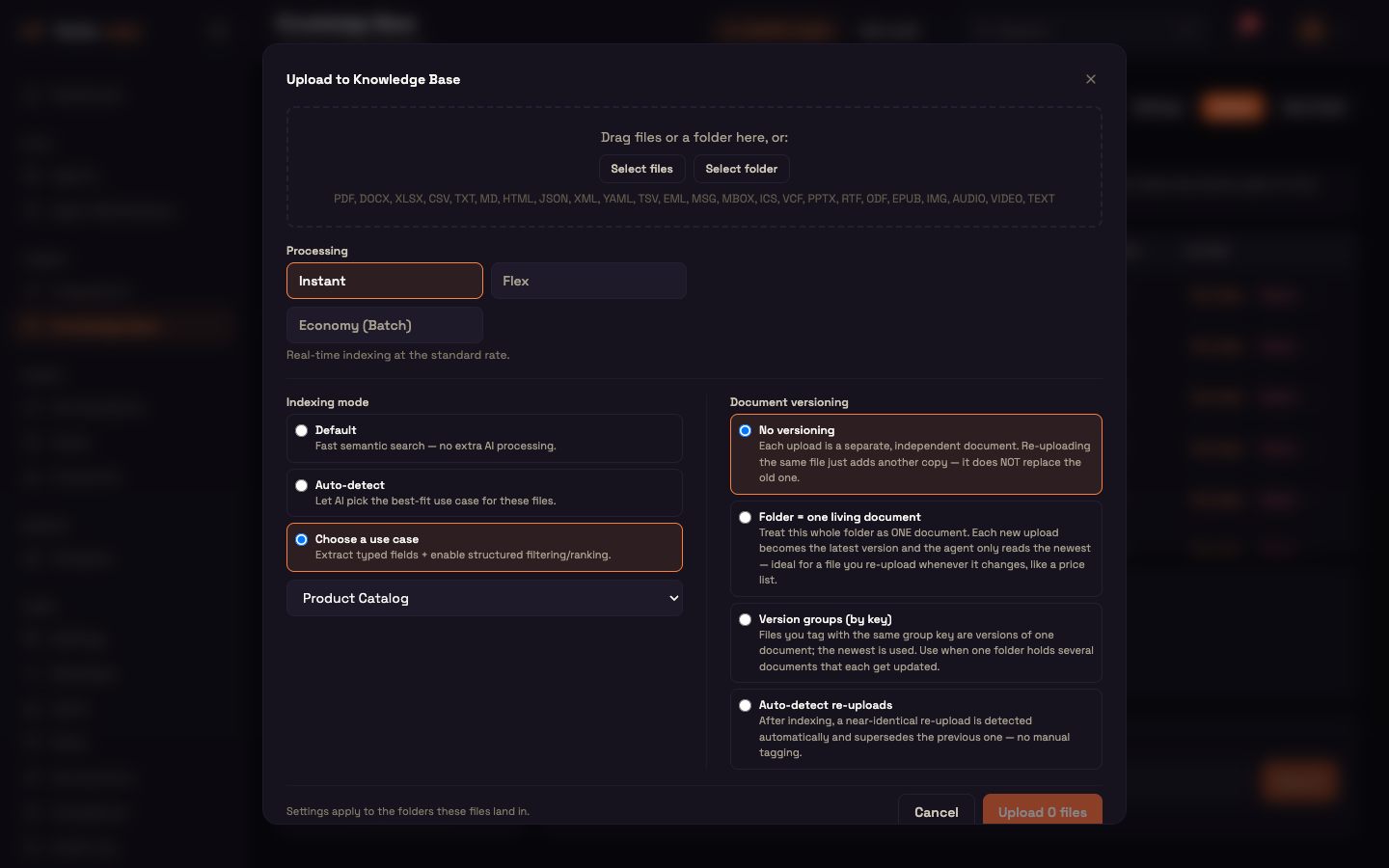
| Part | What you do |
|---|---|
| Drop area | Drag files or a folder in, or click Select files / Select folder. Selecting a folder includes every file inside it, at any depth. The accepted types are listed under the buttons. |
| Document name | Shown when you upload one file. The name the file will have in the Knowledge Base. |
| Version group key | Shown for a single file when Version groups (by key) is selected. Optional; files with the same key are versions of one document. |
| Processing | Instant, Flex or Economy (Batch) — see Processing speed. |
| Indexing mode | Default, Auto-detect or Choose a use case — see Extraction & Understanding. |
| Document versioning | How re-uploads are grouped — see Versioning & Folders. |
Indexing mode and versioning are folder settings. They start from the target folder's current settings, and whatever you choose here is saved on the folders the files land in.
Files of a type the Knowledge Base can't read are counted and listed as skipped, never uploaded half-way.
One file, or many
One file uploads straight away when you click Upload & Process, and appears in the table as Pending, then Processing, then Active (or Error with a reason). A single upload can be up to 200 MB.
Several files, or a folder, run as a resumable upload built for large imports (around 100,000 files):
- Your browser sends each file directly to storage, then registers it for indexing.
- Progress is shown as it happens — Uploaded, Registered, Indexed, Failed, Skipped and Total.
- The folder structure you selected is recreated inside the target folder.
- Indexing runs on our side, so you can close the window and it keeps going. If your browser is interrupted, the upload picks up where it left off.
- When the last file is indexed, the folder summaries are refreshed once and any use case on the folder is applied to the new files.
Credits. Credits are checked before a large upload starts, so you're stopped before any spend if your balance is empty. If you run out part-way, new files stop being registered; files already registered keep indexing, and you can resume after adding credit.
Processing speed
Processing trades speed for cost when files are read:
| Option | Speed and cost |
|---|---|
| Instant (default) | Real-time indexing at the standard rate. |
| Flex | Cheaper; processed within minutes. |
| Economy (Batch) | About 50% cheaper; completes within 24 hours. Best for large bulk imports. |
The choice is remembered on each file. Re-index offers Instant and Flex and starts on the file's previous choice.
The KB model
The KB model menu in the Knowledge Base toolbar sets the AI model used to read documents and images, and to transcribe audio and video, when files are indexed. Default uses our recommended model and is right for most workspaces. Changing it affects files indexed from then on; to apply it to a file you already have, Re-index that file.
Accepted formats
One list controls the file picker, the hint in the Upload window, what is accepted, and which linked files a website crawl can download.
| Family | Extensions |
|---|---|
| Documents | PDF (.pdf), Word (.docx, .doc), Excel (.xlsx, .xls), PowerPoint (.pptx, .ppt), RTF (.rtf), OpenDocument (.odt, .ods, .odp), EPUB (.epub) |
| Text and data | CSV, TSV, TXT (.txt, .log), Markdown (.md, .markdown), HTML (.html, .htm), JSON, XML, YAML (.yaml, .yml), and plain-text files such as .rst, .org, .tex, .toml, .ini, .jsonl |
| Email and contacts | Email (.eml), Outlook messages (.msg), mailboxes (.mbox), calendars (.ics), contacts (.vcf, .vcard) |
| Images | .png .jpg .jpeg .gif .webp .svg .bmp .tiff .tif .heic .heif |
| Audio | .mp3 .wav .ogg .oga .m4a .aac .flac .aiff |
| Video | .mp4 .mpeg .mpg .mov .avi .webm .mkv .flv .wmv .3gp |
The type is recognised from the file name as well as what the browser reports, so files that browsers often mislabel (Outlook .msg, .mbox) are still read correctly.
How each format is read
Each file is read the cheapest way that captures all of its content:
- Read directly — text-based documents and data (Word, Excel, PowerPoint including speaker notes, CSV, text, Markdown, HTML, JSON, XML, YAML, EPUB, email, calendar and contact files), and PDFs that contain real text. No AI is needed, so there is no reading cost.
- Read by AI — scanned PDFs and images (text, tables, charts and handwriting are transcribed), audio (transcribed, with speakers and timestamps) and video (transcribed and described). Documents that can't be read directly are converted and read the same way.
- Large files are split, not cut. A long scan or recording is processed in parts and joined back together, so nothing at the end is dropped.
Tables keep their rows and columns, so a price list or an invoice stays usable for search and for use cases.
Worked example — a scanned report.
- Setup: Asha uploads a scanned PDF of a 2023 lab report and leaves Processing on Instant.
- Action: She clicks Upload. The row shows Processing.
- Result: Within a minute it turns Active with a passage count, and the agent can answer questions about the report.
- What just happened: The PDF had no text layer, so it was read by AI page by page — including its results table — before being split into passages and indexed.
Re-indexing a file
Re-index on a file's row re-reads it and rebuilds its passages, without uploading it again. Choose Instant or Flex and click Reindex; the file shows Processing until it is done. Use it when a file failed, when its text came out poorly, or after changing the KB model.
Reference
| Item | Value |
|---|---|
| Processing options | Instant (default), Flex, Economy (Batch) |
| Re-index options | Instant, Flex |
| Single-file limit | 200 MB |
| Resumable upload scale | around 100,000 files |
| Folder settings set on upload | Indexing mode, Document versioning |
See also
- Knowledge Base Overview — the page, folders, files table and connectors.
- Connectors (Drive, S3, Web…) — keep a folder in sync instead of uploading by hand.
- Extraction & Understanding — indexing modes and use cases.
- Versioning & Folders — re-uploading new versions of a document.