FAQ Agent
Priya lands on the Acme Store site at 11 p.m. with one question: "Do you ship to Pune, and how long does it take?" There's no one on live chat, but the answer is already sitting in a PDF you uploaded last week. By the end of this page you'll have a Web Chat agent that finds that answer in your own FAQ document, replies in seconds, and says "I don't have that" instead of guessing when a question isn't covered.
This page is for an admin (say, Asha) setting up self-serve support for one business. You'll upload your FAQ documents once, attach them to an agent, and every answer comes from what you uploaded. (Answering from your own documents like this is called RAG.) If you've never built an agent, do Getting Started first. This page assumes you know the canvas basics.
What you'll build
A Web Chat agent that looks up the most relevant passages in a Knowledge Base folder before answering, and declines plainly when a question isn't covered. No live operator needed, and no made-up answers.
Before you start
- A Perfox workspace. No provider connection is needed: web chat and the AI model are included.
- Your FAQ content as files: PDF, DOCX, MD, TXT, HTML, CSV and many more formats.
The story, end to end
1. Create a folder for your FAQs
Asha goes to Connect → Knowledge Base and clicks New Folder. She names it for what it will hold: FAQs.
2. Upload your FAQ documents
She opens the folder and clicks Upload. In Upload to Knowledge Base she drags in her files (or uses Select files / Select folder), leaves Processing on Instant and Indexing mode on Default, and clicks Upload. Perfox splits each document into passages and prepares them for search. The chunk count appears once indexing finishes.
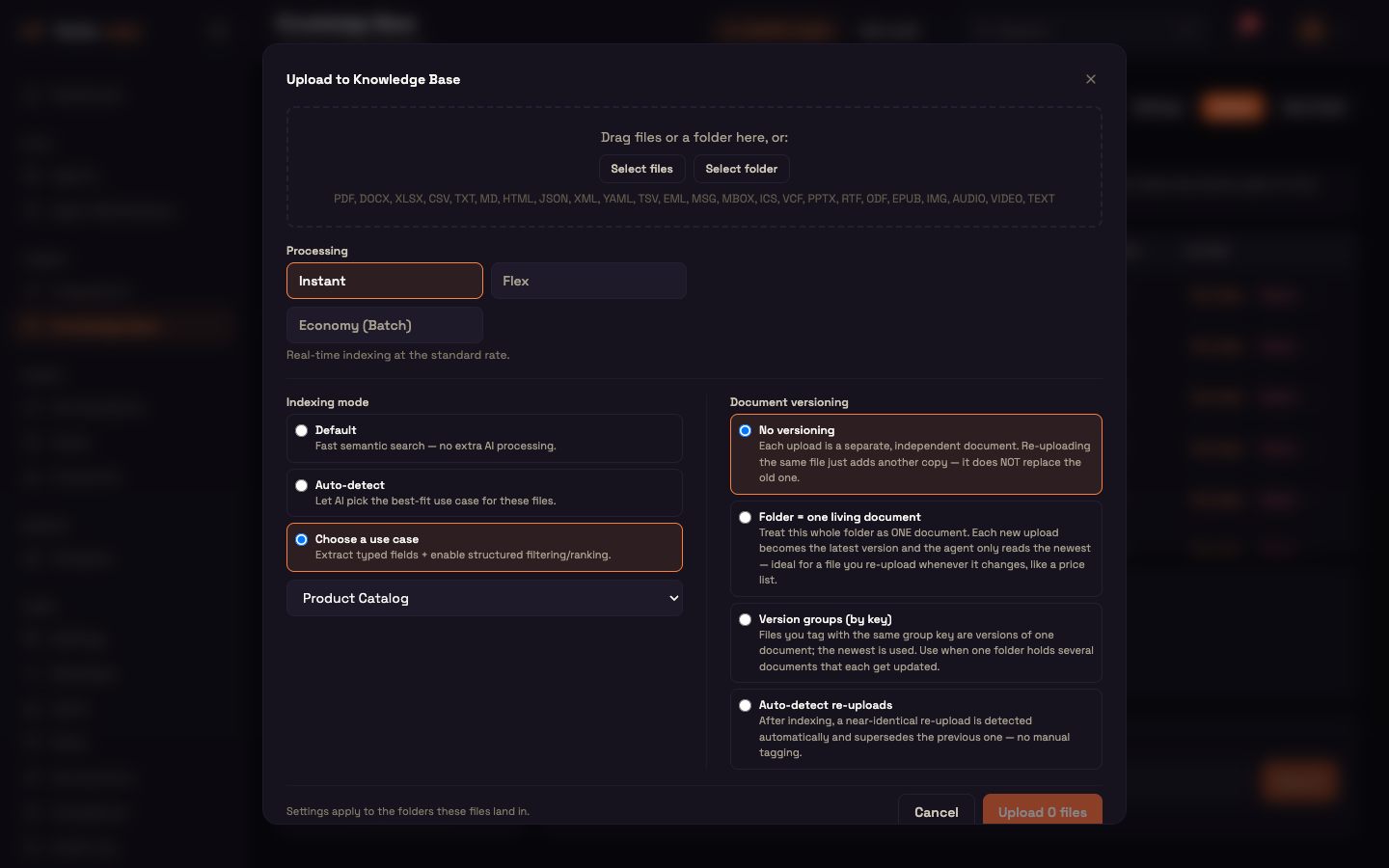
Because she'll re-upload the shipping FAQ whenever it changes, she sets Document versioning to Auto-detect re-uploads. A near-identical re-upload then replaces the previous copy instead of adding a duplicate. (The default, No versioning, keeps every upload as a separate document.)
3. Build the agent
Next, Build → Agents → + New Agent. On the canvas, Asha adds a Web Chat trigger and an AI Agent (see Getting Started for the clicks), then:
- adds the Personality sub-node and makes the grounding behaviour explicit in its system prompt:
You are Acme Store's support assistant. Answer ONLY from the knowledge base. If a question isn't covered, say so plainly and offer to connect a human. Never invent an answer.
- adds the AI Model sub-node and leaves the model on Platform default. It's included; there's no key to add.
4. Attach the FAQs folder
She clicks the + under the AI Agent's Knowledge port, adds a Knowledge sub-node, opens it, and ticks the FAQs folder under Folders.
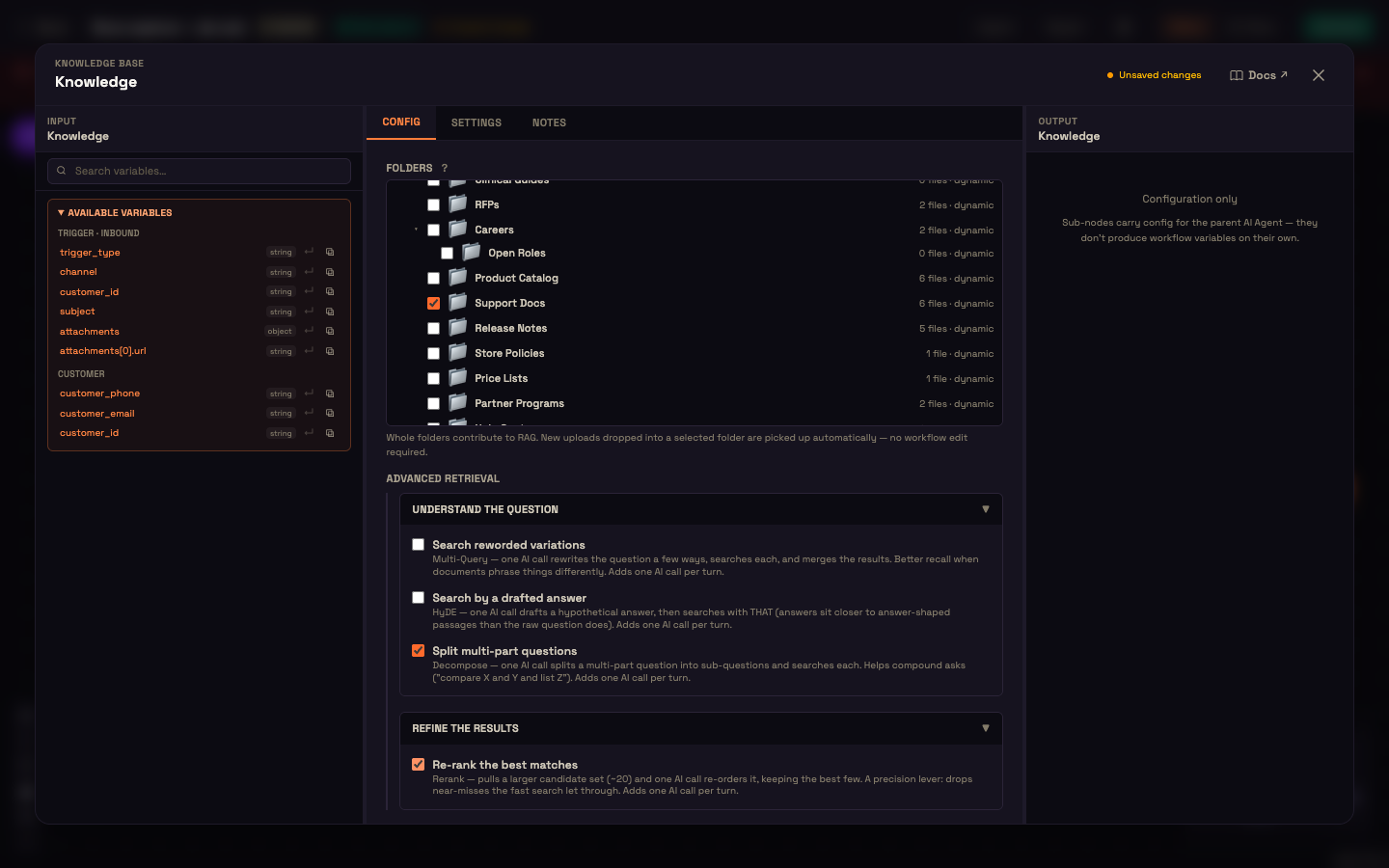
Search is limited to the folders ticked here, nothing else in the Knowledge Base. Folders are dynamic: any file Asha adds to FAQs later becomes searchable on its own, with no change to the agent.
To make "answer only from my documents" strict, she opens the AI Agent node's Knowledge & Grounding section and turns off Allow general (LLM) knowledge. The agent then answers only from her business data and says so when it can't.
5. Try it before you activate
Asha doesn't have to activate to test. She clicks the Web Chat node, and on its Configure tab clicks Live preview. The real chat widget opens beside the settings and runs her current draft.
Setup. Asha's shipping FAQ says Acme Store delivers to Pune in 3–5 business days. Nothing in her documents mentions gift wrapping.
Action. She types Priya's question into the preview: "Do you ship to Pune, and how long does it take?" Then one she knows is missing: "Do you offer gift wrapping?"
Result.
text
You:  Do you ship to Pune, and how long does it take?
Acme: Yes, we deliver to Pune. Orders usually arrive in 3–5 business days.

You:  Do you offer gift wrapping?
Acme: I don't have that in our help docs. I can connect you with a
      human if you'd like.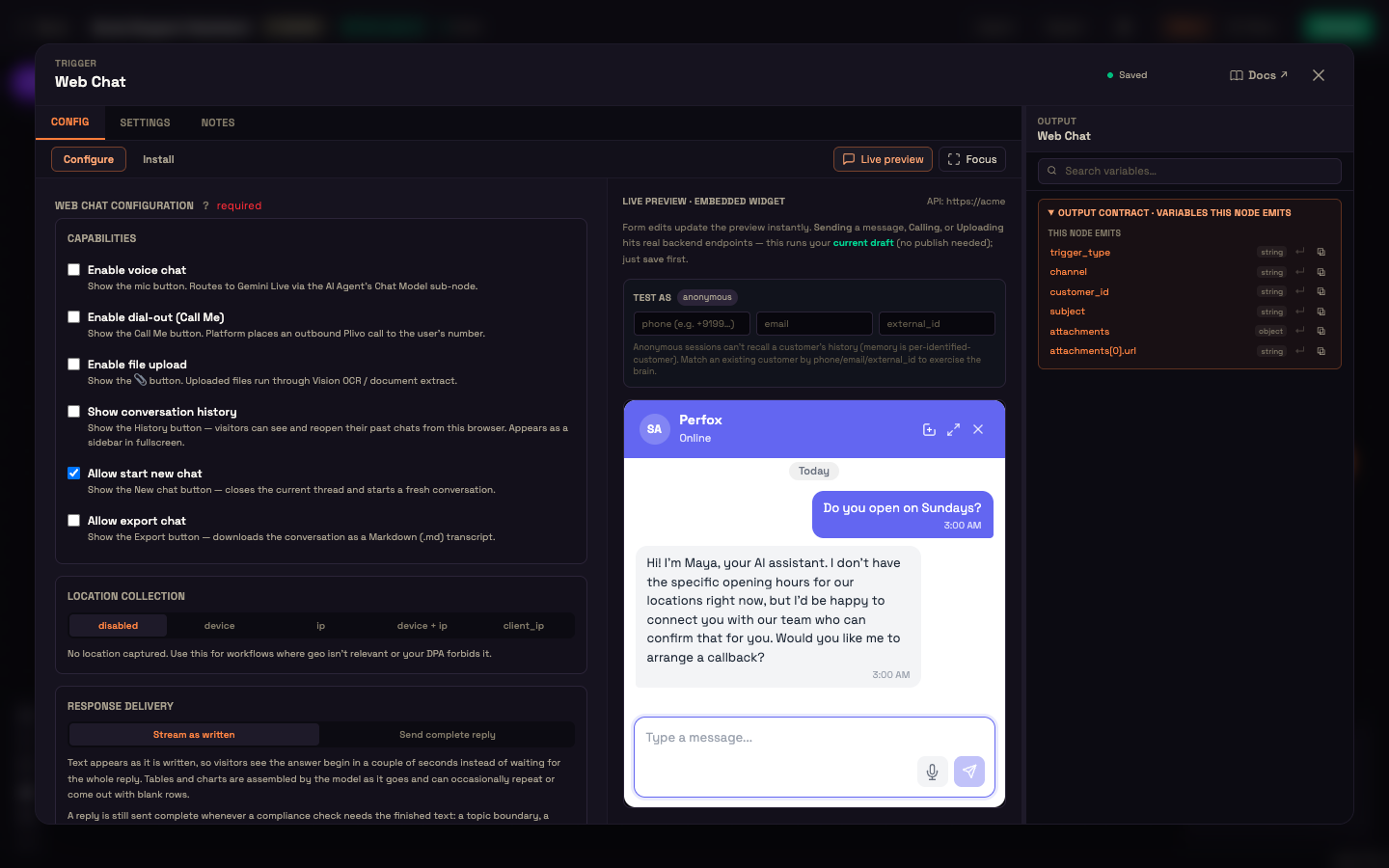
What just happened. For the first question, the agent found the shipping passage in the FAQs folder and answered from it. For the second, nothing in the folder matched, so, because Asha told it to answer only from the knowledge base, it declined plainly and offered a human instead of guessing. Grounded when it can be, honest when it can't.
To see how the agent treats a known customer, she fills in Test as with a phone number, email or external ID.
6. Activate
Happy with both answers, Asha clicks Activate. The agent is live on her website chat, so when the real Priya arrives at 11 p.m., she gets the shipping answer in seconds. (To add the chat bubble to the site, see Getting Started.)
Variations
- Several folders. Tick more than one folder, such as
FAQsandPolicies. The agent searches all of them. - Crawl a website instead of uploading. Let Perfox read your public site. See Customer Service from your Website.
- Search only when needed. On the AI Agent's Knowledge & Grounding → Knowledge lookup, Always attach (the default) searches before every reply. On demand lets the agent search only when it decides it needs to, which is faster and cheaper for chats that are mostly small talk.
- Better recall. The Knowledge sub-node's Advanced retrieval options, such as Search reworded variations and Re-rank the best matches, can improve answers for tricky questions at the cost of an extra AI call per turn.
You can now
You can now set up a Web Chat agent that answers from your own FAQ documents, declines when it doesn't know, and stays current as you upload new files.
- Customer Service from your Website — skip the uploads and let Perfox crawl your live site.
- Knowledge Base & RAG — how retrieval works.
- Knowledge Base — folders, formats and re-indexing.
- Knowledge sub-node — every option on the sub-node you attached in step 4.
- Web Chat (Widget) — style and embed the widget on your site.