Personality
When Priya calls Acme Diagnostics, she hears a calm, professional voice introduce itself as "Asha" and explain exactly what it can help with — that first impression comes entirely from the Personality sub-node. This is the single place you decide who your agent is and how it speaks.
By the end of this page you'll know how to set up the Personality, write an effective system prompt, and use the built-in AI tools to refine it without starting from a blank page. This page assumes you've already created an agent on the canvas (see AI Agent Node).
What the Personality does
Every AI Agent has exactly one Personality sub-node, connected to the agent's Personality port. On the canvas it renders as a round purple avatar badge showing the PERSONA tag, the name's initial, the name, and the role.
To open it, go to Build → Agents, select an agent, and click the Personality disc on the canvas. The config side-panel opens on the right.
The Personality is the only place the agent's identity and behaviour are authored. There is no separate node-level instructions field and no standalone persona library — everything is inline on the sub-node. The System Prompt field is the single saved source of the agent's behaviour and drives the agent at runtime.
Identity vs. system prompt — the split that matters
Perfox treats a persona as two distinct layers, and understanding the split saves you from a common mistake:
- Identity — the Name, Role, Tone, and Language fields. Authored via the discrete panel fields. (How the agent refers to itself grammatically — its gender — is set on the AI Model card, next to the voice.)
- System prompt — your full behavioural spec, used verbatim. This is where every rule, flow, and instruction lives.
Because the name lives in the identity layer, never hardcode the persona name inside the system prompt. If you rename the persona, only the identity changes, and the greeting stays in sync automatically.
Panel layout — essentials first
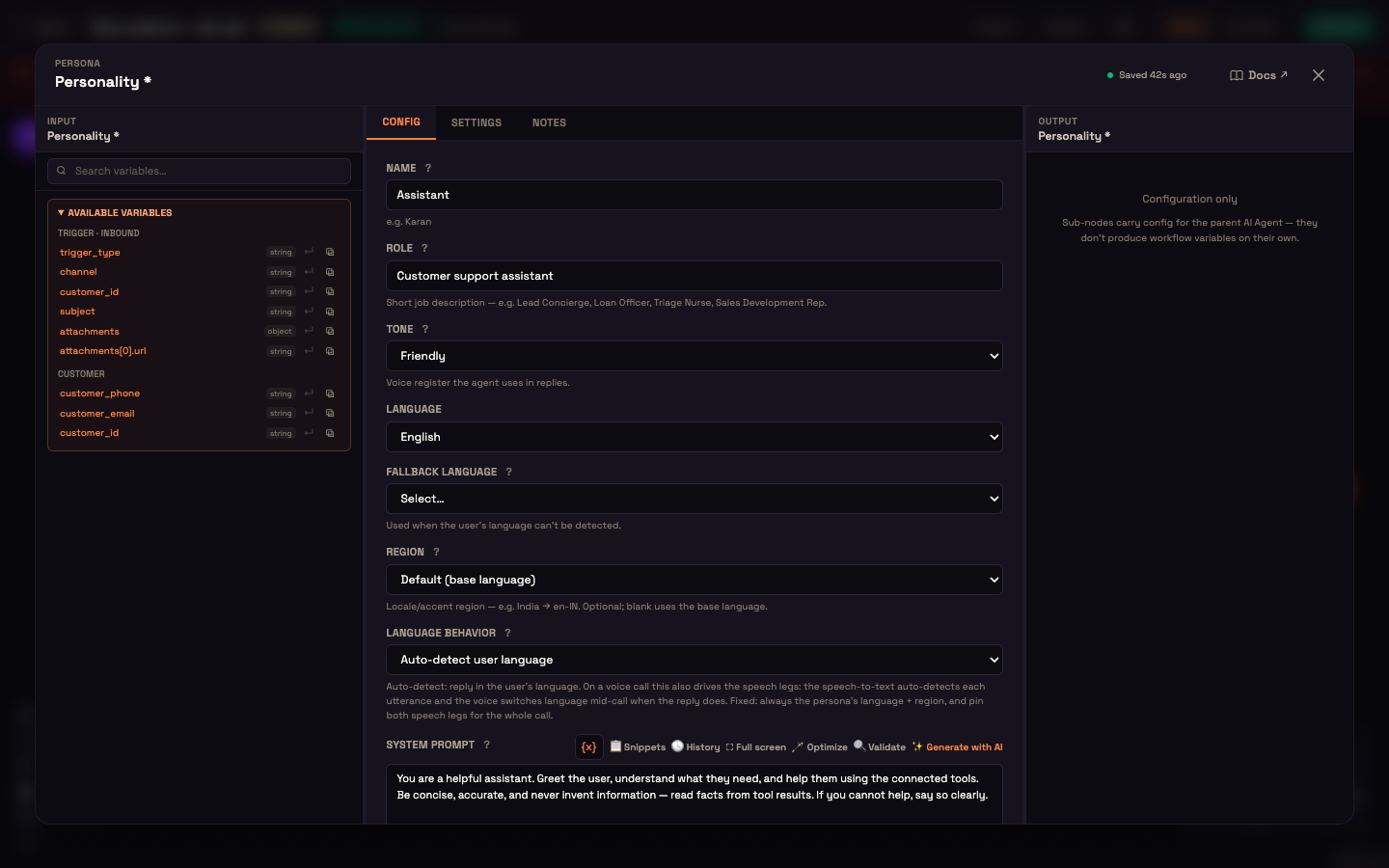
The side-panel form is deliberately lean. It shows the runtime-essential fields ungrouped, at the top, in a natural authoring order, each with a sensible default so a fresh persona is usable immediately:
Name → Role → Tone → Language → Fallback language → Region → Language behavior → System Prompt (with Channel-specific prompts) → Greeting.
A new Personality starts with a usable default — name Assistant, role Customer support assistant, tone Friendly, language English, and a short starter system prompt you can replace.
The AI-generator inputs (industry, responsibilities, domain knowledge, constraints) are not panel fields — they live as transient state inside the System Prompt widget's Generate with AI modal (see below).
Identity fields
Name
Name (text). The display name the agent uses — for example, "Asha". It:
- fills the disc avatar's initial and label,
- substitutes into the greeting's
{persona_name}token, - surfaces as the agent's stated name.
Role
Role (text). A short job description (placeholder "Lead Concierge"; for example, Loan Officer, Triage Nurse, Sales Development Rep). Shows as the disc's second line and as the agent's stated role.
Tone
Tone (select). The voice register the agent replies in, chosen from five options.
| Value | Register |
|---|---|
Professional | Businesslike, formal |
Friendly | Warm, approachable |
Empathetic | Caring, supportive |
Casual | Relaxed, informal |
Authoritative | Confident, directive |
Language, region, and language behavior
Four fields control the agent's language. Perfox turns your selections into a clear language directive the agent follows at runtime.
Language
Language (picker). A grouped dropdown of roughly 40 languages:
| Group | Languages |
|---|---|
| Global | English, Spanish, French, German, Portuguese, Italian, Dutch, Russian, Japanese, Korean, Chinese |
| Middle East | Arabic, Persian, Turkish, Hebrew, Urdu |
| South Asia | Hindi, Tamil, Telugu, Kannada, Marathi, Bengali, Gujarati, Malayalam, Punjabi |
| Southeast Asia | Thai, Vietnamese, Indonesian, Malay |
| Africa | Swahili, Amharic |
Fallback language
Fallback language (picker, same list as Language). The language the agent uses when it can't tell which language the user is writing or speaking in.
Region
Region (picker). An optional country code — India, US, UK, Australia, Canada, Singapore, UAE, Spain, Mexico, Brazil, France, Germany, Portugal, Japan, China. It combines with the language into a full locale — for example, English + India → en-IN. Leaving it blank means "Default (base language)". The region steers spelling and idiom so the agent sounds local.
Language behavior
Language behavior (select, default Auto-detect). Chooses how the agent handles the conversation language:
| Value | Behavior |
|---|---|
| Auto-detect user language (default) | Reply in the user's language (seeded by their browser or site locale), then mirror and stick as the user switches. On a voice call, speech is also transcribed in whatever language the caller uses, and the voice switches language mid-call when the reply does. |
| Fixed to persona language | Always reply in the persona's language and region; ignore the browser locale; never switch. On a voice call, both listening and speaking stay pinned to that language for the whole call. |
Voice
The speaking voice is no longer chosen here. It lives on the AI Model card, next to the voice model that speaks it, so the voice list always matches the model. The agent's grammatical gender is set there too.
System Prompt editor (Prompt IDE)
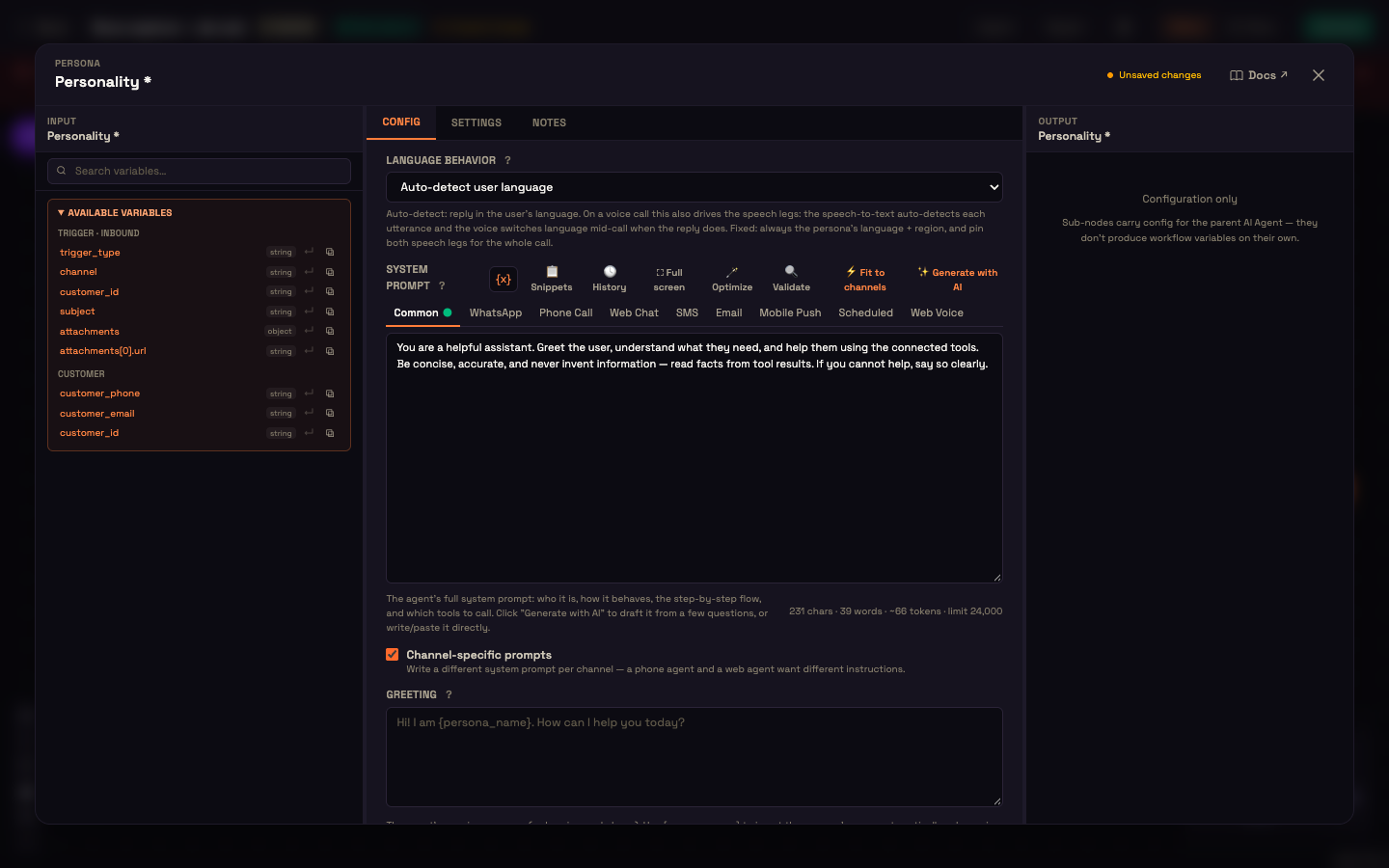
The System Prompt is the agent's full authoritative behavioural spec — who it is, how it behaves, the step-by-step flow, and which tools to call. There is no separate node-level instructions field; this is the one place behaviour lives. At runtime it becomes the agent's operating instructions.
The field is a mini Prompt IDE:
- Syntax highlighting — a colour overlay tints key constructs:
{{ variables }}→ indigo,- markdown headings
#..######→ emerald, - hard-rule keywords MUST / MUST NEVER / NEVER / DO NOT / ALWAYS → rose.
- Live size counter —
chars · words · ~tokens · limit(the token count is an approximation at roughly 3.5 characters per token). The limit is the size budget for the tab you're editing — for example 24,000 characters for the common prompt. {{ }}workflow variables — an "Insert a workflow variable" picker drops runtime-resolved variables at the cursor. Focusing the editor registers it as the input pane's insert target.- ⛶ Full screen — re-renders the same editor in a near-fullscreen modal for focused writing.
Toolbar
The editor toolbar exposes, left to right:
| Action | What it does |
|---|---|
| Variable insert | Drops a {{ }} workflow variable at the cursor. |
| 📋 Snippets | Save and reuse system-prompt fragments — see Snippets. |
| 🕓 History | Compare and restore earlier drafts — see History. |
| ⛶ Full screen | Focused full-window editing. |
| 🪄 Optimize | AI reviews and rewrites the prompt — see Optimize. |
| 🔍 Validate | QA scorecard — see Validate. |
| ⚡ Fit to channels | Shown when Channel-specific prompts is on — see Channel-specific prompts. |
| ✨ Generate with AI | Draft the prompt from a few inputs — see Generate with AI. |
Actions and workflows
Generate with AI
The ✨ Generate with AI button opens a focused modal that drafts a complete system prompt from a few questions, so you don't start from a blank page. Inputs:
| Input | Type | Purpose |
|---|---|---|
| Industry | select (Banking, Insurance, Healthcare, …) | Tailors the wording. |
| Responsibilities | string list (one per line) | What the agent does. |
| Domain Knowledge | freeform | Ground-truth facts the agent should treat as authoritative — services, hours, policies. |
| Constraints | string list | Hard boundaries (for example, "Never quote prices not in the catalog"). |
Click ✨ Generate and Perfox drafts a system prompt from your answers, folding in the persona's current name, role, tone, and language, then writes it into the editor and closes. These modal inputs are transient — they are not saved; only the resulting system prompt is kept.
Snippets
The 📋 Snippets action manages a reusable library of system-prompt fragments. In the modal you can:
- Save a snippet (name + content — prefilled with whatever text is currently selected in the editor),
- see Your snippets listed,
- click Insert to drop a fragment at the editor cursor,
- click ✕ to delete one.
Snippets are shared across every persona and agent in your workspace, so common blocks — escalation rules, disclaimers, tone guidance — are authored once and reused everywhere.
History
The 🕓 History action opens a version history for the system prompt. The editor auto-snapshots the prompt about 2 seconds after it settles (de-duplicated automatically) — independent of activating, so a timeline exists from the very first edit. The modal shows:
- a left sidebar of numbered Version N + date/time (newest first, with a "latest" tag on top),
- a side-by-side diff (selected version | current editor text, with − removed / + added).
Restore Version N replaces the current prompt with that version (behind a confirm dialog). The current text is itself kept in history, so restoring is reversible. History requires the Personality to be opened from a saved workflow on the canvas.
Optimize
The 🪄 Optimize action sends the current system prompt to Perfox's AI and returns an improved version. It opens a modal with a side-by-side line diff (Current | Optimized, with − removed / + added markers). If the AI suggests no changes it says "The prompt already looks good". Apply optimized prompt replaces the editor text — which auto-saves and re-snapshots into History, so a bad optimize is one History restore away. The button is disabled while the prompt is empty.
Validate
The 🔍 Validate action scores the current system prompt without changing it. It runs an AI review and renders a read-only scorecard:
| Element | Detail |
|---|---|
| Score /100 | Colour band: ≥80 green, ≥60 amber, else rose. Plus a one-line verdict. |
| Hallucination risk | low / medium / high (coloured dot). |
| Issues | A list by severity — critical / warning / info — each with a category, message, and optional suggestion. |
| Strengths | A checklist of what the prompt does well. |
Disabled while the prompt is empty.
Channel-specific prompts
A phone agent and a web chat agent usually want different instructions — short spoken sentences on a call, formatted answers in chat. Tick Channel-specific prompts (under the System Prompt) to write a different prompt per channel inside the same editor.
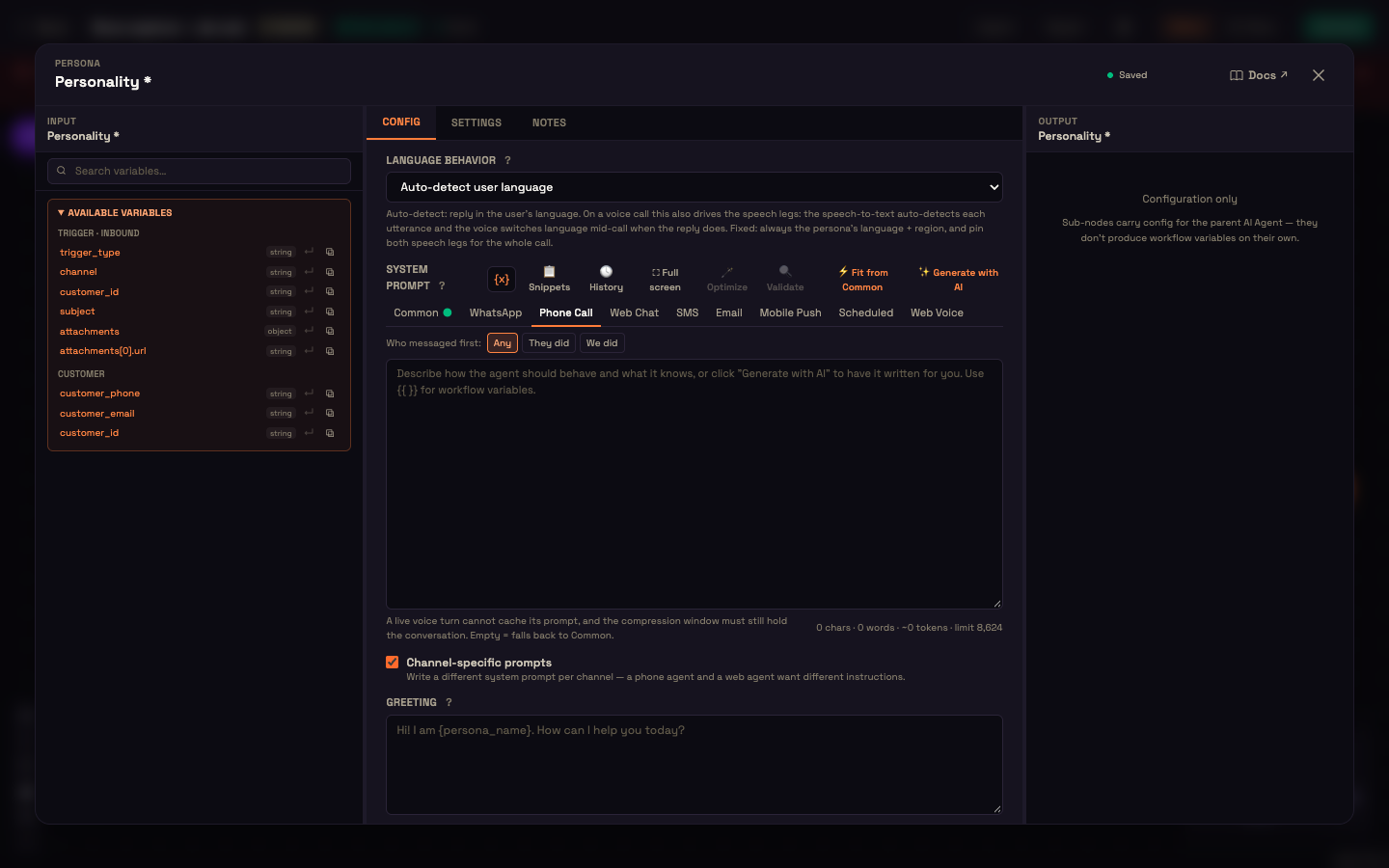
When it's on, the editor shows a row of tabs:
- Common — the main system prompt. It's what every channel uses unless you write something more specific.
- One tab per channel — WhatsApp, Phone Call, Web Chat, SMS, Email, Web Voice, Scheduled (outbound runs), and so on. An empty tab falls back to Common, so you only fill in the channels that need something different. A dot on a tab shows it has content.
- Who messaged first — on channels where either side can start the conversation, a tab can hold separate variants for They did (inbound) and We did (outbound), plus Any.
Every tab has its own size budget, shown in its counter along with the reason for it:
| Tab | Budget | Enforcement |
|---|---|---|
| Phone Call, Web Voice | About 8,600 characters | Hard — you can't save or publish a voice prompt over the limit, because a live voice call can't cache its prompt and still has to hold the conversation. |
| Web Chat | 24,000 characters | Advisory — a warning, never a block. |
| 20,000 characters | Advisory. | |
| WhatsApp, SMS | 12,000 characters | Advisory. |
| Scheduled | 6,000 characters | Advisory. |
⚡ Fit to channels (toolbar, on the Common tab) writes each channel's prompt for you from the Common one. In the dialog you tick the channels, choose Who messaged first where it applies, and click Generate — each result is written within that channel's budget. On a single channel tab the same button reads ⚡ Fit from Common and rewrites just that tab.
Existing agents are untouched: until you turn Channel-specific prompts on, every channel uses the one system prompt exactly as before.
Greeting
Greeting (textarea, placeholder "Hi! I am {persona_name}. How can I help you today?") is the single source of truth for the agent's opening message across channels — the web widget, the voice greeting, and phone outbound.
- Use the
{persona_name}token to insert the persona's name automatically. At runtime Perfox substitutes{persona_name}with the resolved persona name, so the greeting can never contradict the persona name and stays in sync if you rename. - The persona greeting is the only producer of the widget's opening greeting.
- A web-chat starter greeting override, if set, wins over the persona greeting.
Worked example — setting up Asha for Acme Diagnostics
Setup. Asha (an admin at Acme Diagnostics) opens the agent canvas and clicks the Personality disc on their triage agent.
Action. She sets Name to Asha, Role to Patient Support Specialist, Tone to Empathetic, Language to English, Region to India. She clicks ✨ Generate with AI, selects Healthcare from the Industry dropdown, lists "Book appointments, share report status, escalate urgent queries" as responsibilities, and pastes the clinic's policy document into Domain Knowledge. After clicking Generate, a complete system prompt appears in the editor. She clicks 🔍 Validate — the scorecard returns 84/100 with no critical issues. She ticks Channel-specific prompts, opens the Phone Call tab and clicks ⚡ Fit from Common to get a shorter, spoken version of the same instructions. She sets the Greeting to Hi! I'm {persona_name}, your patient support assistant. How can I help you today? The workflow saves automatically.
Result. When Priya calls the clinic, she hears Asha greet her in a warm, empathetic tone. If Asha's name changes next month, only the Name field needs updating — the greeting updates automatically via the {persona_name} token.
What just happened. The identity fields (name, role, tone, language, region) drove how the generated prompt was worded and how the agent identifies itself. The system prompt carried the behaviour. The greeting used the token so both stayed in sync. Nothing was duplicated between identity and prompt.
How the prompt is assembled
Perfox renders your Personality into its two authored layers — identity and system prompt — then wraps them with sections it generates automatically, so you write only the system prompt:
| Auto-added section | Source |
|---|---|
| Behavioral rules | Always injected — security, honesty, data-fidelity, boundaries, style. |
| Knowledge-grounding policy | The agent's knowledge configuration. |
| Tool descriptions | The agent's attached tools. |
| Stage-completion guidance | Injected when stage completion is enabled. |
| End-user profile and identity | What Perfox knows about the person the agent is talking to. |
| Entity-collection progress | The agent's field-collection state. |
| Language directive | The persona's language, region, and behavior configuration. |
The persona is one layer of a larger assembled prompt (see Agents and MCP) — the same engine powers both standalone conversations and workflow-embedded AI Agent nodes, so a persona behaves identically wherever it runs.
Field reference
| Field | Type / widget | Default | Effect |
|---|---|---|---|
| Name | text | — | Display name; disc initial + label; {persona_name} substitution; stated name. |
| Role | text | — | Short job description; disc second line; stated role. |
| Tone | select (Professional / Friendly / Empathetic / Casual / Authoritative) | — | Voice register. |
| Language | language picker (~40 languages) | — | Primary language; drives the language directive. |
| Region | region picker (country code) | Default (base language) | Combined into a full locale (e.g. en-IN); steers spelling and idiom. |
| Language behavior | select (Auto-detect / Fixed to persona language) | Auto-detect | Auto-detect and mirror the user's language, or lock to the persona's. |
| Fallback language | language picker | — | Used when the user's language can't be detected. |
| Channel-specific prompts | checkbox + tabs in the System Prompt editor | off | A separate prompt per channel (and per direction); empty tabs fall back to Common. |
| System Prompt | Prompt IDE | — | The single saved behavioural spec; becomes the agent's operating instructions. |
| Greeting | textarea | placeholder "Hi! I am {persona_name}…" | Cross-channel opening line; only producer of the widget greeting. |
Back-compat fields
The Personality carries one legacy consideration that new personas don't need to set:
- Legacy persona references — the old standalone persona-library page and its picker were removed; personas are now authored fully inline on the sub-node. Old workflow docs that still reference a legacy persona template round-trip through save without loss, and Perfox resolves them at runtime as a fallback (falling back to the inline or default persona if the template is missing).
What you can do now
You can author a complete agent persona — name, tone, language, per-channel system prompts, and greeting — and use the built-in AI tools to draft, optimize, and validate it without writing from scratch.
Next steps, and why each one matters:
- AI Agent Node — understand the full cluster anatomy that the Personality sits inside, including how sub-nodes wire together.
- AI Model sub-node — choose the models, the speaking voice, and the agent's grammatical gender.
- Agents and MCP — learn the identity-vs-system-prompt split in depth and understand what belongs in the system prompt versus in MCP tools your agent calls.