Sticky Note
When Asha built Acme Support's refund agent, she added Sticky Notes to explain why each branch existed — so the next person to open the canvas didn't have to guess.
A Sticky Note is a comment on the canvas. It has no effect on how your agent runs.
Adding one
Open the node picker and choose Annotations → Sticky Note. It lands on the canvas as a coloured note; double-click it to edit.
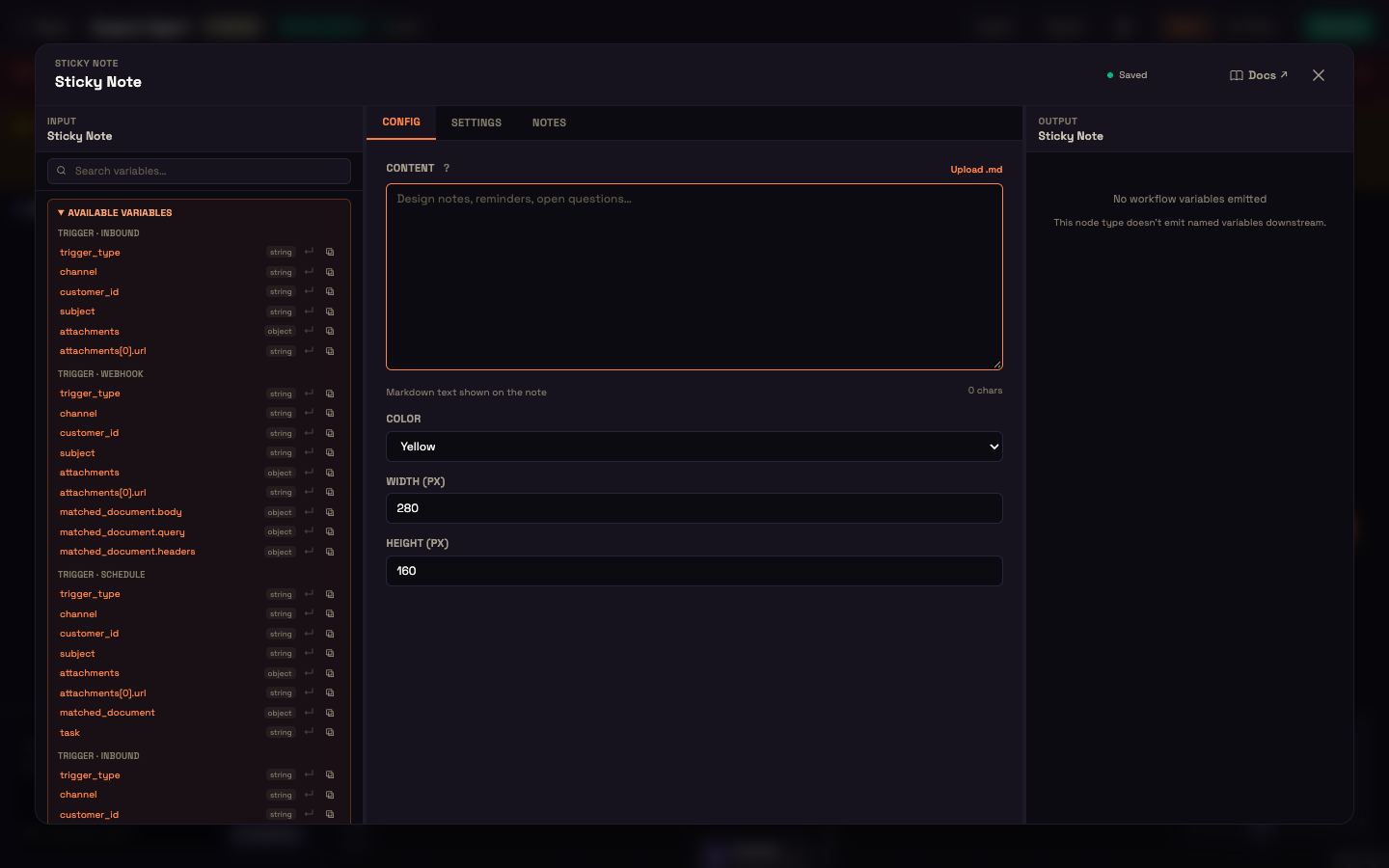
| Setting | Default | What it controls |
|---|---|---|
| Content | empty | The note's text, in Markdown. Upload .md fills it from a Markdown file. A character count shows under the box. |
| Color | Yellow | Yellow, Blue, Green, Pink or Purple — handy for grouping notes. |
| Width (px) | 280 | The note's width on the canvas. |
| Height (px) | 160 | The note's height on the canvas. |
A note never connects to other nodes, never runs, and never reaches your agent's prompts or your customers.
Worked example
Setup — Asha's refund agent has three branches: refunds under ₹500, larger refunds, and escalation to a person.
Action — She drops a yellow note above the first branch with # Under ₹500 — auto-approve, and a pink one above the escalation branch with # Needs human review — check SLA.
Result — The canvas now has colour-coded labels on each branch. Nothing about how the agent runs has changed.
What just happened — A week later, Priya from the ops team opens the canvas and understands the routing at a glance, without tracing each branch.
Next steps
- Canvas Basics — everything else you can place on the canvas.