Conversations
A customer sends a WhatsApp message, your AI agent replies, a follow-up email arrives the next day, and then someone on your team takes a phone call with them. Conversations is the one place where all of that lands in a single, searchable thread, and where you act on it.
This page is for operators and admins who triage and respond to conversations on every channel. By the end you'll know how to filter your queue, read every event in a transcript, see why the AI answered the way it did, place or take a live call with AI assistance, and read the quality verdict that scores each conversation when it closes.
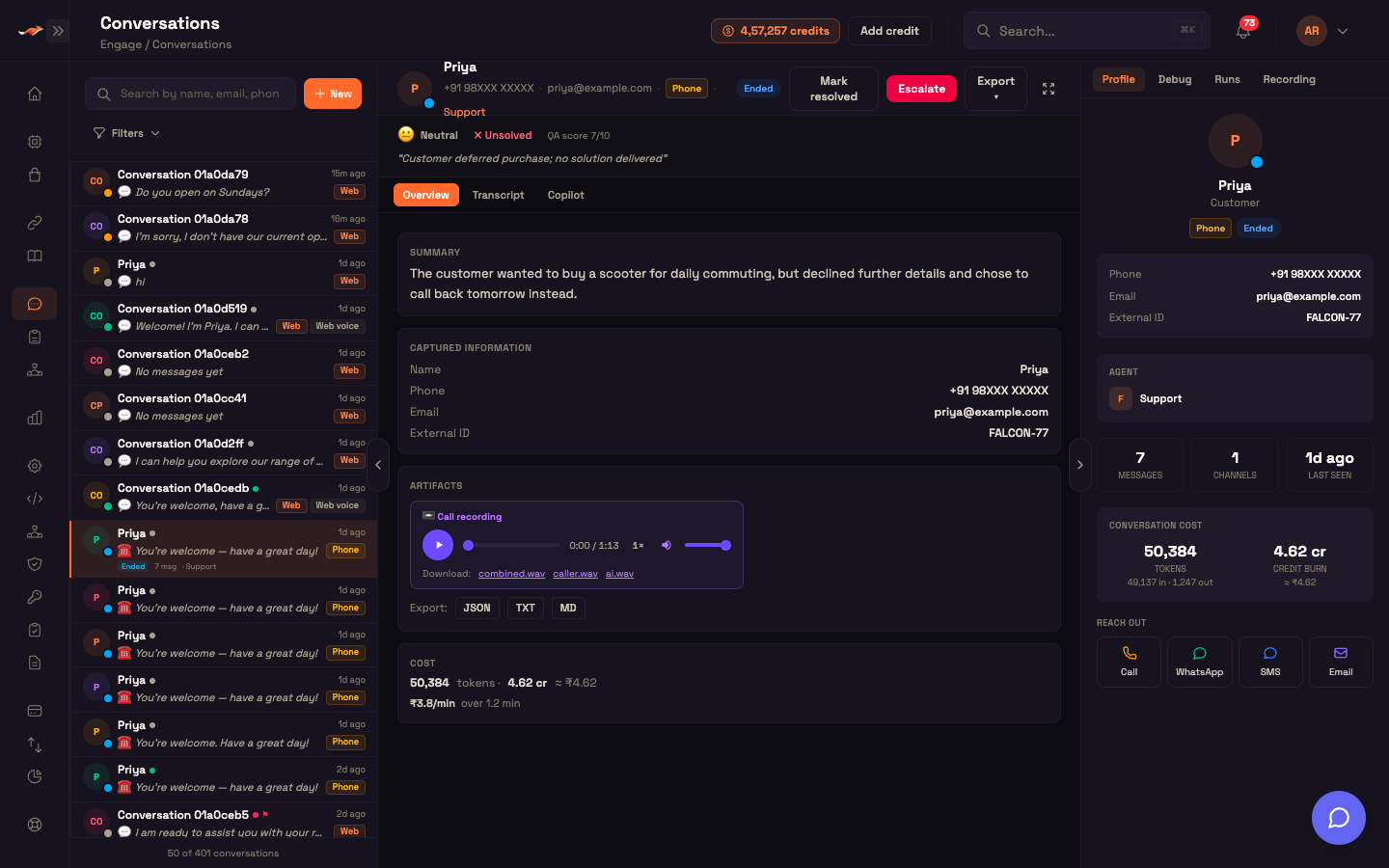
Go to Studio → Engage → Conversations.
How the page is laid out
The page has three columns:
| Pane | Role | Contents |
|---|---|---|
| Left | Conversation list | Search, + New, and a collapsible Filters panel |
| Center | The selected conversation | The header with lifecycle actions, then an Overview / Transcript / Copilot switch |
| Right | Inspector | Tabs for Profile, Debug, Runs, and Recording (voice conversations only) |
The newest conversation opens automatically when you arrive. The selected conversation and your filters are part of the page address, so you can share a filtered view or a specific thread by copying the URL, and it survives a reload.
To make room while you read:
- Collapse handles sit on the dividing lines between panes. Click one to hide the list or the inspector, and click it again to bring it back.
- The fullscreen button at the far right of the conversation header hides everything except the conversation. Press
Escto leave fullscreen.
On a phone-sized screen the page shows one pane at a time. The list fills the screen, and opening a conversation swaps to it, with a back arrow to return. The inspector opens as a drawer.
Left pane: the conversation list
Search and filters
- Search matches a customer's name, email, or phone number. Results update shortly after you stop typing.
- Filters opens a panel with three sections:
- Status:
All,Active,Ended,Resolved,Escalated, and⚑ Follow-up. Follow-up shows conversations the AI flagged as needing a human (see QA outcome verdict), whatever their status. - Originator:
Any,↘ Customer(the customer started it), or↗ Agent(your agent or team reached out first). - Channels: toggle
Web,WhatsApp,SMS,Phone, andEmail. Pick as many as you like.
- Status:
- With the panel closed, active filters show as small chips next to the Filters button, with a count and a
✕to clear them all.
Filtering happens on the server, so search and filters cover your whole history, not only the rows already loaded. If nothing matches, the list says so and offers Reset filters.
The list loads 50 conversations at a time. Click Load more at the bottom for the next 50. The footer shows how many are loaded out of the total, for example 50 of 401 conversations.
What each row shows
- Avatar and status dot. The dot colour shows the status: amber for active, sky for ended, emerald for resolved, rose for escalated, and slate for abandoned.
- Name. The customer's name, or their phone number or email if no name is known yet, otherwise
Conversationplus a short reference. - Sentiment dot from the AI quality verdict, and a red ⚑ when the conversation needs follow-up.
- Time since the last activity, for example
5m ago. - Last message. A WhatsApp reply with buttons or a list shows as its readable text.
- Channel chips, one per channel the conversation used. A browser voice call shows as Web voice.
- On the selected row (or on hover): the status, the originator arrow, the message count, and the agent that handled it.
Center pane: the selected conversation
Header and lifecycle actions
The header shows the customer (avatar, name, phone, email, and channel chips) and the agent that took the conversation. Click the agent's name to open it in the builder. If no agent's trigger matched the message, the header says No agent matched.
The actions on the right depend on the conversation's status:
| Action | When it shows | What it does |
|---|---|---|
| ↻ Reopen | The conversation is Resolved | Sets it back to Active for follow-up. The history is kept, and reopening does not re-score it. |
| Mark resolved | Any conversation that isn't Resolved or Abandoned | Asks you to confirm, then marks it resolved and runs the AI quality scoring. |
| Escalate | Not Resolved, Abandoned, or already Escalated | Asks for an optional reason, marks it escalated, and records the escalation in the timeline. |
| ⏹ Force end | Only an Active conversation, and not while a copilot call panel is open | The emergency stop for a stuck live call: hangs up any voice call and marks the conversation resolved. |
| Export ▾ | Always | Downloads the transcript as JSON, Text transcript, or Markdown. |
After an action the timeline and the list refresh so the new status shows straight away. Reopen, Mark resolved, Escalate, and Force end need the Conversations: write permission.
To call the customer, use + New or the Call icon under Reach out in the Profile tab. Both open the same call form (see Start a conversation or a call).
When a conversation has been scored, its verdict appears as a banner under the header.
Overview, Transcript, and Copilot
Three buttons under the header switch the center view.
Overview (the default) answers "what was this conversation about?":
- Summary: the AI-written summary, created when the conversation is scored at close.
- Captured information: the name, phone, email, and external ID the conversation collected, plus any custom attributes.
- Artifacts: a player for the call recording (voice conversations) and one-click JSON / TXT / MD export.
- Cost: tokens used, credits spent, and the rupee equivalent. For a voice call it also shows the cost per minute and the call length, and marks the call high when it cost more than most recent calls, so expensive calls are easy to spot.
Right after a call ends, a "Processing the call" note shows until the summary, recording, and verdict arrive, usually within a few seconds.
Transcript is the full timeline (see the next section). Older messages load 100 at a time with Load older messages. Once the conversation is scored, a Conversation summary card with the verdict sits at the bottom.
Copilot holds the AI's live answers during a copilot call, and the saved history of those answers afterwards. See Copilot view.
While a conversation is open the page checks for new messages and status changes every few seconds, so a reply, a close, or a new score appears without a refresh. It stops checking once the conversation is closed and scored, and pauses while the browser tab is hidden.
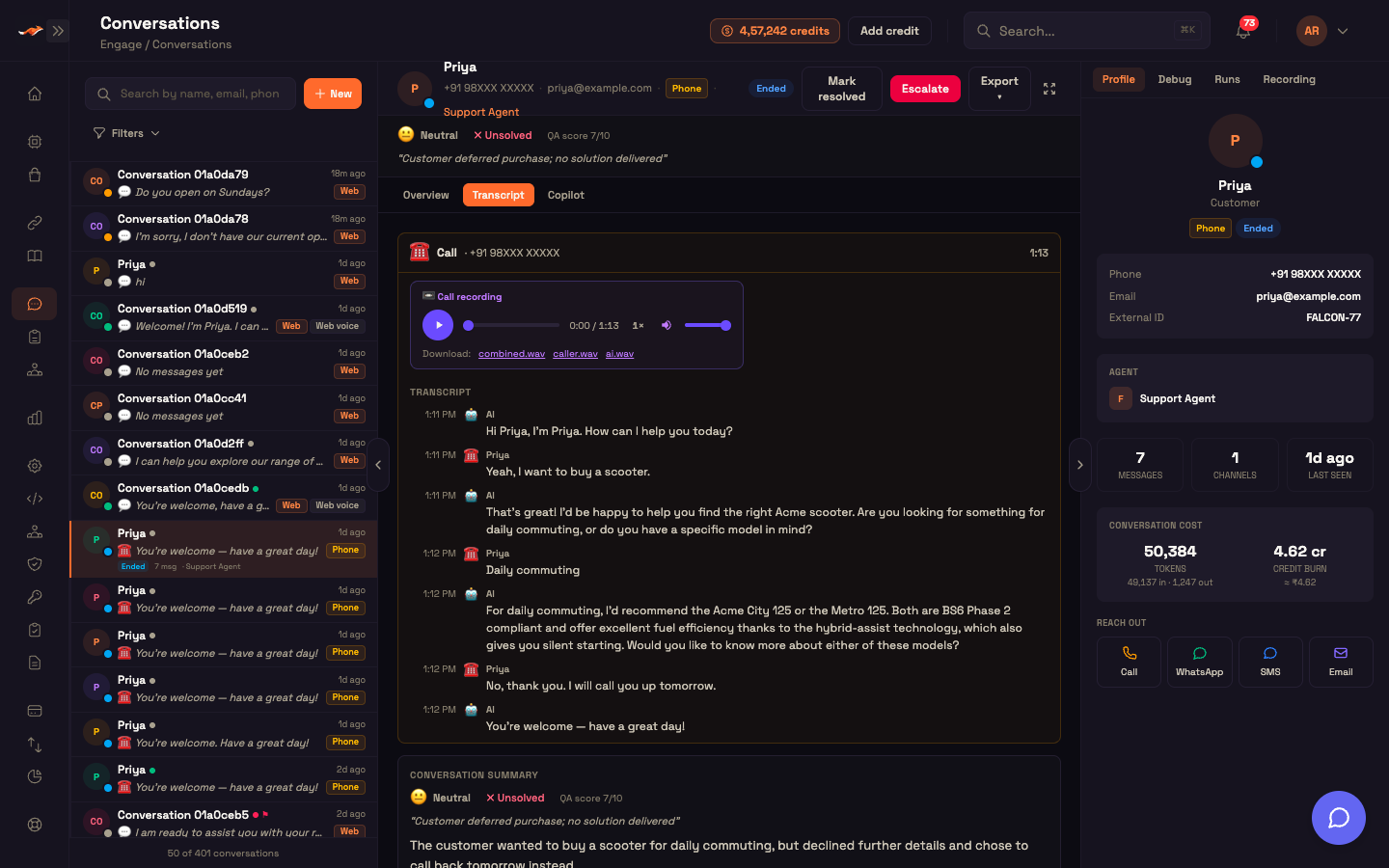
The transcript
The transcript groups events by channel. A single-channel conversation reads as one clean thread; when a conversation moves between channels, a divider marks each switch. Each channel shows in its own style:
- Chat (web, WhatsApp, SMS) as message bubbles.
- Email as email cards, one per message in the thread.
- Phone and voice calls as a call card: the caller, call length, the recording player with combined / caller / AI downloads, and the turn-by-turn transcript.
| Event | How it shows |
|---|---|
| Customer message | A bubble on the right. Voice notes and images the customer sent show as chips you can click to read the transcription or the text read from the image. |
| AI reply | A bubble on the left, rendered the way the customer saw it (including WhatsApp buttons and lists). The footer shows the time, how long the reply took, tokens used, tool calls, and delivery ticks. Click the bubble or its Debug › link to inspect that turn. |
| Human agent message | A green bubble for a message a person on your team sent. |
| Copilot call line | A line of a live copilot call: the customer on the left, your operator on the right. |
| Tool call / tool result | A one-line row you can expand to see the full input and result. |
| File | A preview for images, audio, and video, or a file card for PDFs and other documents. |
| Identity learned | A system row when the conversation learns who the customer is, showing the old and new name. |
| Location | A "📍 Location captured" pill that opens Google Maps. |
| Escalated | A rose card with the escalation reason. |
| Call started / ended / recorded, email sent | Small system pills. The recording pill jumps the inspector to the Recording tab; a recording removed by your retention policy shows as expired. |
| AI could not answer | A rose row when the agent's turn failed and the customer got a fallback message instead of an answer, with the reason (for example, the model provider was temporarily unavailable). |
| Not sent | An orange "Not sent — no sender node on the canvas" row when the agent wrote a reply on email, SMS, or WhatsApp but had no Sender node wired to it, so nothing went out. It names the node to add. See Channels. |
| Delivery failed | A rose row with the provider's error. Successful deliveries show as ticks on the reply instead. |
| Sign-in changes | Rows for when your website passed a signed-in customer to the agent, when that sign-in expired, or when it was rejected. |
Delivery receipts
Each AI reply on a messaging channel carries delivery ticks that show what the provider reported:
| Indicator | Meaning |
|---|---|
| ✓ | Sent (the provider accepted it) |
| ✓✓ | Delivered |
| blue ✓✓ | Read |
| ⚠️ | Failed |
Ticks move forward on the same bubble as updates arrive (delivered, then read). Voice replies have no ticks. A hard failure, such as a message outside WhatsApp's 24-hour window, a bad number, or no credits left with the provider, also adds a "⚠️ Delivery failed" row. See SMS and WhatsApp for how delivery reports work on each channel.
Right pane: the inspector
Profile
The default tab:
- An identity card: avatar, name (click it to open the customer record), status, channels, and whether the customer or your agent started the conversation.
- Contact details: phone, email, and external ID.
- Agent: the agent whose trigger took the conversation. Click it to open the agent. If the agent called other agents during the conversation, they're listed under Sub-agents with how many times each ran and how the last run ended. A conversation can continue across channels, so a later message may have been handled by a different agent; the Runs tab has the full history.
- Attributes: your custom fields for this conversation.
- Messages, Channels, and Last seen. For an active conversation, the last-seen clock keeps counting.
- Conversation cost: tokens (split into input and output), credits spent, and the rupee equivalent.
- Reach out: Call, WhatsApp, SMS, and Email buttons, each available when the customer has that contact detail.
- Location: a Google Maps link when a location was captured.
Clicking an AI reply in the transcript switches to the Debug tab for that turn. Press Esc to go back to Profile.
Debug: what happened on one turn
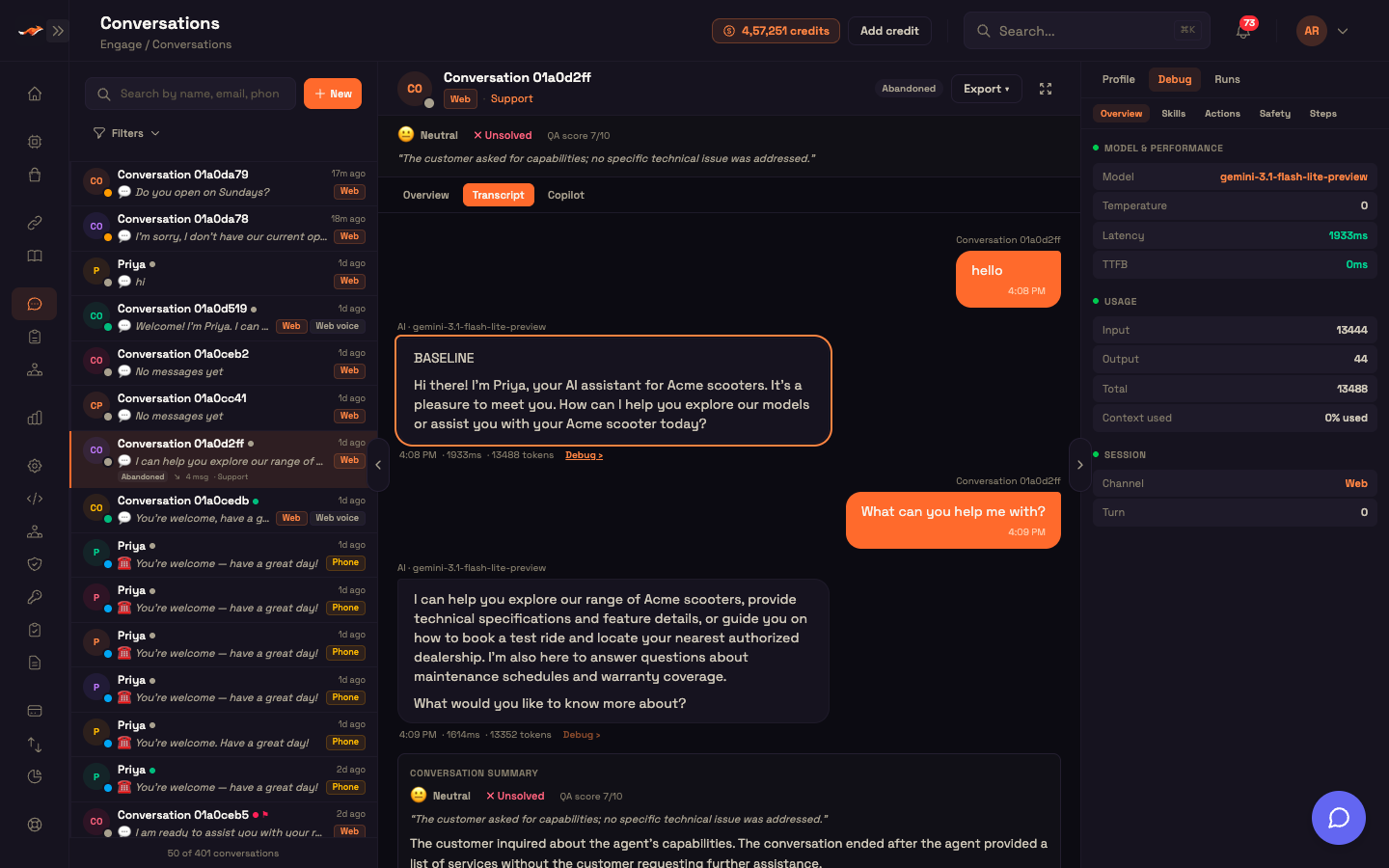
Click an AI reply to see exactly how it was produced, in five tabs:
| Tab | Contents |
|---|---|
| Overview | The model, temperature, latency, and time to first byte; tokens in, out, and total, with how much of the model's context window was used (amber above 70%); the channel and turn number; and the connected integrations with their status and tool count. |
| Skills | The pieces the agent's instructions were built from, each with its size and a preview, plus the knowledge-base passages it retrieved for this turn. |
| Actions | Every tool the agent called on this turn, with the integration, time taken, and whether it worked. Expand one to see its full input and output, or the error. |
| Safety | The guardrail checks that ran, each passed, warned, or failed, with scores and details. |
| Steps | A timeline of the steps in the turn with a bar for how long each took, and the total. |
Turns with no saved detail, such as older conversations and most voice turns, show an empty state, and their bubbles have no Debug › link.
Runs
The Runs tab lists the workflow runs on this conversation, 20 at a time. Each run shows its status (Pending, Success, Failed, or Cancelled) and a row of dots, one per step: green for the trigger, red for a step that errored, and indigo for the rest, with the step's result or error.
Click a run to open it in the full Runs view, where you can replay it step by step.
Recording
Voice and phone conversations get a Recording tab (the same player also appears on the Overview). It plays the combined call recording, with the caller on the left channel and the AI on the right, and offers separate downloads of the combined, caller, and AI audio.
- Download links are created when you ask for them and stay valid for a short time.
- Files are named after the conversation and the track, for example
…-caller.wav. - If your retention policy has removed the audio, a "Recording expired" card replaces the player.
Start a conversation or a call
+ New at the top of the list opens a form to start a conversation. The Reach out buttons in the Profile tab open the same form with the channel and recipient already filled in and locked.
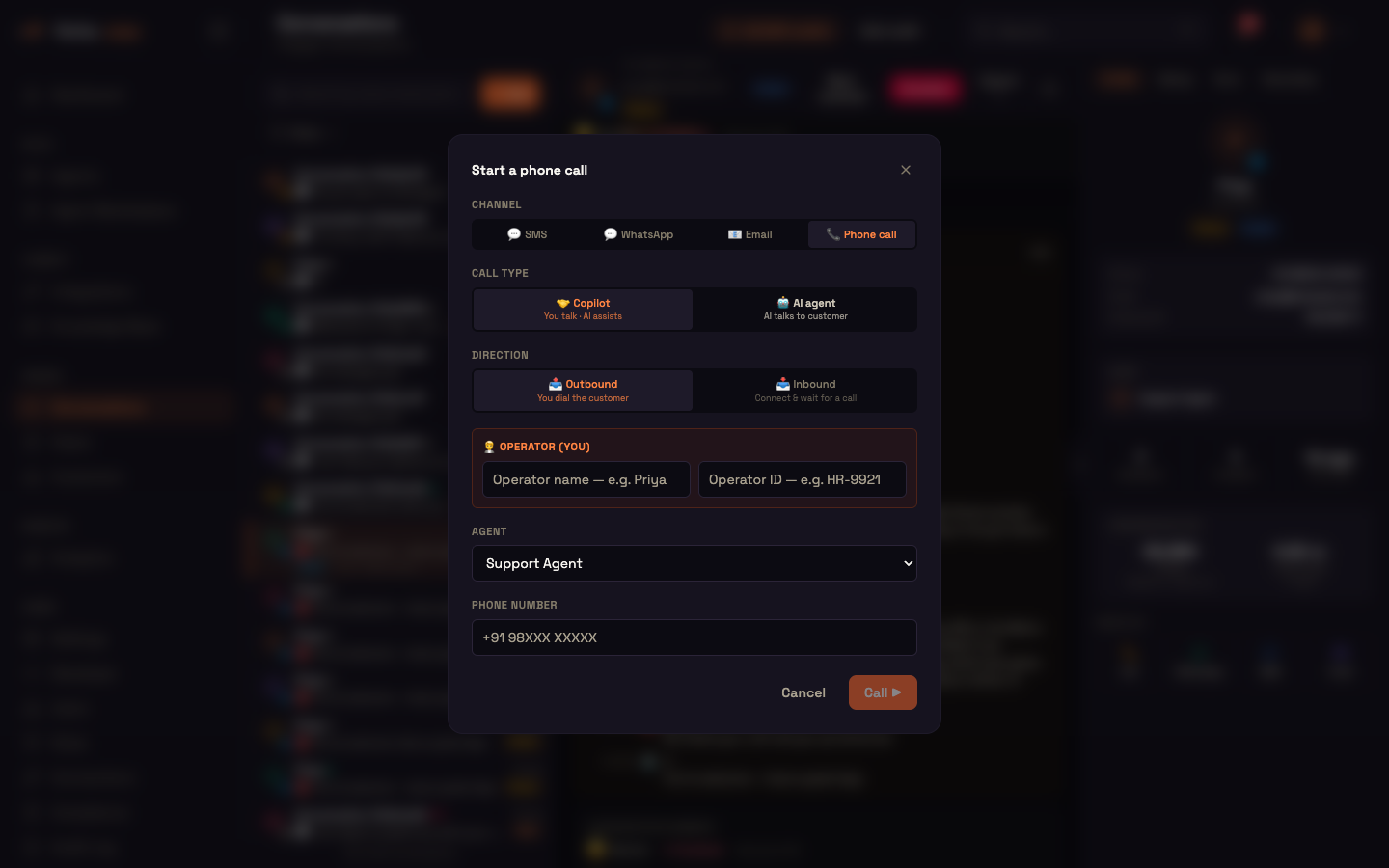
| Field | What to choose |
|---|---|
| Channel | SMS, WhatsApp, Email, or Phone call. |
| Call type (phone only) | Copilot (you talk and the AI assists you) or AI agent (the AI voice talks to the customer). |
| Direction (Copilot calls only) | Outbound (you dial the customer) or Inbound (connect and wait for a call to come in). |
| Operator (you) (Copilot calls only) | Your name and your operator ID, so the call and its transcript are recorded against you. The last values you used are filled in for you. |
| Agent | The agent that owns the conversation. The list shows only published agents whose trigger handles the chosen channel, and picks the agent for you when there's just one. For a Copilot call, it's the agent whose knowledge the AI uses to help you. |
| Phone number / Email address | Who to contact. As you type, matching customers appear so you can pick an existing customer instead of creating a duplicate; "✓ Linked to existing customer" confirms the match. Not shown for an inbound Copilot call. |
| Opening message (optional) | The first message to send. Leave it empty to use the agent's greeting. Not shown for phone calls, which always open with the spoken greeting. |
The button changes with your choices: Send SMS, Send WhatsApp, Send email, Call, or Connect & wait. SMS, WhatsApp, email, and AI-agent calls are sent straight away, a confirmation appears, and the new conversation opens. A Copilot call opens the live call panel.
Live copilot calls
A Copilot call puts a person from your team on the phone with the customer while the AI listens silently and whispers answers onto the operator's screen. The AI never speaks to the customer. Copilot (Human-in-the-loop) explains the whole model; this section covers what the operator sees here.
Waiting for an inbound call
Choose Phone call → Copilot → Inbound, pick the agent, and click Connect & wait. A Ready for calls card appears at the top of the center pane saying which agent you're waiting on, and you're marked available for that agent's calls only.
When a call comes in for that agent, the card turns into an Incoming call banner with the caller and two buttons:
- ✔ Answer opens the live call panel and joins you to the call.
- Decline turns down this call and clears the ring.
Stop waiting takes you off the queue. The card only reacts to calls for the agent you chose.
The live call panel
Answering an inbound call, or placing an outbound Copilot call, opens a call panel at the top of the center pane and switches the center to the Copilot view.
The top row is the call:
- A status:
Connecting…, thenCalling…while it rings (you hear a ringing tone, which 🔔 / 🔕 mutes), thenLive · MM:SSonce connected. If the call doesn't connect it shows the outcome plainly:No answer,Busy,Declined, orCouldn't connect. - Who you're talking to.
- 🎙 Mute your microphone.
- ⏸ Hold: plays a hold tone to the customer and mutes you. ▶ Resume takes them off hold.
- ↪ Transfer: rings another operator into the call (enter their name and operator ID). The customer is on hold while they ring; once they answer, you can hand over and leave.
- ☎ End hangs up. The transcript stays in the conversation. Review it, then click ✕ Close.
The second row controls the AI assist while the call is live:
- 🤝 Copilot ON / ⚪ Copilot OFF turns the AI's answers on or off.
- Answer sets how much the AI whispers: Sharp (just the value), Short, Medium, or Detailed.
- Rich UI shows tables and charts in answers, or text only.
- Language shows the customer's question and the AI's answer in the language you choose, or Mirror to keep the customer's language.
The starting values for these come from the agent's Operator settings. A headphones reminder shows during the call, because the customer's voice plays through your speakers.
The AI assist runs alongside the call, not as part of it. If it drops, the call carries on and an "AI assist unavailable" note appears.
The call's words are saved to the transcript as copilot call lines while the call runs.
Copilot view
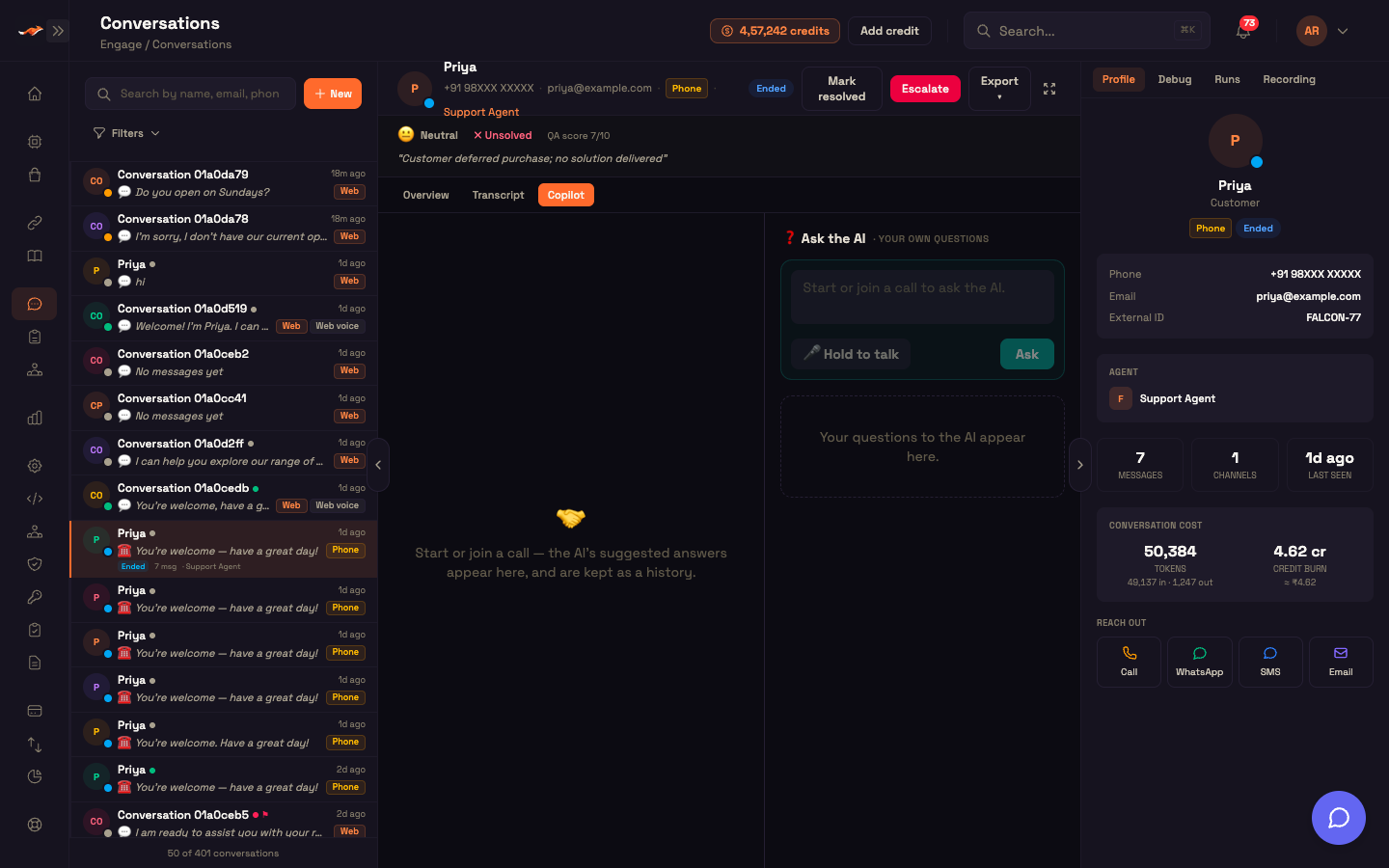
The Copilot view is split in two.
AI answers (left) are the AI's replies to what the customer asks. Each card shows the customer's question, a short "thinking…" state, then the answer as Key points (with a table or chart when Rich UI is on) and a 📋 Copy button. A Knowledge used list shows the knowledge-base articles the answers drew on. If the AI is turned off, the panel says Copilot is off with a button to turn it on. With no question yet it shows "Listening…".
Ask the AI (right) is for your own questions during the call. Type a question and press Ask (or Enter), or hold Hold to talk to dictate it; the dictated text lands in the box for you to check before you send. The answers stay separate from the customer's questions.
Both panes keep their answers after the call, so the Copilot view doubles as a history of what the AI suggested.
QA outcome verdict
Where the verdict shows
When a conversation is scored at close, its verdict appears in three places: a banner under the header, the summary card at the end of the transcript, and the sentiment dot on the list row. It shows:
- Sentiment: 😊 positive, 😐 neutral, or 😞 negative.
- ✓ Solved or ✗ Unsolved.
- ⚑ Needs follow-up, when the AI flagged it.
- QA score out of 10. Hover over it to see the sub-scores for sentiment, resolution, compliance, response, and tools.
- The reason, in one line.
Before scoring, the Overview says the summary is created when the conversation is scored at close.
How the verdict is worked out
When a conversation closes (the web chat is closed, the workflow finishes, the call hangs up, or someone marks it resolved or escalated), an AI reads the transcript once and judges how it went: the sentiment, whether the customer's issue was solved, and why. This is a judgment of the outcome, not a keyword count, and each conversation is scored only once even if several of these happen together.
The verdict sets the sentiment and resolution sub-scores and adds a point to the customer's sentiment trend on the Customers page.
Follow-up flag. A negative, unsolved conversation is flagged as needing follow-up and raises a notification for your team. The ⚑ Follow-up filter shows exactly these conversations.
The scoring AI is included and managed by Perfox; there's nothing to set up. It works the same for text and voice, because it reads the words of the transcript, not the tone of voice.
Worked example: handling a flagged conversation
Setup: Asha is an operator at Acme Support. At the start of her shift she opens Filters, picks the ⚑ Follow-up status, and sees only the conversations the AI flagged.
Action: She opens a thread from Priya, who wrote in yesterday about a billing discrepancy. The banner reads 😞 Negative · ✗ Unsolved · "Customer left without a resolution on the credit refund." In the Transcript she sees the AI tried a refund lookup that returned an error, so she clicks that AI reply. The Debug → Actions tab shows the failed tool call and its error message.
She clicks Call under Reach out, chooses Copilot → Outbound, and clicks Call. The call panel shows Calling… with a ringing tone, then Live. When Priya asks how long a refund takes, an AI answer card appears with the refund policy, drawn from Acme Support's knowledge base. Asha confirms the refund and clicks ☎ End, then ✕ Close.
Result: Asha clicks Mark resolved. The conversation is re-scored once, the new verdict (😊 Positive · ✓ Solved) replaces the old banner, and the thread drops out of the Follow-up filter.
What just happened: Debug showed Asha why the AI failed, the copilot call let her fix it with the AI's help, and the lifecycle actions closed the conversation cleanly with a fresh verdict.
Where to go next
- Cases: the same conversations as a ticket queue, with the AI verdict and ticket status side by side.
- Customers: one record per person across every channel, with their history and insights.
- Copilot (Human-in-the-loop): how copilot calls are routed to your team and how the AI assists them.
- SMS and WhatsApp: how delivery ticks are produced and what a failed status means.
- Runs: the step-by-step run replay the Runs tab opens.