Knowledge
When Priya asks your support agent, "What's your return policy for sale items?", the agent needs to find the right paragraph in your policy PDF — not guess at it. The Knowledge sub-node is what makes that happen: you wire it to your AI Agent, point it at the right folders, and the agent searches those documents whenever it needs to answer.
You don't configure a search tool or tune a threshold. You just say which folders, and retrieval takes care of itself.
Who this is for: anyone building an agent that should answer questions from uploaded files or connected sources (OneDrive, SharePoint, Google Drive, S3). By the end of this page you'll know how to attach folders to an agent, keep that knowledge current without ever re-publishing, and turn on optional retrieval enhancements when the default isn't sharp enough.
Overview
The Knowledge sub-node is a small configuration node you wire onto an AI Agent on the Agent Builder canvas. It answers one question: which document folders is this agent allowed to ground its answers in? Once wired, the agent runs a folder-scoped semantic search — by default before every reply — retrieving the most relevant passages from your indexed files and connected sources and grounding its reply on them. (Whether that search runs before every reply or only when the agent decides it needs it is the AI Agent's Knowledge lookup setting — see below.)
How to reach it. In your workspace, open Build → Agents, open an agent, and add a Knowledge sub-node on the builder canvas. Connect it to the AI Agent node's Knowledge connection point. Its properties panel is where you pick folders and (optionally) turn on retrieval enhancements.
| Property | Value |
|---|---|
| Node | Knowledge sub-node |
| Connects to | The AI Agent node's Knowledge connection point |
| Cardinality | 1:N — add several to combine folders from different parts of your Knowledge Base |
| Only required field | Folders |
| Retrieval trigger | Before every reply (default), or on demand — set by the AI Agent's Knowledge lookup |
| Retrieval store | Your own semantic vector search, folder-scoped |
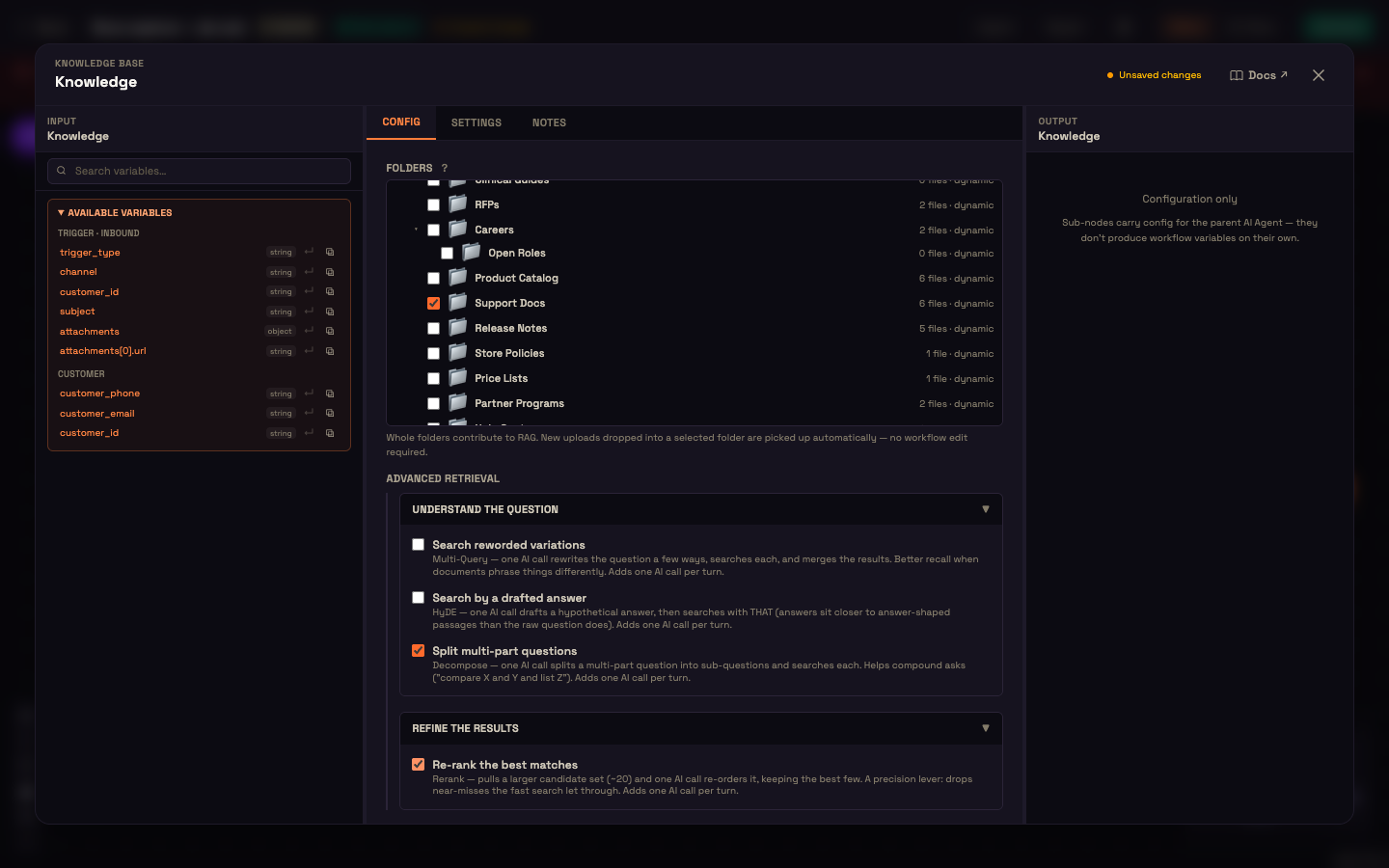
Attaching this sub-node is a switch, not a dial. There is deliberately no result-count field and no similarity threshold — retrieval uses tuned defaults. What you control is scope (which folders) and, optionally, retrieval quality (the Advanced retrieval group below).
The Folders panel
The sub-node's only required field is Folders. Folders are the only unit you can select — there is no per-file picker.
The picker renders your Knowledge Base's real nested folder tree, mirroring the layout of the Knowledge Base page. Everything is expanded by default; each folder has an expand/collapse chevron.
Root and hierarchical coverage
At the very top of the tree sits Root (entire knowledge base) — a 🗂️ checkbox. Checking Root covers every folder plus any loose files at the root of your Knowledge Base, and subsumes any other selection; all top-level folders nest beneath it.
Coverage is hierarchical: checking a parent folder covers all of its descendants. When a parent is checked, its sub-folders render checked + disabled, dimmed to 60% opacity, with the tooltip "Included via the selected parent folder" — a visual cue that they're already in scope and can't be toggled independently while the parent is selected.
To scope narrower, uncheck the parent and tick sub-folders individually — this is the cherry-pick pattern. The picker keeps your selection tidy:
- Checking a folder auto-drops any now-redundant descendant folders that were already selected.
- Unchecking a folder removes only that folder.
File counts and dynamic membership
Each real folder shows a 📁 name plus a live file count rendered as "N files · dynamic", so you can see exactly how much each folder contributes. The word dynamic is literal: membership is re-evaluated on every agent turn (see Dynamic membership).
If your Knowledge Base has no folders yet, the tree shows an inline hint to create folders on the Knowledge Base page.
Connector (federated) folders
Folders rooted in a Knowledge Base connector (OneDrive, SharePoint, Google Drive, S3, and similar) are treated specially. For a federated connector folder — one that searches the source live rather than mirroring files locally — the picker renders the source label + "· live" in place of a file count:
text
OneDrive · /Attachments · liveThe reason: a federated folder holds zero local files, so a "0 files" badge would read as empty or broken. Hovering a connector-rooted folder shows its source label as a tooltip. Because these folders carry no local files, they're passed to the agent independently (see How it wires to the runtime) so the live-search path covers them.
Dynamic membership
Folder membership on the Knowledge sub-node is dynamic: you select folders, not a frozen file list, and the covered file set is recomputed every agent turn.
When the agent runs, it flattens every connected Knowledge node's selected folders and resolves them into the exact set of files to search. That resolution follows four rules:
| Rule | Behaviour |
|---|---|
| Root | Root covers every file in every folder plus loose files at the root of your Knowledge Base. |
| Descendants | Selecting a folder matches that folder and all of its sub-folders in one pass — a new sub-folder created later is auto-included. |
| Deleted files | Files you have deleted are excluded. |
| Document versioning | Only the current version of each versioned document counts; legacy and un-versioned files still count. |
The practical payoff: drop a new file into a selected folder — or into a new descendant folder — and the agent picks it up on its next turn, with zero workflow edit and no re-publish. You never touch the agent to update its knowledge; you just manage your Knowledge Base.
Your selected folders also travel to the agent independently, so zero-file federated folders (live connectors) are never lost even though they expand to no local files.
How it wires to the runtime
When the agent runs, the Knowledge sub-node's scope resolves into two things that travel to the retrieval layer:
- The expanded file set — every connected node's selected folders flattened and expanded to your current ready indexed files (the indexed path).
- The selected folders themselves, passed to the agent so live or federated folders (which have no local files) are still covered.
Retrieval is folder-scoped. Indexed folders and live-connector folders are unioned at every retrieval point — so zero-file federated folders are never dropped, and searches can never reach beyond the folders you wired. This scoping means an agent only ever grounds on the documents you explicitly gave it. See Folder-scoped KB search.
Live connector retrieval
Beyond indexed files, wired folders can retrieve live through connectors at query time — no download, no indexing:
- OneDrive / SharePoint (Microsoft 365) live mode — searched live in OneDrive through Microsoft's own search at query time, never downloaded or indexed. It self-heals across regions, translates each user question into a scoped keyword search (matching all terms, with a broader any-term fallback for recall), respects drive and folder scoping, and grounds eagerly on every turn.
- Google Drive live mode — the sibling live mode, selected in the Studio connector wizard by switching the Google Drive connector's retrieval mode from Download and index to Search Drive live. In live mode the sync worker skips download and indexing and the agent searches Drive in place at query time. Unlike the Microsoft 365 live mode, Google Drive live search is keyword-only (no semantic equivalent), so recall is lower than indexed RAG or Microsoft 365 live search.
Switching a connector to either live mode purges its now-stale indexed vectors. See Federated retrieval.
Advanced retrieval
Below the Folders panel sits an Advanced retrieval group — four opt-in, query-time enhancement checkboxes, all default off.
The default (all off) is today's fast, index-time-only retrieval: pure vector or hybrid search of the top-matching passages, and zero extra AI calls. Turn a toggle on only where answer quality matters more than speed and cost — the group's help text spells out the trade explicitly: each enabled toggle adds one AI call per agent turn, attributed under a per-transform spend line on your bill.
The four toggles split into two sections:
| Section | Purpose | Toggles |
|---|---|---|
| Understand the question | Rewrite the query for recall before search | Multi-Query, HyDE, Decompose |
| Refine the results | Improve precision after search | Re-rank |
OR-merge across nodes
Because the sub-node is 1:N, the toggles are OR-merged across every connected Knowledge node: if any wired Knowledge node enables a toggle, it applies to the whole retrieval. The extra enhancement work runs only when at least one toggle is on.
The four toggles
Search reworded variations — Multi-Query
- Section: Understand the question · default OFF
- What it does: one AI call rewrites the user's question a few different ways; retrieval runs for each variation and the results are merged (union) — so passages that phrase the same idea in different words are still found.
- Use it when: your documents describe things differently than users ask (synonyms, jargon vs. plain language).
- Type: recall enhancement (find more of the right things), not precision — pair with Re-rank if you also want to prune.
- Cost: one AI call per turn, plus the extra searches.
Search by a drafted answer — HyDE
- Section: Understand the question · default OFF
- What it does: HyDE (Hypothetical Document Embeddings). One AI call drafts a plausible hypothetical answer to the question, then searches your Knowledge Base using that draft instead of the raw question. Stored passages are answer-shaped, so an answer-shaped query matches them more closely than a short interrogative question does.
- Use it for: terse or keyword-poor questions where recall suffers.
- Type: recall enhancement. The drafted answer only steers retrieval — it is not shown to the user.
- Cost: one AI call per turn.
Split multi-part questions — Decompose
- Section: Understand the question · default OFF
- What it does: one AI call breaks a compound question into its constituent sub-questions; retrieval runs for each and the results are merged — so a single search doesn't have to satisfy several asks at once.
- Use it for: compound queries like "compare X and Y and list the steps for Z", where the parts pull from different passages.
- Type: recall enhancement for multi-intent questions. Combine with Multi-Query or HyDE (all three fan out query strings up to a bounded maximum) and optionally Re-rank to prune.
- Cost: one AI call per turn.
Re-rank the best matches — LLM Rerank
- Section: Refine the results · default OFF
- What it does: the precision lever — the only toggle that refines results after search rather than rewriting the query before it. When on, retrieval pulls a larger candidate pool (20 passages by default) instead of the usual top few, then one AI call re-orders that pool by true relevance and keeps only the best few.
- Use it when: your Knowledge Base is large or noisy and fast vector or hybrid search lets near-misses through — Re-rank drops them and tightens answer quality.
- Type: precision. Composes with the recall toggles — enable Multi-Query, HyDE, or Decompose to gather more candidates, then Re-rank to prune to the sharpest few.
- Cost: one AI call per turn, plus the wider retrieval.
How the enhanced pipeline executes
When any Advanced-retrieval toggle is on, retrieval switches from the fast default path to the enhanced path.
Fast path (no toggles): plain hybrid search of the top-matching passages, no AI calls.
Enhanced path:
- The enabled query-rewriting transforms (Multi-Query, HyDE, Decompose) run in parallel to produce up to eight query strings (the original plus its expansions).
- Each query hits hybrid search; the result sets are merged (fused / union).
- If Re-rank is on, the candidate pool per query widens to 20 passages, and the re-ranker re-orders and prunes to the best few.
All enhancement calls use a fast, low-cost model — the AI is included and managed by Perfox, so there's nothing to configure on your end. Spend is attributed per transform, so you can see exactly what Multi-Query, HyDE, Decompose, and Re-rank each cost.
One safety property worth knowing: graceful degradation — a failed transform falls back to the base query rather than breaking retrieval. Enhancements never take an answer down.
Worked example
Setup. Asha is an admin at Acme Diagnostics. She's built a support agent and wants it to answer questions about lab tests from their FAQ and their sample-collection guide, two separate folders in her Knowledge Base. She also wants to make sure the agent can handle questions like "What's the difference between fasting and non-fasting blood tests, and how should I prepare for each?" — a compound question that spans both folders.
Action. Asha opens the agent in Build → Agents. She adds a Knowledge sub-node and connects it to the AI Agent's Knowledge connection point. In the Folders panel she ticks "Lab Test FAQ" (42 files · dynamic) and "Sample Collection Guide" (18 files · dynamic). Then she opens Advanced retrieval and turns on Decompose and Re-rank.
A few days later her team adds a new "Preparation Tips" sub-folder inside "Sample Collection Guide". Asha adds three new PDFs there — and does nothing else.
Result. The next time Priya (a customer) asks the agent a compound question, the agent splits it, retrieves from both folders, re-ranks the results, and answers with precise guidance. The new PDFs in "Preparation Tips" are included automatically because the parent folder was already selected. Asha never re-edited or re-published the agent.
What just happened. Dynamic membership meant the new sub-folder was in scope the moment its parent was already selected. Decompose turned one compound question into two focused sub-queries. Re-rank pruned 20 candidates down to the few passages that actually answered each sub-question. The whole chain ran automatically, with spend attributed per transform on the bill.
Getting content into the Knowledge Base
Your Knowledge Base is semantic search over your uploaded files: each file is chunked and embedded and its vectors written into your own semantic vector search index — the file's original bytes stay in secure object storage. The Knowledge Base is the index, not the store of record. The AI model that powers chunking and embedding is included and managed by Perfox.
There are three ways to add files, and all three land in the same place and run the same pipeline:
| Path | How | Auth |
|---|---|---|
| Studio drag-and-drop | Drag files onto the Knowledge Base page | Studio session |
| Public REST API | POST /api/v1/kb/files | Your API key with the kb:write scope |
| Widget file-upload | A visitor uploads a file into the agent's chat, which flows into the agent's Knowledge Base | Widget session |
The upload pipeline is uniform:
- Store the original file in secure object storage.
- Record the file with status pending.
- Index it in the background (chunk → embed → make searchable).
- Report the status back so you can watch it move to ready.
Knowledge Base files are retained permanently — data-retention cleanup never deletes them. Your data stays private to your workspace. See Knowledge Base write paths.
Actions & workflows
Attach a Knowledge Base to an agent
- Open the agent in Build → Agents.
- Add a Knowledge sub-node and connect it to the AI Agent's Knowledge connection point.
- In Folders, tick the folders to ground on (or Root for the entire Knowledge Base).
- That's it — the canvas saves automatically, and once the agent is active its replies are grounded in those folders. No tool wiring needed.
Scope an agent to a subset of documents
- In the folder picker, uncheck Root and any broad parents.
- Cherry-pick the exact sub-folders you want (redundant descendants are auto-dropped).
- The file-count badges ("N files · dynamic") confirm what each folder contributes.
Ground on a live source without indexing
- Add the OneDrive, SharePoint, Google Drive, or S3 connector on the Knowledge Base page as a federated connector.
- Tick its folder in the picker — it shows source · live instead of a file count.
- The agent searches the source live at query time, no download or indexing.
Improve answer quality on a hard Knowledge Base
- Open Advanced retrieval.
- For recall, turn on Multi-Query, HyDE, or Decompose.
- For precision, turn on Re-rank.
- Remember each toggle is one extra AI call per turn, OR-merged across all wired Knowledge nodes.
Add new knowledge to a live agent
- Just drop the file into a selected folder (or a descendant) on the Knowledge Base page. The agent picks it up on its next turn — no edit, no re-publish.
Feature reference
| Field / option | Default | Effect |
|---|---|---|
| Folders | — (required) | Folder-only selection. Dynamic membership: current and future descendants and later-added files are covered per turn. |
| Root (entire knowledge base) | off | Covers every folder + loose root files; subsumes all other selections. |
| Advanced retrieval | off | Opt-in query-time enhancements. All off = fast index-time-only retrieval. |
| Search reworded variations (Multi-Query) | off | Recall: rewrite the question several ways, union the results. One AI call. |
| Search by a drafted answer (HyDE) | off | Recall: draft a hypothetical answer and search with it. One AI call. |
| Split multi-part questions (Decompose) | off | Recall: split compound questions, retrieve per sub-question, merge. One AI call. |
| Re-rank the best matches (Rerank) | off | Precision: pull a wider pool (20 passages), AI-reorder, keep the best few. One AI call. |
The enhanced path expands to at most eight query strings; re-ranking pulls a pool of 20 candidates and keeps the best few. All enhancement calls use a fast, low-cost model included and managed by Perfox.
Knowledge & Grounding on the AI Agent node
The Knowledge sub-node decides which documents the agent may search. A separate Knowledge & Grounding section on the AI Agent node itself decides what else the agent may answer from, layered over the always-on business-data base (your tools + attached Knowledge Base + persona prompt). It exposes:
| Control | Default | Effect |
|---|---|---|
| Allow general (LLM) knowledge | ON | When business data doesn't cover a question, the agent may answer from the model's own trained knowledge. OFF = strict closed-book — answers only from business data and says so when it can't. |
| Allow web search | OFF | Lets the agent search the live web for external facts (competitors, news, pricing) and cite sources. Enabling it overrides the model's trained-knowledge cutoff for external topics. |
| Source priority | Knowledge Base › Web › LLM | A drag-to-reorder list ranking how conflicting sources resolve for general or external questions: Knowledge Base first, then Web search, then the model's own knowledge by default. Disabled sources render dimmed as "skipped". |
| Knowledge lookup | Always attach | Always attach: the knowledge base is searched before every reply and the best passages are added to the prompt — most reliable, but it costs a search and several thousand tokens on every turn, including greetings. Two extra settings appear: Passages to attach (default 12) and Only attach when relevance is at least (0 = always attach), which stops a greeting from pulling in passages that don't match. On demand: the agent searches only when it decides it needs to — faster and cheaper on turns that need no knowledge. |
Business-specific facts (your prices, policies, records) always resolve from business data regardless of this order. An amber policy banner sits atop the section. This section is owned by the AI Agent Node doc.
Knowledge Base vs other memory
| Use case | Use |
|---|---|
| "What does policy doc X say about Y?" — semantic recall over documents. | Knowledge Base (RAG) — this sub-node. |
| "What did the user say earlier, or what do they prefer?" — conversation and customer context. | Memory — on by default, tuned on the AI Agent. |
| "What's the status of my order?" — live business records. | Your own system, through an Integration or an Action. |
All three work together and serve different questions.
You can now ground your agent on exactly the right documents
Add folders once, then keep your Knowledge Base current — the agent picks up changes on the next turn with no re-publish.
- AI Agent Node — the cluster this sub-node belongs to, and home of the Knowledge & Grounding section.
- Retrieval & RAG — folder-scoped search and federated (live-connector) retrieval explained in depth.
- Knowledge Base & write paths — chunking, embedding, the semantic vector index, and the three upload paths.
- Memory — the AI Agent's memory settings for conversation and customer context.