Automations (Scheduled Agents)
Every Monday at 9:00 AM, Asha wants her agent to check for customers whose subscription renews that week and remind each of them, without anyone at Acme Support pressing a button. That's an automation: an agent that runs on its own clock. By the end of this page you'll know how to build one, where to see it running, and how to create agents from a script.
This page is for admins like Asha who want agents that act on their own. If you haven't built an agent yet, start with Getting Started.
A scheduled agent is an ordinary agent with a Schedule trigger
There's no separate campaign tool. A scheduled agent is a normal agent whose trigger is Schedule instead of a channel. You build it on the canvas like any other agent:
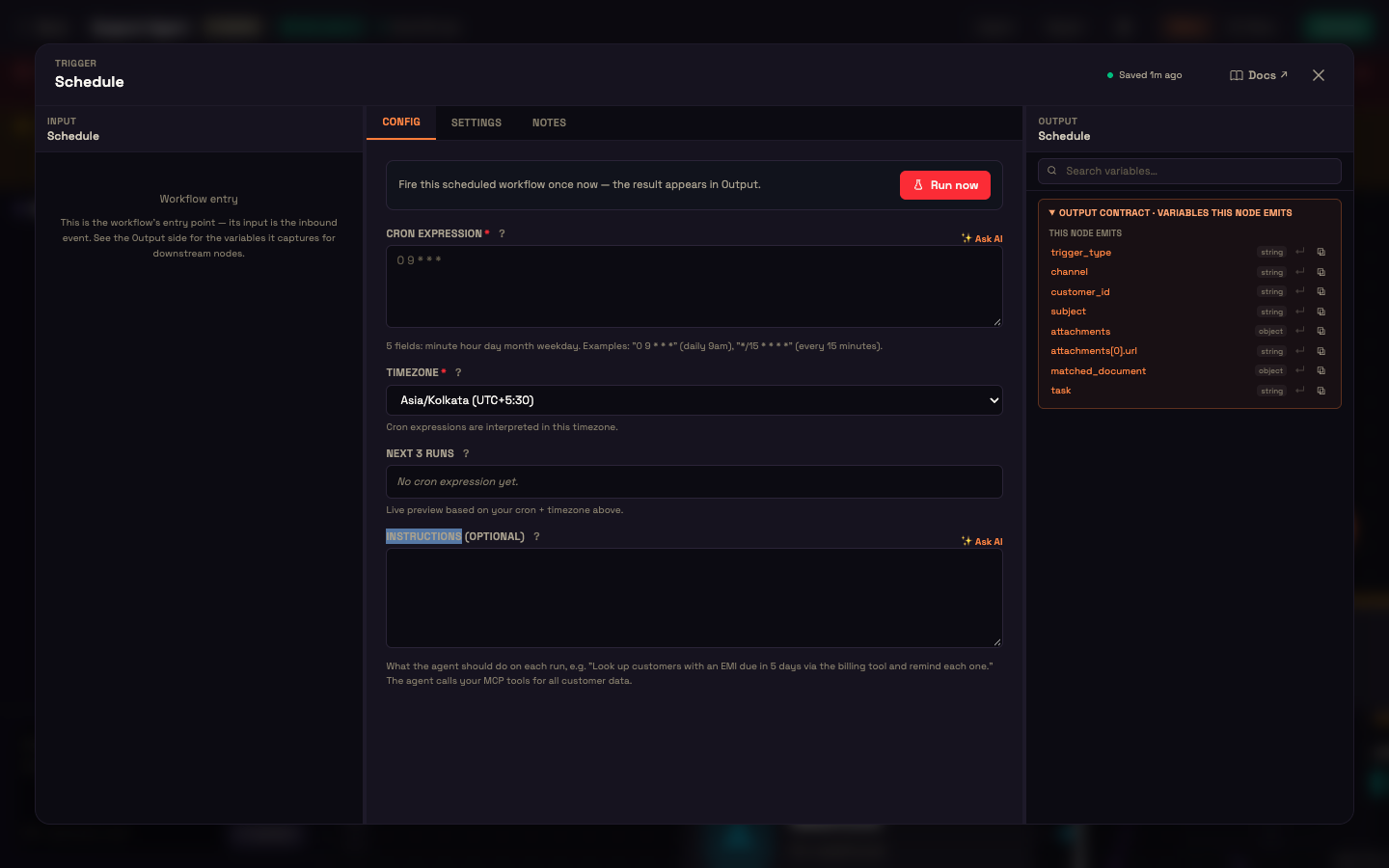
- On the canvas, click + → Triggers → Schedule (Run this agent on a schedule, e.g. daily — proactive outreach).
- Open the Schedule node and fill in:
- Cron expression: when to run, in five fields (minute, hour, day, month, weekday). For example,
0 9 * * 1is every Monday at 9:00, and*/15 * * * *is every 15 minutes. Ask AI next to the field writes one from a description like "every weekday at 9am". - Timezone: the cron runs in this timezone, for example Asia/Kolkata.
- Next 3 runs: a live preview of when it will fire next, so you can check the expression.
- Instructions (optional): what the agent should do on each run, for example "Look up customers whose subscription renews in the next 7 days with the billing tool and remind each one." The agent uses your tools for all customer data.
- Cron expression: when to run, in five fields (minute, hour, day, month, weekday). For example,
- Connect the trigger to an AI Agent (with its Personality and AI Model), attach the tools it needs on the Integration port, and add the senders it should use, such as a WhatsApp Sender or Email Sender.
- Click Run now at the top of the Schedule node to fire one run immediately and check the result, then Activate.
Where to see it running
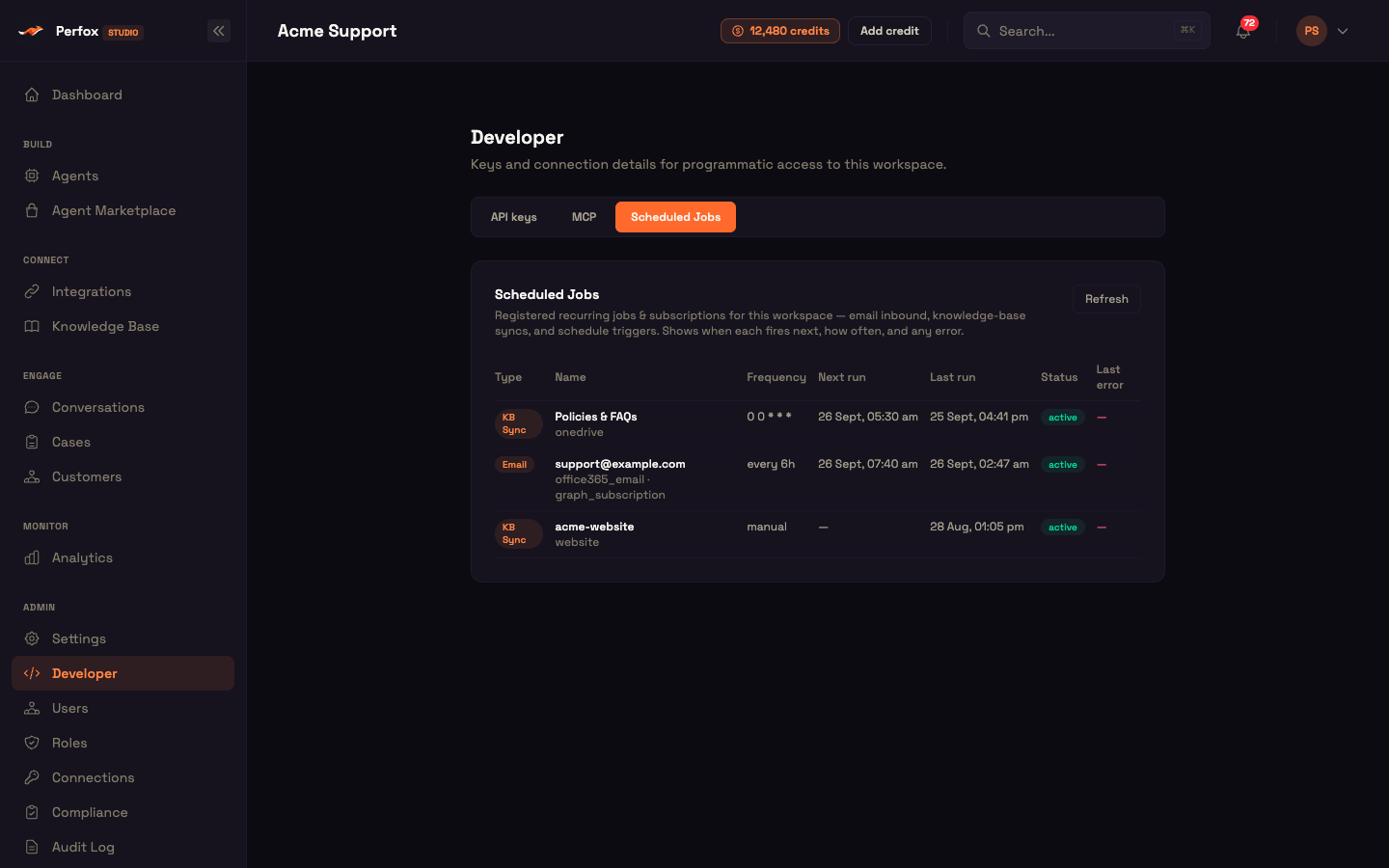
Every active schedule is listed under Admin → Developer → Scheduled Jobs, with how often it runs, when it fires next, when it last ran, its status, and the last error if a run failed. The same list shows your knowledge-base syncs and email inboxes, so one table answers "is everything that should run on its own actually running?"
A schedule keeps running until you deactivate the agent or remove its Schedule trigger.
A Monday morning at Acme Support
Setup. Asha builds an agent with a Schedule trigger: cron 0 9 * * 1, timezone Asia/Kolkata, and the instruction "Find customers whose subscription renews this week and send each a WhatsApp reminder." The AI Agent has Acme's billing system on its Integration port and a WhatsApp Sender on its Action port. She clicks Run now once to check it, then Activate.
Action. The next Monday at 9:00, the agent runs on its own. It asks the billing tool for this week's renewals and sends each customer a reminder.
Result. Priya, whose plan renews on Thursday, gets a WhatsApp message:
Hi Priya, this is Acme Support. Your plan renews this Thursday. Reply CHANGE if you'd like to switch plans before then.
What just happened. Nobody opened a campaign tool or logged in that Monday. Asha built one ordinary agent, gave it a clock, and activated it. The list of customers came live from Acme's billing system, and Scheduled Jobs shows the run and when the next one is due.
Creating agents without the canvas
Two more ways to create an agent:
- Build with AI (in the Studio). On any agent's canvas, the Build with AI panel drafts a whole agent from a plain-language description, or from a recipe such as Website support, Appointment booking or Lead capture. You review the draft on the canvas and publish when you're happy. On an existing agent, describe a change ("add WhatsApp") and it updates the canvas.
- From a script (public API and MCP).
POST /api/v1/agents/from-specbuilds a ready-to-run agent (trigger, AI Agent, Personality and AI Model) from a short spec with a name, persona, role and system prompt.POST /api/v1/agents/generatedoes the same from a plain-language description. Both can publish in the same call. They're also available as thecreate_agent_from_specandgenerate_agenttools on your workspace's MCP server. See API Keys for authentication.
You can now
You can build an agent that runs on a schedule, check it with Run now, find it under Scheduled Jobs, and create agents from a description or a script.
- Trigger Nodes — the Schedule trigger and every other entry point.
- Outbound Notifications — proactive messages from a schedule or a webhook from your own systems.
- Studio Tour — where each part of the Studio lives.