WhatsApp
At 9 pm a customer messages Acme Diagnostics on WhatsApp asking for their test results, and the agent replies before they've put the phone down. This page shows how to connect your WhatsApp number to an agent, let it reply, message someone who hasn't written in the last 24 hours, and check whether a message really arrived.
How WhatsApp is wired
WhatsApp runs over your own provider account. On Admin → Connections, connect Plivo as your WhatsApp provider. The same Plivo connection also carries SMS and phone calls.
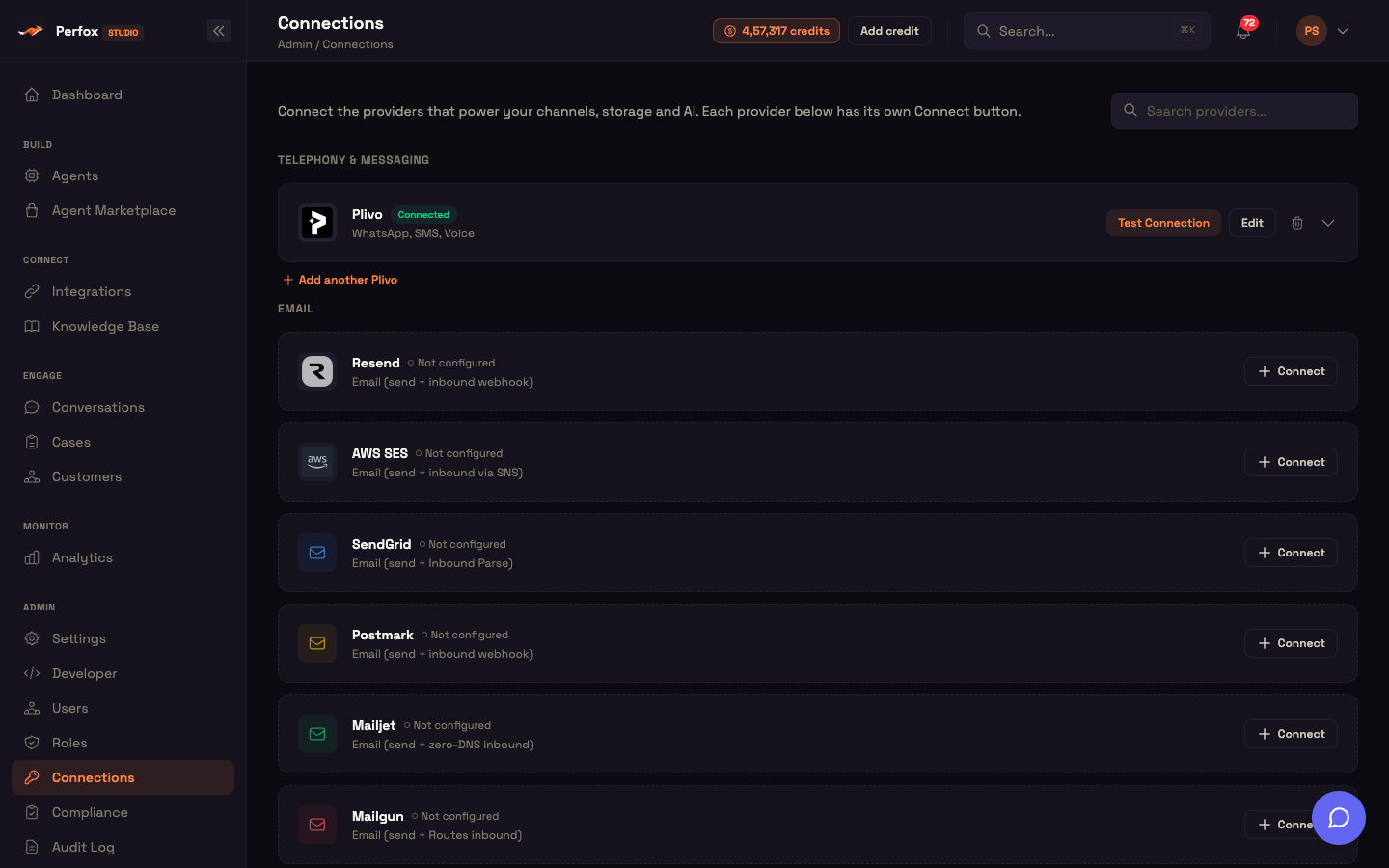
A direct Meta WhatsApp Cloud API connection is also supported behind the same agent, sender and delivery reports, but it isn't self-serve. Raise a ticket in the Support Center if you need it.
Setup
- Admin → Connections → Plivo: add your Plivo credentials, including your WhatsApp number.
- In the Plivo editor, find the WhatsApp block under Paste into your console. Copy the Inbound message URL and the Delivery Reports URL into Plivo (Messaging → WhatsApp → your number's webhooks). Both URLs are already built for your workspace.
- Open Agents, create an agent and add a WhatsApp trigger. Under Business contact, pick your WhatsApp number.
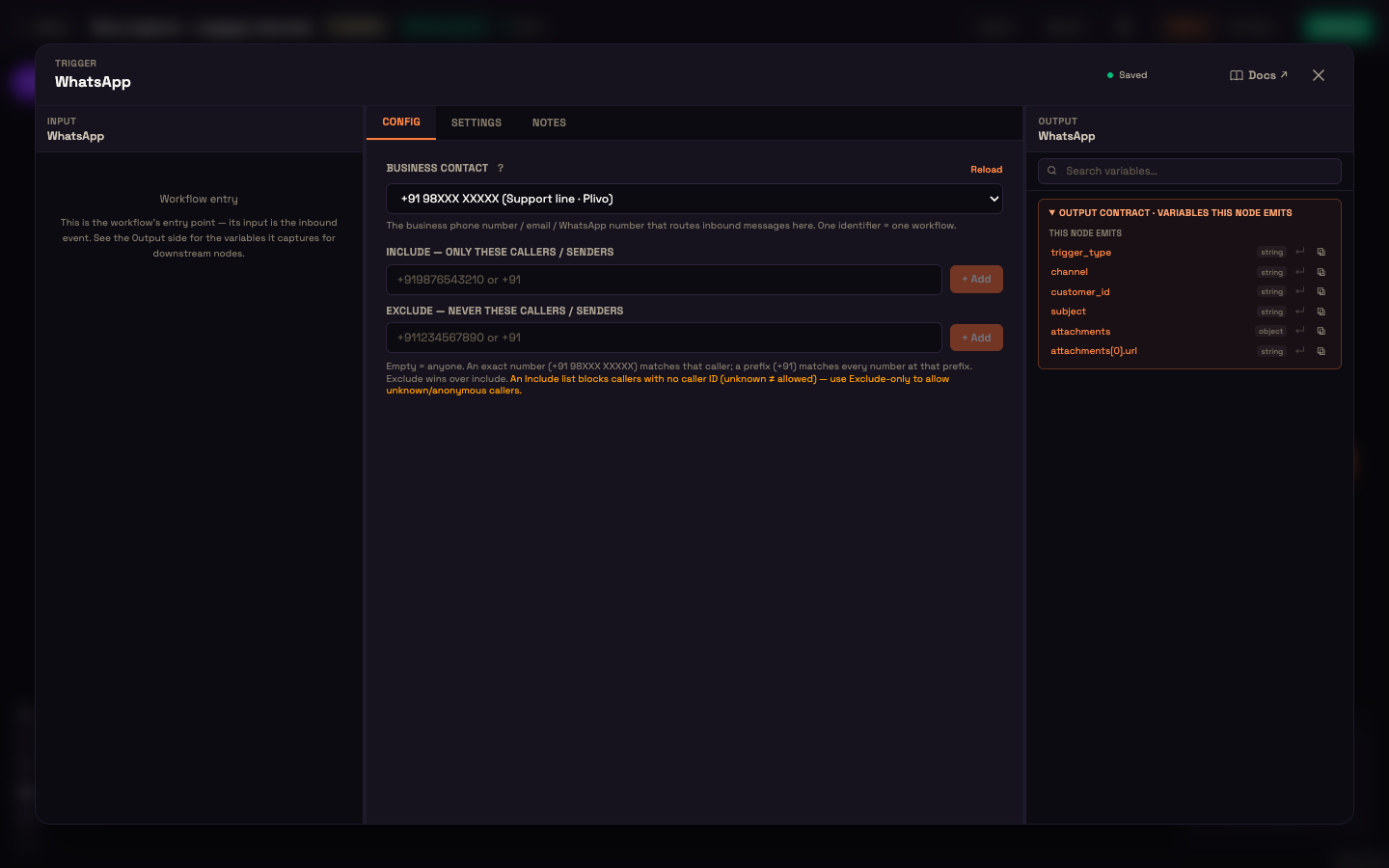
Each number belongs to one agent. A number another agent already uses is shown greyed out ("— used in …"), so two agents never compete for the same inbox. To limit who can start the agent, add exact numbers or prefixes such as +91 under Include — only these callers / senders or Exclude — never these callers / senders. Exclude wins over include.
Let the agent reply
An agent only sends on WhatsApp if it has a WhatsApp Sender
Connect a WhatsApp Sender action to the AI Agent's Action port. Without it, an incoming WhatsApp message still starts your agent, which runs and writes its answer into Conversations, but nothing is sent to the customer. This is on purpose, because some agents only take messages in. It's also the most common reason a new WhatsApp agent seems to "do nothing".
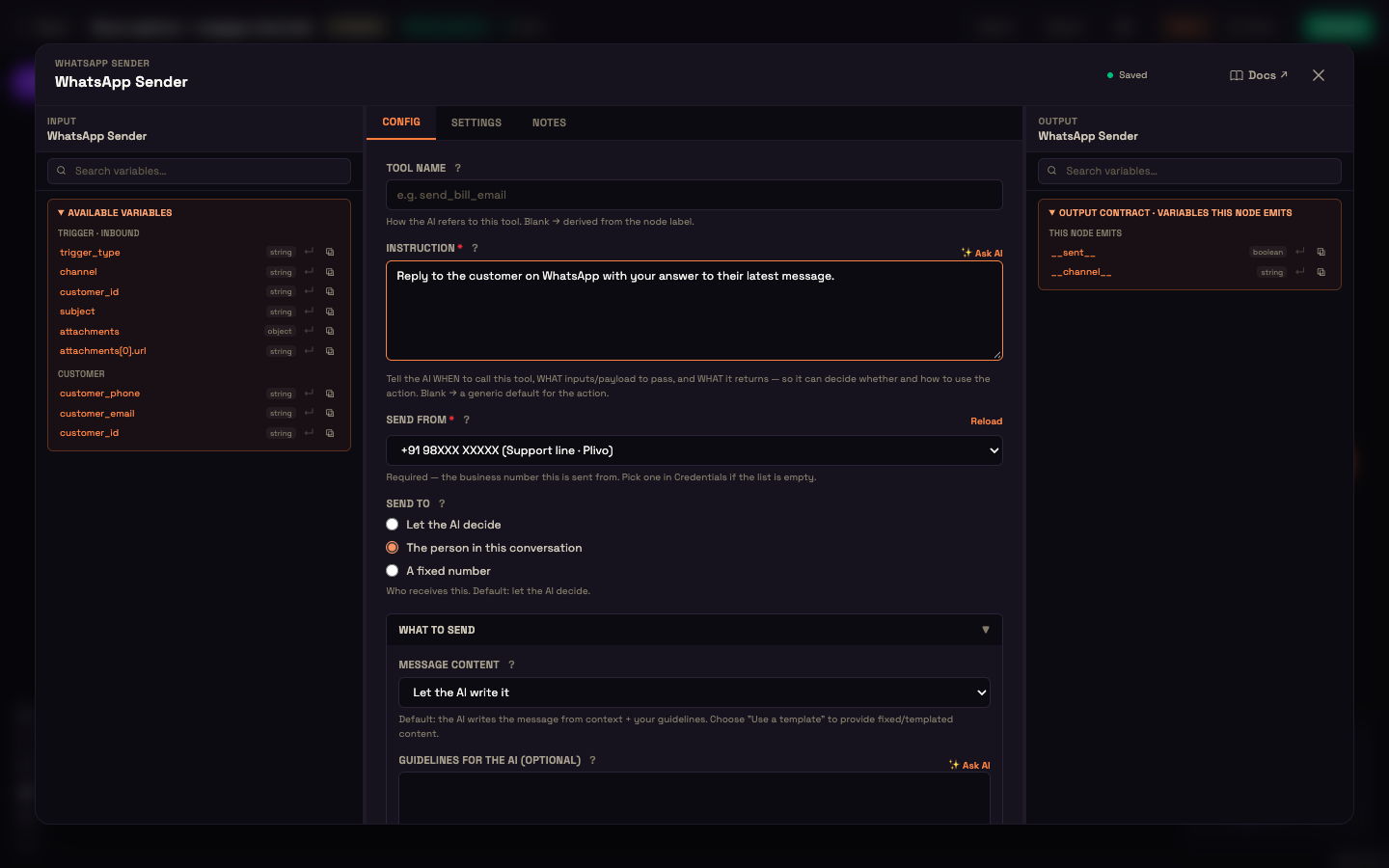
In the WhatsApp Sender:
- Instruction (required): tell the AI when to send, for example "Reply to the customer on WhatsApp with your answer."
- Send from (required): the business number the message comes from.
- Send to: Let the AI decide, The person in this conversation (usual for replies) or A fixed number.
- What to send → Message content: Let the AI write it (optionally with Guidelines for the AI), or Use a template or fixed text, which can Load saved template from your Message Templates.
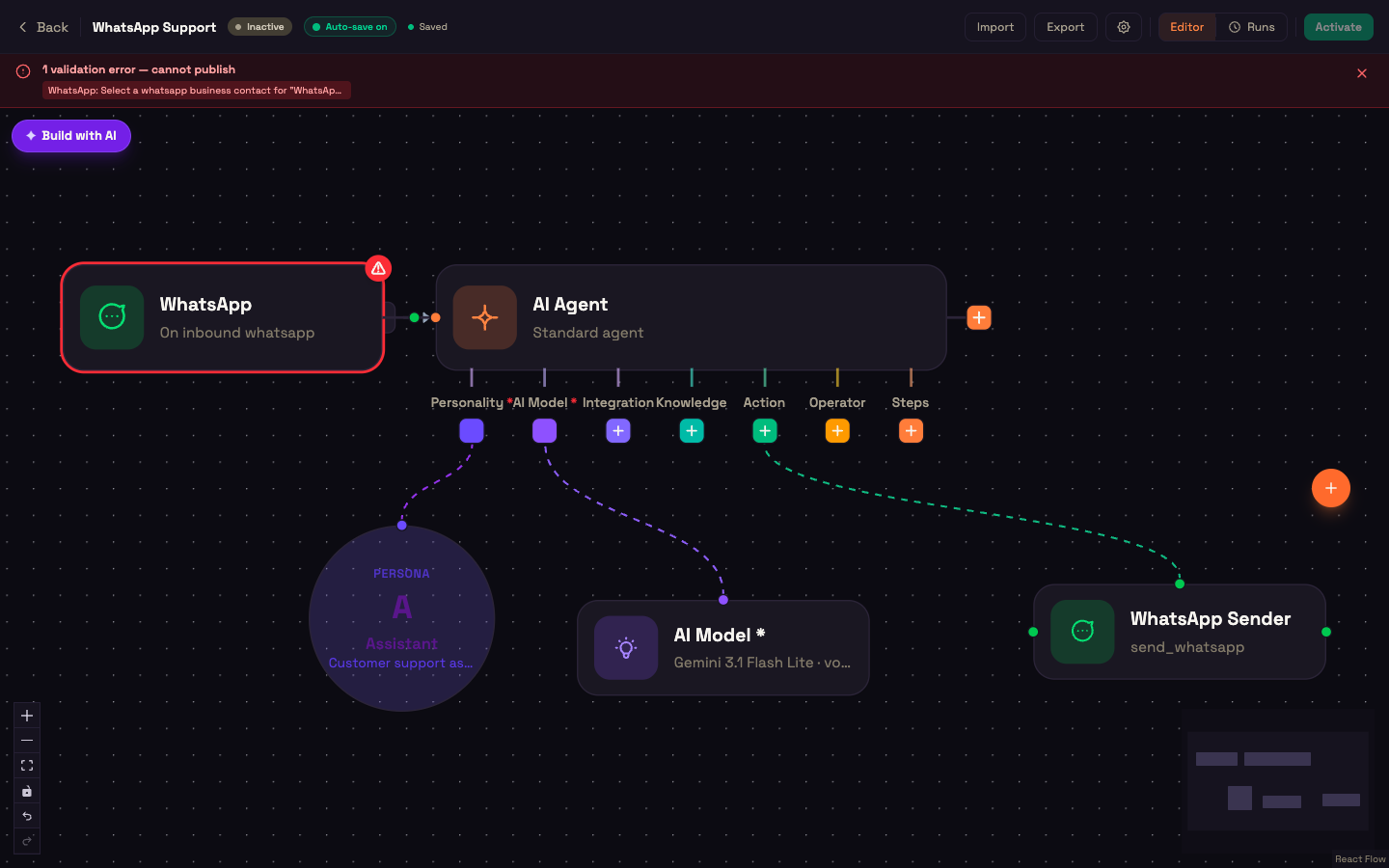
The finished agent: a WhatsApp trigger feeding an AI Agent, with a Personality, an AI Model and the WhatsApp Sender attached.
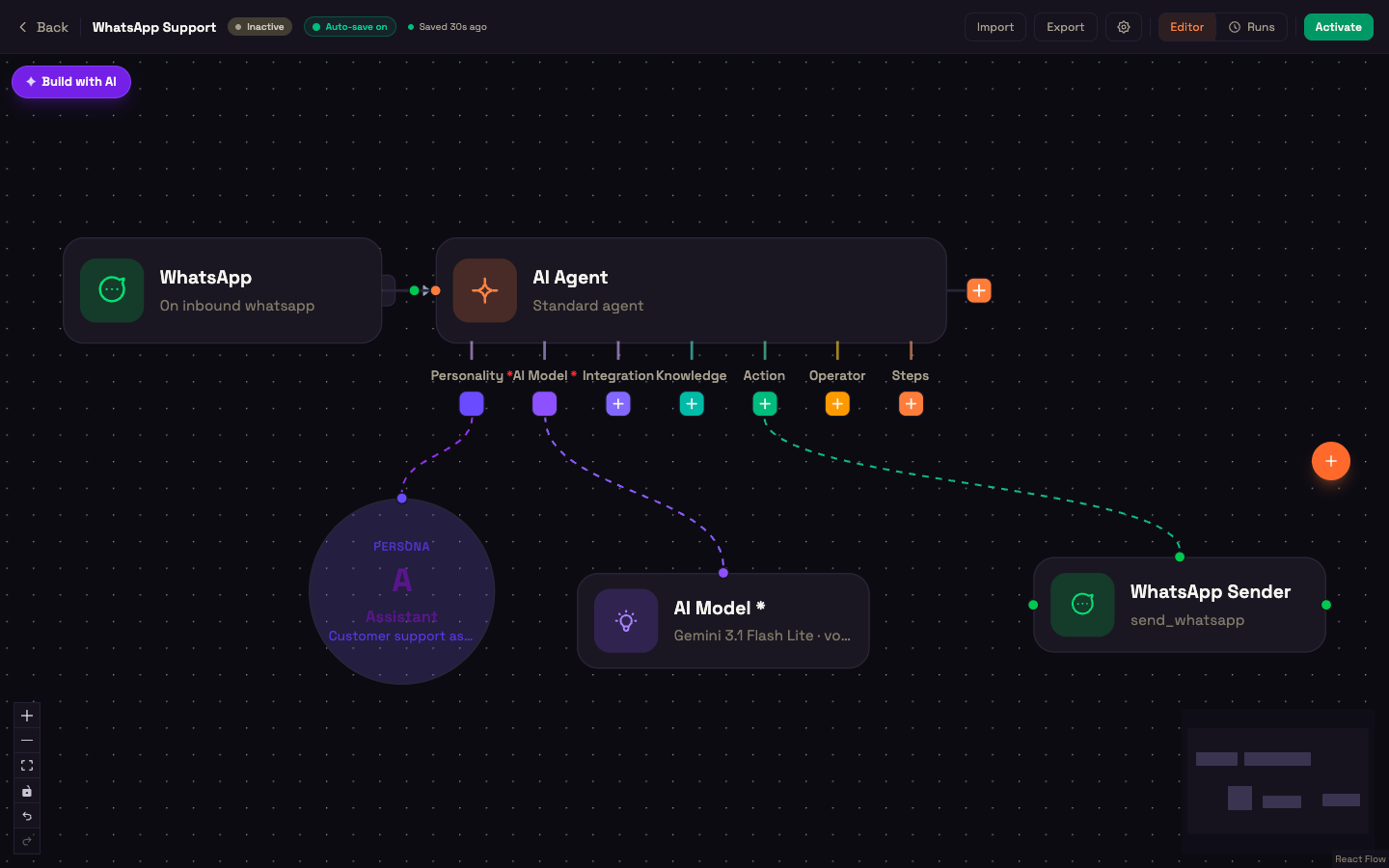
You can't publish until the WhatsApp trigger has a business contact and the WhatsApp Sender has a Send-from number. The banner at the top names what's missing:
The 24-hour window
WhatsApp allows two kinds of message:
- Free-form text: allowed for 24 hours after the customer's last message. This is the normal case: they wrote to you, and your agent answers.
- An approved template: required once those 24 hours have passed. WhatsApp won't deliver free text to someone who has gone quiet.
Sending an approved template
You send an approved template by name through the Outbound API. No canvas node chooses one. Reaching out after 24 hours is usually something your own system does when there's news for a customer. The request body looks like this:
json
{
  "agent_id": "<your agent id>",
  "channel": "whatsapp",
  "to": "+91 98XXX XXXXX",
  "template": {
    "name": "order_shipped",
    "language": "en_US",
    "body_parameters": ["Asha", "#1182", "27 Sep"],
    "header": { "type": "image", "url": "https://cdn.example.com/parcel.jpg" },
    "buttons": [{ "sub_type": "quick_reply", "index": 0, "payload": "track-1182" }]
  }
}| Field | What to pass |
|---|---|
name | Your approved template's name |
language | The template's language code, for example en_US (the default) |
body_parameters | The values for {{1}}, {{2}}… in order. A blank one is allowed |
header | text for a text header, or url for an image, video or document header |
buttons | index is the button's position in the approved template, counting from 0 |
Rules to know before you build against it:
- A request can't include both
templateandopening_message. It's rejected, because otherwise you couldn't tell which one was sent. indexmatches by position, not label. If it points at the wrong button, the message still sends, filled in wrongly.- If your connection can't send a particular header or button type, the request is refused with a reason rather than quietly sending a plainer message.
Inside the 24-hour window, send opening_message (plain text) instead of template. The response includes send_authorized. Check it: false means the agent has no WhatsApp Sender, so the conversation was created and the agent ran, but nothing was delivered. Get an API key from Admin → Developer.
Saved Message Templates are text, not approved templates
Load saved template in the WhatsApp Sender fills the message text from a saved Message Template. The Sender doesn't send it as a WhatsApp-approved template. Outside the 24-hour window, use the Outbound API above.
A message, end to end
Setup. Asha, an admin at Acme Diagnostics, connects the clinic's Plivo account, pastes the WhatsApp URLs into Plivo, and activates an agent with a WhatsApp trigger and a WhatsApp Sender.
Action. At 9 pm Priya messages the clinic:
Priya: Hi, are my blood test results ready?
Result. Priya wrote first, so the 24-hour window is open and the agent answers in plain text:
Agent: Hi Priya. Your results are ready. Would you like me to send the summary here?
What just happened. The WhatsApp trigger matched Priya's message to Asha's agent by the clinic's number. The agent answered and used its WhatsApp Sender to reply from that number. If Priya had been quiet for more than 24 hours and the clinic wanted to message her first, it would have had to use an approved template.
Media, buttons and locations
Your agent understands more than text:
- Photos and documents are read, with their text extracted, before the agent answers, so "here's my prescription" works.
- Voice notes are transcribed, so a customer can talk instead of typing. (There's no WhatsApp calling channel. For live voice, see Voice.)
- A tapped button or list row arrives as the choice the customer made, not as a guess from free text.
- A shared location arrives as coordinates the agent can use.
If a file can't be fetched from the provider, the message still reaches your agent with a plain explanation instead of an empty attachment, and you see the reason in Conversations.
Delivery status
When your provider accepts a message, that doesn't mean it was delivered. Real delivery goes through queued → sent → delivered → read, or failed. Perfox attaches the status callback to every WhatsApp message automatically, and the updates move the message's ticks in Conversations. When Priya's phone shows two blue ticks, Conversations shows read. If a send fails (Plivo error 900, insufficient balance, for example), you see a failed delivery instead of a silent no-reply.
Who the sender is
Perfox matches a WhatsApp sender to a customer by their phone number, in full international format. The same number texting or calling you is the same customer. If your systems already know the customer by an external ID, that takes priority. You choose how history is grouped under Settings → Cross-Channel Customer Identity. See Customer Identity.
When it doesn't work
| What you see | Where to look |
|---|---|
| Nothing happens at all | The Plivo WhatsApp URLs must be the ones from your Plivo editor. A URL for another workspace is rejected |
| The agent ran, the customer got nothing | There's no WhatsApp Sender on the AI Agent (see above). The reply is in Conversations, marked as not delivered |
| Can't publish | The banner names the missing business contact or Send-from number |
| An attachment arrives with no analysis | The file couldn't be fetched. The message text carries the reason |
| A template send is refused | Your connection can't send that header or button type, or the template name or language doesn't match an approved one |
Where to go next
- Sender Nodes: the WhatsApp Sender and its fields.
- Trigger Nodes: how the WhatsApp trigger picks up a message.
- Plivo Setup: the Plivo connection and its webhook blocks.
- Outbound API: starting a conversation and sending approved templates.