Node properties modal
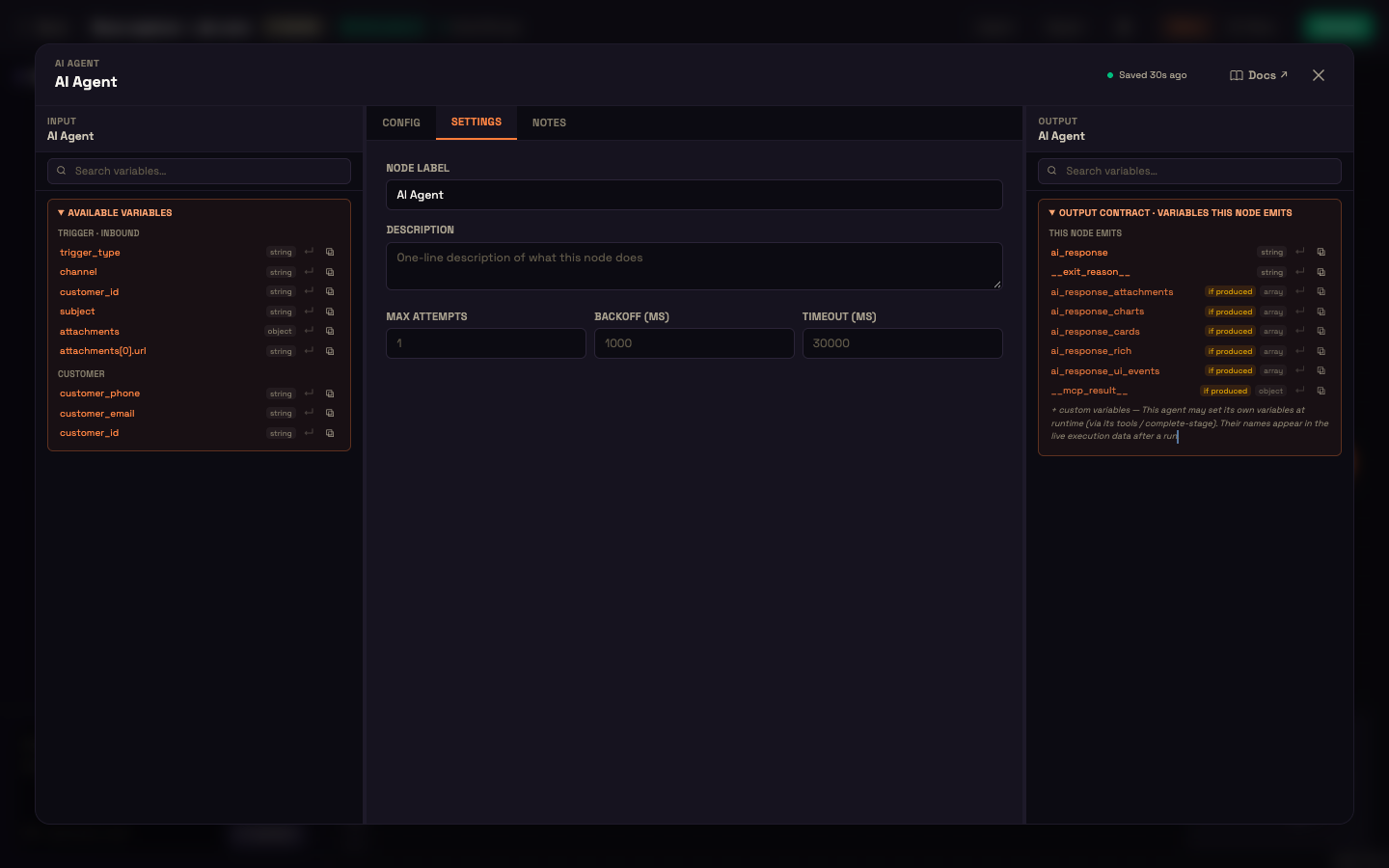
You've double-clicked a node and a large panel has opened over the canvas. This page explains what's in it, how saving works, and the few nodes whose panel looks a little different.
It's for builders configuring nodes for the first time. If you haven't placed a node yet, start with Canvas Basics.
Opening it
Double-click a node, or hover it and choose More actions → Open… (the Execute step button above a node opens the same panel). The header shows the node's type and name, a save indicator, a Docs ↗ link to the help page for that node, and ✕ to close. Escape also closes it.
The three panes
| Pane | Where | What it shows |
|---|---|---|
| Input | Left | Available variables — everything this node can use, grouped by where it comes from (the trigger, the customer, each earlier node). Search them at the top. |
| Config / Settings / Notes | Centre | The node's settings. |
| Output | Right | Variables this node emits — what later nodes can use. Variables marked if produced only appear when the node actually creates them. |
Next to each variable, ↵ inserts it into the field you're editing and the copy icon copies its path. Parts of an AI Agent (Personality, AI Model…) see the AI Agent's variables. A trigger's Input pane just says Workflow entry, because nothing runs before it; nodes that don't produce variables say so in the Output pane.
The centre tabs
| Tab | What's there |
|---|---|
| Config | The node's own settings — different for every node type. |
| Settings | Node Label (the name on the canvas) and Description; for nodes that can be retried, Max Attempts, Backoff (ms) between attempts, and Timeout (ms). |
| Notes | Free-text notes for your team. They're stored on the node for documentation only and never affect how it runs. |
A few nodes have something extra:
- Web Chat trigger — the Config tab has Configure and Install views, a Live preview that runs your draft in a real widget, and a Focus button that hides the side panes. See Trigger Nodes.
- Schedule and Manual Test triggers — a Run now / Execute button at the top of Config runs the agent once; the result appears in Output.
- Operator — an extra Operator app tab for setting up the operator app.
Saving
There's no Save button. Changes save automatically about a second and a half after you stop typing, and the header shows Saving… then Saved. While the modal is open, canvas shortcuts (Delete, undo, copy) are switched off, so typing in a field never changes the canvas behind it.
If the agent is Inactive, your change takes effect when you Activate it. If it's already Active, the saved change is live for the next message — see Activating.
Example. Asha opens the Personality node of Acme Support's agent, changes the greeting, pauses, and sees Saved. She presses Escape. Because the agent is still Inactive, nothing changes for customers until she clicks Activate.
Next steps
- Canvas Basics — adding, connecting and activating.
- AI Agent Node — every setting on the AI Agent.
- Trigger Nodes — trigger settings, including Web Chat's Install view.