Track Event
Asha at Acme Diagnostics wants every completed booking in her agent to be marked with a clear, consistent name — so that each run records what happened, not just that a conversation took place. The Track Event node does that: it records a named event, with details, at the exact point in a flow where something meaningful happens.
This page is for builders who are comfortable placing nodes. If you're new to the builder, start with Canvas Basics.
Adding a Track Event
Open the node picker, choose Output → Track Event, and connect it where the moment happens — after a booking is confirmed, a quote accepted, or a hand-off made. It records one event and moves on: it never pauses the flow, never messages the customer, and never changes the conversation. If something goes wrong while recording, the run carries on regardless.
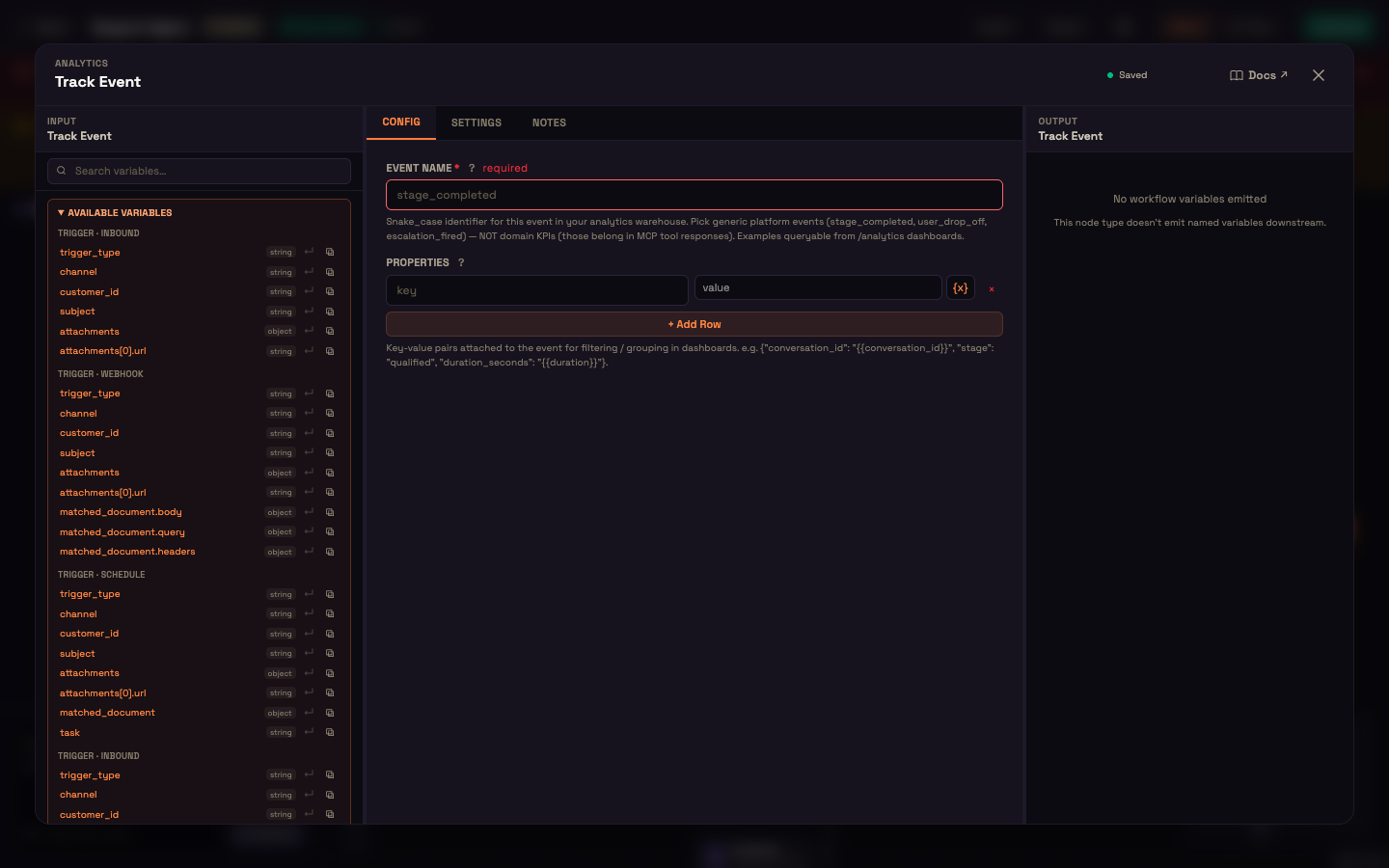
| Setting | What it controls |
|---|---|
| Event name (required) | A short, stable identifier in snake_case, for example booking_confirmed or escalation_fired. Use the same name every time the same thing happens. |
| Properties | Key / value rows attached to the event — click + Add Row. A value can be fixed text or a variable (use {x} to pick one), filled in with its live value when the node runs. |
Use properties for the details you'd want to filter by later — the service booked, the channel, the plan chosen.
Where to see your events today
Each Track Event is recorded as a step of the run: open Runs, pick a run, and the Logs tab lists the Track Event step; expand it to see the event name it recorded. Custom events don't yet appear as their own charts on the Analytics dashboard.
Worked example: mark a confirmed booking
Setup — Asha's booking flow for Acme Diagnostics ends with a Condition that checks whether the booking went through.
Action — On the "confirmed" branch she adds a Track Event with:
- Event name:
booking_confirmed - Properties:
service→{{ service_name }}channel→{{ trigger.channel }}
Result — Every time a customer like Priya completes a booking, the run records booking_confirmed with the service and channel it came in on.
What just happened — Because the node sits only on the confirmed branch, the event marks exactly the outcome Asha cares about. In Runs, she can open any run and see whether the booking event was recorded.
Tips
- Record outcomes, not every path. Put Track Event after a Condition (IF/ELSE) branch so it only fires for the result you care about.
- Keep names stable. A typo creates what looks like a different event.
- Keep business rules out. Name platform-level moments (
stage_completed,user_drop_off,escalation_fired); decisions about your business belong in your own systems and integrations.
Next steps
- Runs & Executions — find the events a run recorded.
- Condition (IF/ELSE) — fire the event only on the branch that matters.
- Analytics — the conversation dashboards.