What is Perfox?
A customer of Acme Support starts a web chat about a late order, switches to WhatsApp the next morning, then calls in the afternoon. You don't build three different agents for that. You build one agent, visually, as a graph of nodes on a canvas, and the same agent meets your customer on web chat, phone, SMS, WhatsApp and email.
By the end of this page you'll know what an agent is, the three layers it's built from, how the agent remembers a customer across channels, and the few rules that never change. Where a term is new, we link to a deeper page.
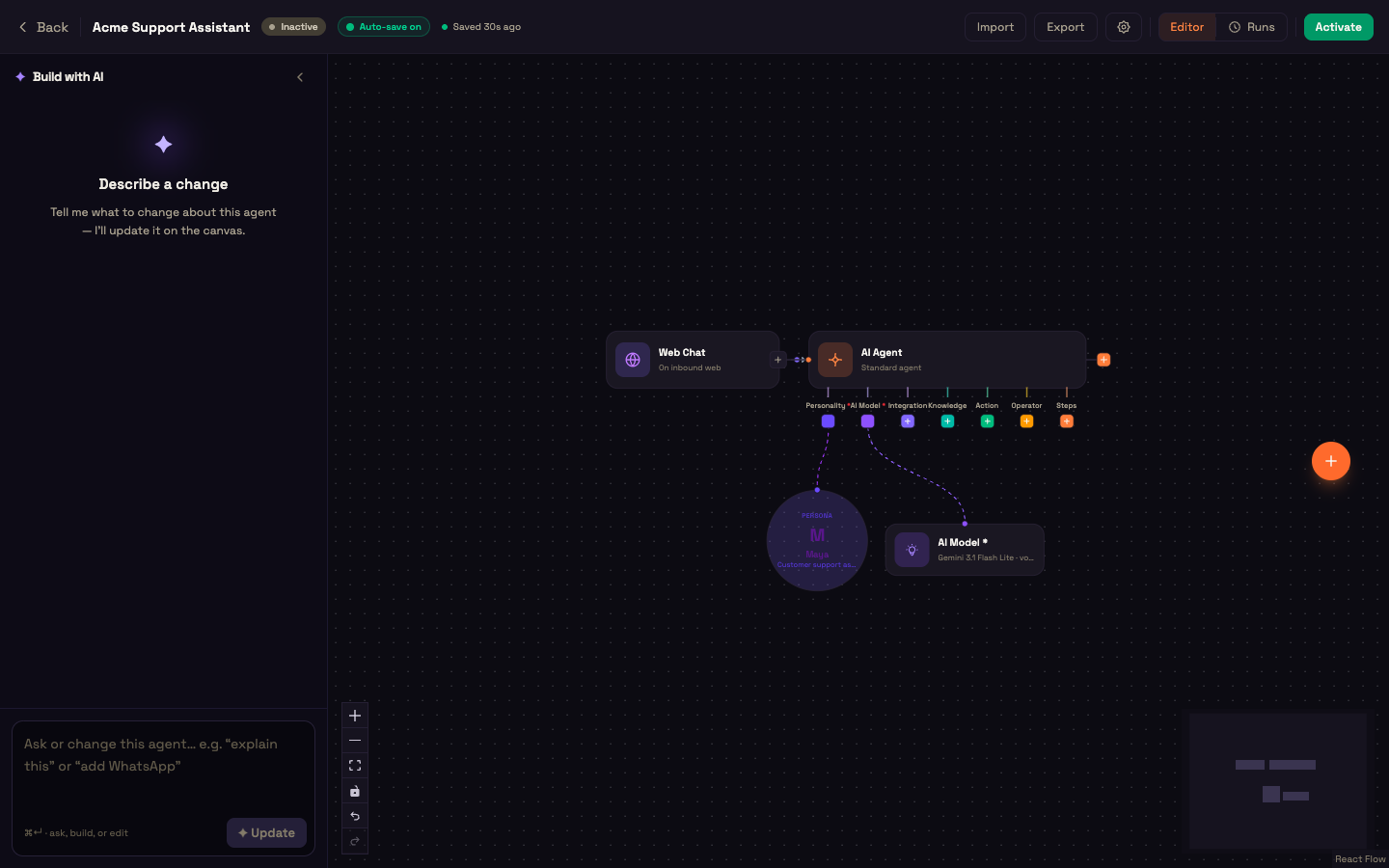
Configuration as behaviour
There's no code to write. An agent is a graph of nodes you assemble on a canvas. A trigger starts it (Web Chat, WhatsApp, SMS, Email, Phone Call, Webhook, Schedule and more), and an AI Agent holds the conversation. Around them you add what the job needs: Email Sender, SMS Sender and WhatsApp Sender to reply and send messages; Condition (IF/ELSE) to branch; Human Handoff to bring in a person; Collect Info, Look up Data and HTTP Request for data; Track Event for your dashboards; Document Processing to read files; and Agent Team when several agents work together.
You can also skip the dragging. Build with AI on the canvas drafts the whole agent from a plain-language description.
When the agent is ready, click Activate. Activating is the deployment, with no separate build or release. Change the agent, activate again, and the new version answers the next conversation.
The three-layer model
Three layers, one job each.
| Layer | Owns | Does NOT own |
|---|---|---|
| Agent | Orchestration and conversation flow: triggers, branching, human pauses, channels | Business knowledge |
| AI Agent node | The conversation itself: personality, language, which tool to use | Business knowledge |
| MCP server (yours) | All your business logic and data, reached through the tool gateway | Nothing else; it's the only home of your business rules |
A Condition (IF/ELSE) node may branch only on conversation metadata, such as how a stage ended, the channel, or a decision returned by one of your tools. It may not branch directly on a raw business value like an amount or a status. That decision belongs inside one of your tools, which returns the verdict for the Condition node to act on. This keeps your business rules in your own code.
Your tools reach the agent through the MCP gateway (What MCP Is in Perfox). Every tool call passes through the same steps: find the tool, check its inputs, apply your tool policy and rate limits, serve from cache where allowed, add the right credential, call it, and record an audit entry. If a server exceeds the rate limit you set for it, further calls are refused with a clear "rate limited" error instead of overwhelming your backend.
One engine, every channel
The same engine runs every conversation, whether it comes in on a channel or runs as a step inside a larger flow. The agent uses the model's native tool calling: it decides which tool to call, reads the result and continues, up to a safe number of steps per turn (20 by default), so a turn can never loop forever. A message on web, voice or SMS takes the same path and behaves the same way. Agents and MCP covers this in depth.
Memory follows the customer
Perfox recognises the same person across channels by phone number, email and WhatsApp identity, and the agent remembers them: facts they've shared, their preferences, and what earlier conversations were about. Memory is on by default, and you control it per agent in the AI Agent's Memory section. Facts your business already keeps, like orders or balances, come live from your own tools, so they're always current. See Agent Memory.
One agent, one customer, two channels
Setup. Asha, an admin at Acme Support, builds one agent: a Web Chat trigger and a WhatsApp trigger feed an AI Agent with a friendly personality. On its Integration port she connects Acme's own order system, which can look up an order and change a delivery date. On its Action port she adds an Email Sender and a WhatsApp Sender so the agent can reply on those channels. She clicks Activate.
Action. Priya opens the web chat on Acme's site:
Priya: Hi, where's my order? It was due yesterday.
The agent asks Acme's order tool, which returns the latest status:
Agent: Sorry for the wait, Priya. Your order left our warehouse this morning and should arrive tomorrow. Would you like the tracking link by email?
Priya says yes, and the agent sends it with the Email Sender, through Acme's own email account.
The next morning, Priya messages Acme on WhatsApp:
Priya: Can it come on Saturday instead?
The agent recognises her from her phone number, remembers yesterday's chat, and uses the order tool to move the delivery:
Agent: Done. Your order is now due on Saturday. I've kept your email for updates, as you asked yesterday.
What just happened. One active agent served two channels as one continuous relationship. Order facts came live from Acme's own system, so nothing was guessed. The email and WhatsApp messages went out through Acme's own provider accounts. And Asha wrote no code: she wired nodes and clicked Activate.
The rules to know upfront
- Your data is private and secure. Your workspace has its own addresses, and your data belongs to your workspace alone.
- MCP-first. Your business logic and data live in your own MCP server, not in the agent's nodes and not in Perfox.
- Bring Your Own Provider (BYOP). The providers your agent talks through (Plivo for phone, SMS and WhatsApp, your email provider, your storage and databases, Google Sheets) use your accounts, connected once on Admin → Connections. If one is missing, you get a clear message saying which to connect. The AI models, storage, semantic search and web voice are included and managed by Perfox, with nothing to set up. See Bring Your Own Provider.
What the Studio looks like
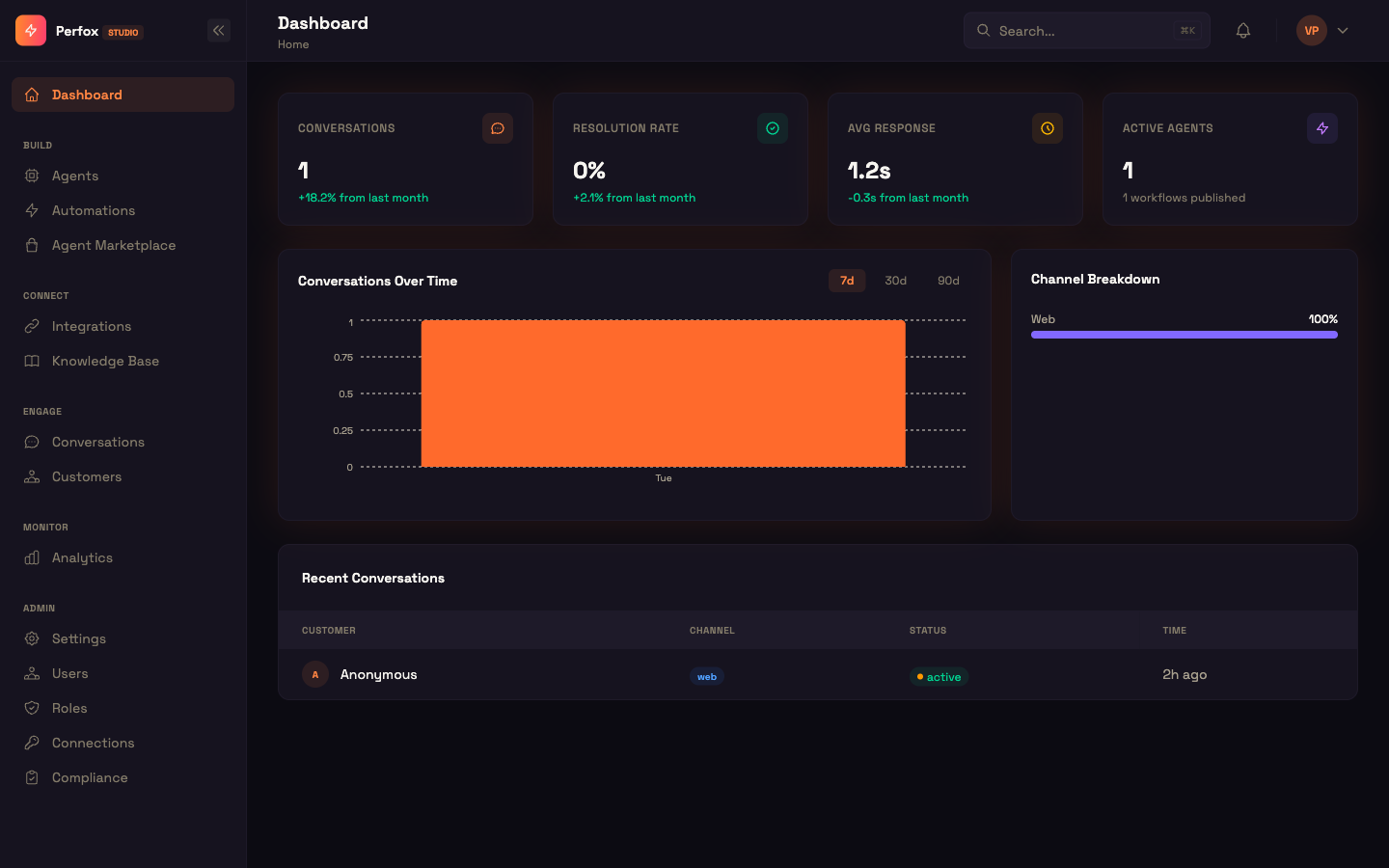
Beyond the main sidebar pages, the Studio has a Notifications center (the bell in the top bar), a Welcome screen with starter agents for your first sign-in, and an Accounts section with your credit balance, transactions and usage. The Studio Tour walks through each one.
You can now
You can now describe what a Perfox agent is, the three layers it's built from, how it remembers a customer across channels, and the rules that never change.
- Studio Tour — where each part of the Studio lives.
- Getting Started — build, test, activate and embed an agent yourself.
- Agents and MCP — the engine and the tool model in depth.
- Agent Memory — what the agent remembers and how to control it.
- Bring Your Own Provider — connect your own provider accounts.
- Design Principles — the full set of guarantees in one place.