Operator (Copilot)
A customer calls Acme Support. Instead of an AI voice answering, a trained support agent picks up — and as they talk, a quiet AI panel on their screen answers each question the customer asks with the key points from Acme's knowledge base. That's what the Operator sub-node does: it keeps the human in the call while the AI does the prep work in the background.
This page is for Asha, an admin at Acme Support, who wants to route inbound phone calls to her team while giving them live AI assistance. You'll walk away knowing how to wire up the sub-node, tune routing and fallback, and understand what the operator and caller each experience at runtime.
Prerequisites: you should be familiar with the AI Agent node and Canvas Basics before reading this.
What the Operator sub-node does
The Operator sub-node is an optional, 1:1 sub-node in the AI Agent cluster. It attaches to the AI Agent's amber Operator port and is stored with the agent — its configuration lives on the node, not in a separate global setting.
When you add it, calls that match this agent go to a real human operator instead of the AI voice. The AI still listens to both sides of the call and shows the operator answer cards drawn from the agent's knowledge and tools. The AI never speaks to the caller.
An agent with an Operator sub-node routes its calls to humans. An agent without one behaves as a normal AI voice agent. Only one Operator sub-node can attach to a given AI Agent.
To add it: open an agent in the Agent Builder (Build → Agents → open an agent), then either:
- click the + glyph on the AI Agent card's amber Operator port to open the node picker and choose Operator, or
- drag from the Operator port to empty canvas to add-and-connect in one gesture (see Drag-to-connect).
The node picker entry reads: "Operator — Route calls to human operators (skill/queue, ring, AI fallback, Help-me)."
The Operator port in the AI Agent cluster
The AI Agent card exposes seven typed ports along its bottom edge, each colour-coded. Left to right:
| Port | Colour | Required | Cardinality | Sub-node |
|---|---|---|---|---|
| Personality | purple | Yes | 1:1 | Personality |
| AI Model | violet | Yes | 1:1 | AI Model |
| Integration | purple | No | 1:N | Integration(s) |
| Knowledge | teal | No | 1:N | KB folders (semantic search) |
| Action | emerald | No | 1:N | Action tool nodes |
| Operator | amber | No | 1:1 | Operator (this node) |
| Steps | — | No | 1:1 | The first step of the agent's step-by-step process (Steps) |
Required ports show a red asterisk — the Operator port does not, because it's optional. The + glyph on a port is also the drag handle: click it to open the picker, drag it to wire an existing sub-node, or drag it to empty canvas to add-and-connect a new one. Once an Operator sub-node is wired, the + glyph disappears and the port shows a bare handle — no second connection is invited. See AI Agent node ports.
The canvas card
On the canvas the Operator sub-node appears as an amber card with a headset icon. Its subtitle reflects the skill you've set:
skill: <group>when a Skill / queue is configured, orany operatorwhen the field is blank.
It exposes a single source handle and connects upward into the AI Agent's amber Operator port.
Connection rules
The canvas enforces connection types before any edge is drawn — it won't let you wire something that activating would reject. Two checks run on every connection attempt:
- Type validity: the Operator port only accepts an Operator sub-node. Any other node type is refused.
- 1:1 cardinality: an AI Agent may have at most one Operator sub-node. A second Operator edge into the same agent is refused.
While you drag, the connection line turns green over a valid target and red over an invalid one. See Drag-to-connect + connection rules.
Configuration panel
Selecting the Operator sub-node opens its properties panel, with Config, Operator app, Settings and Notes tabs. Each field has an inline label and help text, and the panel uses the right input control for each type. Every field has a default, so a freshly-dropped Operator node is valid without any edits — you can activate immediately and tune later.
The same rules that validate the panel on save also run when you activate, so misconfiguration is caught early rather than failing silently at runtime.
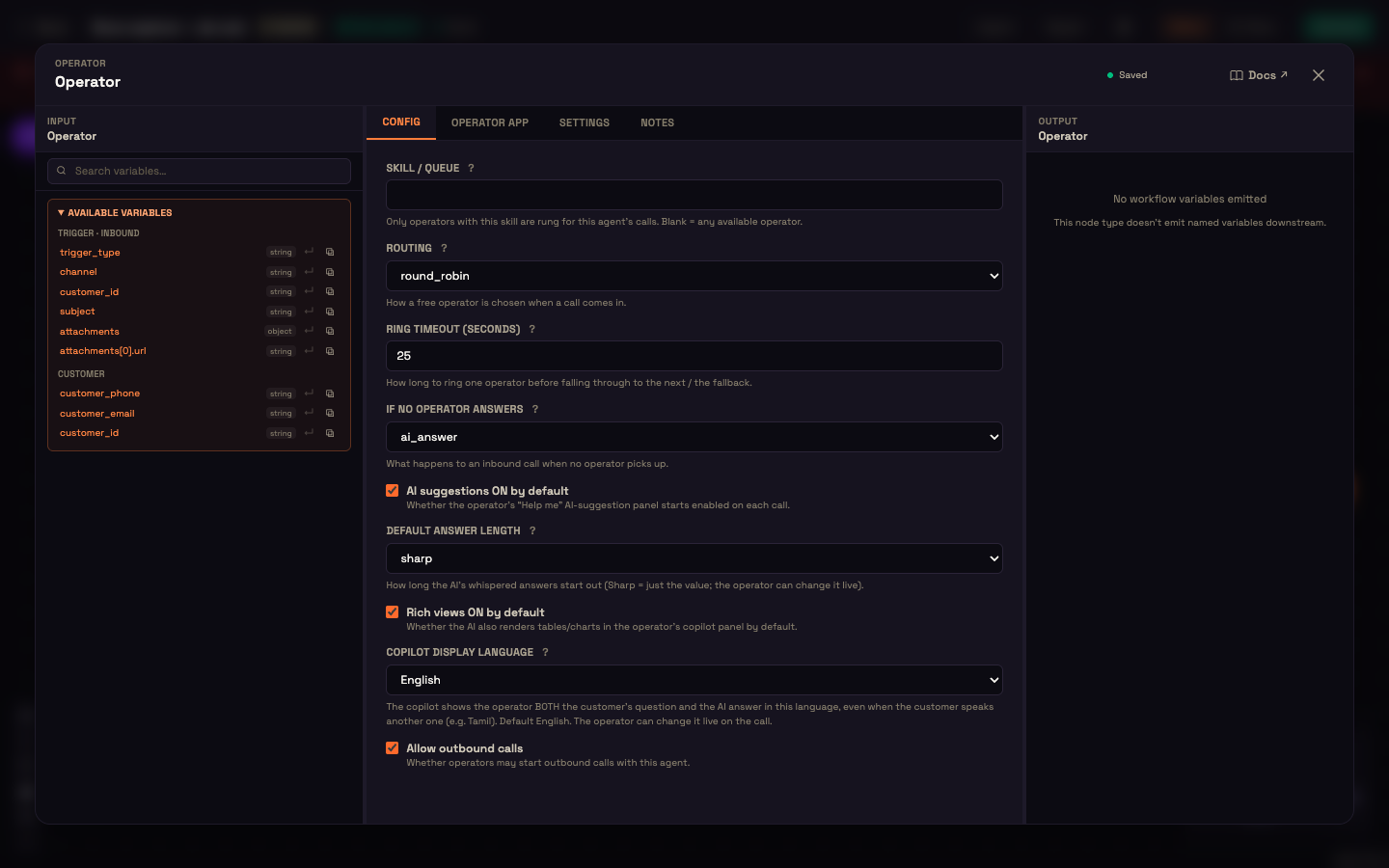
Field reference
| Field (label) | Type / widget | Values | Default | What it does |
|---|---|---|---|---|
| Skill / queue | text | any string, or blank | (blank) | Scopes which operators are eligible for this agent's calls. Blank = any available operator (generalist queue). |
| Routing | select | round_robin | skill | round_robin | How a free operator is chosen from the eligible pool on an inbound call. |
| Ring timeout (seconds) | number | 5–120 | 25 | How long a single operator is rung before the call falls to the next operator or the fallback. |
| If no operator answers | select | ai_answer | voicemail | end | ai_answer | What happens when no eligible operator picks up. |
| AI suggestions ON by default | checkbox | true | false | true | Whether the "Help me" AI-suggestion panel starts enabled at the top of each call. |
| Default answer length | select | sharp | short | medium | detailed | sharp | How long the AI's whispered answers start out. The operator can change it live. |
| Rich views ON by default | checkbox | true | false | true | Whether the copilot also shows tables and charts in the operator's panel. |
| Copilot display language | select | Mirror the customer, English, Hindi, Tamil, Telugu, Kannada, Malayalam, Marathi, Bengali, Gujarati, Spanish, French, German, Portuguese, Arabic, Mandarin | English | The language the operator sees both the customer's question and the AI's answer in. |
| Allow outbound calls | checkbox | true | false | true | Whether operators may initiate outbound calls with this agent. |
Skill / queue
This field scopes which operators are eligible to receive calls for this agent. Only operators whose presence lists a matching skill are considered. Blank means any available operator — a generalist queue.
At runtime the router keeps only operators who are marked available and, when a skill is set, only those whose skill list includes it. An operator with an empty skill list is treated as a generalist and always matches. Operators who wait for calls in Perfox's Conversations page don't declare skills, so they count as generalists and are rung for any Skill / queue. Skills come from operators signed in through your own operator app.
This is a soft filter, not a hard gate: if no matching operator is online, the call falls through to your configured fallback.
Routing
Chooses which free, eligible operator answers an inbound call:
round_robin(default) — distributes calls evenly across eligible free operators.skill— biases selection toward the best-matching skill.
The router first narrows the pool with the Skill / queue filter, then picks one operator and rings them. Only one operator is rung at a time — if they don't answer within the Ring timeout, the call moves to the next free operator or the fallback.
Ring timeout
Sets how long a single operator is rung before the call moves on. Default 25 seconds, range 5–120.
The caller hears ringback while an operator is being rung. If the timeout elapses with no answer, the routing loop advances. If the field is left unset on an older agent, the platform defaults to 30 seconds.
If no operator answers
Decides what happens when no eligible operator picks up:
ai_answer(default) — the normal AI voice agent answers, so the caller is never dropped.voicemail— record a message for the operator to follow up.end— hang up.
The copilot bridge only engages when a matching operator is available right now. If nobody is, the call stays on the normal AI voice path — zero mid-call risk, and the caller still gets a response.
AI suggestions ON by default
Sets whether the operator's "Help me" panel starts enabled at the top of each call. Default on.
When enabled, the AI copilot runs from the moment the operator connects. It draws on the agent's Knowledge Base and pushes live signals to the operator's screen while the human speaks to the caller:
- an answer card for each customer question — "Customer asked" followed by the key points from the agent's knowledge and tools, with a Copy button;
- Ask the AI — a pane where the operator can type their own question and get an answer during the call.
The AI never speaks to the far party — it only whispers to the operator. Operators can still toggle the panel per call; this field only sets the default.
Default answer length
How long the AI's whispered answers start out: sharp (just the value — for example the balance or the date), short, medium, or detailed. Default sharp. The operator can change it live during the call.
Rich views ON by default
Whether the copilot may also render tables and charts in the operator's panel, not just text. Default on.
Copilot display language
The copilot shows the operator both the customer's question and the AI's answer in this language, even when the customer speaks another one — for example, a Tamil-speaking caller with an English-reading operator. Default English; choose Mirror the customer to show everything in the customer's own language. The operator can change it live on the call.
Allow outbound calls
Controls whether operators can initiate calls with this agent (not just receive inbound). Default true.
When enabled, an operator can start an outbound call from Conversations: + New (or Reach out → Call), then Phone call → Copilot → Outbound. The outbound call answers in bridge mode — no AI voice runs — and bridges the caller's audio into the operator's session. Because the operator initiated the call and is already in the session, the outbound path does not trigger the inbound ring or ringback flow. The transcript and the 3-track call recording land on the customer's real phone conversation record.
Operator app tab
The Operator app tab lets you run the copilot from your own operator console instead of Perfox's — for example a support desk your team already uses, built with the Perfox operator SDK. When you turn on Enable operator app for this workflow, your console can drive this agent's copilot: operator availability, inbound ringing, the live transcript, AI whispers and the operator's Ask-AI.
- Access is issued per workflow, and the secret is signed on your app's backend — never in the browser.
- List the exact Allowed origins (scheme + host, one per line) your console runs on.
Leave it off if your operators take calls in Perfox's Conversations page.
Worked example: Asha sets up the Acme Support copilot bridge
Setup: Asha opens the Acme Support AI agent in the Agent Builder and drags from the amber Operator port to empty canvas. An Operator node appears and connects automatically. She opens its config panel.
Action: Asha types billing in the Skill / queue field (her billing team signs in through Acme's own operator app, which reports the billing skill). She leaves Routing as round_robin, sets Ring timeout to 30 seconds, leaves "If no operator answers" as ai_answer, and leaves AI suggestions ON by default ticked. Her team reads English, so she keeps Copilot display language on English. The canvas saves automatically, and she activates the agent.
Result: The next time a customer calls the billing support number, the AI checks whether any operator is online with the billing skill. Priya, a billing agent, is available with that skill. Her console shows an incoming call; she accepts. The caller's voice comes straight through. On her screen the AI suggestions are already on — when the caller asks about an invoice, a card appears with the key points from Acme's knowledge base. Priya handles the call naturally, with the AI's notes in view.
What just happened: the Operator sub-node's skill filter narrowed the eligible pool to billing operators, round-robin picked Priya, the 30-second ring timeout meant the caller would never wait long on one unanswered operator, and the "suggestions ON" default meant she didn't need to open the panel manually. What the caller hears while an operator is being rung, or while on hold, is set on the AI Model card. If Priya hadn't been available, the call would have gone straight to the AI voice — the ai_answer fallback ensures no caller is dropped.
Runtime: the copilot bridge in detail
Cold inbound call
On a cold inbound phone call:
- Perfox resolves the matched agent and checks whether it has an Operator sub-node.
- It checks (filtered by Skill / queue) whether an eligible operator is online.
- If yes — the call runs in copilot-bridge mode: no AI voice. It bridges the caller's audio into a live voice session, rings a free operator (round-robin or skill), and plays ringback to the caller until the operator's first audio arrives or the Ring timeout elapses.
- If no operator is available — the call stays on the normal AI voice path (the upfront fallback, zero mid-call risk).
Alongside the audio bridge, a copilot session transcribes both legs live, diarized by operator / customer. When AI suggestions are on, each customer question gets an answer card on the operator's screen in real time, and the operator can ask the AI their own questions.
The copilot supports three modes — dictation, live tap, and third actor.
Operator presence and availability
Routing to a live human depends on operator presence, which the Skill / queue and Routing fields consume at runtime:
- In Perfox, an operator goes available for an agent from Conversations: + New → Phone call → Copilot → Inbound → Connect & wait. A Ready for calls card shows while they're waiting; Stop waiting makes them unavailable. These operators have no skill list, so they match any Skill / queue.
- Operators using your own operator app report their availability and skills through it.
- The inbound router only rings operators who are available and whose skills match (empty skills = generalist).
- A ring is pushed to the operator's screen immediately, with a periodic check as a fallback. The operator accepts (joins the bridge) or declines.
- Terminal outcomes — no-answer / busy / declined / failed — are reported back so the dialer stops ringing and shows the reason.
This presence layer is what makes skill filtering, round-robin routing, and ring-timeout fall-through work at runtime.
What you can do with the Operator sub-node
- Route inbound phone calls to a live human when an operator with the right skill is online, with automatic fallback to the AI (or voicemail, or hang-up) when none is.
- Whisper AI assistance to the human — an answer card for each customer question, plus an Ask-the-AI pane — without the AI ever speaking to the caller.
- Queue by skill so only operators who have declared that skill are rung for this agent.
- Tune routing — round-robin or skill-biased selection, and how long each operator rings before fall-through.
- Let operators dial out — start outbound copilot calls to a customer that reuse the same bridge and land on the customer's real conversation record.
You can now route your agent's phone calls to a live team while the AI runs silently alongside them — and fall back gracefully when no one is available.
See also
- AI Agent Node — the sub-node ports and the cluster the Operator attaches to; read this first if the port layout above is new to you
- Canvas Basics — drag-to-connect, connection rules, and the node picker; covers the gestures used to add this sub-node
- Copilot (Human-in-the-loop) — the operator console, session tiers, and live-call experience; the operator's side of what this sub-node enables
- Human Handoff — the workflow-level human pause node; use this when you want to pause a workflow for human input rather than bridge a live call
- Personality sub-node · AI Model sub-node