Extraction & Understanding
Asha uploads a folder of scanned invoices. A few minutes later her agent can list every invoice from one supplier that is still unpaid and due this month — without anyone writing code. This page explains how.
The Knowledge Base does two things with every file:
- Reads it. It pulls out all of the text — from a born-digital PDF, a scan, a spreadsheet, a photo or a recording — and indexes it for search. This always happens.
- Understands it (optional). When a folder uses a use case, the Knowledge Base also extracts structured information — typed fields, one record per line item, clauses, categories — so the agent can filter, count, rank and compare, not just search.
You control both from Connect → Knowledge Base: reading happens on upload, and understanding is set per folder through its indexing mode.
Reading a file
Every file is read the cheapest way that captures all of it:
- Read directly, at no reading cost — Word, Excel, PowerPoint (with speaker notes), CSV, text, Markdown, HTML, JSON, XML, YAML, EPUB, email, calendar and contact files, and PDFs that contain real text.
- Read by AI — scanned PDFs and images, audio and video, and documents that can't be read directly. The result is a faithful transcript, not a summary: every page in order; numbers, dates and IDs exactly as written; tables kept as rows and columns; chart data captured; handwriting transcribed. Audio and video are transcribed with speakers and timestamps, and video scenes are described.
- No truncation — long scans and recordings are processed in parts and joined back together, so the end of a document is never lost.
The AI model used for reading is the KB model in the Knowledge Base toolbar (Uploading & Formats). Accepted file types are listed on the same page.
Indexing mode
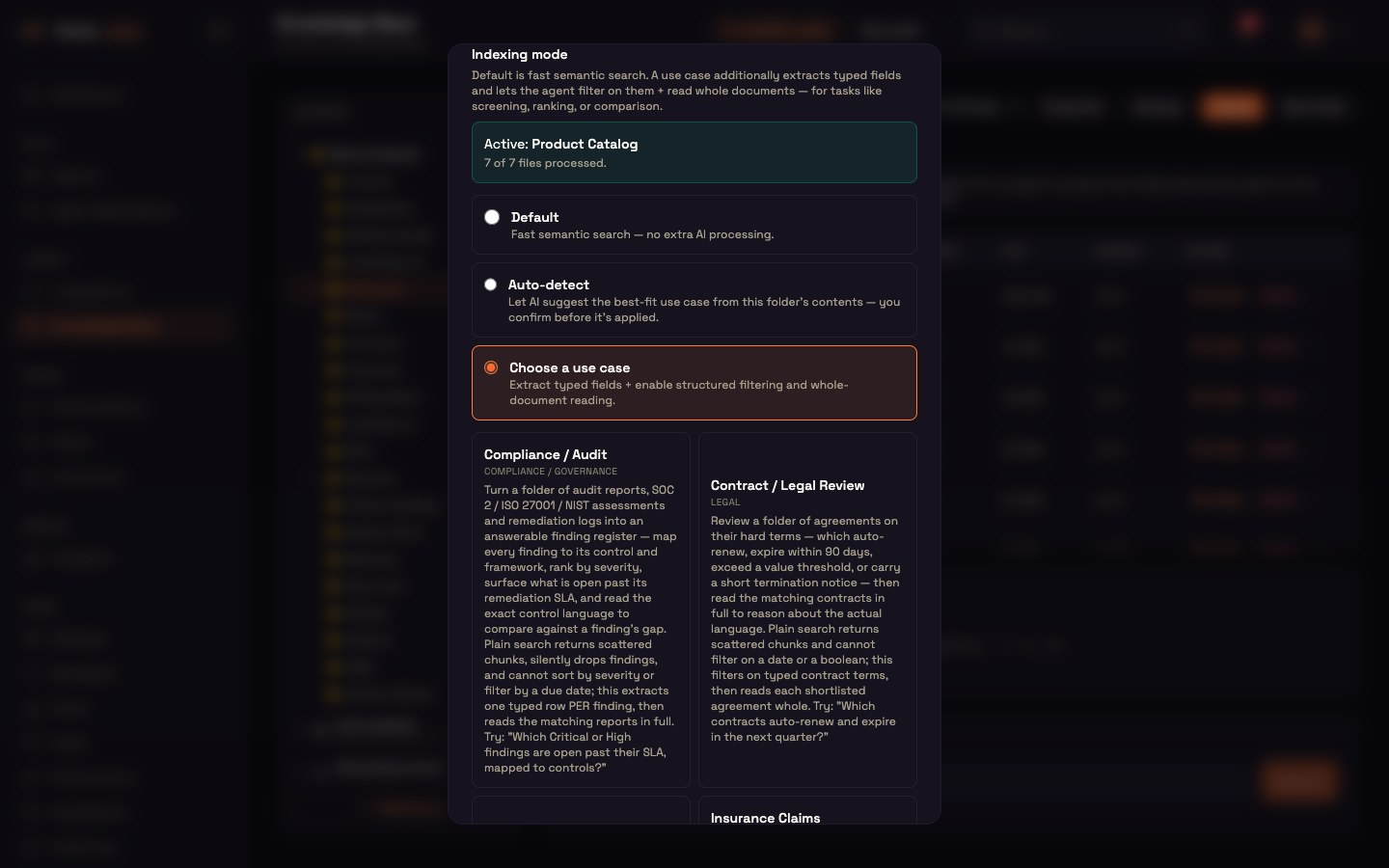
Each folder has one indexing mode. Set it when you upload, or in the folder's Settings:
| Mode | What it does |
|---|---|
| Default | Fast semantic search — no extra AI processing. |
| Auto-detect | AI looks at the folder's contents and suggests the best-fit use case. |
| Choose a use case | Extracts typed fields so the agent can filter and rank on them, and read whole documents — for tasks like screening, ranking or comparison. |
A use case adds to normal search; it never takes it away, so a use case that turns out to be the wrong fit still leaves plain search working.
Applying a use case
- Open the folder and click Settings.
- Under Indexing mode, select Choose a use case and click one of the use-case cards.
- Click Apply use case. You'll see "Applied — N file(s) queued for processing (runs in the background)".
Processing runs one file at a time in the background. The panel then shows Active: use case and how far it has got — "7 of 7 files processed", or "… extraction runs in the background" while it is still working. For use cases that sort documents into categories, a Coverage chart shows how many documents fall in each category; categories shown in red (0) have no documents yet — a coverage gap.
Files added with a multi-file or folder upload are processed automatically when that upload finishes. After adding files another way — a single-file upload or a connector sync — click Apply use case again: files that are already processed are skipped, so only the new ones are queued. To go back to plain search, choose Default and click Set to default.
Auto-detect
Select Auto-detect and click Detect use case. The AI reads the folder's summary and file list and suggests one use case with a confidence percentage and a one-line reason. Nothing changes until you click Apply use case, so detection can never quietly change how a folder behaves. If no use case fits, it says so. Detection looks at the folder as a whole, so it is quick and cheap; the per-file work only starts once you apply.
What a use case adds
Each use case combines some of these abilities:
| Ability | What the agent can do |
|---|---|
| Typed fields | Filter documents on exact values — a number over a threshold, a date range, yes/no, one of a fixed list — and get an exact count. |
| One record per item | Treat each finding, requirement or product in a document as its own record, so "every critical finding that is still open" or "everything under ₹2,000" matches individual items. |
| Line items | Read an invoice's or statement's table as rows (quantity, unit price, amount…), for checks like matching an invoice to its purchase order. |
| Clauses | Split contracts and policies into clauses tagged by type (termination, auto-renewal, liability…), and find the documents that contain a given kind of clause. |
| Categories | Sort each document into a category — for example a support topic or a claim decision — and show how well each category is covered. |
| Summaries and contents | Keep a summary and table of contents for each document, so the agent can find the right section. |
| Read whole documents | Read the full text of a short list of documents, so the agent can compare them properly instead of working from snippets. |
A field is only filled when the document actually states it; nothing is guessed. The agent gets the extra filter and read whole documents tools only for folders whose use case includes them; a folder on Default behaves exactly like plain search. The agent typically narrows with a filter, ranks with search, then reads the finalists in full.
The exact fields each use case returns are listed in Document Parser Fields.
Worked example — invoice filtering
Setup. Asha creates a Supplier Invoices folder and uploads 40 scanned invoices.
Action. In folder Settings she picks Choose a use case → Invoice / Accounts Payable and clicks Apply use case. The panel reports "40 file(s) queued".
Result. A few minutes later it shows "40 of 40 files processed". Her agent can now answer "Which invoices from Acme Supply Co. over ₹50,000 are unpaid and due this quarter?" with an exact list, then read those invoices to summarise them.
What just happened. Each invoice's header (supplier, dates, total, status) and line items were extracted as typed values. The agent filtered on real numbers and dates — something passage search alone can't do reliably — and then read only the matching documents.
Use cases
The use-case cards in folder Settings come from this catalog:
| Use case | Category | Good for |
|---|---|---|
| Compliance / Audit | Compliance / Governance | Turning audit reports into a register of findings — by severity, status, control and due date. |
| Contract / Legal Review | Legal | Filtering agreements on hard terms (auto-renewal, expiry, value, notice period) and reading their clauses. |
| Financial Statements | Finance | Comparing figures and line items across periods. |
| Insurance Claims Adjudication | Insurance | Triage of claims into decision buckets and checking them against policy clauses. |
| Invoice / Accounts Payable | Finance | Matching invoices to purchase orders and receipts, flagging variances, ageing unpaid invoices. |
| Medical Records | Healthcare | Answering over one patient's clinical documents. Regulated — see below. |
| Policy Q&A | Knowledge | Quoting the exact, current section of a handbook or policy. |
| Product Catalog | Sales / Commerce | Filtering products by price or range, then reading full listings. |
| RFP Response | Sales / Proposals | Listing every requirement in an RFP and marking each covered, partial or a gap. |
| Research Papers | Research / Academia | Shortlisting papers by year or method and comparing them in full. |
| Resume / ATS Screening | HR / Recruiting | Ranking resumes on experience, skills and must-haves. |
| Support KB | Customer Support | Routing a question to the right category and fix, and finding topics with thin coverage. |
Regulated content (Medical Records)
Medical Records is a regulated use case. Its content is only ever served in a conversation with an identified customer: search, filtering and whole-document reading all refuse on an anonymous conversation, and a customer only ever sees their own documents or content you've shared with everyone.
Next steps
- Document Parser Fields — every field each use case extracts.
- Uploading & Formats — file types, the KB model and processing speed.
- Retrieval & RAG — how the agent searches at question time.
- Knowledge Base in the Agent — attach folders to an agent.