Integration
Imagine Asha at Acme Support just built an AI agent to handle billing questions — but the agent can't answer "what's my current balance?" because it has no way to reach Acme's billing system. The Integration sub-node solves that: connect your billing integration, and the agent can call it live, mid-conversation.
This page is for builders who already have an AI Agent node on the canvas. You'll walk away knowing how to attach one or more integrations, choose exactly which of their actions the agent can use, and keep that action list up to date. If you haven't connected an integration yet, start with Connecting an integration.
What the Integration sub-node does
The Integration sub-node — labelled "Integration" on the builder canvas — is how your own business logic reaches the agent. Each node exposes exactly one connected integration (an MCP, Model Context Protocol, server); the actions that integration advertises become tools the agent can call while it reasons through a request. Add several Integration sub-nodes to combine multiple integrations on the same agent.
- What it does: connects one integration and makes its actions callable by the agent.
- How it wires up: the node connects upward into its parent AI Agent node.
- How many you can add: as many as you like — each Integration card keeps its "+" control to add another.
- Before it shows up: an integration only appears in this picker once it has been connected on the Integrations page. See Connecting an integration.
The node on the canvas
In the node picker the Integration node carries a purple lightning-bolt icon and the description "Connect an integration — all its actions become available". On the canvas it renders as a compact purple card with a single connector that wires up into its parent AI Agent node.
- The card live-reflects its scope: the subtitle shows how many actions the agent gets, for example "2 actions".
- The card label defaults to the node's name; if you leave it unnamed it falls back to the connected integration's name, and finally to the literal "Integration".
- Only integrations connect here: the canvas rejects any other node type on this connector.
See AI Agent Node for the full sub-node map this node belongs to.
Configuration panel
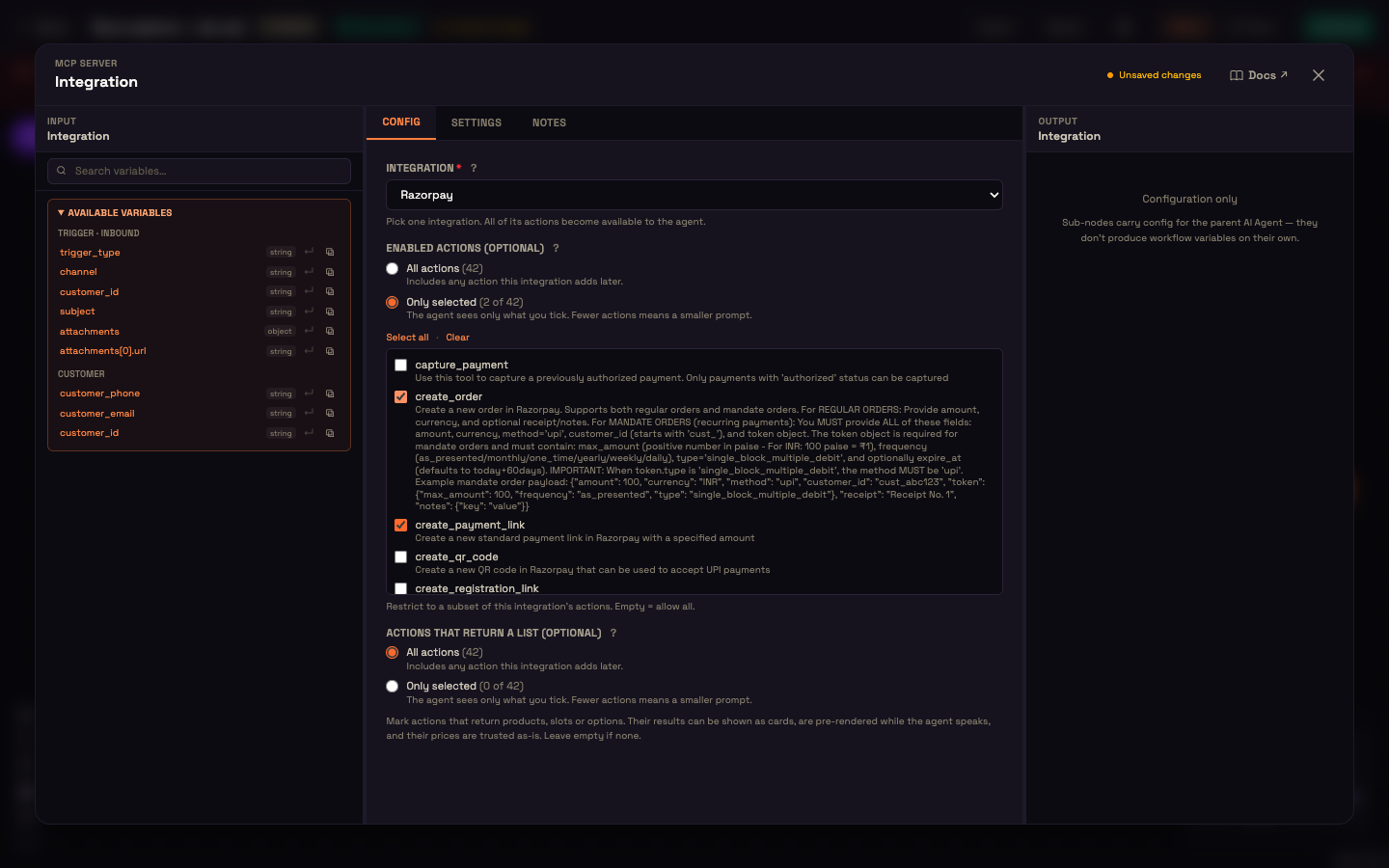
The configuration panel has three fields.
1. Integration (required)
A dropdown of your connected integrations, shown by name.
- Help text: "Pick one integration. All of its actions become available to the agent."
- Empty state: when nothing is connected yet, the picker points you to the Integrations page.
2. Enabled actions (optional)
Once you've picked an integration, choose which of its actions the agent may use:
| Choice | What the agent gets |
|---|---|
| All actions (N) | Every action the integration has, including any it adds later. |
| Only selected (x of N) | Only the actions you tick. "The agent sees only what you tick. Fewer actions means a smaller prompt." |
With Only selected, a checklist shows each action's name and description, with Select all and Clear shortcuts. Ticking nothing is a real choice: the panel warns "No actions selected — the agent gets none from <integration>."
We recommend Only selected. Each action is described to the model on every turn, so a smaller, deliberate list keeps replies faster and cheaper, and a new action added to the integration later won't reach your agent until you tick it.
The checklist has explicit empty states:
| Condition | Message |
|---|---|
| Picked integration was removed | "Picked integration not found. Re-pick or remove this sub-node." |
| Integration has no actions | "<name> has no actions available. Run rediscovery on the Integrations page." |
3. Actions that return a list (optional)
Mark the actions that return products, slots or options, such as a product search or an availability lookup. Their results can be shown to the customer as cards, are prepared while the agent is still speaking, and their prices are shown exactly as the integration returned them. Leave it empty if none of the integration's actions return a list.
Field reference
| Field | Type | Default | Effect |
|---|---|---|---|
| Integration | dropdown (required) | — | The connected integration whose actions the agent gets. |
| Enabled actions | All actions · Only selected (checklist) | — | Which of the integration's actions the agent may call. |
| Actions that return a list | All actions · Only selected (checklist) | — | Actions whose results are lists of products, slots or options. |
Worked example: Acme Support's balance lookup
Setup. Asha connects Acme's CRM integration on the Integrations page. She opens her billing-query agent, adds an Integration sub-node, and picks Acme CRM from the dropdown. Under Enabled actions she chooses Only selected; three actions appear: get_customer, get_balance, and get_transactions. She ticks only get_balance.
Action. Priya messages the Acme Support widget: "Can you tell me what I owe this month?" The agent reasons through the request, sees that get_balance is available and relevant, calls it with Priya's collected identity, and gets back the current balance.
Result. The agent replies: "Your current balance is ₹3,450, due by 15 August." Priya gets a direct answer without waiting for a human agent.
What just happened. Because Asha left get_customer and get_transactions unticked, those actions were completely invisible to the agent — it never tried to call them. The agent only saw and used what Asha explicitly allowed. When Acme's CRM adds a new get_invoice action next month, Asha runs Rediscover on the Integrations page. The new action appears in the checklist, unticked, so it stays out of reach until she decides to enable it.
How actions reach the agent
When your agent runs, Perfox expands each connected Integration sub-node into the agent's live tool list:
- For each connected integration, Perfox reads its saved action catalog.
- Your Enabled actions choice is applied: All actions exposes every action (including ones added later); Only selected exposes exactly the ticked actions — none, if you tick none.
- Only the enabled actions become callable tools the agent can invoke while it reasons. An unticked action is completely invisible to the agent — it can't call it, can't see its parameters, and won't mention it.
Every action always carries a description the agent can read. If an action ships without one, Perfox supplies a sensible fallback so the agent still knows the action exists and can inspect its parameters.
Two resilience behaviours keep this reliable:
- Stale-catalogue warning — the agent uses a saved copy of each integration's action catalogue. Perfox flags a warning when an integration has never been checked or its saved catalogue is more than an hour old. A drifted catalogue risks the agent calling an action with the wrong arguments; refresh it by running rediscovery (see below).
- Fail-soft loading — if an integration can't be loaded (for example it was removed, or its sign-in needs reconnecting), it is dropped with a warning rather than breaking the whole agent. The rest of the agent keeps running.
Rediscovery: keeping the catalogue fresh
Your agent uses a saved copy of each integration's action list, so a newly-added action is invisible until you re-sync it. The Integrations page handles connecting, editing, health-checking, and per-action toggling for each integration, and its Rediscover action re-reads the live action list and updates the saved catalogue. Run it whenever you add or change actions on an integration, or whenever this node reports a stale-catalogue warning. Rediscovery also refreshes the action picker on the AI Agent node. See Connecting an integration.
Connecting the integration first
Before an integration appears in this picker it must be connected on the Integrations page. There are two ways to connect one.
Popular-integrations catalog + sign-in
A ranked catalog of 119 popular integrations covers four connection styles:
| Style | Count | Meaning |
|---|---|---|
| One-click sign-in | 39 | Connect through a guided secure sign-in flow — no keys to paste. |
| Paste a token | 38 | Connect with an API key or bearer token you paste in. |
| Local integration | 40 | Entries that run through a local transport. |
| Coming soon | 2 | Listed but not yet connectable. |
Sign-in entries run a modern, secure OAuth-based flow with proof-key protection and automatic client registration, so you can connect a hosted integration provider without handling credentials by hand. Once connected, the sign-in is stored securely and reused for you.
Custom URL (any endpoint you paste)
The same guided sign-in flow works for any custom integration URL you paste, not just catalog entries — Perfox reads the integration's advertised sign-in details and requests the right access for you. Both address forms work: Perfox normalises the endpoint for you and, if a base address doesn't respond on its own, automatically appends the standard /mcp path most integrations expose.
Manual (non-catalog) connections are protected against pointing at internal or unsafe addresses. The token you enter is encrypted at rest — never stored in plain text — and Perfox verifies the connection by fetching the action list immediately, reporting a clear discovery error if that first probe fails.
Full walkthrough: Connecting an integration.
The connected integration's settings
A connected integration carries these settings:
| Setting | Values | What it is |
|---|---|---|
| Name | text | Display name shown in this node's Integration picker. |
| Description | text | A human-readable description of the integration. |
| URL | text | The integration's endpoint, conventionally ending in /mcp. |
| Transport | streaming or standard HTTP | How Perfox talks to the integration over the wire. |
| Authentication | none, bearer, API key, basic, or one-click sign-in | How the integration authenticates. |
| Auth header name | text | The header name to use when the integration expects an API key. |
| Credential | reference | Points at a saved credential supplying the auth token, resolved fresh on every call — so tokens rotate without reconnecting. |
| Actions | list | The saved action catalog (this node's checklist reads it). |
| Health status | status | The result of the Integrations page health-check. |
| Rate limit | calls/sec | Caps how fast the agent can call this integration. |
| Timeout | milliseconds | Per-call timeout (default 30000). |
| Cache duration | seconds | How long a repeated action response may be reused. |
What happens on every action call
The call contract
Perfox talks to your integration over a single HTTPS endpoint using the standard MCP protocol. Three operations cover the lifecycle:
| Operation | When | Purpose |
|---|---|---|
| Handshake | at the start of a session | Establishes the connection and exchanges capabilities. |
| List actions | on connection and re-sync | Returns the integration's available actions. |
| Call action | on each agent turn that needs it | Runs an action and returns its result. |
Each action advertises a name, a description, and an input schema so the agent knows how to call it. Any authentication context you configure is replayed on every action call — placed in a request header, body field, or query parameter, whichever you choose. The connection session is tracked automatically across calls, and failed calls are retried with backoff. A rejected sign-in surfaces as a clear authentication error rather than a silent failure.
End-user identity headers
On every action call, Perfox forwards the conversation's collected identity as a set of standard X-Sa-End-User-* request headers, so your integration can match the caller against your own records without re-asking:
| Header | Carries |
|---|---|
X-Sa-End-User-Name | The collected name. |
X-Sa-End-User-Phone | The collected phone. |
X-Sa-End-User-Email | The collected email. |
X-Sa-End-User-External-Id | Your own stable customer id — the strongest anchor. |
X-Sa-End-User-Attributes | A JSON object of any extra fields you collect, for workspace-specific data. |
Empty values are omitted, and the same identity is forwarded consistently across text and voice, so your integration always sees a stable set of signals. These are signals, not proof of authentication — your integration decides whether to trust them. Verified identity is established separately through the authentication broker — see Authentication.
How every call is protected
Every action call flows through a managed pipeline that, in order:
- validates the inputs the agent supplies,
- checks the action is allowed for this agent,
- enforces the integration's rate limit,
- reuses a recent cached response when appropriate,
- injects the right credential (bring-your-own-provider),
- runs the action, and
- records it for audit.
The rate limiter enforces a per-integration, per-action sliding window; when an integration's configured rate limit is exceeded, the call is rejected with a rate-limit error rather than overwhelming the integration. Compliance rules gate the pipeline so calls only run for their permitted purpose.
Built-in demo integrations
Perfox ships two demo integrations as reference examples for building your own domain integration (demo environment only — for real use you connect your own integration):
| Demo integration | Actions |
|---|---|
| Demo CRM | get_customer, get_balance, get_transactions (read actions over seeded records) |
| Demo Communications | send_email, send_sms_notification, send_whatsapp_template (handy for human-in-the-loop flows in demo agents) |
See Built-in MCP Servers.
Where to go next
You can now attach any connected integration to your agent, control exactly which actions it exposes, and keep that list fresh with rediscovery. To go deeper:
- AI Agent Node — see the full sub-node map this Integration node belongs to, and how all sub-nodes work together.
- Connecting an integration — walk through the catalog, one-click sign-in, custom-URL, rediscovery, and field-by-field registry flow.
- What MCP Is in Perfox — understand the call contract and the managed pipeline behind every action call.
- Building Your Own MCP Server — learn how to expose your own business logic, including how to read the end-user identity headers your integration receives.
- Built-in MCP Servers — explore the demo CRM and communications integrations that ship with Perfox.
- Memory · Knowledge sub-node — the agent's memory settings and a sibling sub-node.
- Authentication — how verified identity is established through the broker, separate from the identity headers.