Steps (Agent Process)
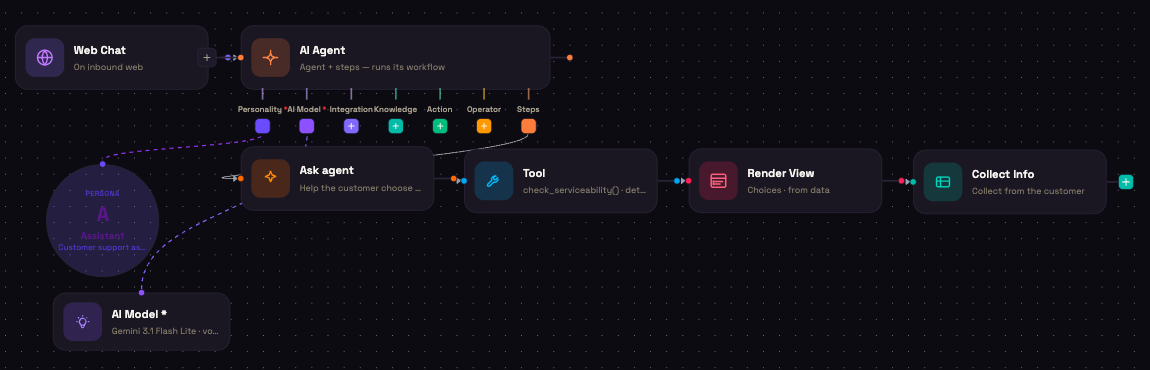
Asha runs customer operations at Acme Diagnostics, a lab network that offers home sample collection. When Priya messages to book a blood test, the conversation can't be left entirely to free-form chat. It has to follow a set order: help her choose a test, check that a phlebotomist serves her area, collect her address, and only then book a slot.
Steps let you attach that ordered process directly to an AI Agent. The agent works through the steps one by one, using its own personality, model, knowledge and integrations throughout.
Why use Steps?
On its own, an AI Agent decides for itself what to do next, guided by its personality and tools. That's ideal for open questions. For a transaction with a required order (a booking, a checkout, an application), you often want guarantees instead:
- One brain. Every step uses the parent agent's Personality, AI Model, Knowledge and Integrations. You configure them once, on the agent.
- Tools that always run. A Tool step calls one integration tool with the arguments you map. The model can't skip it or make up its result.
- A fixed order. The agent moves to the next step only when the current one is done.
The Steps port
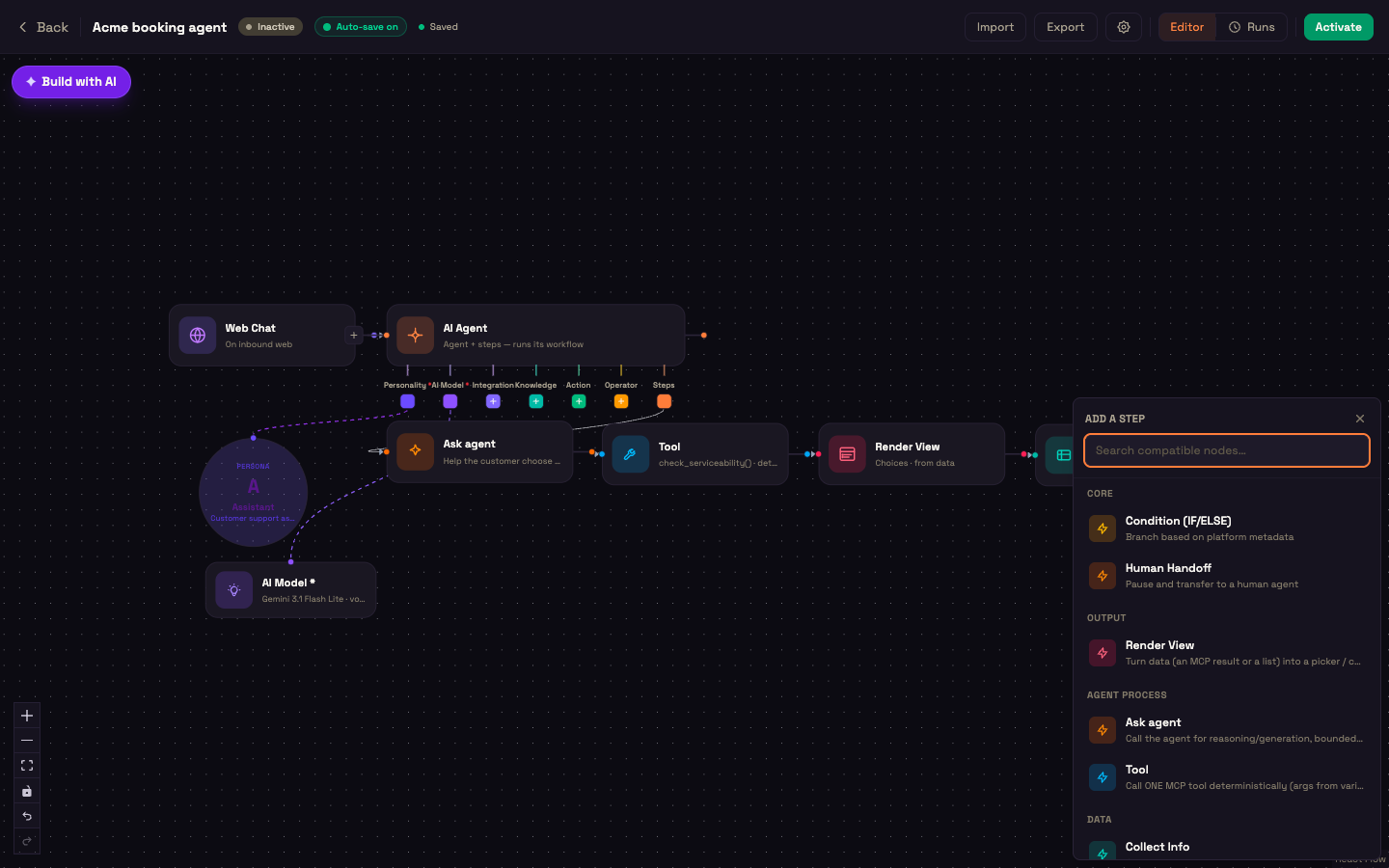
Every AI Agent has a Steps port along its bottom edge, next to Personality, AI Model, Integration, Knowledge, Action and Operator. Click its + to add the first step. Then click the + on the right of each step to add the next one.
Once an agent has steps, its card reads Agent + steps — runs its workflow, and the steps are what the agent does: each incoming message is handled by the step the process has reached.
What you can add as a step
| Step | Found under | Purpose |
|---|---|---|
| Ask agent | Agent process | The agent does one task, such as answering, recommending or asking a question. |
| Tool | Agent process | Calls exactly one integration tool with mapped arguments. |
| Collect Info | Data | Asks the customer for specific fields. See Collect Info. |
| Render View | Output | Shows the customer choices, cards or a checklist in Web Chat. See Render View. |
| Condition (IF/ELSE) | Core | Branches the process. See Condition (IF/ELSE). |
| Human Handoff | Core | Pauses the process for your team. See Human Handoff. |
Ask agent
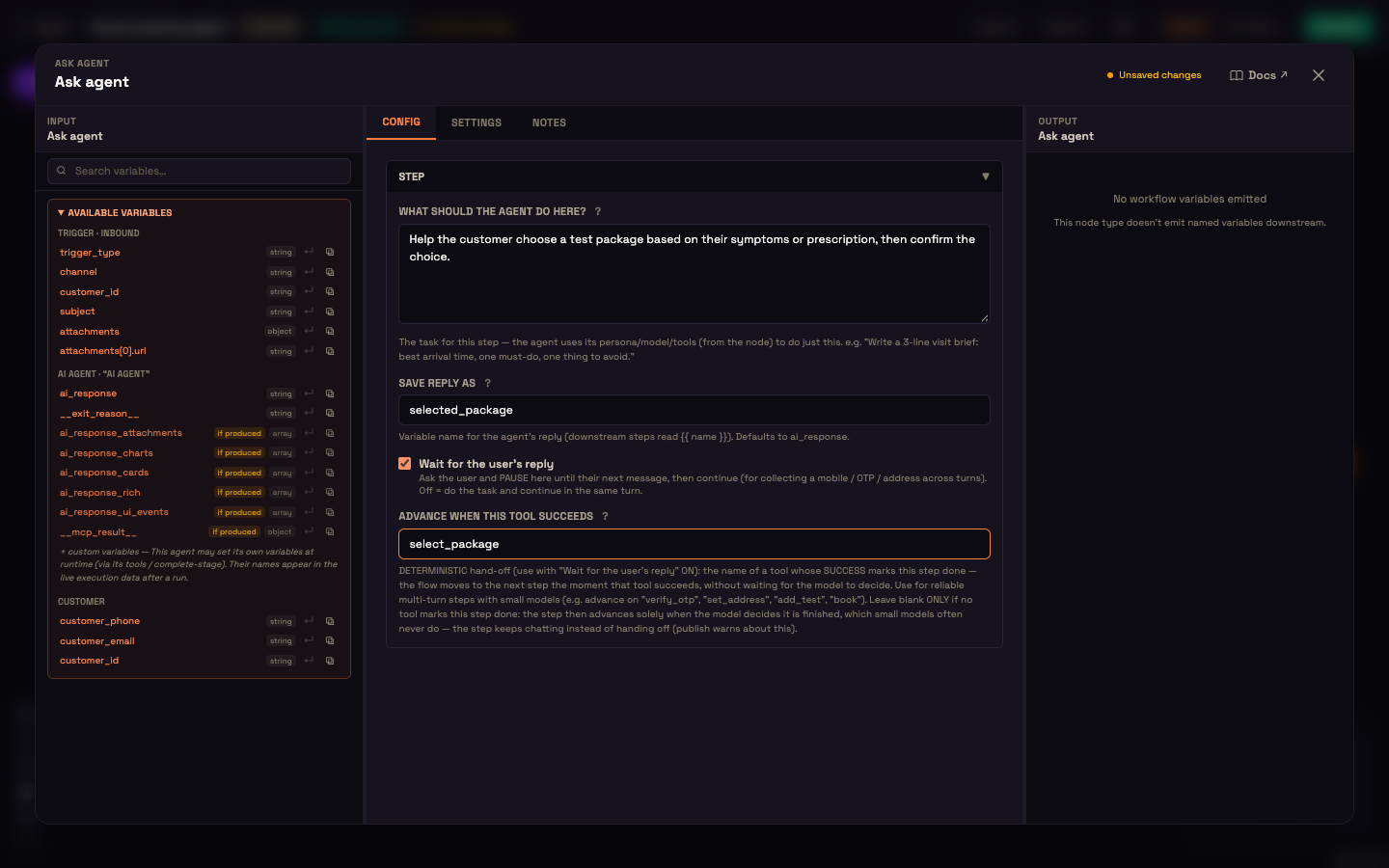
An Ask agent step gives the agent one task. It has no ports of its own: it uses the parent agent's brain.
| Setting | What it does |
|---|---|
| What should the agent do here? | The task for this step, for example Help the customer choose a test package based on their symptoms or prescription, then confirm the choice. |
| Save reply as | The variable name for the agent's reply, so later steps can read it as {{ name }}. Defaults to ai_response. |
| Wait for the user's reply | When ticked, the agent asks and the process pauses until the customer's next message. Use it for anything that takes more than one message, such as an address or a one-time code. When unticked, the agent does the task and the process carries straight on. |
| Advance when this tool succeeds | Use with Wait for the user's reply. The name of a tool whose success marks the step done, for example select_package or verify_otp. The moment that tool succeeds, the process moves on. A result that reports failure (for example "ok": false) doesn't count. |
Always fill in "Advance when this tool succeeds" for multi-message steps
Without it, a waiting step moves on only when the model decides the task is finished. Smaller models often never decide that, so the step keeps chatting. Activation warns you about it.
Tool
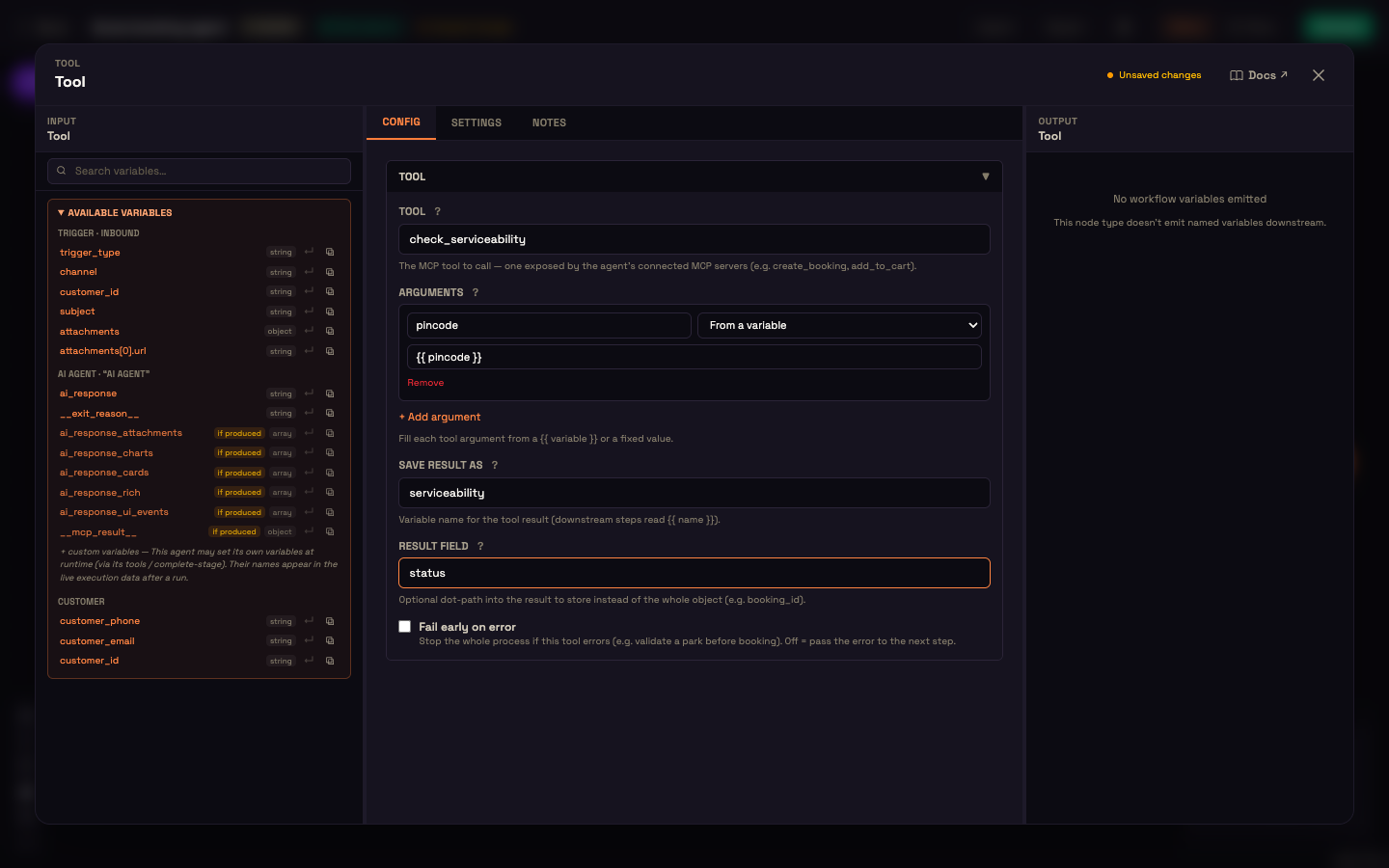
A Tool step calls one tool from the agent's connected integrations, every time the process reaches it.
| Setting | What it does |
|---|---|
| Tool | The tool's name, for example check_serviceability or create_booking. It must be a tool the agent's integrations provide. |
| Arguments | Click + Add argument for each input. Give the argument name, then choose From a variable (for example {{ pincode }}) or Fixed value. |
| Save result as | The variable name for the result, read later as {{ name }}. Defaults to the tool name followed by _result. |
| Result field | Optional. Store just one part of the result instead of all of it, for example booking_id or items[0].id. |
| Fail early on error | When ticked, an error from the tool stops the whole process. When unticked, the error is passed on to the next step. |
To branch on how a Tool step went, add a Condition with exit_reason == "tool_step_error" (or tool_step_completed).
Worked example: Acme Diagnostics home collection
- Ask agent: choose a test. Task: Help the customer choose a test package based on their symptoms or prescription. Wait for the user's reply ticked, Advance when this tool succeeds set to
select_package. - Collect Info: address. Fields
pincode(String, required, pattern^[1-9][0-9]{5}$) andcity(String, required), with Confirmation Required ticked. - Tool: check serviceability. Tool
check_serviceability, argumentpincodefrom{{ pincode }}, Save result asserviceability, Fail early on error ticked so the process stops if the area isn't served. - Ask agent: book. Task: Offer the available slots from the serviceability check and book the one the customer picks. Wait for the user's reply ticked, Advance when this tool succeeds set to
book_home_collection. - Ask agent: wrap up. Task: Confirm the booking reference and remind the customer to fast for 10 to 12 hours before collection.
Result. Priya is guided through each stage in order. The serviceability check always runs before anything is booked, and the booking step only finishes when the booking tool actually succeeds.
Sending messages from a process
The steps inherit the agent's Action sub-nodes. To let the process send an email, SMS or WhatsApp message, for example a booking confirmation, wire the matching sender to the agent's Action port and mention it in the relevant Ask agent task.
Good practice
- Give each Ask agent step one clear task with a clear end, rather than a broad instruction.
- Use Tool steps for anything that changes records: creating a booking, taking a payment, reserving a slot.
- Set "Advance when this tool succeeds" on every step that waits for the customer.
- Plan for failure. Use Fail early on error or a Condition on
exit_reasonwhen a check might fail.
Next steps
- AI Agent Node: the personality, model, knowledge and integrations your steps use.
- Collect Info: gather validated fields as a step.
- Render View: show choices or cards as a step.