Render View Node
Your integration returns a list of test packages. You'd like Priya to tap one rather than type its name. The Render View node turns data into something the customer can pick from: a list of choices, a set of cards, or a checklist.
You'll find it under Output in the node picker, and it's one of the steps you can add to an agent's Steps. The view appears in the Web Chat widget.
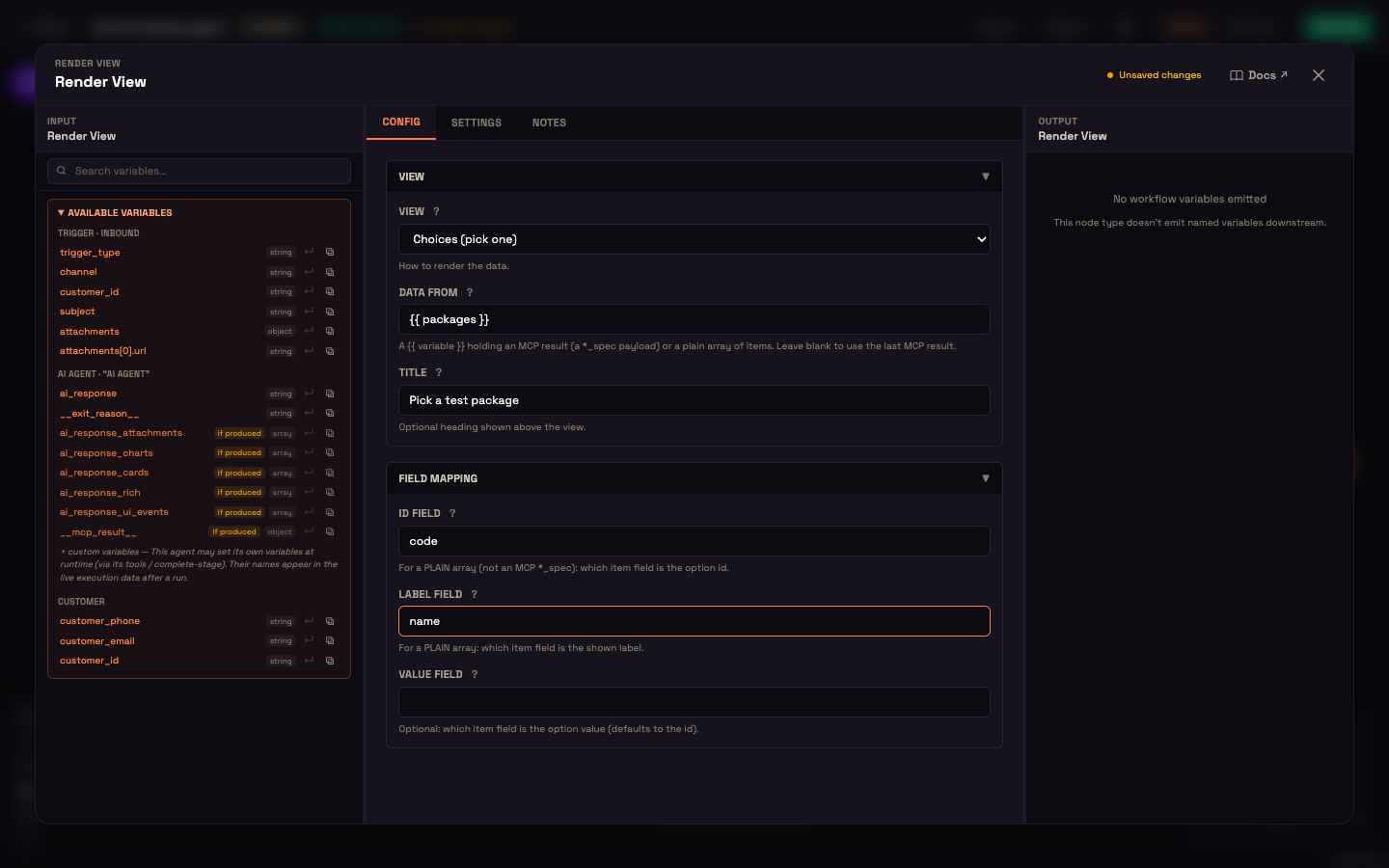
Settings
View
| Setting | What it controls |
|---|---|
| View | Choices (pick one), Cards, or Checklist (pick many). |
| Data from | The data to show: a {{ variable }} holding a list of items, or the result of one of your integration's tools. Leave it blank to use the last result the agent got from an integration. |
| Title | Optional heading shown above the view, for example Pick a test package. |
Field mapping (only needed when the data is a plain list of items)
| Setting | What it controls |
|---|---|
| ID field | Which field of each item is its id. Defaults to id. |
| Label field | Which field is shown to the customer. Defaults to label. |
| Value field | Optional. Which field is used as the chosen value. Defaults to the id. |
If your integration's tool already returns data in a ready-to-display choice, card, checklist or time-slot format, Render View uses it as is and you can leave the field mapping empty.
How it behaves
- Render View decides how the data looks. Your integration only has to return the data.
- Each item becomes one option, using the label you mapped. Cards show the label as the card title.
- If the data has no items, nothing is shown and the run carries on.
- Only one pickable view is shown per reply.
Worked example: pick a test package
Setup. In her booking agent's Steps, Asha adds a Tool step that calls list_packages and saves the result as packages. Each item looks like { "code": "PKG-042", "name": "Full Body Wellness Check" }. She adds a Render View step after it with View Choices, Data from {{ packages }}, Title Pick a test package, ID field code and Label field name.
Action. Priya asks what tests are available.
Result. The widget shows Pick a test package with one button per package. Priya taps Full Body Wellness Check.
What just happened. The tool returned plain data and Render View turned it into buttons. No one had to write display code, and the model didn't have to decide how to present the list.
Next steps
- Steps (Agent Process): use Render View inside a guided process.
- Web Chat channel: where the view is shown.
- Collect Info: ask for typed details after the customer has chosen.