Document Processing Node
A supplier emails a PDF invoice. You need the vendor, the total and the line items right now, and you don't need to keep the file. That's what the Document Processing node is for: point it at a document, choose what to pull out, and the extracted data flows to the next step as a variable.
Before you start
The most common setup is a Trigger that brings in a document, followed by this node. It's also worth knowing how it differs from a Knowledge Base:
- A Knowledge Base upload stores and indexes a document so agents can search it later. The KB Index node does that from inside a workflow.
- Document Processing reads a document once and hands back its contents now. Nothing is stored.
Adding the node
- Open your agent under Agents and edit its canvas.
- Click + after the step that supplies the document (usually the Trigger).
- In the Documents group, pick the entry that matches your file (see the Documents group). Every entry adds the same node with different settings already filled in.
- Open the node and set its Input.
Settings
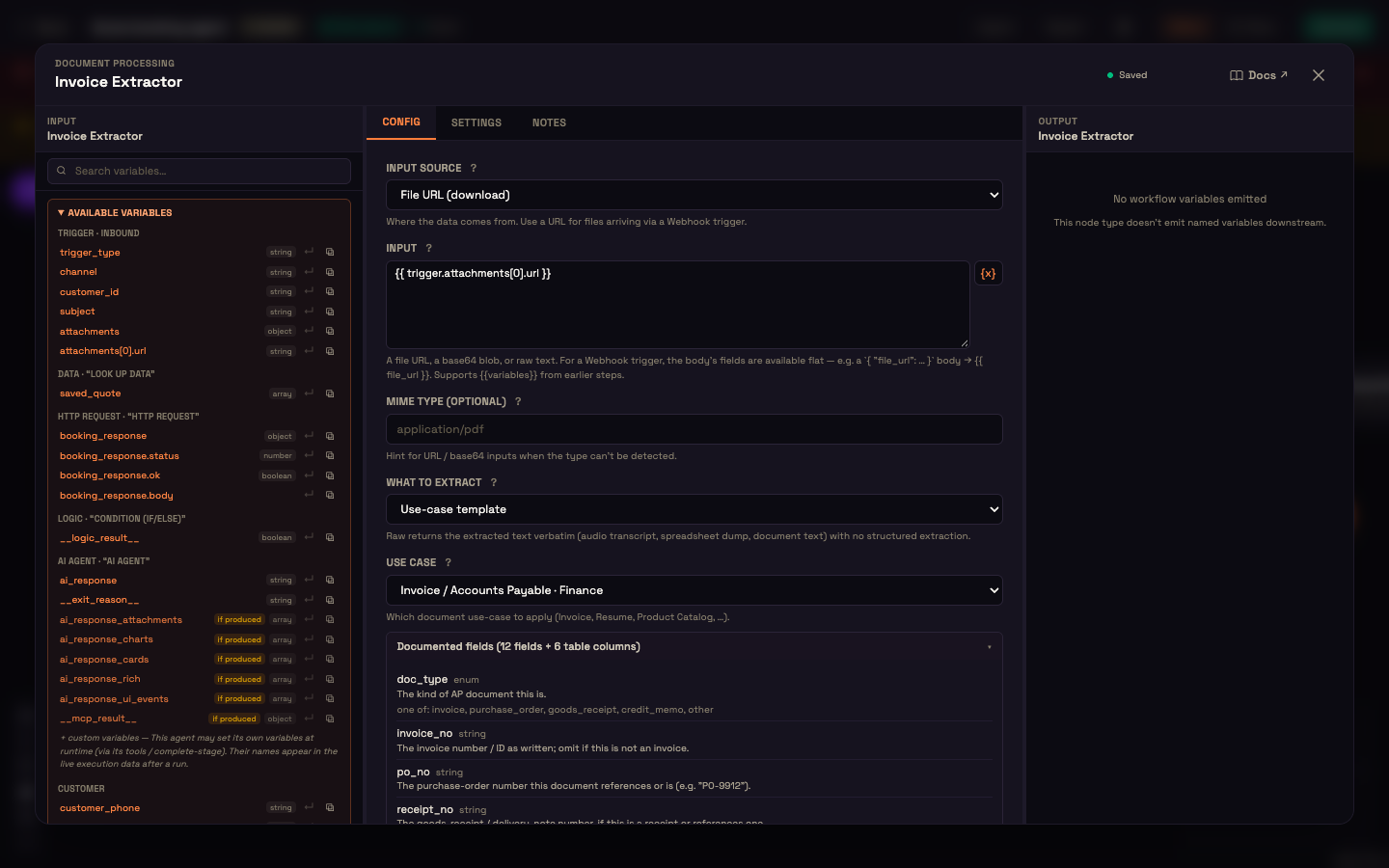
| Setting | What it controls |
|---|---|
| Input Source | Where the document comes from: File URL (download) (Perfox downloads it), Raw text (a value that's already text, so no reading step is needed), or Base64 / data URL (the file's contents carried in the workflow). |
| Input | The file URL, text or base64 value. Usually a variable from the trigger (see below). |
| MIME Type (optional) | A hint such as application/pdf for when the file type can't be detected from the URL. |
| What to Extract | Use-case template (a built-in document type), Custom fields (your own list), or Raw text / transcript (the document's text as it is, with no structure). |
| Use Case | Shown for Use-case template: pick the document type. The Documented fields panel under it previews every field, table column and category that type returns, with a Full field reference link. |
| Fields to extract | Shown for Custom fields: click + Add Variable for each field and give it a name, type and a short description of what to look for. Tick Extract a list (many rows) to get one row per item the document describes. JSON Schema (advanced, optional) replaces the field list with a schema you paste. |
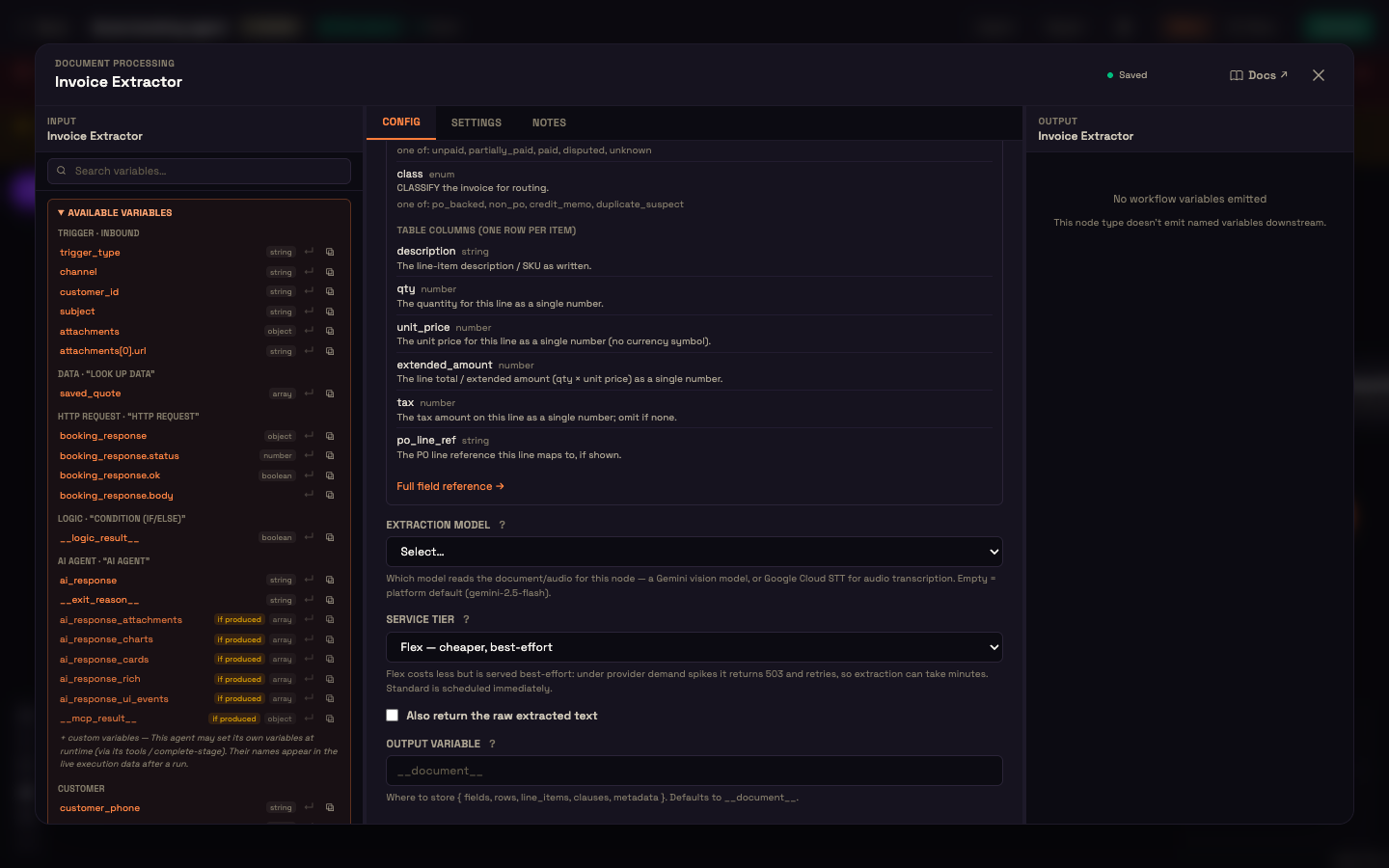
| Extraction Model | Which model reads the document. Leave it on Select… to use the default. Pick Google Cloud STT for audio transcription. |
| Service Tier | Flex, cheaper, best-effort (the default) or Standard, scheduled immediately. Flex costs less but can take minutes when demand is high. |
| Also return the raw extracted text | Adds the document's full text to the result alongside the structured data. |
| Output Variable | Where the result is stored. Defaults to __document__. |
Pointing at the file
Click {x} next to Input to insert a variable.
- When the file arrived as an attachment (an email PDF, a WhatsApp or SMS media message, a Web Chat upload), use
{{ trigger.attachments[0].url }}. Use[1],[2], … for more files. - A Webhook trigger makes each field of the incoming request available directly. If the request body has a
file_urlfield, use{{ file_url }}.
For a PDF, image or scan, Perfox reads the text for you (including scanned pages) before extracting fields.
Downloads are protected
With File URL (download), Perfox fetches the file through a guarded connection that blocks internal and private addresses, so a document link can't be used to reach somewhere it shouldn't.
What you get back
The result lands in your output variable (default __document__) as an object with any of these, depending on the document and mode:
| Key | Present when |
|---|---|
fields | The document has one set of header or summary values. |
rows | You ticked Extract a list (many rows). |
line_items | The document has a repeating table, such as invoice lines or lab results. |
clauses | A contract or audit document, with each clause sorted into a category. |
text | What to Extract is Raw text / transcript, or you ticked Also return the raw extracted text. |
A field is filled only when the document actually states it. Nothing is guessed. If a document can't be read, the run doesn't stop: the output variable carries an error instead, so a later step can react.
The Documents group
The Documents group in the node picker offers ready-made entries. Each one adds a Document Processing node with What to Extract and Use Case already set.
| Entry | What it's set to extract |
|---|---|
| Document Processing | Use-case template, with no type picked yet. |
| Audio → Transcript | Raw text: the spoken transcript of a call, meeting or voice note. |
| Spreadsheet → Text | Raw text: the rows and columns of an XLSX or CSV file. |
| File → Text (raw) | Raw text from any file: PDF, image, audio or spreadsheet. |
| Medical Report | Demographics, a table of observations (value, unit, reference range, flag) and the interpretation. |
| Invoice / AP | Header fields plus the line-item table. |
| Resume / ATS | Candidate name, years of experience, skills, work authorisation. |
| Contract / Legal | Parties, contract type, governing law, effective and expiry dates, auto-renewal and notice days, value. |
| Product Catalog | One row per priced product or variant. |
| Financial Statements | Reporting entity, period, statement type, currency, and revenue and expense lines. |
| Insurance Claim | Claim and policy numbers, claimant, date of loss, peril and claimed amount. |
| Compliance / Audit | Findings with severity, status and the control each one references. |
| RFP / Tender | Requirements with their ids, obligation level, section reference and win themes. |
| Research Paper | Title, authors, year and venue, plus methods and findings. |
| Custom fields | Your own field list. |
The full field list for every type is in Document Parser Fields.
Worked example: invoice routing at Acme Store
Setup. Asha, an ops builder at Acme Store, builds a workflow with an Email trigger followed by an Invoice / AP entry from the Documents group. She sets Input to {{ trigger.attachments[0].url }}.
Action. A supplier emails a PDF invoice. The workflow starts and the node downloads the attachment and extracts the invoice fields.
Result. {{ document }} now holds fields.vendor_name, fields.total_amount and a line_items list with one row per product line. An HTTP Request step sends them to Acme's accounts system.
What just happened. Perfox read the PDF and passed the invoice fields forward without storing the file and without an AI Agent in the workflow.
Worked example: a lab report over WhatsApp at Acme Diagnostics
Setup. Asha wants patients to share previous blood test reports over WhatsApp so the booking agent can recommend a follow-up. After the WhatsApp trigger she adds a Medical Report entry with Input set to {{ trigger.attachments[0].url }}, then the AI Agent.
Result. The node puts the report's observations in {{ document.line_items }}, for example:
json
{
  "fields": { "patient_name": "Priya Sharma", "report_date": "2026-05-14" },
  "line_items": [
    { "test_name": "Hemoglobin (Hb)", "observed_value": 11.2, "unit": "g/dL", "reference_range": "12.0 - 15.0", "interpretation": "Low" },
    { "test_name": "Fasting Blood Sugar", "observed_value": 105, "unit": "mg/dL", "reference_range": "70 - 99", "interpretation": "High" }
  ]
}
The agent then explains: "Priya, your previous test showed slightly low hemoglobin and borderline fasting sugar. We recommend our Anemia & Diabetes Monitoring Panel."
Activates on its own
Because Document Processing is a self-contained step, a workflow made of just Trigger → Document Processing → HTTP Request can be activated with no AI Agent in it.
Same extraction, three ways
The same extraction is also available as the Extract Document action, which an AI Agent calls during a conversation, and through the Perfox API for your own backend. See API Keys.
Next steps
- Trigger Nodes: bring documents in, including email attachments and webhook file URLs.
- Document Parser Fields: every field each document type returns.
- KB Index: store and index content into a Knowledge Base folder instead.