Integration Actions
Integration actions let your agent reach another system: call an external API, or read and write a Google Sheet. Like every action, you attach them to the AI Agent's Action port, and the agent decides when to call them during a conversation, guided by the Instruction you write on each one.
| Node | What it does | Best for |
|---|---|---|
| HTTP Request | Calls an HTTP API as a tool. You fix the URL. For the method, body, headers and authentication, you either specify them or let the AI fill them in per call. | Looking something up or triggering something in a service you already have, such as an order API, a webhook, or a partner endpoint. |
| Google Sheets | Adds, finds, reads, updates or deletes rows in one of your spreadsheets. | Capturing leads, logging outcomes, or looking a person up in a sheet your team already works in. |
Both carry the shared Tool Name (optional) and Instruction (required) fields described in Messaging actions.
Integration action vs. Integration sub-node
An HTTP Request action is one endpoint you configure yourself. An Integration sub-node connects a whole integration at once, and the actions you enable from it become tools the agent can call. Reach for HTTP Request for a single, simple API. For a set of related, reusable operations on your own systems, an Integration is the better fit.
HTTP Request (action)
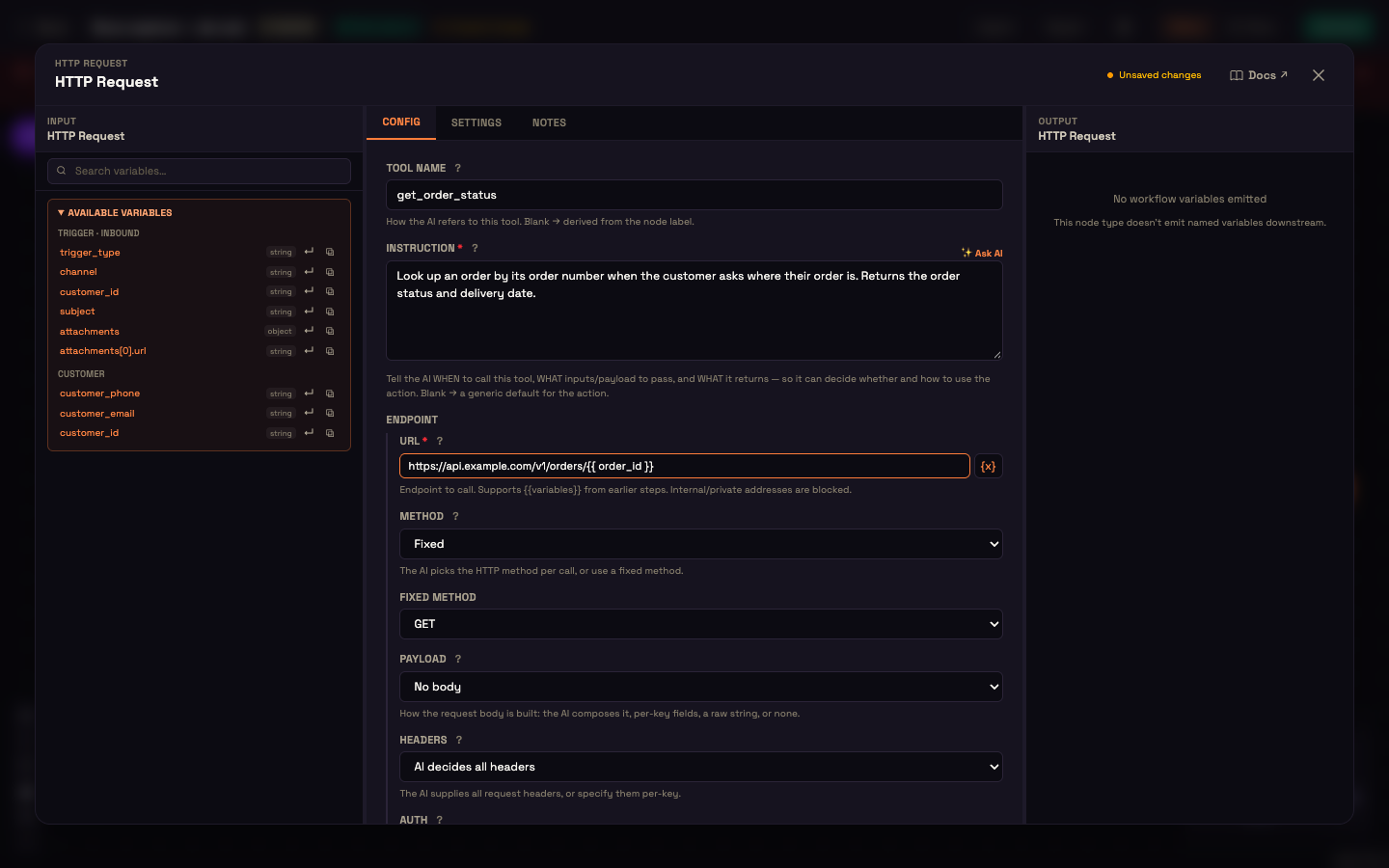
The Endpoint section decides which parts you fix and which the AI fills in on each call:
| Field | Choices | What it does |
|---|---|---|
| URL (required) | — | The endpoint, for example https://api.example.com/v1/orders/. Supports {{ variables }}. Internal or private network addresses are blocked. |
| Method | AI decides · Fixed | The AI picks the HTTP method per call, or you set a Fixed method (GET, POST, PUT, PATCH, DELETE, HEAD). |
| Payload | AI decides the whole payload · Specify fields · Raw body · No body | How the request body is built. Specify fields gives one row per JSON key, each Fixed, a {{variable}}, or From AI. Raw body is a literal body (JSON or text) that supports variables. |
| Headers | AI decides all headers · Specify headers | The AI supplies the headers, or you list them one per row (fixed, variable, or from the AI). |
| Auth | AI decides · Specify | With Specify, pick an Auth scheme: None, Bearer token, API key (header) (with an API key header name, default X-API-Key), or Basic (user:password). Then set the Auth secret as a fixed value, a variable, or from the AI. |
| Timeout (ms) | — | Maximum wait for a response. Default 30000, maximum 120000. |
The API's response comes back to the agent as the tool result, and the agent uses it in its reply.
Example: order status lookup. Tool Name get_order_status. Instruction "Look up an order by its order number when the customer asks where their order is. Returns the order status and delivery date." URL https://api.example.com/v1/orders/. Method Fixed → GET. Payload No body. Auth Specify → Bearer token with your token as a fixed secret.
HTTP Request as a flow step
There's also an HTTP Request step in the node picker's Data group. It's a deterministic call that runs every time the flow reaches it, rather than when the agent decides. Its fields are simpler, and it stores the response in a variable for later steps.
Fields (flow step)
| Field | What it does |
|---|---|
| URL | The endpoint to call, e.g. https://api.example.com/v1/orders. Supports {{ variables }} from earlier steps, so you can build the URL dynamically. Internal / private network addresses are blocked. |
| Method | GET, POST, PUT, PATCH, DELETE, or HEAD. Defaults to POST. |
| Headers | Fixed request headers, entered as key/value pairs. Values support {{ variables }}. |
| Auth | How the request authenticates — see the auth options below. |
| Body | The request body (JSON or plain text). Shown only for write methods — POST, PUT, and PATCH. Supports {{ variables }}. |
| Timeout (ms) | How long to wait for a response before giving up. Defaults to 30000 (30 s); maximum 120000 (2 min). |
| Output Variable | The variable name where the response is stored for later steps. Defaults to __http_response__. |
Authentication (flow step)
The Auth dropdown has four choices. Picking anything other than None reveals an Auth secret field (masked) where you enter the credential; the value is stored on the node.
| Auth | What you enter | How it's sent |
|---|---|---|
| None | — | No authentication header is added. |
| Bearer token | The token | Sent as a standard bearer authorization header. |
| API key (header) | The API key | Sent in a request header. A separate API key header field lets you name the header (default X-API-Key). |
| Basic (user:password) | user:password | Sent as HTTP Basic authentication. |
The response you capture (flow step)
The call's result is written to your Output Variable as a small object with these parts:
| Part | Meaning |
|---|---|
status | The HTTP status code returned (e.g. 200, 404). |
ok | true when the call succeeded (a 2xx status), false otherwise. |
body | The response body returned by the service. |
headers | The response headers. |
Later steps read these with {{ ... }} references — for example, a Condition (IF/ELSE) node can branch on whether the call was ok, and an AI Agent node can use body in its reply. See Data & Variables for how variables flow between steps.
Example — check an order, then reply
- Add an HTTP Request step (from the Data group) after your trigger.
- URL:
https://api.example.com/orders/(pullingorder_idfrom an earlier step). - Method:
GET. - Auth: Bearer token, and paste your token into Auth secret.
- Output Variable: leave it as
__http_response__(or name itorder). - Wire the node into an AI Agent node that reads
{{ order.body }}to answer the customer.
Google Sheets (action)
The Google Sheets action works with one of your spreadsheets through your own connected Google account. Connect an account once on the Connections page first. The setup (your Google OAuth app, the two required APIs, connecting) is covered in Google Sheets provider setup.
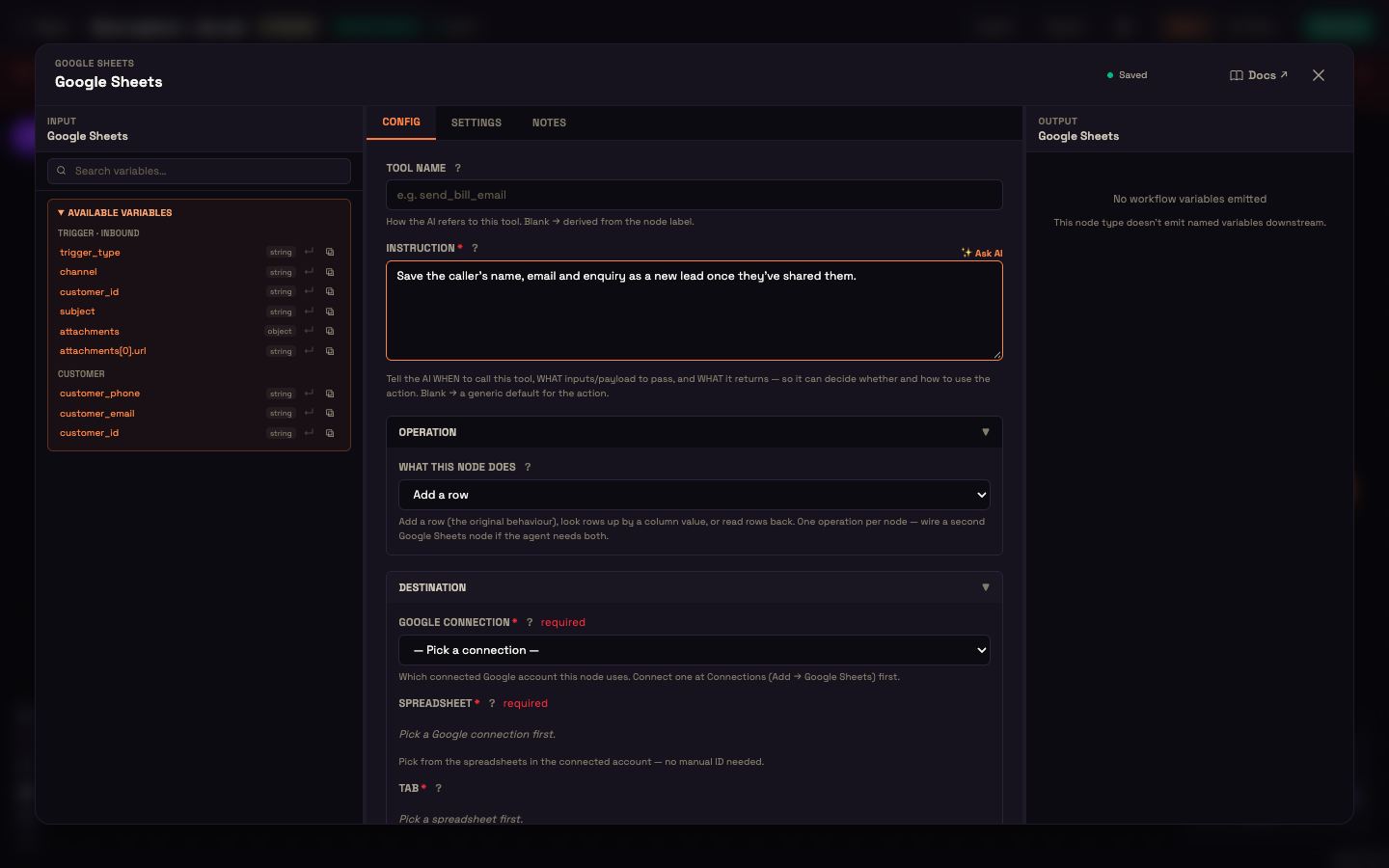
What this node does
Each Google Sheets node does one operation. Wire a second node if the agent needs to both write and look up.
| Group | Operation |
|---|---|
| Write | Add a row · Add several rows at once · Add a row, or update the person if they are already there · Update an existing row |
| Read | Find rows by a column value · Read rows |
| Destructive (only wire these deliberately) | Blank a row's values (keeps the row) · Delete a row entirely |
| Structure | Add a tab to this spreadsheet · Create a new spreadsheet |
Destination
All three use live pickers that read from your connected account, so you never paste a raw ID.
| Field | What it selects |
|---|---|
| Google connection | Which connected Google account to use. |
| Spreadsheet | The spreadsheet, chosen by name. |
| Tab | The worksheet/tab. Defaults to Sheet1. Not shown for Create a new spreadsheet. |
Row (Add a row)
How to fill the row:
| Mode | What happens |
|---|---|
| Let the AI decide (recommended) | The AI captures the fields named in your instruction or prompt (for example "save name, email, and enquiry") and writes a row. The sheet's header row defines the columns, which are created if the sheet is empty and extended if a new field is named. |
| Map specific columns | You define each column, left to right. Each is filled From AI (guided by a short description), with a Fixed value, or from a workflow Variable. Load columns from sheet pulls the existing header row for you. |
Lookup (find, update, add-or-update, blank, delete)
- Match on column: the header that identifies a person or record, for example
phoneorEmail. For Find it's what gets searched, and you can leave it blank to let the AI choose the column per call. For Update and Add-or-update it's the key the row is located by. - Max rows to return: upper limit on rows handed back to the AI (1–500, default 50). Very large results are trimmed by whole rows, and the reply says how many were left out.
Safety
If a value starts with "=" (collapsed by default):
- Store it as text (recommended)
- Let it act as a spreadsheet formula
Cells the AI fills come from what customers type, so leaving this on Store it as text stops a message like =IMPORTRANGE(...) from running inside your spreadsheet. Dates, numbers and phone numbers aren't affected either way.
Example: log a captured lead
- Add a Google Sheets action to the agent's Action port.
- Instruction: "Save the caller's name, email and enquiry as a new lead once they've shared them."
- What this node does: Add a row.
- Google connection, Spreadsheet, Tab: pick them from the lists.
- How to fill the row: leave Let the AI decide. The name, email and enquiry become the sheet's columns automatically. If you want strict columns, switch to Map specific columns and click Load columns from sheet.
See also
- Messaging actions: the shared Tool Name and Instruction fields, and sending replies.
- Google Sheets provider setup: connect your Google account.
- Integration sub-node: connect a whole integration.
- Data & Variables: how values flow between steps.
- AI Agent node: the agent that decides when to call these actions.