AI Agent Node
A customer named Priya asks Acme Diagnostics, "Is my blood test ready, and how much do I owe?" One node reads that message, looks up her record, grounds the answer in your price list, and writes back — in a couple of seconds. That node is the AI Agent, and this page covers everything you can set on it.
It's for Asha, the admin who builds agents. The AI Agent owns the conversation: it decides which tools to call, grounds its answers in your data, and replies. Its identity, model, tools, knowledge and human-operator bridge attach to it as parts wired to its ports.
The AI Agent and its parts
Go to Build → Agents, open an agent, and add an AI Agent from the Core category (or open the one Build with AI or a template created). A working agent needs:
- one AI Agent,
- a Personality (required, exactly one), and
- an AI Model (required, exactly one).
Everything else is optional: Integrations (your MCP servers as tools), Knowledge (Knowledge Base folders), Actions (senders, HTTP, databases, documents…), an Operator for live human calls, and Steps for a scripted sub-flow.
The ports
Seven colour-coded ports run along the bottom of the AI Agent card, left to right:
| Port | Required? | How many | What you attach |
|---|---|---|---|
| Personality | Required (red asterisk) | Exactly one | Personality — who the agent is and how it behaves |
| AI Model | Required (red asterisk) | Exactly one | AI Model — which models it uses for chat, voice, documents and images |
| Integration | Optional | One or more | Integrations — your MCP servers; their actions become the agent's tools |
| Knowledge | Optional | One or more | Knowledge — Knowledge Base folders the agent answers from |
| Action | Optional | One or more | Action tools — Email / SMS / WhatsApp Sender, Phone Caller, HTTP Request, Google Sheets, Postgres / MySQL / MongoDB, document extraction, Upload Document, Hand off to Human — or an Action that runs another agent |
| Operator | Optional | At most one | Operator — routes calls to live human operators |
| Steps | Optional | One sub-flow | A Steps sub-flow — Ask agent, Tool, Condition, Human Handoff, Render View and Collect Info steps the agent follows in order |
Each port's + is also its drag handle: click it to open a picker filtered to that port (Add Personality, Add Action, Add a step…), drag it to an existing node to connect it, or drag it to empty canvas to add and connect a new node at once. A one-of-a-kind port that's already filled doesn't offer a second +.
The card also has a flow input on its left edge (where triggers connect — hover it for What triggers this? to add another trigger) and a flow output on its right edge (What happens next?).
Personality and AI Model in brief
- Personality holds the agent's name, role, tone and language, its greeting, and the system prompt — the single place you write how the agent behaves. See Personality.
- AI Model has one section per job: Chat agent model (model, creativity, max reply length, thinking level), Voice agent model (Live — one speech-to-speech model — or Pipeline — speech-to-text → model → text-to-speech — plus the voice), While the caller waits (what a caller hears during lookups and holds), Document extraction model, and Image / vision model. Each defaults to the platform default, so an agent works without touching it. See AI Model.
The AI Agent's own settings
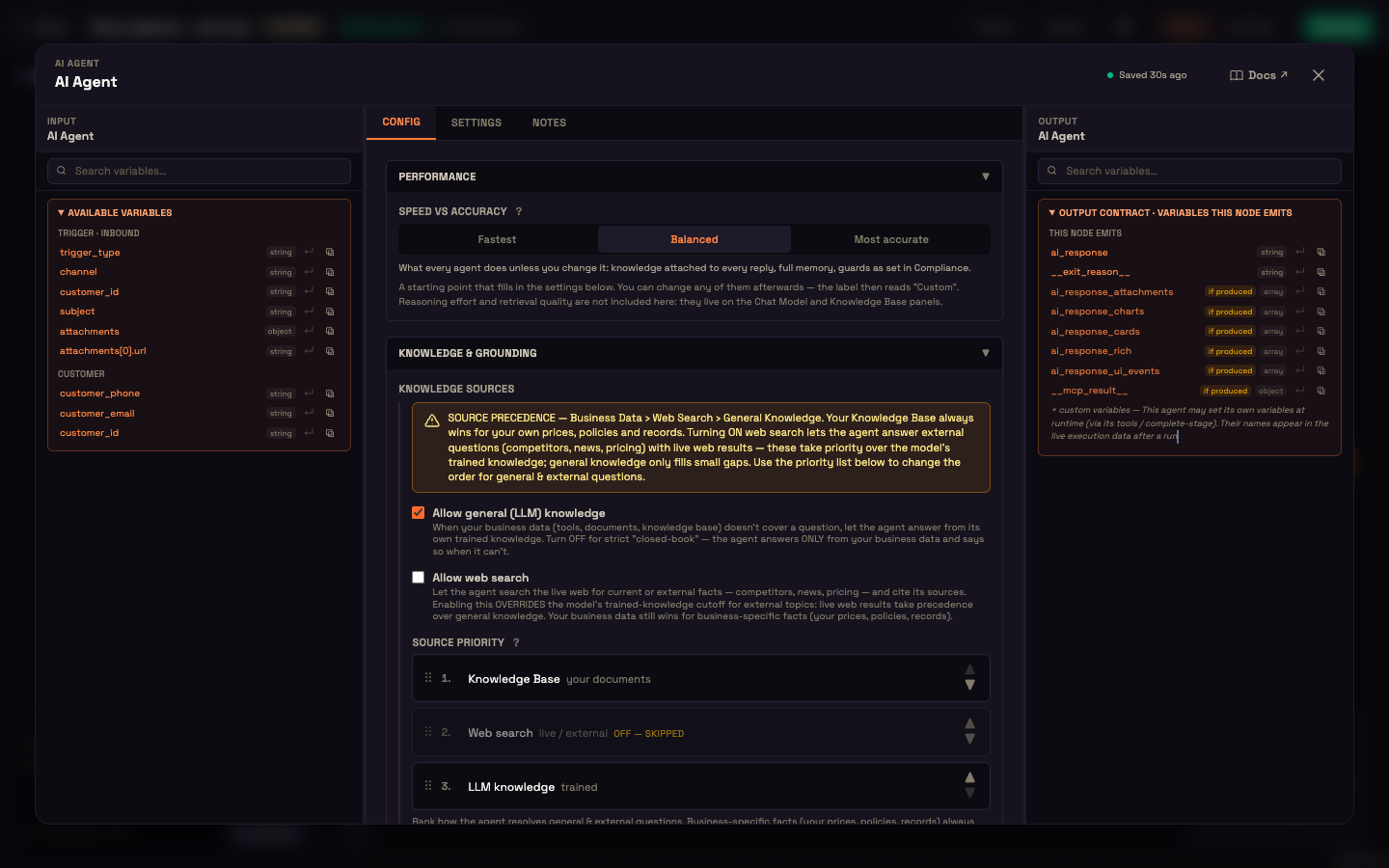
Double-click the AI Agent to open its properties modal. The Config tab has five collapsible sections, top to bottom: Performance, Knowledge & Grounding, Advanced, Safety and Memory. Every setting has a sensible default.
Performance — Speed vs accuracy
A one-click starting point that fills in several settings below:
| Preset | What it sets |
|---|---|
| Fastest | Knowledge is looked up on demand instead of before every reply, at most 6 steps per turn, and the memory features that run every turn (searching earlier messages, key facts, learning over time) are switched off. Best for high-volume chat with simple questions. |
| Balanced (default) | What every agent does unless you change it: knowledge attached to every reply (12 passages), up to 20 steps per turn, full memory, and fact-checking as set in Compliance. |
| Most accurate | Attaches more of your knowledge base to every reply (20 passages) and turns fact-checking on for this agent. Noticeably slower, and roughly doubles the cost per reply. |
Change any of those settings afterwards and the preset reads Custom. Reasoning effort and retrieval quality aren't part of the presets — they live on the AI Model and Knowledge panels.
Knowledge & Grounding
This section controls what the agent may answer from, on top of your business data (your Knowledge Base, your integrations' tools, and the persona). An amber note at the top summarises the order: Business Data › Web Search › General Knowledge.
| Control | Default | Effect |
|---|---|---|
| Allow general (LLM) knowledge | On | When your business data doesn't cover a question, the agent may answer from the model's own knowledge. Off = strict "closed book" — the agent answers only from your data and says so when it can't. |
| Allow web search | Off | Lets the agent search the live web for current or external facts (competitors, news, pricing) and cite its sources. |
| Source priority | Knowledge Base › Web search › LLM knowledge | Drag (or use the arrows) to change how general and external questions are resolved. A disabled source shows OFF — SKIPPED. |
| Knowledge lookup | Always attach | Always attach searches the knowledge base before every reply and adds the best passages to the prompt — most reliable, but it costs a search and several thousand tokens every turn, even on "hi". On demand lets the agent search only when it decides it needs to — faster and cheaper on turns that need no knowledge. |
| Passages to attach | 12 | (Always attach only) How many passages go with each reply. More means better recall and a bigger prompt. |
| Only attach when relevance is at least | 0 (always) | (Always attach only) A relevance threshold, so a greeting doesn't pull in passages that don't match. Below it, nothing is attached — the agent can still search. |
Business facts always win
Your own prices, policies and records always come from your business data, whatever the source order. The order only decides general and external questions.
Advanced
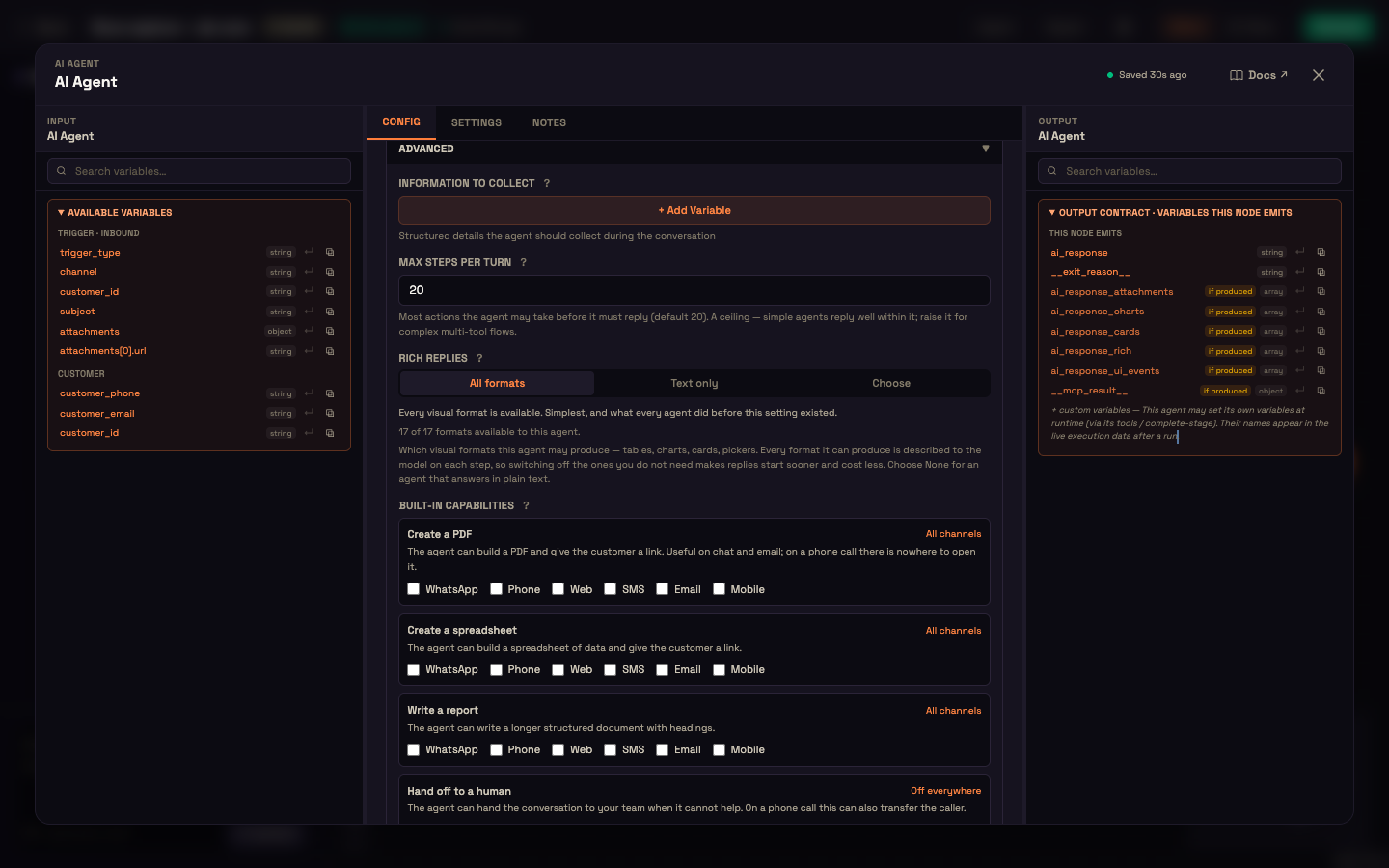
Information to collect. A list of structured details the agent must gather during the conversation — click + Add Variable for each. Every field has a name, a type (text, number, yes/no, date, a fixed list of choices (enum), phone, email, PAN or Aadhaar), whether it's required, how the agent should ask for it, and an optional validation pattern. Anything already known about the customer counts as collected, so the agent never re-asks. For step-by-step collection with a read-back confirmation, use the separate Collect Info node.
Max steps per turn (default 20, up to 50). How many actions — tool calls, lookups, sends — the agent may take before it must reply. It's a ceiling, not a target: simple agents reply well within it. If an agent ever hits it, it stops calling tools and answers with what it has.
Rich replies. Which visual formats the agent may use — tables, charts, cards, pickers:
- All formats (default) — every format is available;
- Text only — plain-text answers;
- Choose — tick the specific formats you want.
Each format the agent can use is described to the model on every step, so switching off the ones you don't need makes replies start sooner and cost less.
Built-in capabilities. Four extra abilities, each switched on per channel (WhatsApp, Phone, Web, SMS, Email, Mobile):
| Capability | Default | What it does |
|---|---|---|
| Create a PDF | Off | Builds a PDF and gives the customer a link — useful on chat and email, pointless on a phone call. |
| Create a spreadsheet | Off | Builds a spreadsheet of data and gives the customer a link. |
| Write a report | Off | Writes a longer structured document with headings. |
| Hand off to a human | On, every channel | Hands the conversation to your team when the agent can't help; on a phone call it can also transfer the caller. |
The link at the top-right of each card switches that capability on for All channels or Off everywhere in one click. Leave off anything the agent won't use — each one costs a little on every step.
MCP renders its own UI cards. Tick this when your integration's tools already return ready-made cards (address pickers, carts, slot pickers). The agent then stops drawing its own cards, so the customer never sees the same card twice.
Safety
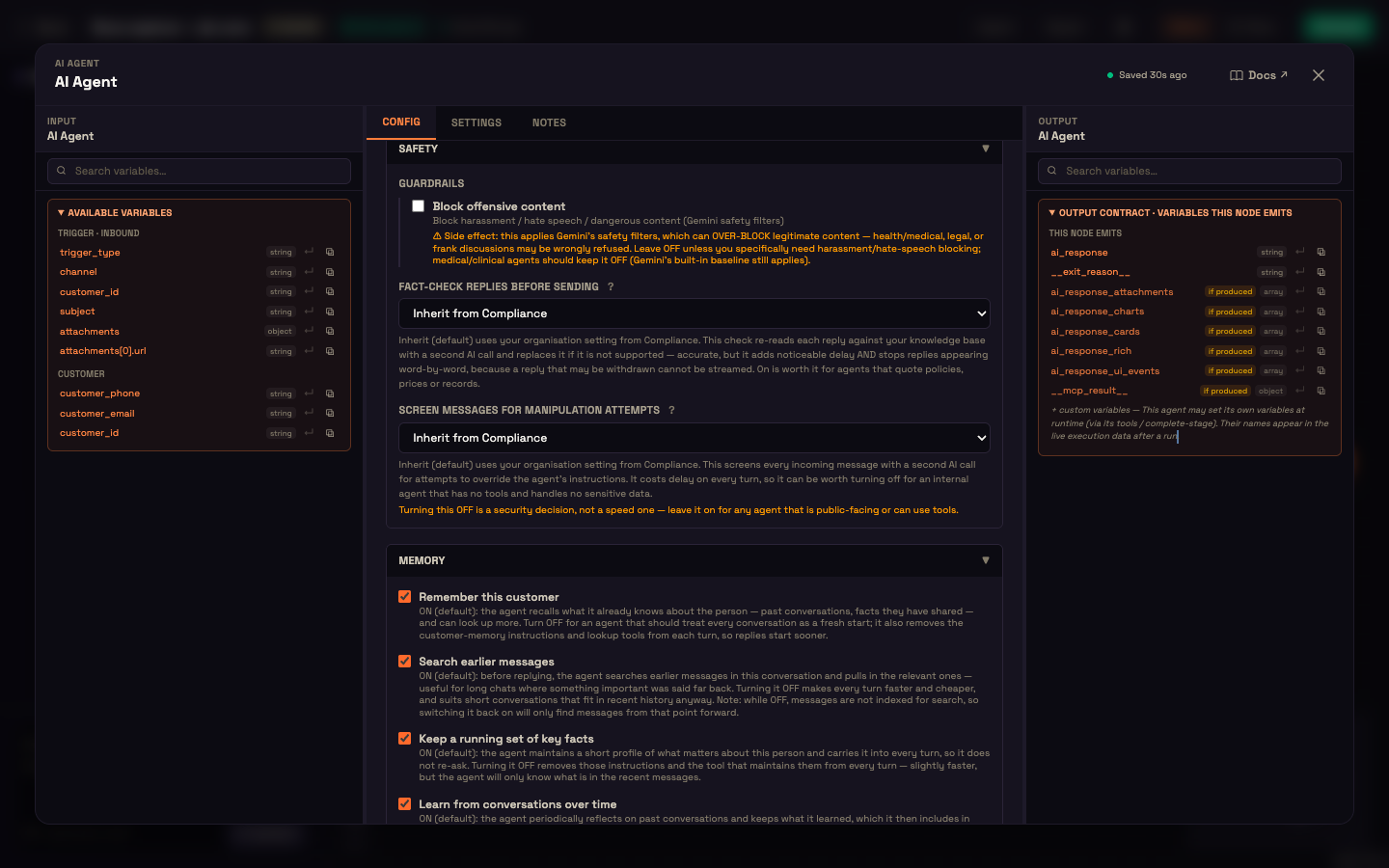
| Control | Default | Effect |
|---|---|---|
| Block offensive content | Off | Turns on the model's content filters for this agent, blocking harassment, hate speech and dangerous content. |
| Fact-check replies before sending | Inherit from Compliance | Re-reads each reply against your knowledge base with a second AI call and replaces it if it isn't supported. Accurate, but it adds noticeable delay and stops replies appearing word by word. Choose Always on for this agent for agents that quote policies, prices or records, or Off for this agent. |
| Screen messages for manipulation attempts | Inherit from Compliance | Screens each incoming message with a second AI call for attempts to override the agent's instructions. It can be worth turning off for an internal agent with no tools and no sensitive data — but turning it off is a security decision, not a speed one. Leave it on for any public-facing agent or any agent with tools. |
Over-blocking
Block offensive content can wrongly refuse legitimate health, medical, legal or frank conversations. Leave it off unless you specifically need harassment or hate-speech blocking — medical and clinical agents should keep it off. The model's built-in baseline protections still apply.
PII redaction and topic boundaries aren't set per agent — they apply to every agent from your Compliance settings, which is also where "Inherit" takes its value from.
Memory
Every agent remembers the recent conversation automatically. These switches control the extra memory features (see Memory settings for more detail):
| Setting | Default | What it does |
|---|---|---|
| Remember this customer | On | Shown for existing agents, but it currently doesn't change how the agent behaves — use the switches below to control what the agent remembers. |
| Search earlier messages | On | Before replying, the agent searches earlier messages in the conversation and pulls in the relevant ones — useful when something important was said long ago. Off is faster and cheaper; while it's off, new messages aren't indexed, so turning it back on only finds messages from then on. |
| Keep a running set of key facts | On | The agent keeps a short profile of what matters about the person and carries it into every turn, so it doesn't re-ask. |
| Learn from conversations over time | On | The agent periodically reflects on past conversations and keeps what it learned. The most expensive memory feature — turn it off for agents that answer one-off questions. |
| Keep this agent's memory separate | Off | By default your agents share what they know about a customer — one customer, one company. Turn this on only for an agent in an unrelated area that shouldn't see what the customer told your other agents. It starts this agent with a clean slate. |
Settings and Notes tabs
Settings holds the node's label and description, and its retry behaviour — Max attempts, Backoff (ms) and Timeout (ms). Notes is free text for your team. See The Properties Modal.
What the AI Agent produces
The Output pane lists the variables later nodes can use — the agent's reply (ai_response), how the turn ended (__exit_reason__), and, when produced, attachments, charts, cards and rich content. An agent may also set its own variables through its tools; their names appear in a run's data.
How the agent waits between messages
You don't set this — it follows the canvas. If a node is connected after the AI Agent, the flow continues to it once the agent's stage is done. If nothing follows, the AI Agent is the end of the flow and simply keeps the conversation going, one message at a time.
A worked example — the Acme Diagnostics report agent
Setup. Asha adds an AI Agent and wires:
- a Personality — name "Ana", role "diagnostics assistant", tone "warm and precise", with a system prompt telling Ana to confirm the patient's name first and only discuss reports and billing;
- an AI Model, left on the platform defaults;
- a Knowledge part pointing at the "Test catalogue & prices" folder;
- an Integration for Acme's lab-records MCP server, which has a tool that looks up a report.
She leaves Allow general (LLM) knowledge on and Allow web search off, and sets Fact-check replies before sending to Always on for this agent, because Ana quotes prices. Then she clicks Activate.
Action. Priya writes in the web chat: "Hi, is my blood test ready, and what's the cost?"
Result. Ana asks her to confirm her full name and date of birth. Priya does. Ana calls the lab-records tool, sees the Complete Blood Count is ready, finds its price in the catalogue folder and replies:
Your Complete Blood Count is ready as of this morning. The charge is ₹450, and it's already settled — nothing due. Would you like me to email you the report?
What just happened. The Personality made Ana confirm identity first. The Integration fetched Priya's real record — a business fact, so it always wins. The Knowledge folder supplied the ₹450 price, and fact-checking confirmed the reply against it before it was sent. Two tool calls used two of Ana's 20 steps.
Feature reference
| Section | Setting | Default | Options |
|---|---|---|---|
| Performance | Speed vs accuracy | Balanced | Fastest / Balanced / Most accurate (Custom when edited) |
| Knowledge & Grounding | Allow general (LLM) knowledge | On | On / Off |
| Knowledge & Grounding | Allow web search | Off | On / Off |
| Knowledge & Grounding | Source priority | Knowledge Base › Web › LLM | reorder |
| Knowledge & Grounding | Knowledge lookup | Always attach | Always attach / On demand |
| Knowledge & Grounding | Passages to attach | 12 | number |
| Knowledge & Grounding | Only attach when relevance is at least | 0 | 0–1 |
| Advanced | Information to collect | none | list of typed fields |
| Advanced | Max steps per turn | 20 | 1–50 |
| Advanced | Rich replies | All formats | All formats / Text only / Choose |
| Advanced | Built-in capabilities | Hand off to a human on; others off | per capability, per channel |
| Advanced | MCP renders its own UI cards | Off | On / Off |
| Safety | Block offensive content | Off | On / Off |
| Safety | Fact-check replies before sending | Inherit from Compliance | Inherit / Always on / Off |
| Safety | Screen messages for manipulation attempts | Inherit from Compliance | Inherit / Always on / Off |
| Memory | Remember this customer | On | On / Off |
| Memory | Search earlier messages | On | On / Off |
| Memory | Keep a running set of key facts | On | On / Off |
| Memory | Learn from conversations over time | On | On / Off |
| Memory | Keep this agent's memory separate | Off | On / Off |
| Settings tab | Max attempts / Backoff / Timeout | 1 / 1000 ms / 30000 ms | numbers |
Where to go next
- Personality — identity, greeting and the system prompt.
- AI Model — models for chat, voice, documents and images.
- Integration — give the agent your own tools.
- Knowledge — pick folders and tune retrieval quality.
- Operator — bridge calls to live people.
- Steps — script an ordered sub-flow for the agent.
- Collect Info — step-by-step collection with confirmation.
- Canvas Basics — adding and connecting nodes.