Support Center
When something isn't working and you need a person, you shouldn't have to leave the Studio to get help. In the Support Center anyone on your team can raise a ticket, follow it, and talk it through with the Perfox support team, all inside the Studio. Find it at Support → Support Center in the left navigation. Everyone on your team can use it, not just admins.
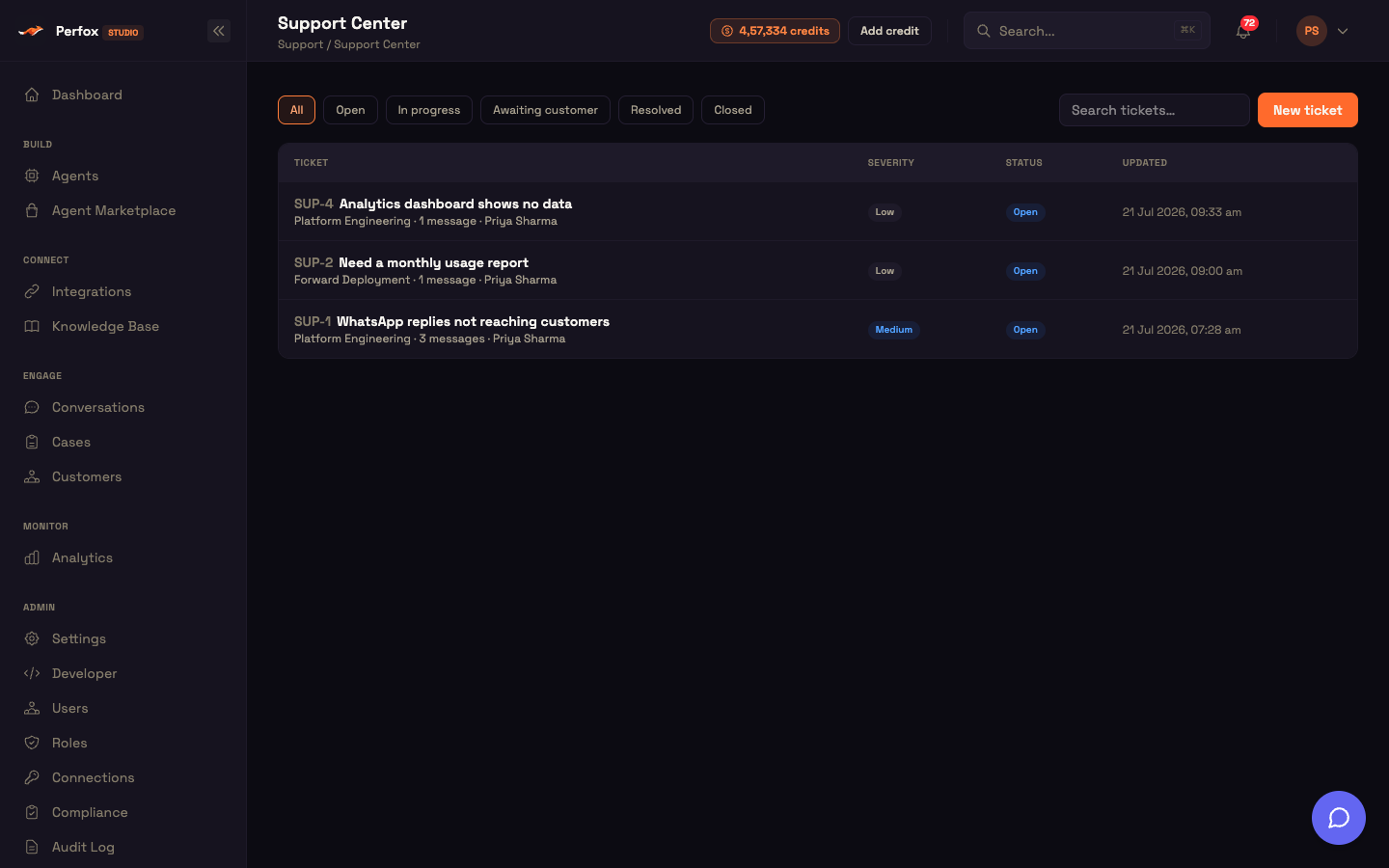
Raise a ticket
Click New ticket and fill in the form:
| Field | What it's for |
|---|---|
| Subject | A short summary of the issue |
| Team | Who should handle it: Platform Engineering (the default; platform behaviour and issues) or Forward Deployment (help with your setup, agents and rollout) |
| Severity | Low, Medium (the default), High or Urgent |
| Description | The details: what happened, what you expected, steps to reproduce |
| Attachments (screenshots, logs) | Optional files |
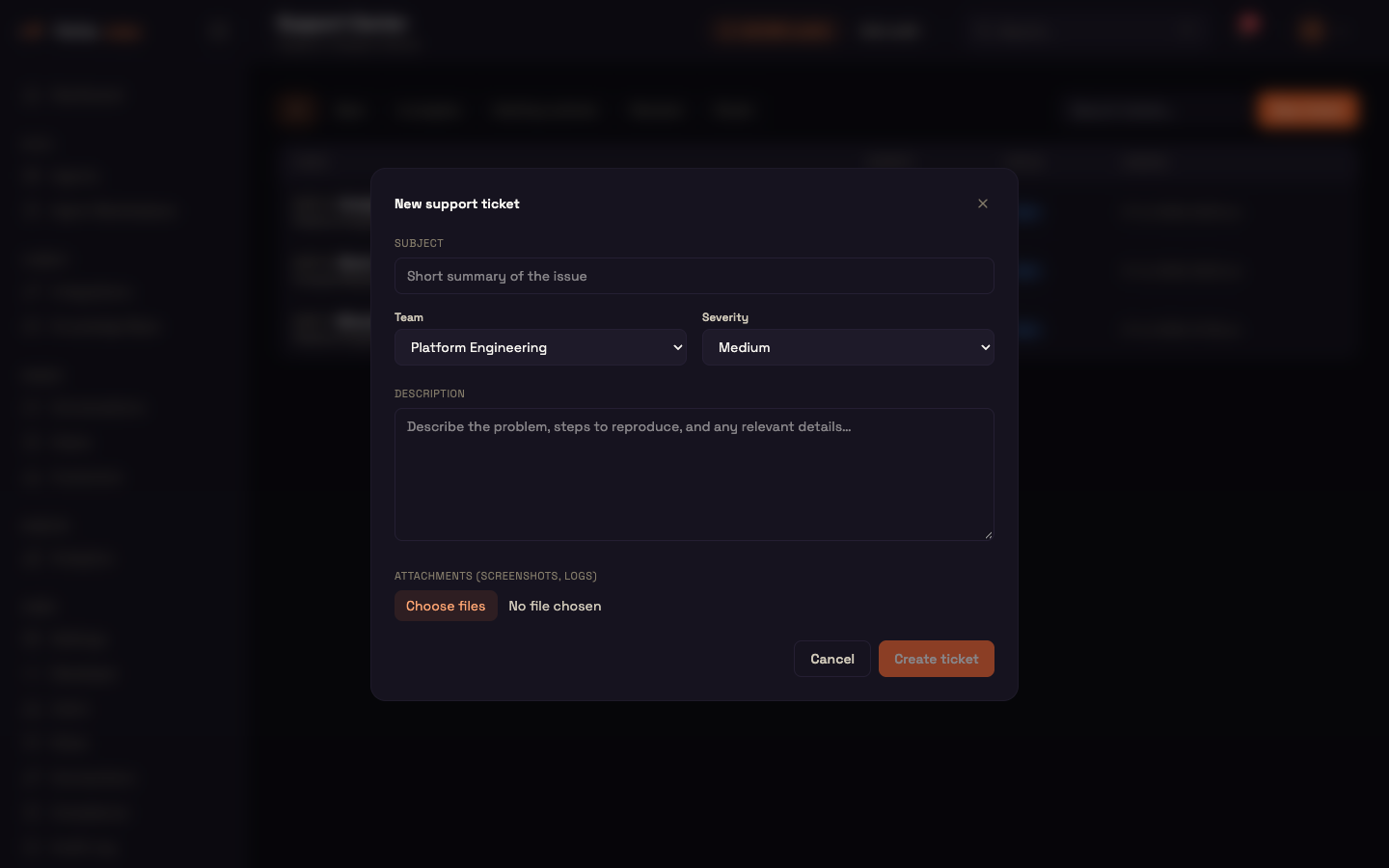
Click Create ticket. The ticket gets a short reference such as SUP-1042, which you and the support team both use, and it opens straight away.
Worked example
Setup. Asha is the admin at Acme Support. After she edited an agent, her WhatsApp customers stopped getting replies.
Action. She opens the Support Center and clicks New ticket. She enters the subject "WhatsApp replies not reaching customers", picks Team: Platform Engineering and Severity: High, attaches a screenshot of the canvas, and clicks Create ticket.
Result. The ticket opens as SUP-1042 and appears at the top of her list.
What just happened. The Platform Engineering team can now see the ticket and its screenshot. Asha didn't have to find an email address or switch to a separate help desk.
Track and reply
The list shows each ticket's reference and subject, its team, how many messages it has and who raised it, along with its Severity, Status and when it was last Updated. Filter with the status pills (All, Open, In progress, Awaiting customer, Resolved, Closed) or type in Search tickets….
Open a ticket to read the whole thread. Write in the Reply box, attach files if you need to, and click Send reply. The side panel shows the team, who raised the ticket, the assignee, when it was created and last updated, and its activity.
The support team moves a ticket through these statuses:
- Open: you've raised it, and the team hasn't picked it up yet.
- In progress: the team is working on it.
- Awaiting customer: the team needs something from you. Your reply moves it back to In progress.
- Resolved: the team believes it's fixed. Replying moves it back to In progress.
- Closed: the ticket is finished.
You'll be notified, so there's no need to keep checking
When the support team replies or changes a ticket's status, you get a Studio notification (the bell) and an email, both with a link straight to the ticket.
Or ask the support chatbot
When support chat is set up for your workspace, a chat button appears at the bottom-right of every Studio page. Instead of filling in the form, you can ask it in plain language to:
- raise a ticket ("I can't connect my WhatsApp number, please open a ticket"),
- check a ticket's status ("what's the status of SUP-1042?"), or
- list your tickets ("show me my open tickets").
It answers common how-to questions straight from Perfox's help content first. Quick questions get an immediate answer, and only the ones that really need a person become tickets.
You can now raise, track and reply to support tickets without leaving the Studio.