Cases
When your support queue fills up, you need more than a chat transcript. You need to see at a glance which conversations are resolved, which need a person to step in, and whether the AI actually helped. Cases is that view.
Cases shows your conversations as a support-desk ticket queue: a filterable table with each case's AI status (the AI's quality verdict) and Ticket status (where it is in your workflow) side by side, with actions and export on every row. If you're new here, start with Conversations, which shows the same conversations in full.
Overview
Go to Studio → Engage → Cases.
Cases is a table view over the same conversations as the Conversations page, not a separate store. Filters, search, paging, and the row actions behave the same way on both pages.
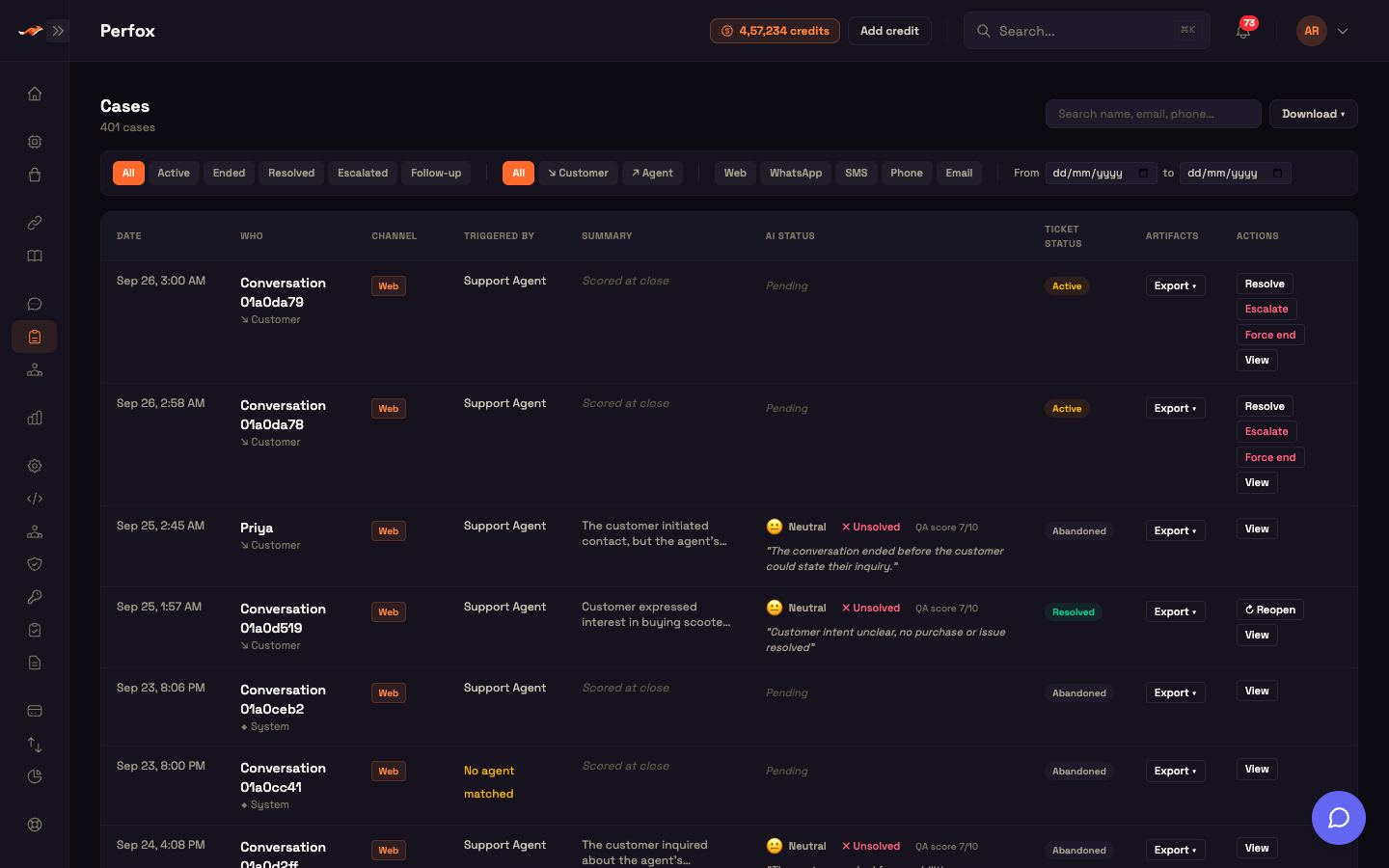
- One row per case in a nine-column table: Date, Who, Channel, Triggered by, Summary, AI status, Ticket status, Artifacts, and Actions. On a small screen the same information stacks into a card per case.
- Click a row (or its View button) to open the full conversation on the Conversations page.
- The header shows how many cases match (for example,
401 cases), a search box, and a Download ▾ menu for the whole filtered list.
Two statuses, side by side
Every case has two independent statuses, shown in two columns.
AI status: the quality verdict
When a conversation closes, an AI scores it once and the result shows as verdict chips:
- Sentiment: 😊 positive, 😐 neutral, or 😞 negative.
- ✓ Solved or ✗ Unsolved.
- ⚑ Needs follow-up, when the AI flagged it.
- QA score out of 10. Hover over it for the five sub-scores: sentiment, resolution, compliance, response, and tools.
- The reason, in one line.
Until a case is scored, the AI status column shows Pending and the Summary shows "Scored at close". This column answers did the AI do a good job? See How the verdict is worked out.
Ticket status: the lifecycle
Where the case is in your workflow, as a coloured badge:
| Ticket status | Badge | Meaning |
|---|---|---|
Active | yellow | Open in the queue |
Ended | blue | The conversation ended but nobody has resolved or escalated it yet |
Resolved | green | Closed |
Escalated | red | Needs a person to follow up |
Abandoned | gray | The customer went quiet and the conversation was closed |
This column answers where is the ticket? The row actions change it (see Row actions).
The two statuses are independent. A case can be ✓ Solved but still Escalated, or Resolved with a negative sentiment.
Table columns
| Column | What it shows |
|---|---|
| Date | When the case started. Hover for the full timestamp. |
| Who | The customer's name, or their phone number or email if no name is known, otherwise a short conversation reference. Underneath, who started it: ↘ Customer, ↗ Agent, or ◆ System. |
| Channel | The channel the case started on: Web, WhatsApp, Phone, Email, or SMS. |
| Triggered by | The agent whose trigger took the conversation, or No agent matched when none did. |
| Summary | The AI's summary, cut to two lines. Before scoring it reads "Scored at close". |
| AI status | The verdict chips, or Pending. |
| Ticket status | The lifecycle badge. |
| Artifacts | An Export ▾ menu to download this case's transcript as JSON, TXT, or MD. |
| Actions | The buttons that apply to this case's ticket status. |
Filter bar
The filter bar is always visible above the table.
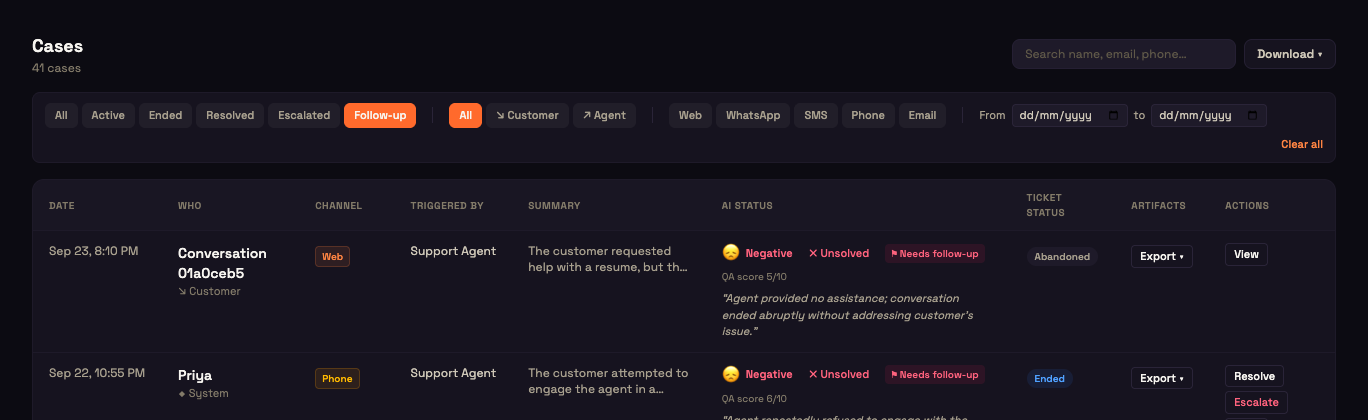
- Search: matches a customer's name, email, or phone number, across all your cases.
- Status:
All,Active,Ended,Resolved,Escalated, andFollow-up. Follow-up shows cases the AI flagged as negative and unsolved, whatever their ticket status. - Originator:
All,↘ Customer, or↗ Agent, depending on who started the conversation. - Channels: toggle Web, WhatsApp, SMS, Phone, and Email. Pick as many as you like.
- From and to dates: limit the list to cases started in that range.
- Clear all: appears once any filter is set and resets them all.
Filters run on the server and are saved in the page address, so a filtered view can be shared and survives a reload. The newest activity comes first, so a case that just got a new message moves to the top.
Paging and loading
- The table loads 50 cases at a time. Click Load more at the bottom for the next 50; the button shows how many are loaded out of the total. When everything is loaded it says End of list.
- When you change a filter, the rows you're looking at stay on screen until the new results arrive, so the table never flashes empty.
- If nothing matches, the table is replaced with "No conversations match these filters".
Row actions
Each row shows only the actions that make sense for its ticket status. They're the same rules as the actions in the conversation header.
| Action | When it shows | What it does |
|---|---|---|
| ↻ Reopen | The case is Resolved | Asks you to confirm, then sets it back to Active for follow-up. |
| Resolve | Not Resolved or Abandoned | Asks you to confirm, then marks it Resolved. |
| Escalate | Not Resolved, Abandoned, or already Escalated | Asks for an optional reason, then marks it Escalated. The reason is saved with the case. |
| Force end | Only an Active case | Asks you to confirm, hangs up any live voice call, and marks the case Resolved. |
| View | Always | Opens the conversation. |
- Resolve and Escalate also run the AI quality scoring if the case hasn't been scored yet.
- While one action runs, the other buttons on that row are disabled. When it finishes, the list refreshes to show the new statuses.
- Clicking an action button doesn't also open the conversation.
- All four status-changing actions need the Conversations: write permission.
Worked example: escalating a case
Setup: Priya contacts Acme Support on WhatsApp. The AI answers her first question, but she's upset about a billing charge and asks to speak to someone. The conversation ends without a resolution.
Action: Asha, a support agent at Acme Support, opens Engage → Cases and clicks Follow-up. Priya's case shows 😞 Negative, ✗ Unsolved, and ⚑ Needs follow-up, with a Ticket status of Ended. Asha clicks Escalate, types "Customer unhappy with billing, needs senior review", and confirms.
Result: The Ticket status changes to Escalated. The case now also appears under the Escalated filter.
What just happened: Asha changed where the ticket is. The AI's verdict (negative, unsolved) stays as it was, because it records how the AI did, while the escalation tells her team what to do next.
Export
The whole list (CSV or JSON)
Download ▾ in the header exports every case that matches your current search and filters, as CSV or JSON.
- Up to 5,000 cases are exported. If there are more, a message tells you the export was capped.
- The CSV has these columns: Date, Who, Channel, Triggered by, Summary, Sentiment, Solved, Follow-up, Ticket status, Messages, and ID.
- The file is named
cases-<date>.csvorcases-<date>.json.
One case's transcript (JSON, TXT, or MD)
A row's Export ▾ menu downloads that case's full transcript. MD gives a shareable case file with the summary, the verdict, the captured customer details, and the transcript turn by turn. JSON is the structured event record, and TXT is a plain transcript.
How the verdict is worked out
When a conversation closes (the web chat is closed, the workflow finishes, a call hangs up, or someone resolves or escalates it), an AI reads the transcript once and judges the outcome: the sentiment, whether the issue was solved, and why. It's a judgment of how the conversation went, not a keyword count, and each conversation is scored only once.
A negative, unsolved verdict flags the case as needing follow-up and notifies your team. That's what the Follow-up filter and the ⚑ Needs follow-up chip show.
The scoring AI is included and managed by Perfox, with nothing to set up. It works the same for text and voice, because it reads the words, not the tone of voice.
The same verdict appears on the Conversations page as a banner, at the end of the transcript, and as a dot on each list row.
Where to go next
- Conversations: the full view of any case, including the transcript, the AI's reasoning for each reply, and live copilot calls.
- Copilot (Human-in-the-loop): how phone calls reach your team with AI assistance.
- Customers: one record per person, with their sentiment trend and history.