Compliance & DPDP
The Compliance page puts your privacy picture in one place. It shows live consent counts, your breach status and data-principal rights counters. It also has the guardrail settings that control what your AI agents say, plus logs of every PII redaction and every suspicious sign-in attempt.
This page is for workspace admins and compliance officers. It is built around India's Digital Personal Data Protection (DPDP) Act 2023 and RBI guidelines.
Opening the page
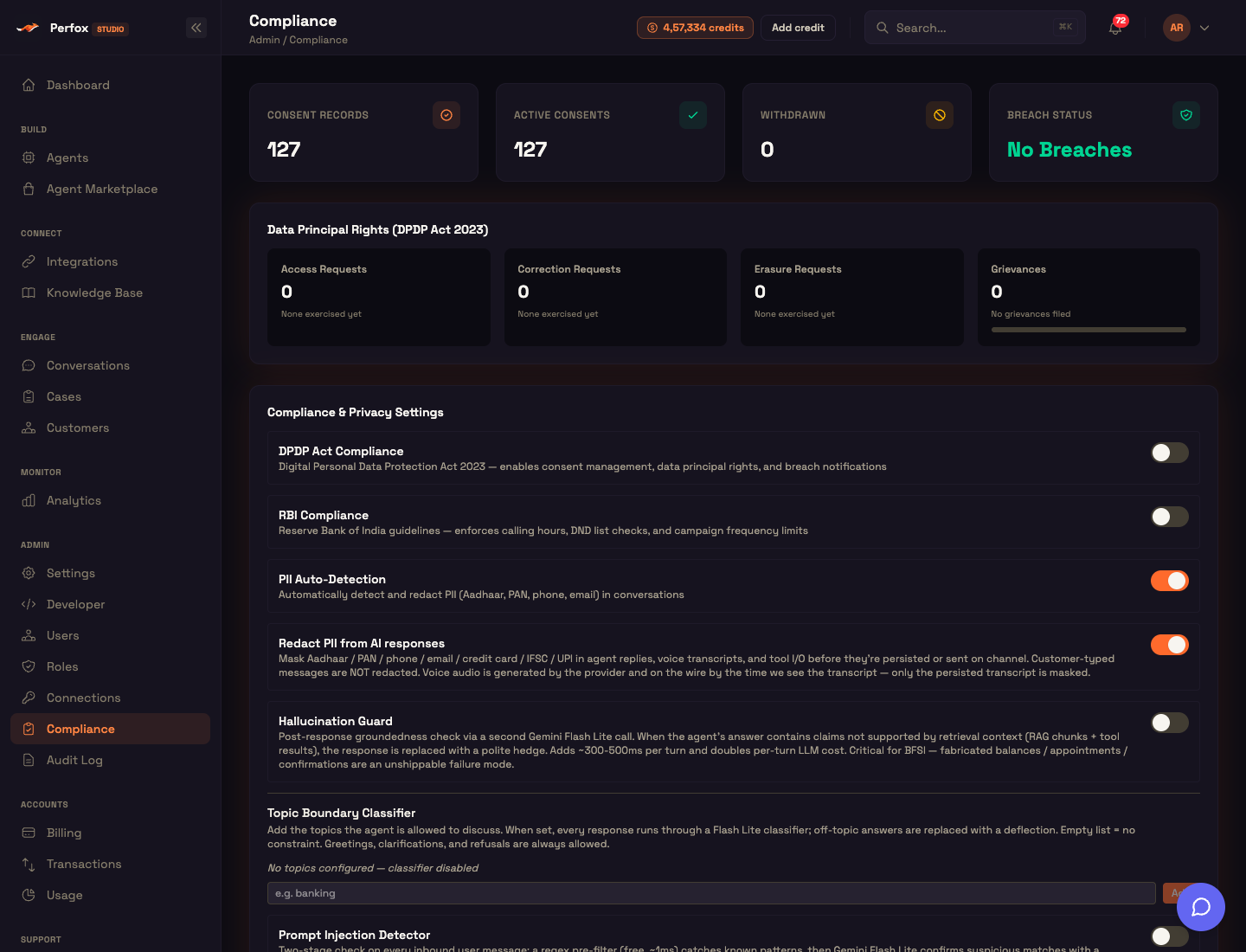
Click Compliance under Admin in the sidebar (/compliance). From top to bottom, the page shows:
- Four stat tiles: Consent Records, Active Consents, Withdrawn and Breach Status.
- A Data Principal Rights (DPDP Act 2023) card.
- The Compliance & Privacy Settings editor, with a Save Compliance Settings button.
- A PII Detection Log preview.
- A Security Events preview.
- An Audit Trail preview.
Every number on the page comes from your own live data. A new workspace shows zeros; there is no sample data.
Viewing the page and its logs needs the settings:read permission. Saving the settings editor needs settings:write. See Access control.
Stat tiles: consent and breaches
| Tile | Meaning |
|---|---|
| Consent Records | Every consent recorded in your workspace. Shows "No consent collected yet" when it's zero. |
| Active Consents | Consents that are still in force. |
| Withdrawn | Consents that were withdrawn. |
| Breach Status | No Breaches in green, or "N active" in red while any recorded breach is still open, with an "M total recorded" hint. |
Most consent records are created automatically: Perfox records one deemed consent the first time each customer contacts you. See Deemed consent.
Each recorded breach carries a 72-hour Data Protection Board of India (DPBI) notification deadline. The clock starts at the time the breach was detected, not when it was logged. The tile counts a breach as active until it has been notified and resolved.
Data Principal Rights
The Data Principal Rights (DPDP Act 2023) card has four counters:
| Counter | What it shows |
|---|---|
| Access Requests | Access requests fulfilled for your customers. |
| Correction Requests | Correction requests fulfilled. |
| Erasure Requests | Erasure requests fulfilled. |
| Grievances | Total grievances, with "N resolved" / "M pending" and a progress bar of the resolved share. |
When nothing has been recorded, a counter shows "None exercised yet"; for grievances it shows "No grievances filed".
Here's what each request does when it's carried out. Every one of them is written to the audit log:
- Access: exports the customer's record, all of their conversations with the full transcript, and their consent records.
- Correction: updates the corrected fields on the customer's record.
- Erasure: removes the customer, their conversations and their transcript, and blanks the recipient and text of messages sent to them. The records disappear from view at once and are permanently deleted after your retention period.
- Grievance: opens a ticket with a 30-day response deadline, which moves from open to in progress to resolved.
Raising a request
This page shows the counters. There isn't a button here to raise an access, correction or erasure request, a grievance, or a breach report. When a customer exercises a DPDP right, raise it with the Perfox team from the Support Center. Once it's processed, the counter here updates.
Compliance & Privacy Settings
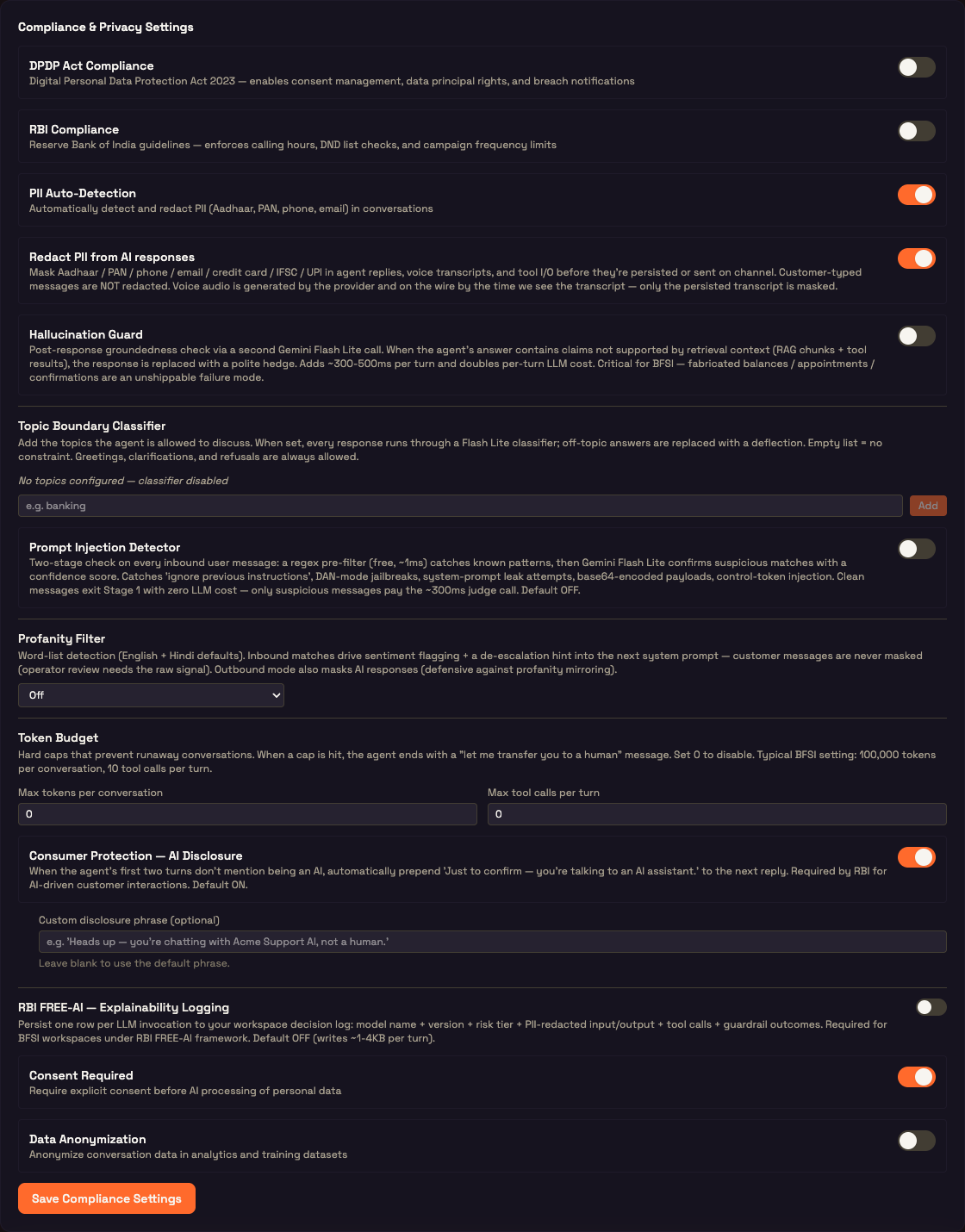
The Compliance & Privacy Settings card is where you set up privacy and AI guardrails for your whole workspace. Change a toggle or a field, then click Save Compliance Settings. The button then shows Saved or Save failed. Saved settings apply from the agent's next turn, with no restart. Each save writes one audit-log entry that lists the settings you changed.
Look, don't flip
Every setting here affects live conversations for all of your agents. Change one setting at a time, save, and try it in a test conversation before you change the next.
Framework and privacy toggles
| Setting | Default | What it does |
|---|---|---|
| DPDP Act Compliance | Off | Turns on consent management, data-principal rights and breach notifications under the DPDP Act 2023. |
| RBI Compliance | Off | Applies Reserve Bank of India rules: calling hours, DND list checks and contact-frequency limits. |
| Consent Required | On | Requires explicit consent before AI processing of personal data. |
| Data Anonymization | Off | Anonymizes conversation data used in analytics and training datasets. |
PII Auto-Detection and redaction
| Setting | Default | What it does |
|---|---|---|
| PII Auto-Detection | On | Detects personal data (Aadhaar, PAN, phone, email) in conversations. |
| Redact PII from AI responses | On | Masks personal data in agent replies, voice transcripts, and tool inputs and outputs before they're stored or sent. |
Redaction covers seven kinds of personal data: Aadhaar, PAN, phone numbers, email addresses, credit card numbers, IFSC codes and UPI IDs. For example, an Aadhaar number becomes XXXX XXXX XXXX.
Two limits to know about:
- What customers type is never redacted. Your team needs to see exactly what the customer wrote.
- Voice audio can't be redacted. It has already been spoken by the time the transcript exists, so only the saved transcript is masked.
Each masked reply is listed in the PII Detection Log.
Hallucination Guard
| Setting | Default | What it does |
|---|---|---|
| Hallucination Guard | Off | Checks each answer against what the agent actually retrieved: knowledge-base passages and tool results. If an answer makes claims those sources don't support, a polite hedge replaces it. |
| On 2s timeout | Fail open | Appears when the guard is on. It decides what happens if the check takes longer than 2 seconds. |
The On 2s timeout options are:
- Fail open — let answer through (lower latency)
- Fail closed — replace with hedge (BFSI safety)
The guard adds roughly 300–500 ms to each turn and about doubles the AI cost per turn. Turn it on where a made-up balance, appointment or confirmation would be unacceptable.
Topic Boundary Classifier
This setting limits the agent to topics you choose. Type a topic, such as banking, and click Add. Each topic appears as a chip, and you remove one with its ×.
- With no topics, the classifier is off. The card says "No topics configured — classifier disabled".
- With one or more topics, every reply is checked. An off-topic answer is replaced with a deflection. Greetings, clarifications and refusals are always allowed.
Once you add a topic, a Deflection tone selector appears:
- Soft redirect — friendly nudge back to scope (default)
- Block — terse "I can only help with X"
Prompt Injection Detector
| Setting | Default | What it does |
|---|---|---|
| Prompt Injection Detector | Off | Screens every incoming customer message for attempts to hijack the agent. |
| Mode | Block | Appears when the detector is on. |
It checks in two stages. A fast, free pattern check runs first. Only a message that looks suspicious goes on to a short AI check, which takes about 300 ms. That second check confirms attempts like "ignore previous instructions", jailbreak prompts, attempts to leak the system prompt, encoded payloads and control-token injection. The modes are:
- Block — refuse with polite message (production): the agent isn't called for that message.
- Log only — pass through but tag for review (initial rollout): the message goes through, and the conversation is flagged for review.
Profanity Filter
A word-list filter with English and Hindi words built in. Choose one of three options:
- Off
- Inbound only — sentiment + de-escalation: profanity in customer messages flags the conversation's sentiment, and the agent is told to de-escalate on its next reply. Customer messages are never masked.
- Inbound + Outbound — also mask AI responses: does the same, and also masks any profanity in the agent's replies.
Token Budget
These are hard caps that stop runaway conversations. 0 means no cap.
| Field | What it limits |
|---|---|
| Max tokens per conversation | Total input + output tokens across a whole conversation. |
| Max tool calls per turn | Tool calls within one customer turn. This stops tool-call loops. |
When a cap is reached, the agent ends the turn with a "let me transfer you to a human" message. The on-screen hint suggests a typical regulated-industry setting: 100,000 tokens per conversation and 10 tool calls per turn.
Consumer Protection — AI Disclosure
| Setting | Default | What it does |
|---|---|---|
| Consumer Protection — AI Disclosure | On | If the agent hasn't said it's an AI within its first two turns, this adds a disclosure to the start of its next reply. |
| Custom disclosure phrase (optional) | blank | Your own wording, up to 500 characters. Leave it blank to use the default. |
The default disclosure is:
Just to confirm — you're talking to an AI assistant.
RBI requires this disclosure for AI-driven customer interactions.
RBI FREE-AI — Explainability Logging
| Setting | Default | What it does |
|---|---|---|
| RBI FREE-AI — Explainability Logging | Off | Keeps one decision record for each AI model call. |
| Default model risk tier | Medium | Appears when logging is on. It's the risk tier stamped on each record. |
Each record stores the model name and version, the risk tier, the input and output with personal data redacted, the tool calls made, and any guardrail outcomes. That's about 1–4 KB per turn. The risk tiers are:
| Tier | Meant for |
|---|---|
| Low | informational responses |
| Medium (default) | general customer queries |
| High | financial or health decisions |
| Critical | irreversible financial or medical actions |
PII Detection Log
Preview on the Compliance page
The PII Detection Log card shows your most recent redactions, up to 20. Each row is one AI reply that contained personal data and was masked. A row shows:
- how many items were redacted, with a chip for each type (for example
email); - a short conversation ID, the channel, a short fingerprint of the original text, and how long ago it happened. The unmasked text itself is never stored.
With nothing logged, the card says "PII redaction enabled — no detections yet", or "PII redaction disabled — no detections logged" if redaction is turned off. Click View full PII log → to see everything.
Full PII log
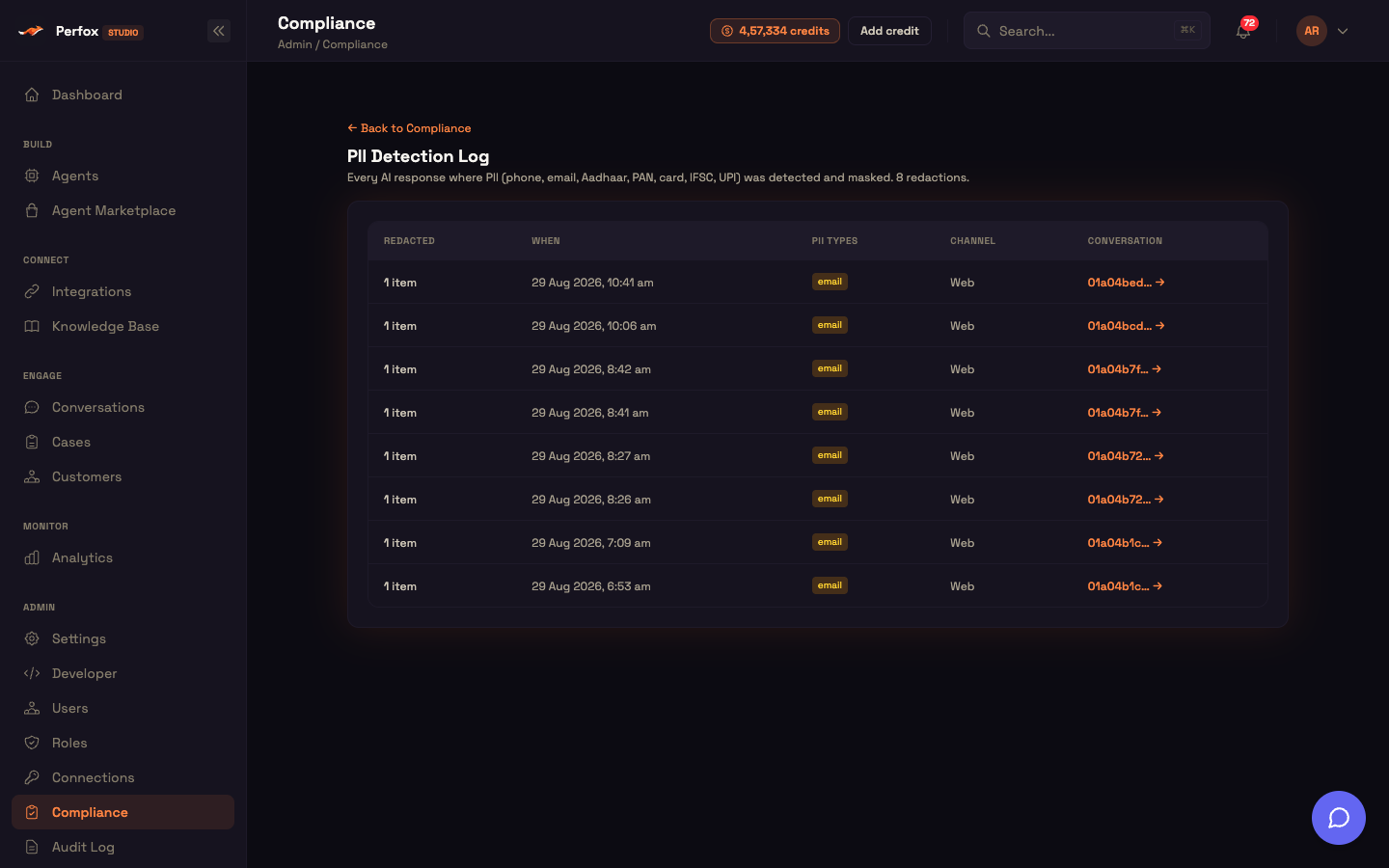
The full log lives at /compliance/pii. Its header shows the total number of redactions, and ← Back to Compliance returns you to the main page. It shows 50 rows per page, with Prev / Next buttons.
| Column | What it shows |
|---|---|
| Redacted | How many items were masked. |
| When | The date and time. |
| PII types | A chip for each type found. |
| Channel | The channel, for example Web or WhatsApp. |
| Conversation | A short conversation ID. Click it to open that conversation. |
Security Events
Preview on the Compliance page
The Security Events card tracks one kind of attempt: someone asking for a sign-in link for an email address that has no account in your workspace. Perfox never sends that link; it only records the attempt. Three counts at the top cover the last 24 hours:
- Attempts (24h)
- Emails (24h): how many different email addresses were tried.
- Source IPs (24h): how many different IP addresses the attempts came from.
Below the counts, up to 8 recent rows show the email, an attempt count, the last IP address and when it was last seen. Repeat attempts for the same email on the same day are combined into one row, and rows are kept for 90 days. With nothing recorded, the card says "No unknown-user sign-in attempts". Click View full security log → to see everything.
Full security log
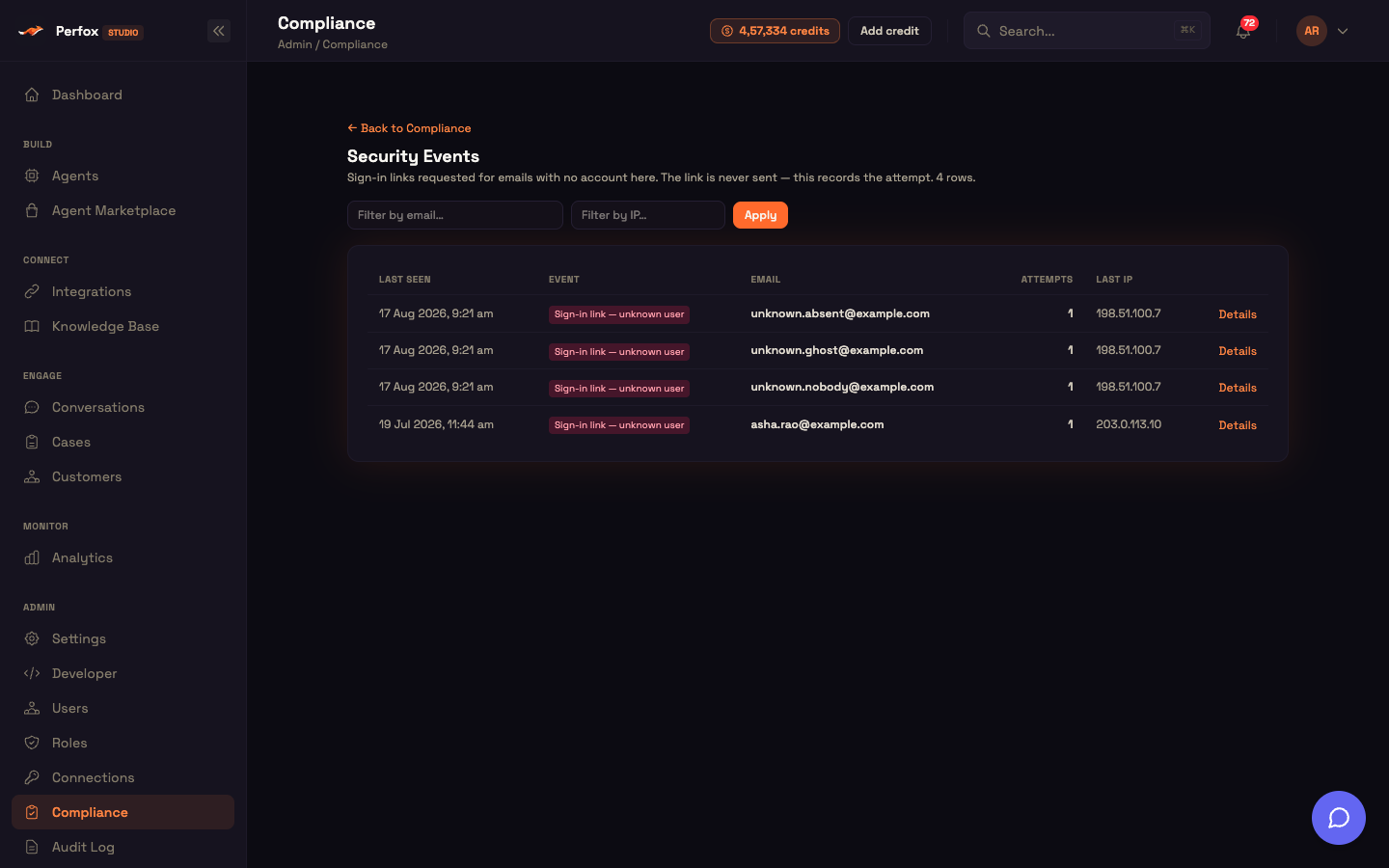
The full log lives at /compliance/security. It shows 50 rows per page, newest first.
You can filter the list:
- Filter by email…: finds attempts against one address.
- Filter by IP…: finds one IP address trying many emails.
Type in a box, then click Apply or press Enter. Clear resets both filters.
| Column | What it shows |
|---|---|
| Last seen | The date and time of the most recent attempt. |
| Event | The event type: Sign-in link — unknown user. |
| The email address that was tried. | |
| Attempts | How many times it was tried. |
| Last IP | The IP address of the most recent attempt. |
| Details | Expands to show First seen, the email Domain and the last User agent. |
Audit Trail preview
The Audit Trail card shows your 10 most recent audit entries. Each one shows who acted, what they did and when. The card shows the actor as User plus a short ID, System, Agent or MCP Gateway, and the action and resource by their raw names (for example workflows.update on workflows 01a0da60). Examples of what appears here: compliance settings saves, data-principal requests and breach updates.
Click View full audit trail → to open the Audit Log. It shows each person's name and email, combines rapid repeat edits into one row, and lets you filter by resource, actor and date.
How it works underneath
Deemed consent (DPDP §7)
The first time a customer contacts you, Perfox records one deemed-consent record for them. A returning customer never gets a second one. Each record keeps when consent was given, the channel, the consent text, who recorded it, and when it was withdrawn, if it was. These are the records the stat tiles count.
Purpose limitation on tool calls
A connected tool can declare the only purpose it may be used for. If it does, your agent can't call it for a customer unless that customer has an active consent for exactly that purpose. The consent records serve as the audit trail.
What this does and does not cover
This check controls tool calls. It doesn't track every time the underlying data is read. Treat it as a strong control on what your agent can do with a customer's data, not as a complete record of everywhere that data was seen.
Encryption and explainability
- Your stored data is encrypted at rest using a layered key hierarchy with key rotation.
- When Explainability Logging is on, each AI model call is recorded with its risk tier and a summary of its tool calls. Personal data is redacted before the record is written.
Data retention
Set how long data is kept under Admin → Settings → Data Retention. See Settings.
| Setting | Default | What it removes |
|---|---|---|
| Enabled | — | Master switch for retention. |
| Conversation history (days) | 365 | Transcripts and tool calls. |
| Recordings (days) | 365 | Voice and phone call recordings. |
| Media attachments (days) | 365 | Uploaded files and media. |
Retention runs automatically once a day. When a recording or attachment expires, the conversation still shows where it was, marked expired, instead of a broken link. Keep the conversation-history window at least as long as the other two.
Access control
| Permission | Lets you |
|---|---|
settings:read | Open this page, and view the PII, security and audit logs. |
settings:write | Save the Compliance & Privacy Settings. |
Admins have both. You can grant them to other roles under Roles.
See also
- Audit Log: the full change history behind the Audit Trail preview.
- Analytics: conversation, tool and delivery analytics to read alongside your guardrail settings.
- Support Center: raise a data-principal request or a compliance question with the Perfox team.