Versioning & Folders
When Asha at Acme Diagnostics re-uploads the quarterly price list, every customer conversation should answer from the new one — not the version from three months ago. This page explains how folders and document versioning make that happen, and how you manage folders, their settings and their summaries.
Uploading and connectors are covered in Uploading & Formats and Connectors; how the agent searches is in Retrieval & RAG.
Folders
Go to Connect → Knowledge Base. Folders appear in the Sources tree on the left and, for the selected folder, as rows at the top of the files table.
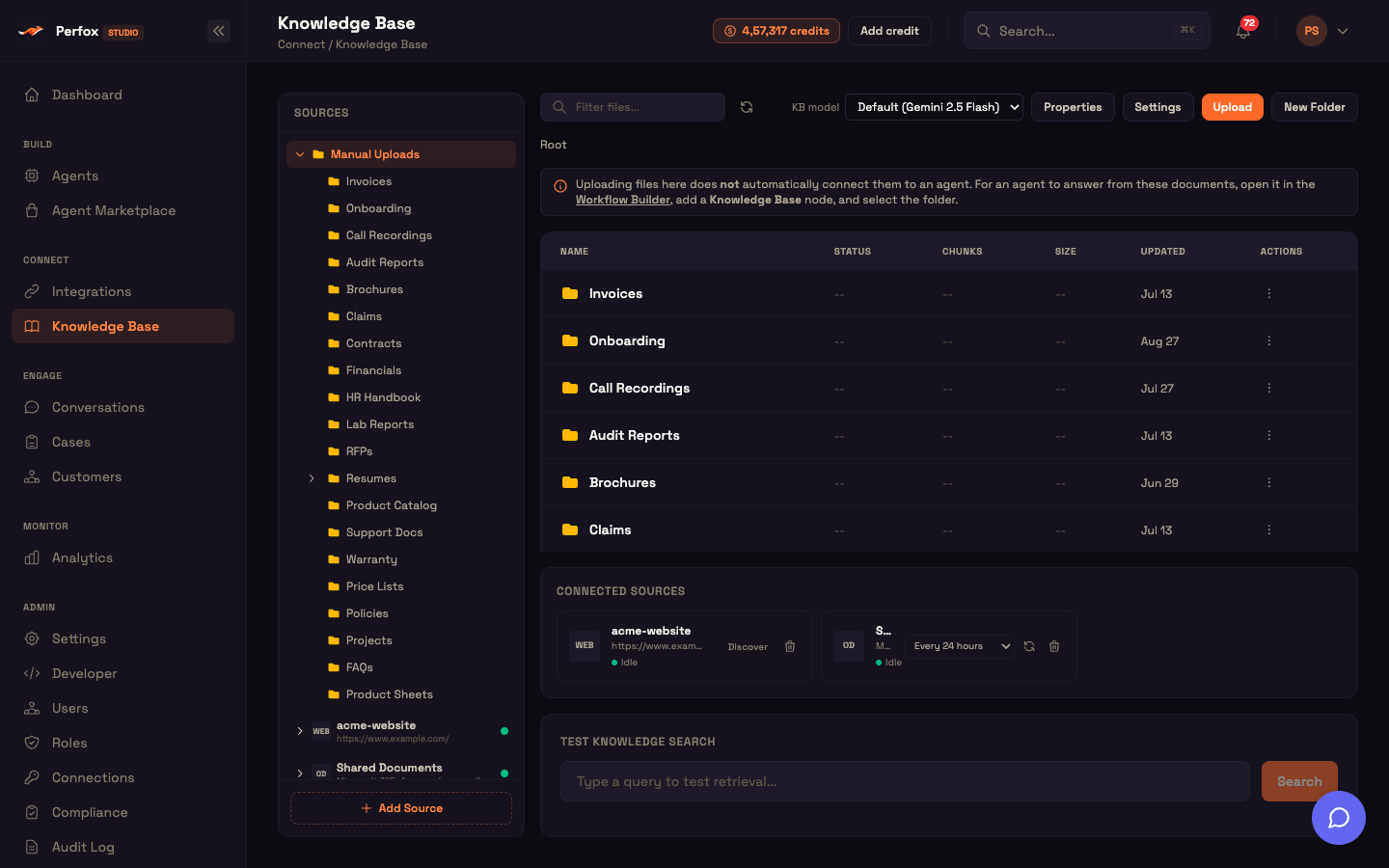
- Create a folder with New Folder in the toolbar. It is created inside the selected folder; you can set its indexing mode when you create it.
- Folder actions — the ⋮ on a folder row offers Properties, Rename, Move to…, Settings and Delete. Deleting a folder deletes everything inside it, including sub-folders.
- Manual Uploads groups the folders you manage yourself; each connector has its own group, which the connector keeps in step with its source.
Each folder carries its own settings (chat downloads, versioning, history, indexing mode) and an automatic summary of what it holds.
Folder settings
Select a folder and click Settings (or ⋮ → Settings on its row). At Root, the same window sets defaults for files that aren't in any folder.
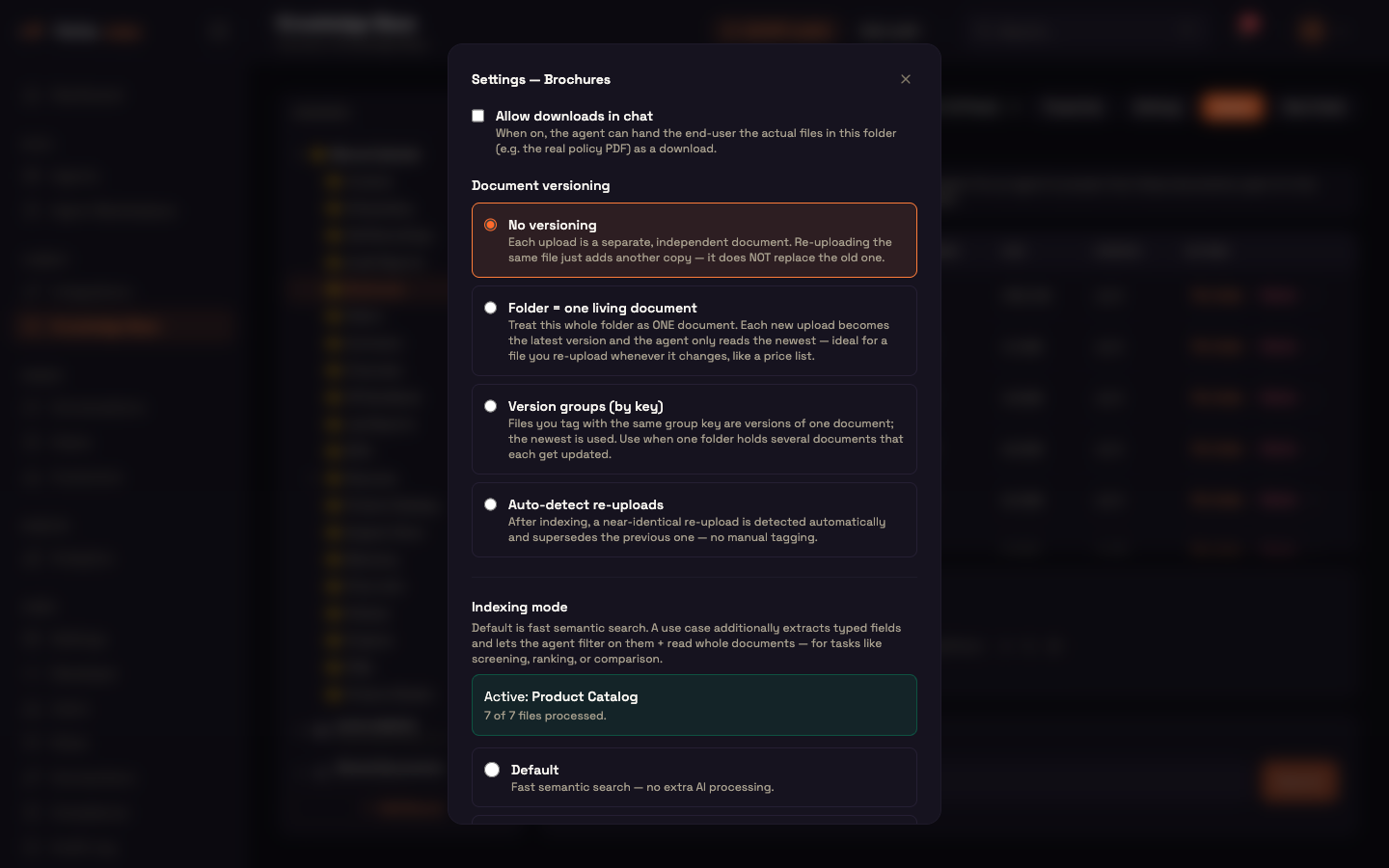
| Setting | Default | Effect |
|---|---|---|
| Allow downloads in chat | Off | The agent may hand files in this folder to customers as downloads. A file's own setting wins. |
| Document versioning | No versioning | How re-uploads are grouped — see Document versioning. |
| Keep version history | On | Appears once versioning is on. Superseded versions stay listed in Version history; the agent always answers from the latest version. |
| Indexing mode | Default | Default, Auto-detect or a use case — applied with its own Apply button. See Extraction & Understanding. |
Click Save settings to save the first three.
Downloadable in chat
"Downloadable in chat" decides whether the agent may send a file to a customer — for example a brochure. It is separate from Download, which is you opening the file.
- The file's own setting (⋮ → Allow chat download / Remove chat download) wins over
- the folder's Allow downloads in chat; and
- if neither is set, the file isn't downloadable.
A downloadable file shows a green ↓ in the table, and Properties → Sharing says whether the setting comes from the file or the folder.
Document versioning
A folder's Document versioning decides how re-uploads are grouped, so the agent answers from the current version only.
| Mode | Behaviour |
|---|---|
| No versioning (default) | Each upload is a separate document. Re-uploading the same file adds another copy; it does not replace the old one. |
| Folder = one living document | The whole folder is one document. Each new upload becomes the latest version and the agent reads only the newest — ideal for a file you re-upload whenever it changes, like a price list. |
| Version groups (by key) | Files tagged with the same group key are versions of one document; the newest is used. Use this when one folder holds several documents that each get updated. When you upload a single file you can type its key in the Upload window; otherwise the file name is used. |
| Auto-detect re-uploads | After indexing, a near-identical re-upload is recognised by its name and opening content and replaces the previous version — no tagging needed. |
How superseding works
When a new upload joins a document that already has a current version:
- the new file gets the next version number and becomes Current;
- the previous version becomes Superseded — kept, not deleted.
The agent only reads current versions, so it always answers from the latest facts. If you delete the current version, the highest remaining version becomes current again. Files uploaded before versioning was turned on count as current.
In the table, a newer version shows a v2 (or higher) badge. ⋮ → Version history lists every version of the document with its status and a Download link, and Properties → Versioning shows the version number, Current or Superseded, and the group.
Worked example — re-uploading a price list
Setup. Asha's Pricing folder uses Folder = one living document. It holds pricelist-q1.pdf, and customers asking "how much is a full blood panel?" get the Q1 price.
Action. Q2 prices are out. Asha uploads pricelist-q2.pdf into Pricing.
Result. The new file shows Processing, then Active with a v2 badge. Its Properties show v2 · Current; Version history lists pricelist-q1.pdf as superseded.
What just happened. Because the folder is one living document, the new upload automatically replaced the old one for the agent. The next customer who asks gets the Q2 price, and the Q1 file is still in Version history if Asha needs it.
The folder summary
Every folder builds a summary of itself automatically — no setup:
- a short written summary of what the folder is about;
- a list of its current files, with their types and main topics;
- the topics and names that appear across the folder.
Summaries refresh when files are added, moved or deleted, and after a connector sync. A change also refreshes the folders above it. The agent uses these summaries as a map of where things are, so it can look in the right folder for a question.
Folder Properties
Properties in the toolbar (or ⋮ → Properties on a folder row) shows the folder's summary, read-only:
| Section | Shows |
|---|---|
| General | Location, number of files, last updated. |
| Settings | Downloadable, versioning, and — when versioning is on — whether history is kept. |
| Summary | What the folder is about, with Generate summary / Regenerate summary to rebuild it now. |
| Topics / entities | The main topics and names across the folder. |
| Documents | Each current file with its type and topics. |
At Root, Knowledge Base — Properties shows an overview instead: the number of Folders and Indexed files, Topics across the knowledge base, and a list of Folders with their file counts and summaries.
Files
File status
| Status | Meaning |
|---|---|
| Pending | Uploaded, waiting to be indexed. |
| Processing | Being read, split into passages and indexed. |
| Active | Indexed and searchable. |
| Error | Indexing failed. The reason is shown on the row; the full message appears on hover. |
The badge updates on its own while indexing runs (usually 5–30 seconds). Re-index retries a failed file or re-reads one that came out poorly.
File Properties
⋮ → Properties shows one file, read-only:
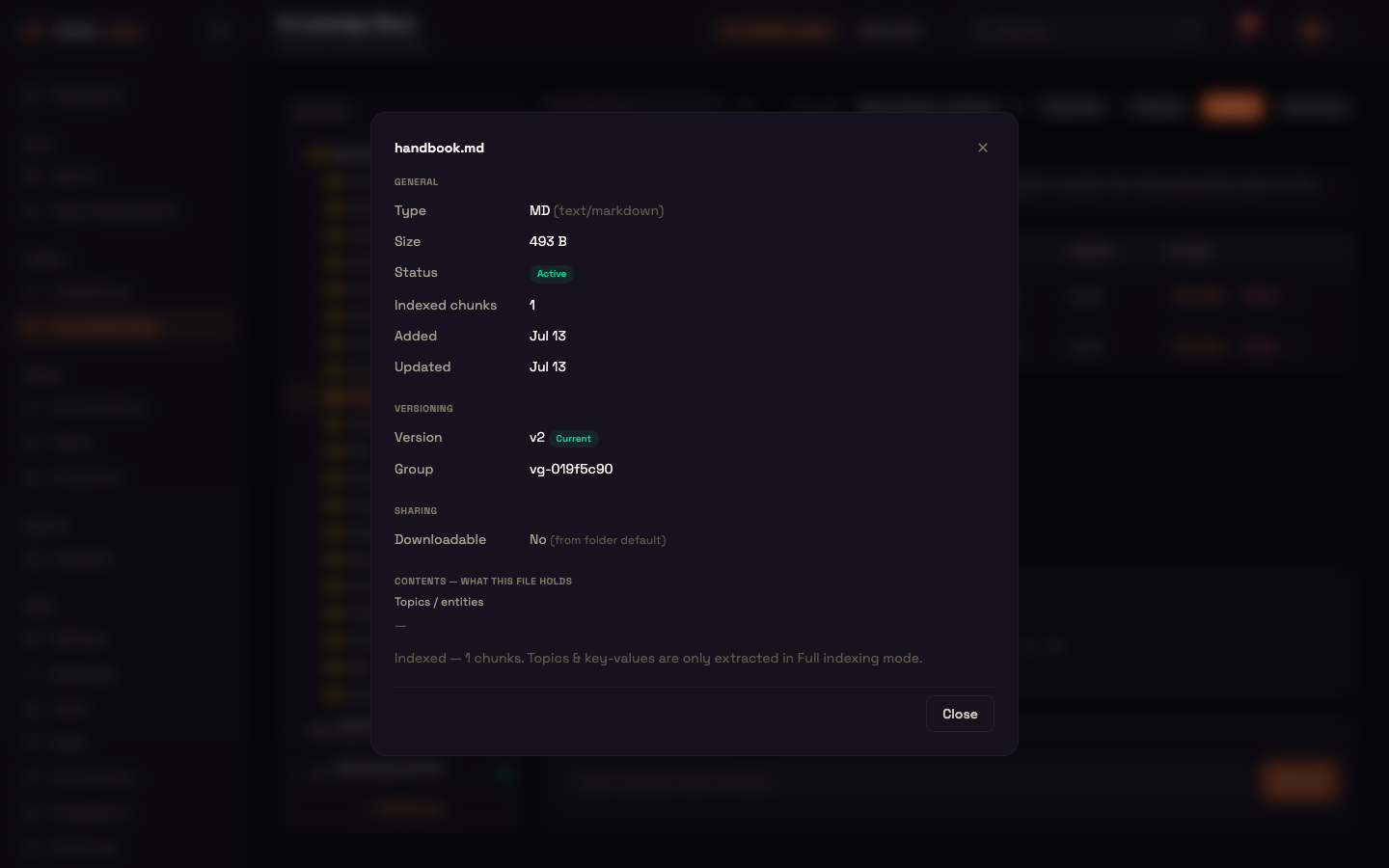
| Section | Shows |
|---|---|
| General | Type, size, status, indexed chunks, added and updated dates. |
| Versioning | Version, Current or Superseded, and group — versioned files only. |
| Sharing | Downloadable yes/no, and whether it comes from this file or the folder default. |
| Tags | Tags attached to the file — for example linking a customer's own document to one of your records. |
| Contents — what this file holds | Topics, names and key values found in the file, for folders that use a use case. |
Re-indexing a file
Re-index re-reads a file and rebuilds its passages without uploading it again. Pick Instant or Flex; it starts on the file's previous choice. Use it after a failure, for a file that read poorly, or after changing the KB model.
Shared and per-customer files
- Files added on this page or by a connector are shared — any conversation of an agent wired to that folder can use them.
- Documents that belong to one customer — for example uploaded for them through the API, or attached by them in chat — are private to that customer.
A conversation sees the shared files plus that customer's own documents, never another customer's. Tags on a customer's document help the agent find the right one when they ask about "my last report".
Reference
| Folder setting | Values | Default |
|---|---|---|
| Allow downloads in chat | On / off | Off |
| Document versioning | No versioning, Folder = one living document, Version groups (by key), Auto-detect re-uploads | No versioning |
| Keep version history | On / off (shown when versioning is on) | On |
| Indexing mode | Default, Auto-detect, a use case | Default |
Next steps
- Knowledge Base Overview — the whole page at a glance.
- Uploading & Formats — the Upload window and file types.
- Extraction & Understanding — indexing modes and use cases.
- Knowledge Base in the Agent — attach folders to an agent.