Knowledge Base in the Agent
When Priya asks your support agent "what's the return policy for orders placed during the sale?", the agent needs your actual policy, not a guess. You attach Knowledge Base folders to the agent once, and from then on its replies are grounded in the documents you chose.
This page is for Asha, the builder at Acme Support. It covers attaching folders to an AI Agent, choosing when the agent searches, the optional quality settings, and starting a workflow when a new file arrives.
Two ways the Knowledge Base connects to an agent
The Knowledge Base page is where folders and files live. On its own it does nothing for an agent — you connect it on the canvas, in one of two ways:
- Answering from documents — add a Knowledge sub-node to the AI Agent's Knowledge port. The agent answers from the folders you tick.
- Reacting to new documents — add a Knowledge Base trigger that starts the workflow when a file lands in a watched folder.
Open Build → Agents, open or create an agent, and work on the canvas.
Attach a Knowledge sub-node
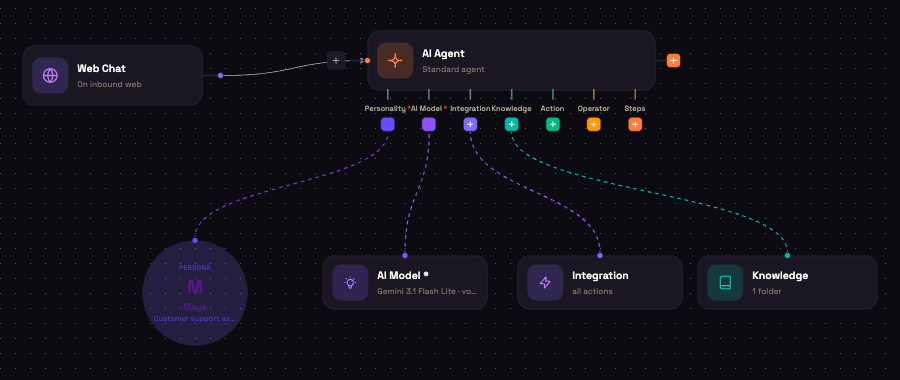
- On the AI Agent node, click the + under Knowledge, or drag a Knowledge node onto the canvas and connect it to that port.
- Click the Knowledge node to open it, and tick the folders it may use (below).
- Click Activate when you're ready to make the change live.
- The port takes several Knowledge nodes, so you can combine folder selections.
- The node holds no files — only which folders to use, plus the optional Advanced retrieval settings.
- The node's subtitle shows how many folders it covers, for example "1 folder".
Choosing folders
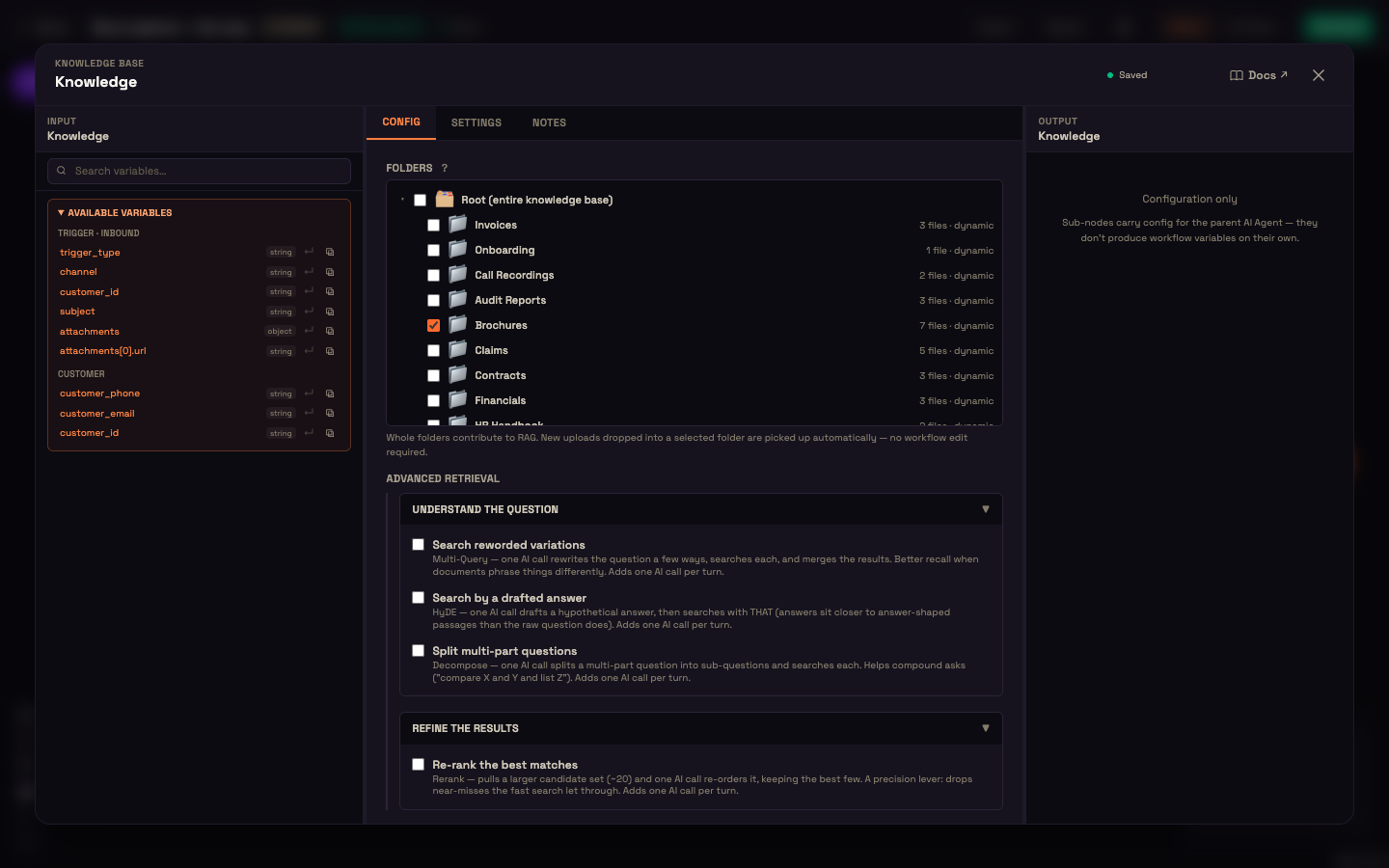
Folders shows your Knowledge Base as a tree. You select folders, not individual files.
| Item | What it does |
|---|---|
| Root (entire knowledge base) | Covers every folder and every file not in a folder. |
| Folder row | The folder name and a live count — for example "7 files · dynamic". |
| Connector folder | For a search-in-place connector, shows the source and · live instead of a file count, because its files stay in the source. |
Ticking a folder also covers all its sub-folders; they appear ticked and dimmed ("Included via the selected parent folder"). To cover only some sub-folders, untick the parent and tick the ones you want. If you have no folders yet, the tree tells you to create some on the Knowledge Base page first.
Folders are live. Files added to a ticked folder later — and sub-folders created inside it — are used from the agent's next message, with no change to the agent. Deleted files and superseded versions are left out automatically.
When the agent searches
On the AI Agent node, Knowledge & Grounding → Knowledge lookup decides when the knowledge base is searched:
- Always attach (default) — searched before every reply, and the best passages (12 by default) are added for the agent to read. Most reliable; costs a search and several thousand tokens on every turn, greetings included. You can raise or lower Passages to attach, and set Only attach when relevance is at least so weak matches aren't attached.
- On demand — the agent searches only when it decides it needs to. Faster and cheaper for agents where many turns need no knowledge.
The agent can always call its knowledge-search tools as well, for example to look deeper into one folder, and those searches stay within the ticked folders. Search behaviour is explained in Retrieval & RAG.
Advanced retrieval
Under Folders, Advanced retrieval has four checkboxes, all off by default. Off is fastest and cheapest. Each one you turn on adds an AI call per turn that searches, so use them where answer quality matters more than speed.
| Option | Section | What it does |
|---|---|---|
| Search reworded variations | Understand the question | Rewrites the question a few ways and searches each. Better when your documents phrase things differently from your customers. |
| Search by a drafted answer | Understand the question | Drafts a likely answer and searches with it. Helps with short or vague questions. The draft is never shown. |
| Split multi-part questions | Understand the question | Splits a compound question into parts and searches each. |
| Re-rank the best matches | Refine the results | Gathers a larger set of candidates and keeps only the most relevant few. Helps on large or noisy knowledge bases. |
The first three find more of the right passages; Re-rank tightens the final set, so they work well together. With several Knowledge nodes on one agent, an option turned on in any of them applies to the agent's whole search.
Start a workflow when a file arrives
Besides answering questions, the Knowledge Base can start a workflow. Add a Trigger node and choose Knowledge Base (a file is added to a KB folder). The workflow runs once for each new file, and the file is available to later steps.
| Field | Values | What it does |
|---|---|---|
| KB Folders | Folder tree (same as the Knowledge node) | The folders to watch. Sub-folders are included. |
| Fire When | Indexed (default) · Uploaded | Indexed fires once the file is searchable — recommended. Uploaded fires the moment the file arrives, before it's searchable. |
Typical uses: summarise each new document, notify a team, or classify and route a file. Full reference: Trigger Nodes.
How to
Give an agent your whole Knowledge Base
- Add a Knowledge node to the AI Agent's Knowledge port.
- Tick Root (entire knowledge base).
- Leave Advanced retrieval off unless answers need a boost.
- Click Activate.
Limit an agent to specific folders
- Add a Knowledge node as above.
- Leave Root unticked and tick only the folders you want. Untick a parent to choose individual sub-folders.
- Add another Knowledge node if you want to keep two selections separate.
Improve answers on a hard knowledge base
- Check what a question retrieves with Test Knowledge Search on the Knowledge Base page.
- On the Knowledge node, turn on one or more Understand the question options, plus Re-rank the best matches.
- Remember each option adds an AI call per turn that searches.
Worked example — Acme Support's returns agent
Setup. Asha uploads Acme Support's returns policy and seasonal FAQ into a Policies folder. On the support agent's canvas she adds a Knowledge node, ticks Policies, leaves Advanced retrieval off, and activates.
Action. Priya asks: "Can I return a jacket I bought in the sale?"
Result. The agent replies with the correct return window and the sale exception, quoting the returns policy.
What just happened. Before replying, the agent searched only the Policies folder and read the best-matching passages. When Asha later uploads a revised policy, the next question already uses it — no change to the agent.
See also
- Knowledge sub-node — the node's full reference.
- Retrieval & RAG — how searches are ranked and scoped.
- Trigger Nodes — the Knowledge Base trigger.
- Knowledge Base Overview — folders, files and connectors.