Roles
When Asha joins the Acme Support team, she needs to read conversations and update customer records — but she shouldn't be able to publish agents or touch provider connections. Roles let you grant exactly that, and nothing more.
This page shows how to create, edit and delete roles, what each built-in role grants, and how permissions take effect. You assign roles to people on the Users page.
How roles work
A role is a named set of permissions. Perfox checks those permissions on every action, so a team member only sees and does what their roles allow. A member with several roles gets everything those roles grant combined; a member with no role has no access.
| Page | Route | Purpose |
|---|---|---|
| Users | /users | Invite team members and assign their roles |
| Roles (this page) | /roles | Create and manage roles |
The Roles page requires admin access; anyone else sees an "insufficient permissions" message.
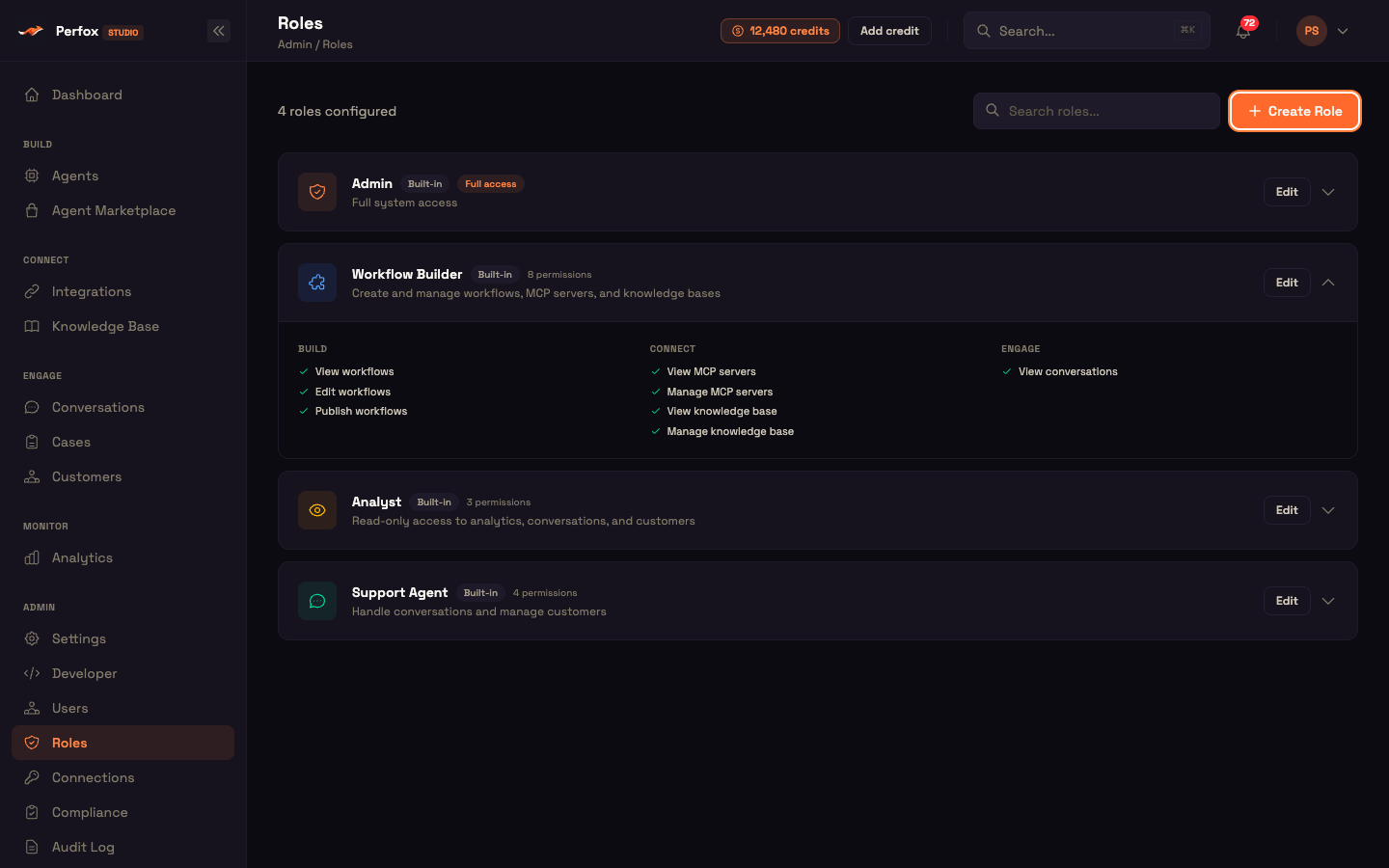
The header shows "N roles configured", a Search roles... box (matches name or description as you type) and a Create Role button. Roles are listed as cards.
The role card
Each card shows:
- A role icon.
- The role name.
- A Built-in badge for the four built-in roles.
- Full access (for a role with full access) or N permissions.
- The role description.
- An Edit button, a delete icon for custom roles, and a chevron to expand.
Expanding a card (one at a time) shows exactly what the role grants:
- A full-access role: "This role has full admin access to all platform features."
- A role with nothing ticked: "No permissions assigned. Click "Edit" to configure access."
- Otherwise, the permissions grouped by section — Build, Connect, Engage, Monitor, and so on — each with a green tick and a readable label such as View workflows or Manage knowledge base.
Built-in roles
Your workspace comes with four built-in roles:
| Role | Description | Permissions |
|---|---|---|
| Admin | Full system access | Full access to everything |
| Workflow Builder | Create and manage workflows, MCP servers, and knowledge bases | View / Edit / Publish workflows · View / Manage MCP servers · View / Manage knowledge base · View conversations |
| Analyst | Read-only access to analytics, conversations, and customers | View analytics · View conversations · View customers |
| Support Agent | Handle conversations and manage customers | View / Handle conversations · View / Edit customers |
Perfox keeps the built-in roles up to date automatically — a missing built-in role is restored and new capabilities are added as they ship. Your custom roles are never changed.
What you can change on a built-in role
- You can edit its permissions and description.
- You cannot rename it — the Role Name field is disabled.
- You cannot delete it — built-in cards have no delete icon, and a delete attempt is refused.
Create and edit a role
Create Role opens a blank editor; Edit opens the same editor filled in with the role's current values.
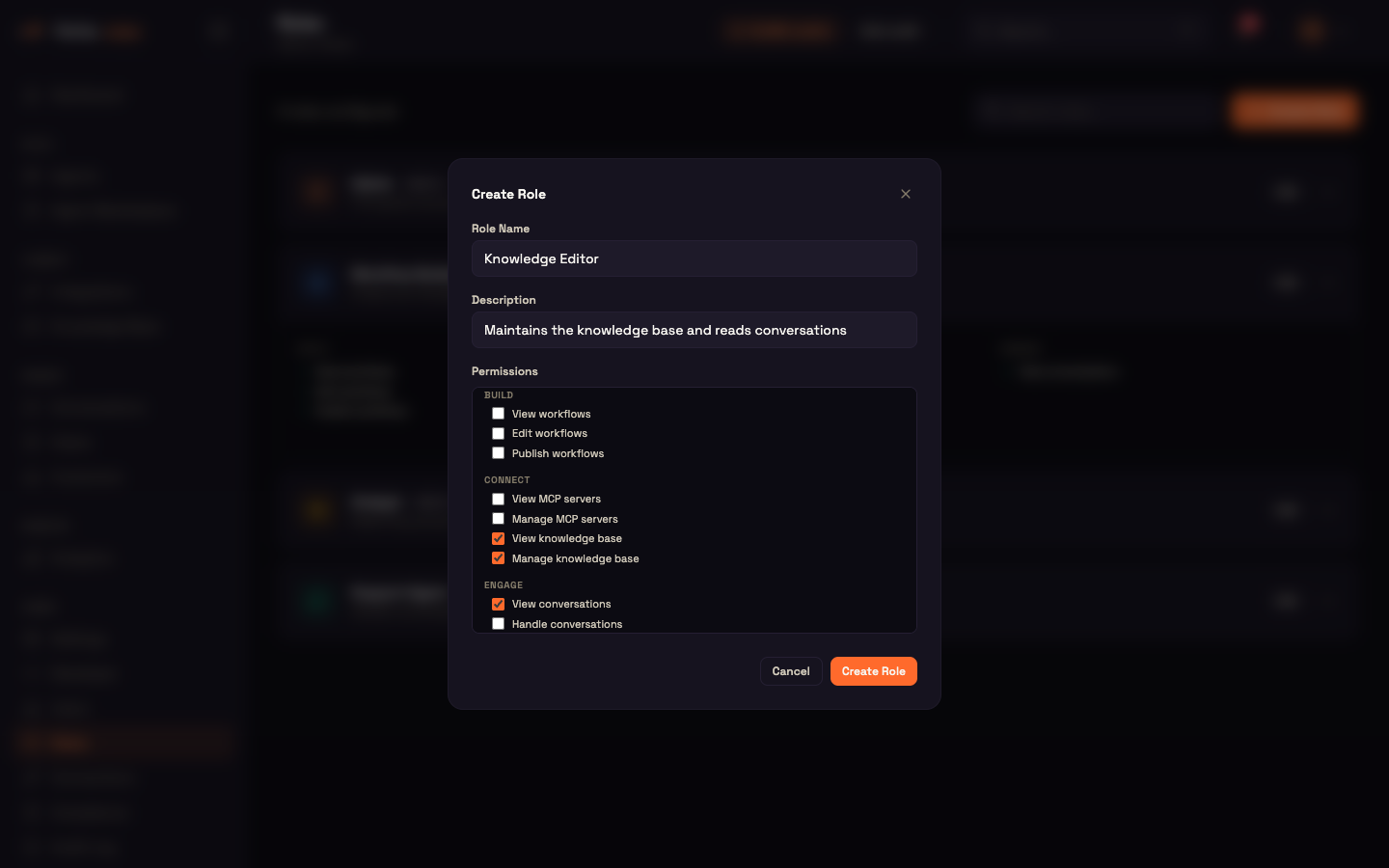
- Role Name — required (up to 100 characters). Create Role / Save stays disabled until it's filled.
- Description — what the role is for.
- Permissions — a scrollable list of checkboxes grouped by section (see the catalog). Tick exactly what the role needs.
Saving applies straight away: everyone with that role gets the new permissions on their next request — no sign-out, no waiting. If something goes wrong, an error message appears and the editor stays open.
Delete a role
Custom roles have a delete icon. It opens a Delete Role confirmation: "Are you sure you want to delete this role? Users assigned to this role will lose their permissions." Once deleted, anyone who relied on that role loses its permissions on their next request.
Worked example — a Support Agent for Asha
Setup: Asha will handle customer conversations. She needs to read and reply to conversations and view and edit customer records — nothing else.
Action: In Admin → Roles, expand the built-in Support Agent role and confirm it grants View / Handle conversations and View / Edit customers only. On the Users page, invite Asha with the Support Agent role.
Result: When Asha signs in she sees Engage → Conversations, Cases and Customers. Build, Connect, Monitor and Admin pages are not available to her, and a direct API call to them is refused.
What just happened: Perfox checks Asha's permissions on every request. If you later add View analytics to Support Agent, Asha sees Analytics the next time she loads a page.
Permission catalog
| Section | Permission | What it allows |
|---|---|---|
| System | Full access | Everything in the workspace |
| Build | View workflows · Edit workflows · Publish workflows | See, change and publish agents |
| Connect | View / Manage MCP servers | See or change connected MCP servers |
| Connect | View / Manage knowledge base | See or change the knowledge base |
| Engage | View conversations · Handle conversations | Read conversations; reply and act on them |
| Engage | View customers · Edit customers | Read or change customer records |
| Monitor | View analytics | Analytics dashboards |
| Administration | View settings · Manage settings | Workspace Settings (and the Developer page) |
| Administration | View credentials · Manage credentials (secrets) | See or change provider connections |
| Embed sites | View embed sites · Manage embed sites | Chat-widget site keys |
| Server-to-server | View / Manage webhook subscriptions | Outgoing webhook subscriptions |
| Server-to-server | Document extraction API · Knowledge Base API (read / upload & delete) · Support Center API (read / raise & reply) | Programmatic access to those APIs |
Two things worth knowing:
- Full access covers everything, so the other boxes are redundant on a role that has it.
- Provider connections have their own permissions, separate from general settings, so access to provider secrets can stay need-to-know.
Feature reference
| Element | Behaviour |
|---|---|
| Access | Admins only |
| Header | "N roles configured", Search roles..., Create Role |
| Card | Icon, name, Built-in, Full access or N permissions, description, Edit, delete (custom roles), expand |
| Expanded card | Full-access message · "No permissions assigned" · permissions grouped by section |
| Built-in roles | Admin, Workflow Builder, Analyst, Support Agent — kept up to date automatically |
| Built-in protection | Edit allowed; rename and delete blocked |
| Create / Edit | Role Name (required), Description, grouped Permissions |
| Delete | Confirmation; custom roles only |
| Changes | Apply on each member's next request |
Next steps
- Users — assign roles to your team, invite people, or deactivate access