AI Model
Asha is setting up a support agent for Acme Diagnostics. It will answer web chat in English and take phone calls in Hindi and Tamil. She wants chat replies to be cheap and fast, and she wants the phone agent to sound like a warm, female Indian voice. On Perfox she sets both on one card: the AI Model sub-node attached to her AI Agent.
This page covers everything on that card: which model runs each job, the two ways a voice agent can be built, how to pick a voice and how the agent refers to itself, and what callers hear while they wait. If you haven't placed an AI Agent yet, start with AI Agent Node.
What the AI Model sub-node is
Every AI Agent needs exactly one AI Model sub-node, connected to the agent's AI Model port (marked with a red asterisk because it is required). The AI models are included and managed by Perfox. You never enter a model key here. What you choose is which model does which job, plus a few settings for each.
The panel is split into one section per job:
| Section | What it controls |
|---|---|
| Chat agent model | The model that writes replies on web chat, WhatsApp, SMS and email. |
| Voice agent model | How the agent listens and speaks on web voice and phone calls, including the voice itself. |
| While the caller waits | What a caller hears during a lookup, an operator hold, or while an operator is being rung. |
| How the agent refers to itself | The agent's grammatical gender. This section only appears when no chosen voice already implies a gender. |
| Document extraction model | The model used when the agent reads a document it's been given. |
| Image / vision model | The model used to understand images a customer sends. |
Every model picker starts on Platform default. Leave it there and Perfox uses its recommended model for that job, and your agent picks up improvements to that default automatically. Pick a specific model only when you have a reason to.
To open it: go to Build → Agents, open your agent, and click the violet AI Model card under the AI Agent. The card's subtitle summarises your choices, for example Gemini 3.1 Flash Lite · voice: live · t=0: the chat model, the voice mode, and the creativity setting.
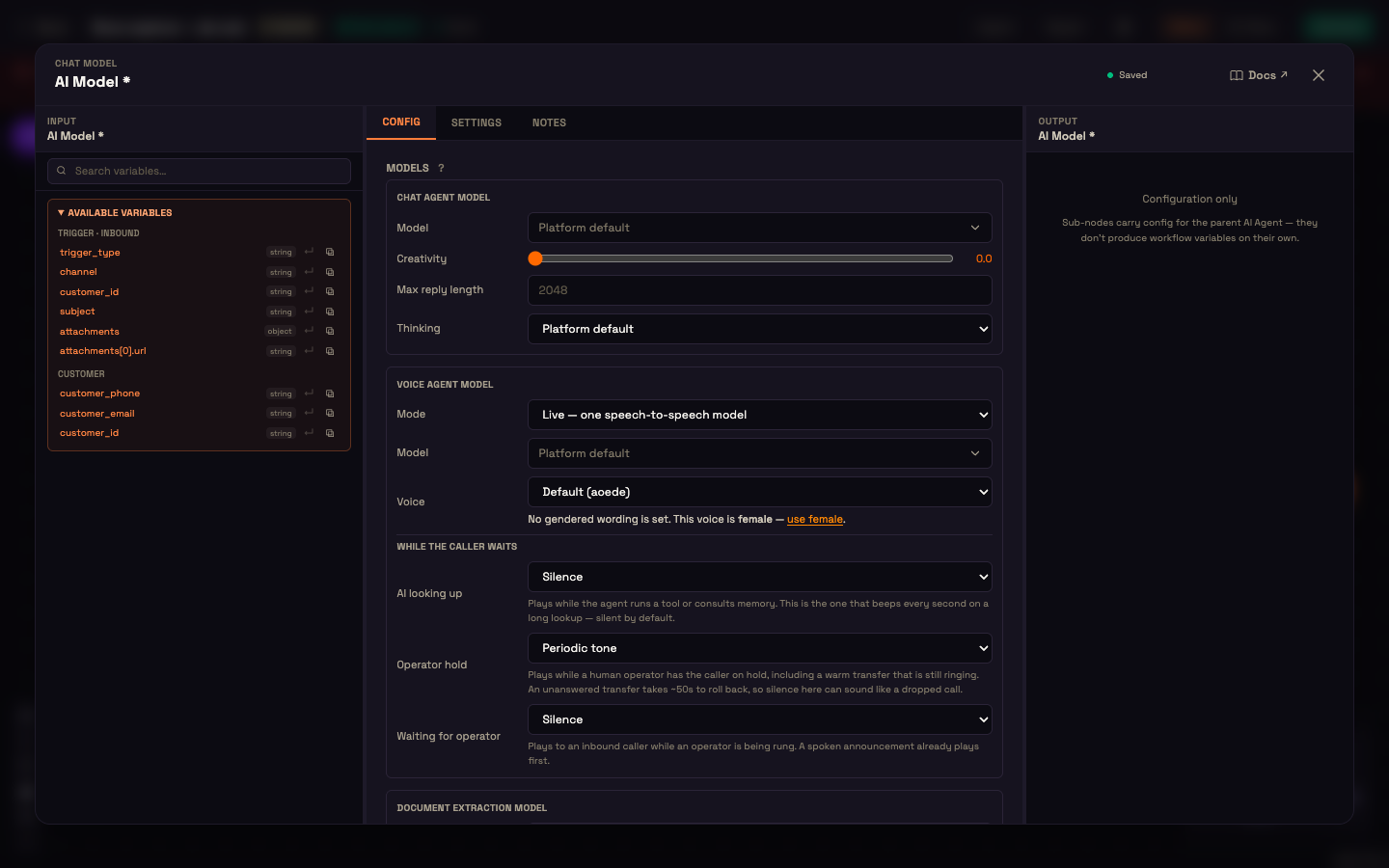
Chat agent model
| Setting | What it does | Default |
|---|---|---|
| Model | The model that writes text replies. Each option shows a short quality note, a speed note and a cost band ($ Cheapest, $$ Balanced, $$$ Premium) so you can trade quality against cost. | Platform default |
| Creativity | How varied replies are: 0 (focused and consistent) to 2 (varied), in steps of 0.1. | 0.0 |
| Max reply length | Upper limit on the length of each reply, from 64 to 8192 in steps of 64. | 2048 |
| Thinking | How much the model reasons before it answers. Only shown for models that support it, and only lists the levels that model accepts (for example Minimal / Low / Medium / High). | Platform default |
Each model only shows the settings it actually supports. For example, a model that has no reasoning control shows no Thinking row. The list of models comes from what's enabled for your workspace, so it can change over time as new models are added.
Voice agent model
The Mode setting decides how the voice agent is built:
| Mode | How it works | When to use it |
|---|---|---|
| Live — one speech-to-speech model (default) | One model hears the caller and speaks the reply directly. | The lowest latency and the most natural turn-taking. A good default. |
| Pipeline — speech-to-text → LLM → text-to-speech | Three separate parts: one transcribes the caller, a voice brain writes the reply, and a text-to-speech voice speaks it. | When you want a specialist voice or transcription, for example Indian-language speech from Sarvam, or a premium ElevenLabs voice. |
In Live mode you choose:
- Model: the speech-to-speech model, such as Gemini Live or OpenAI Realtime.
- Voice: a voice from that model's own catalogue. The list only offers voices the chosen model can speak, and each gendered voice is labelled, for example Aoede (female) or Charon (male).
In Pipeline mode you choose each part separately:
- Speech-to-text: for example Sarvam Saaras or ElevenLabs Scribe.
- Voice brain: the model that writes the spoken reply, with its own Creativity and Max reply length.
- Text-to-speech: for example Sarvam Bulbul or ElevenLabs, plus the Voice to speak with.
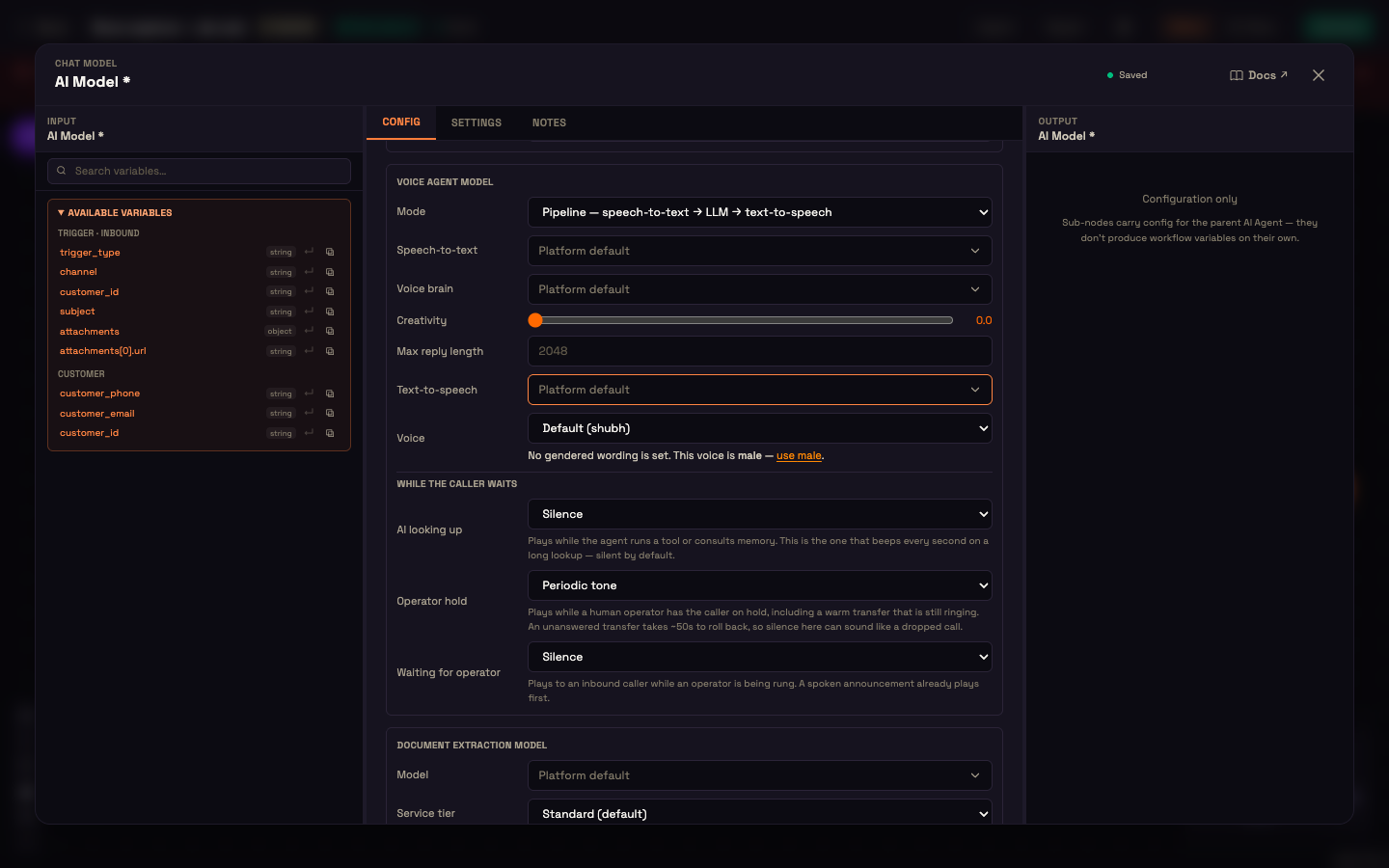
Changing a model re-checks that job's settings against the new model, so a setting the new model doesn't accept is cleared instead of being silently ignored.
Language comes from the Personality
The voice agent's language isn't set here. The Personality sub-node's Language, Region and Language behavior decide what language the agent listens and speaks in. With Auto-detect, a phone call can switch language mid-call when the caller does.
Voice and gender
The voice you pick also tells Perfox how the agent should refer to itself. That matters in languages where verbs and adjectives change with the speaker's gender, such as Hindi, Marathi and Punjabi. Under the voice picker you'll see one of these notes:
- "Agent refers to itself as female, from this voice." Gender is set and matches the voice. It also applies on WhatsApp, email and web chat, where there's no voice.
- "No gendered wording is set. This voice is female — use female." Nothing is stored yet. Click use female (or use male) to set it.
- "Agent refers to itself as male, which does not match this female voice." The two disagree. Pick the voice again to bring them back in line.
Picking a voice from the list sets the agent's gender to match it. Simply opening the panel never changes anything.
When the chosen voice doesn't imply a gender, for example a text-only agent or an OpenAI Realtime voice, a separate How the agent refers to itself section appears instead, with a Gender menu: Not set — no gendered wording, Female, Male, or Non-binary.
If you don't pick a voice, the agent uses the model's default voice. When the agent's gender is set, the default voice follows that gender, so moving an agent from Live to Pipeline won't change how it sounds.
While the caller waits
Three settings control what a phone or web-voice caller hears during a pause. Each one can be Silence or Periodic tone. A spoken option is shown as coming soon.
| Setting | When it plays | Default |
|---|---|---|
| AI looking up | While the agent runs a tool or looks something up. | Silence |
| Operator hold | While a human operator has the caller on hold, including a warm transfer that is still ringing. | Periodic tone |
| Waiting for operator | To an inbound caller while an operator is being rung (after the spoken announcement). | Silence |
A tone during Operator hold is recommended: an unanswered transfer can take around 50 seconds to roll back, and silence for that long can sound like a dropped call.
Document extraction and image models
- Document extraction model: used when the agent reads a document it was given (see Document actions). It also has a Service tier setting. Standard (default) runs immediately. flex is cheaper but best-effort, so an extraction can take minutes when demand is high.
- Image / vision model: used to understand images a customer sends.
Both start on Platform default.
Worked example: Acme Diagnostics' bilingual agent
Setup. Asha's agent answers web chat and inbound phone calls. Her Personality is set to Hindi, region India, with Auto-detect language behaviour.
Action. On the AI Model panel she leaves the Chat agent model on Platform default with Creativity 0.2. Under Voice agent model she switches Mode to Pipeline, keeps Sarvam for speech-to-text and text-to-speech, and picks the female voice Ritu. The note under the voice changes to "Agent refers to itself as female, from this voice." She sets Operator hold to Periodic tone.
Result. Priya calls in and speaks Hindi. The agent transcribes her with an Indian-language speech model, answers, and speaks back in Ritu's voice, using feminine first-person grammar. When Priya later messages on WhatsApp, the agent uses the same feminine grammar even though there's no voice.
What just happened. One card set the chat model, the voice pipeline, the voice, and the agent's gender. The gender followed the voice automatically and carried across every channel.
Field reference
| Section · field | Values | Default |
|---|---|---|
| Chat · Model | Models enabled for your workspace | Platform default |
| Chat · Creativity | 0–2, step 0.1 | 0.0 |
| Chat · Max reply length | 64–8192, step 64 | 2048 |
| Chat · Thinking | Levels the chosen model supports | Platform default |
| Voice · Mode | Live · Pipeline | Live |
| Voice (Live) · Model, Voice | Speech-to-speech models; that model's voices | Platform default; model's default voice |
| Voice (Pipeline) · Speech-to-text, Voice brain, Text-to-speech, Voice | Models for each part; the text-to-speech model's voices | Platform default |
| While the caller waits · AI looking up / Operator hold / Waiting for operator | Silence · Periodic tone | Silence / Periodic tone / Silence |
| How the agent refers to itself · Gender | Not set · Female · Male · Non-binary | Not set (or taken from the voice) |
| Document extraction · Model, Service tier | Models; Standard · flex | Platform default; Standard |
| Image / vision · Model | Models | Platform default |
The panel also has Settings (node label and description) and Notes tabs, like every node.
See also
- AI Agent Node: the agent this card belongs to.
- Personality: the agent's identity, system prompt, greeting, and language.
- Voice Providers: more on Live and Pipeline voice.
- Operator (Copilot): where operator holds and ringing come from.