Action
Asha is building a front-line support agent for Acme Support. She already has a separate "Refund Request" workflow that looks up an order, validates eligibility, and issues credits. Rather than rebuild that logic inside the support agent, she wires it in as an Action — and from that moment the agent can call the entire refund flow by name, with one tool call.
If you want to compose agents that delegate to each other, the Action sub-node is how you do it. By the end of this page you'll know how to add one, configure its inputs, and trace what happened when it ran.
If you're new to the canvas or to how sub-nodes connect, read Canvas Basics and AI Agent Node first — this page assumes that foundation.
What an Action does
An Action is a cluster sub-node that hangs off an AI Agent and makes another workflow in your workspace look, to that agent, like one more callable tool. It connects on the AI Agent's Action port — the same port used by the action tools (email, database query, and so on) — so the parent agent sees the sub-workflow in its tool list alongside its actions and its Integration tools.
When the parent agent decides to call it, Perfox presents the sub-workflow as a named tool with:
- a tool name that you set,
- a description that tells the agent when to reach for it, and
- an input made up of exactly the fields you choose to let the agent fill in.
That is how one agent delegates an entire sub-flow — a "refund" workflow, an "order lookup" workflow — as a single tool call.
To add one: click the + on the AI Agent's Action port and pick Action ("Let the agent run another agent as an action") from the top of the list. On the canvas the card shows the tool name and the mode, for example lookup_faq · sync (or pick a workflow · sync until you choose one).
A few things to know up front:
- Where it lives: the Action port — shared with the action tools.
- How many: you can add several Actions to one agent. Unlike single-slot sub-nodes (Personality, AI Model, Operator), the Action port accepts multiple Actions.
- Chainable: an Action can also feed into another tool node, forming an inline tool chain.
Wiring it up
The + handle on every node is the connection point: click it to open the picker, or drag it to another node. Dragging onto empty canvas adds and connects a new node in one move. The drag line turns green over a valid target and red over an invalid one.
Before any connection is drawn, two checks run:
- Type validity — the Action port only accepts node types that are valid tool sources. An Action qualifies; flow nodes (Trigger, Condition (IF/ELSE), Human Handoff, and so on) do not.
- Slot limits — single-slot sub-nodes (Personality, AI Model, Operator) reject a second connection. Action has no slot limit, so a second one is always accepted.
Every way of creating a connection — drag, paste, import — runs both checks, so the canvas won't let you build something that activating would later reject.
Configuration panel
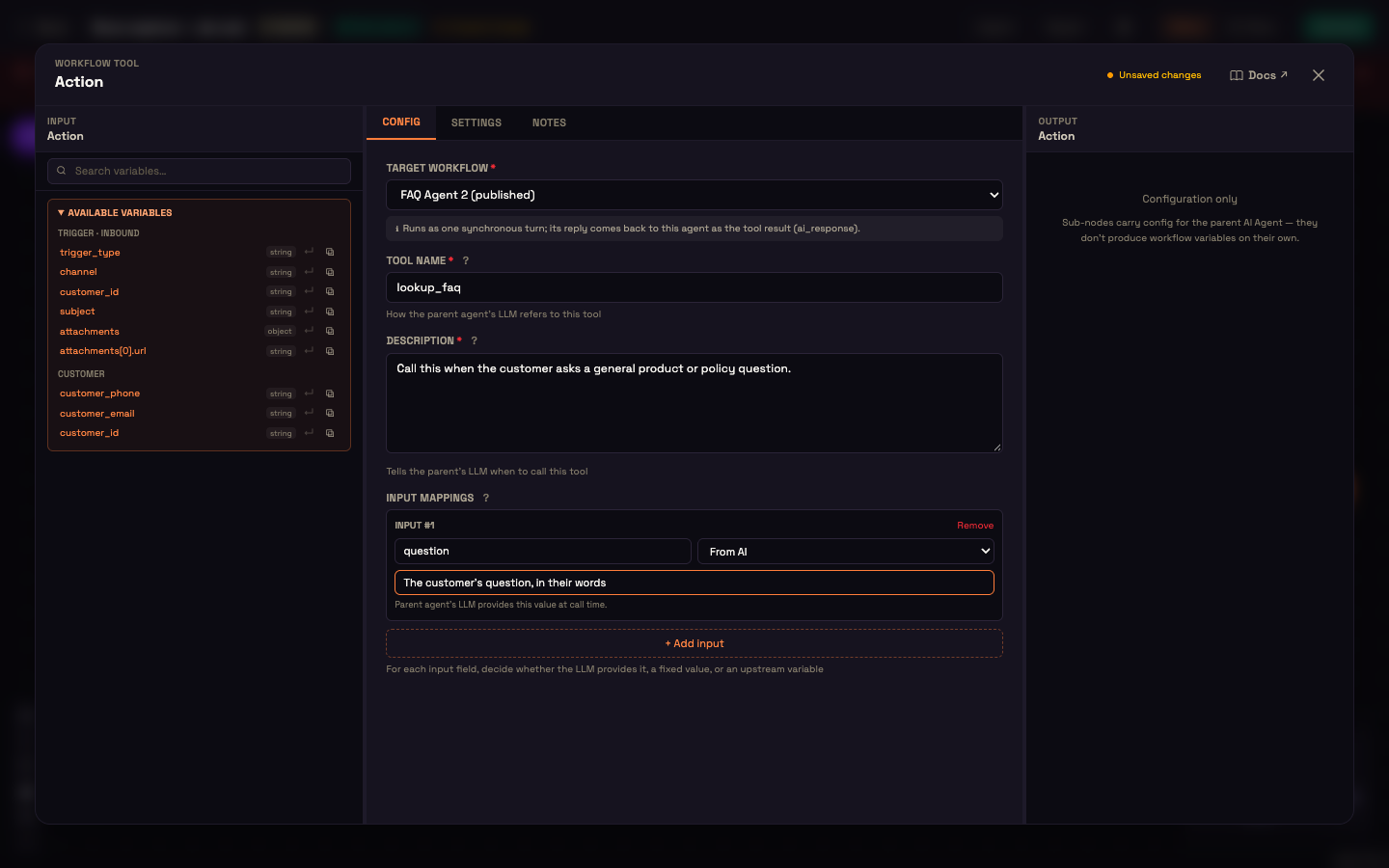
The panel has four fields.
1. Target Workflow — required
A workflow-picker dropdown that lists every workflow in your workspace (each labelled name (status)), and excludes the workflow you're currently editing — a workflow can't call itself. When no other workflows exist, the picker shows "Create another workflow to expose it as a tool."
After you pick a target, the picker checks its shape and shows an inline note, because an Action always runs its target as one synchronous turn:
| Target shape | Inline note |
|---|---|
| Target has no AI Agent | Amber warning — it won't produce a reply when called as a tool. |
| Target has a Human Handoff step | Amber warning — run in one synchronous turn, the human-handoff step won't pause as expected. |
| Otherwise | Info — "Runs as one synchronous turn; its reply comes back to this agent as the tool result." |
2. Tool Name — required, max 64 chars
How the parent agent refers to this tool in its list.
3. Description — required, max 500 chars
The text that tells the parent agent when to call this tool. Perfox automatically appends a note that this tool calls the chosen sub-workflow, so you only need to describe the when.
4. Input Mappings — defaults to empty
The per-field binding table that decides where each input field on the target workflow gets its value. See Input mappings and the input-mapper widget below.
Hidden advanced settings
Two settings exist but are hidden in the panel because their behaviour isn't live yet:
| Setting | Values | Default | What it will do | Why hidden |
|---|---|---|---|---|
| Execution mode | sync | async | sync | Sync — the parent waits for the child inline; the result comes back in the same turn. Async (roadmap) — the parent gets a job reference; the child runs in the background, intended for multi-session or human-in-the-loop flows. | The runtime is sync-only today; the async control stays hidden until it lands. |
| Max recursion depth | positive int, max 10 | 3 | Caps how deep workflows can call one another, preventing runaway recursion. | Only a self-call guard is enforced today; deeper depth tracking isn't wired yet. |
Input mappings
Input Mappings define, per field on the target workflow's input, where that field's value comes from when the tool is called. Each mapping pairs a field with one of three sources:
| Source | Visible to the agent? | Behaviour |
|---|---|---|
| From AI | Yes | The parent agent fills in the value at call time. Only these fields appear in the tool's input schema, each described by the help text you write. |
| Static value | No | A fixed literal passed on every call — the agent never sees it. |
| From variable | No | An expression resolved from the parent's live context — for example {{ ctx.customer.id }} — filled in silently. |
At call time Perfox merges all three sources into a single input payload for the sub-workflow. Only From AI fields are exposed to the agent; the rest are filled in behind the scenes.
The input-mapper widget
Input Mappings render as a repeatable card list. Each row ("Input #N") has:
- a Field name text box (for example
order_id), and - a source Select with three options — From AI, Static value, From variable.
The third control on each row changes with the chosen source:
- From AI → a free-text "Describe to the LLM what this input is" box.
- Static value → a "Fixed value" text box. New mappings default to From AI.
- From variable → a variable-text input with a variable picker and a
{{ ctx.customer.id }}placeholder.
Switching the source clears the now-irrelevant fields so the saved mapping stays clean. Each card has a Remove link; a "+ Add input" button appends another row.
Worked example — refund tool at Acme Support
Setup: Asha has a published "Refund Request" workflow. It has one AI Agent node that looks up the order, checks eligibility, and responds. She opens the front-line support agent, adds an Action sub-node, and wires it to the Action port.
She fills in:
- Target Workflow: "Refund Request"
- Tool Name:
request_refund - Description: "Call this when the customer asks for a refund or credit on an order."
- Input Mappings: one row — field
order_id, source From AI, description "The order number the customer mentioned."
Action: Priya, a customer, messages Acme Support: "I never got my last order — order #A7821 — can I get a refund?" The front-line agent recognises the intent, calls request_refund with order_id = "A7821", and the Refund Request workflow runs end-to-end inside that one tool call.
Result: The sub-workflow's AI Agent looks up the order, confirms eligibility, and returns "Refund of ₹450 has been issued to your account." That reply comes back to the front-line agent as the tool result, and the agent passes it to Priya — all in one turn.
What just happened: The front-line agent never knew the details of order lookup or refund logic. It just called a named tool. The Refund Request workflow handled everything and handed back a plain reply. Asha can update the refund workflow any time without touching the front-line agent.
Runtime — synchronous sub-workflow call
When the parent agent calls the tool, Perfox runs the target workflow synchronously and feeds the result back into the same turn:
- Self-call guard — rejects a call where the target is the parent workflow itself.
- Load and validate — loads and validates the target workflow.
- Build payload — resolves the input mappings (static, From AI, and variable) into one input object.
- Force-sync run — runs the target workflow and forces it to complete in a single run. A target AI Agent that would otherwise pause is forced to resolve inline.
- Return the result — reads back the finished run and returns its status, exit reason, and output variables, along with a reference to the child run.
Outcome handling:
- A completed child returns its variables and exit reason to the parent agent as the tool result. For a workflow with an AI Agent, that agent's reply is the tool result.
- A failed or paused child (paused isn't supported in sync mode) returns an error message to the parent agent.
From variable mappings resolve against the parent's live context at call time.
The parent agent records the call in its tool-debug panel under "Workflow Tools" — with input arguments, output, latency, and success status.
Observability — decision-path logging
A sub-workflow called as an Action is fully traceable. Every node inside the child records its decision, and the Runs viewer renders each Condition (IF/ELSE) choice as a → <branch> pill. So even a sub-workflow that ran as a single tool call is traceable branch by branch.
Inline tool chains
Because an Action is a tool node, it can also take part in an inline tool chain — a flow connection from an Action (or a typed action node) into another tool node forms a chain the parent agent sees as a single tool.
- Only tool nodes (action nodes and Action) may be linked in a chain; the validator rejects any other node type because it would break chain semantics.
- When the entry step is an Action, the parent's tool input is built from that Action's input mappings rather than the generic input shape used for action-node entries.
- Each chain step runs in order: a workflow step runs the sub-workflow, an action step runs its action, and each merges its result into the shared chain state.
What you can do with it
- Delegate a whole sub-agent as a tool — expose a "refund" or "order lookup" workflow to a front-line agent and let the agent call it by name.
- Compose orchestrators — a top-level agent can carry several Actions, each a specialised sub-flow.
- Bind inputs three ways — let the agent decide some fields (From AI), pin others to fixed literals (Static value), or pull them silently from context (From variable).
- Chain a sub-workflow with typed actions — put an Action at the head of an inline tool chain so its result flows into a follow-on action node, all presented to the agent as one tool.
Where to go next
You can now wire an existing workflow into any agent as a callable tool, configure which inputs the agent controls, and trace the full decision path in Runs.
- AI Agent Node — the root this sub-node hangs off, and the full Tool-port map.
- Canvas Basics — node-type catalog, drag-to-connect, and connection rules; read this if the wiring steps above weren't familiar.
- Runs & Executions — where sub-workflow tool calls and their decision paths are traced; useful right after you test the setup.
- MCP Server — the other way to give an agent callable tools; compare approaches when deciding what to expose as an Action vs an MCP tool.