Connectors (Drive, S3, Web…)
Asha, an admin at Acme Diagnostics, uploads a batch of PDFs one afternoon — and by morning the team's shared folder already has a dozen new files her agent knows nothing about. A connector fixes this: it keeps a Knowledge Base folder in step with a live source, so nobody has to remember to upload again.
This page covers each connector type, the setup wizard, sync schedules and live updates, searching a source in place, and previewing a website crawl before anything is indexed.
How a connector works
An upload is a one-time copy. A connector keeps checking the source on a schedule and applies only what changed: new and edited files are indexed, renamed or moved folders are updated, and deleted files are removed from search.
There are four types:
| Connector | Syncs | Connection it uses |
|---|---|---|
| Amazon S3 | An S3 bucket — or any S3-compatible storage — optionally limited to a prefix | An Amazon S3 connection |
| Google Drive | A Google Drive folder | A Google Drive connection |
| OneDrive | OneDrive, SharePoint and Teams folders | An Office 365 connection |
| Website | Pages (and, optionally, linked files) crawled from a public address | None |
Connections are your own accounts. Create one first under Admin → Connections; the wizard only offers connections of the matching type, and tells you if you have none yet.
Add a connector
In Connect → Knowledge Base, click Add Source at the bottom of the Sources pane. The wizard has five steps.
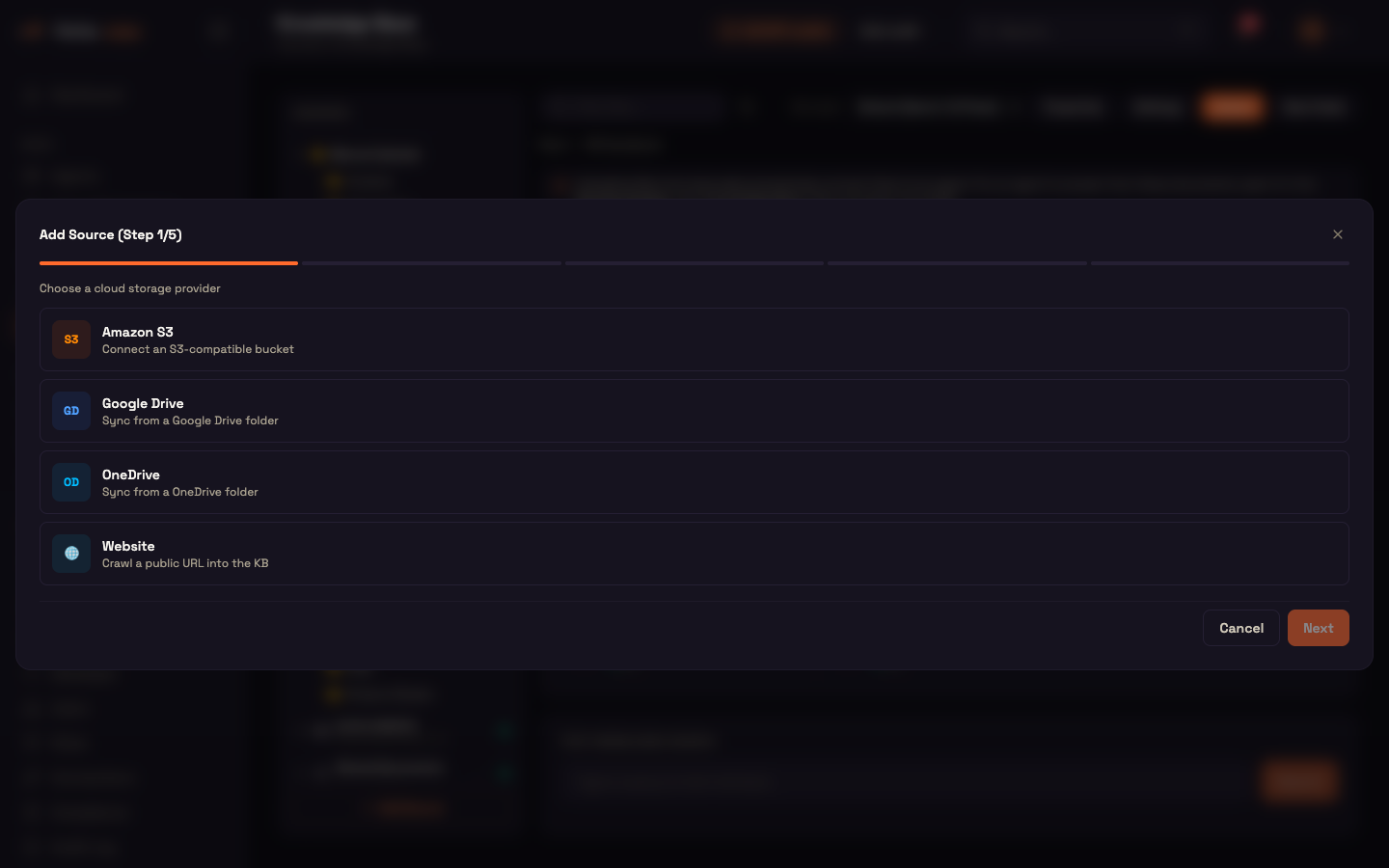
- Choose a provider — Amazon S3, Google Drive, OneDrive or Website.
- Source Name and Credential — name the connector (the name becomes its folder) and pick the connection to use. Website needs no credential; public pages only — pages behind a login aren't supported.
- Configure the source — the fields for that type, below.
- Sync schedule — how often to check, the indexing speed, and (S3, Google Drive, OneDrive) live updates. Skipped when a Drive or OneDrive connector is set to search live in place.
- Review — check the summary and click Create Source (Create & Discover for a website).
The new connector appears in the Sources tree as its own group and in the Connected Sources strip.
Amazon S3
| Field | Required | Notes |
|---|---|---|
| Bucket Name | Yes | The bucket to sync. |
| Prefix Path | No | A folder inside the bucket, such as documents/. Empty syncs the whole bucket. |
| Region | — | The bucket's region. Defaults to ap-south-1. |
| Endpoint (optional) | No | For S3-compatible storage from other providers. Leave empty for Amazon S3. |
The folder structure under the prefix is mirrored into the connector's folder.
Google Drive
| Field | Notes |
|---|---|
| Folder ID | The ID from the Drive folder's address — the part after /folders/. |
| How should the agent answer over these files? | Download & index (default) or Use Google Drive native search — see Index or search in place. |
OneDrive
What you see depends on how the Office 365 connection was set up:
- App-only connection — first choose a user (by email). The wizard then lists that user's OneDrive plus the SharePoint, Teams and group libraries it can reach. Folders shared directly with the user ("Shared with me") are only available with a delegated connection.
- Delegated connection ("connect as a user") — the wizard browses everything the signed-in user can access: Personal, SharePoint sites, Teams / Groups and Shared with me.
Then:
- Pick a source on the left and browse its folders on the right.
- Click + Add next to a folder, + Add this folder for the one you're in, or + Everything this user can access.
- Your picks appear under Selected folders. include subfolders (on by default) applies to all of them.
- Choose How should the agent answer over these files? — Download & index (default) or Use Microsoft 365 native search — see Index or search in place.
Website
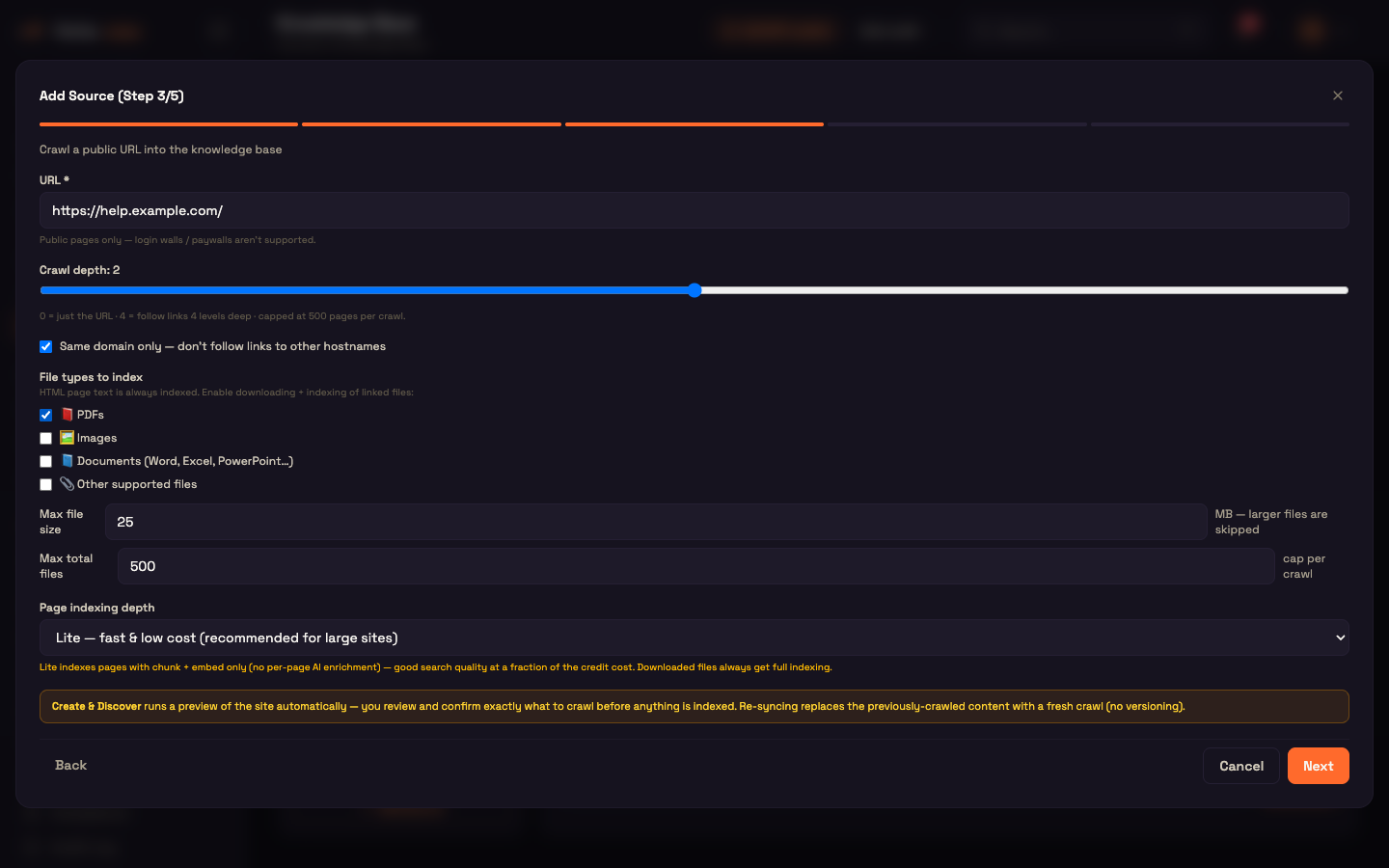
| Field | Default | Notes |
|---|---|---|
| URL | — | The page to start from. Public pages only. |
| Crawl depth | 2 | 0 = just this page; up to 4 = follow links four levels deep. A crawl stops at 500 pages. |
| Same domain only | On | Don't follow links to other hostnames. |
| File types to index | Pages only | Page text is always indexed. Tick PDFs, Images, Documents (Word, Excel, PowerPoint…) or Other supported files to also download and index linked files. |
| Max file size | 25 MB | Larger files are skipped (1–200 MB). |
| Max total files | 500 | Cap per crawl (1–5,000). |
| Page indexing depth | Lite | Lite — fast and low cost; pages are indexed for search without an extra AI pass (recommended for large sites). Full — richer search, but an AI pass runs on every page, which costs noticeably more on large crawls. Downloaded files are always fully indexed. |
Re-syncing a website replaces the previously crawled content with a fresh crawl.
Preview a website before it's indexed
Create & Discover doesn't index anything straight away. It first maps the site, then lets you choose:
- Discover — the crawler follows links and builds a tree of what it found. The connector shows Discovering…, then Review.
- Review — open the connector (Review on its card). You see the pages and files it found, with counts per type and the estimated download size. Untick anything you don't want; files the Knowledge Base can't read are greyed out. If links point to several domains, you can choose which ones to download from. A note appears if the crawl hit the page cap and the preview is partial — lower the depth for full coverage.
- Crawl — click Crawl N resources to download and index your selection, or Discard to throw the preview away. Progress shows as "Indexing N of M resources…"; you can close the window and check back.
Credits are checked before the crawl starts. On later scheduled syncs, new pages of the types you enabled are included automatically.
Sync schedule and live updates
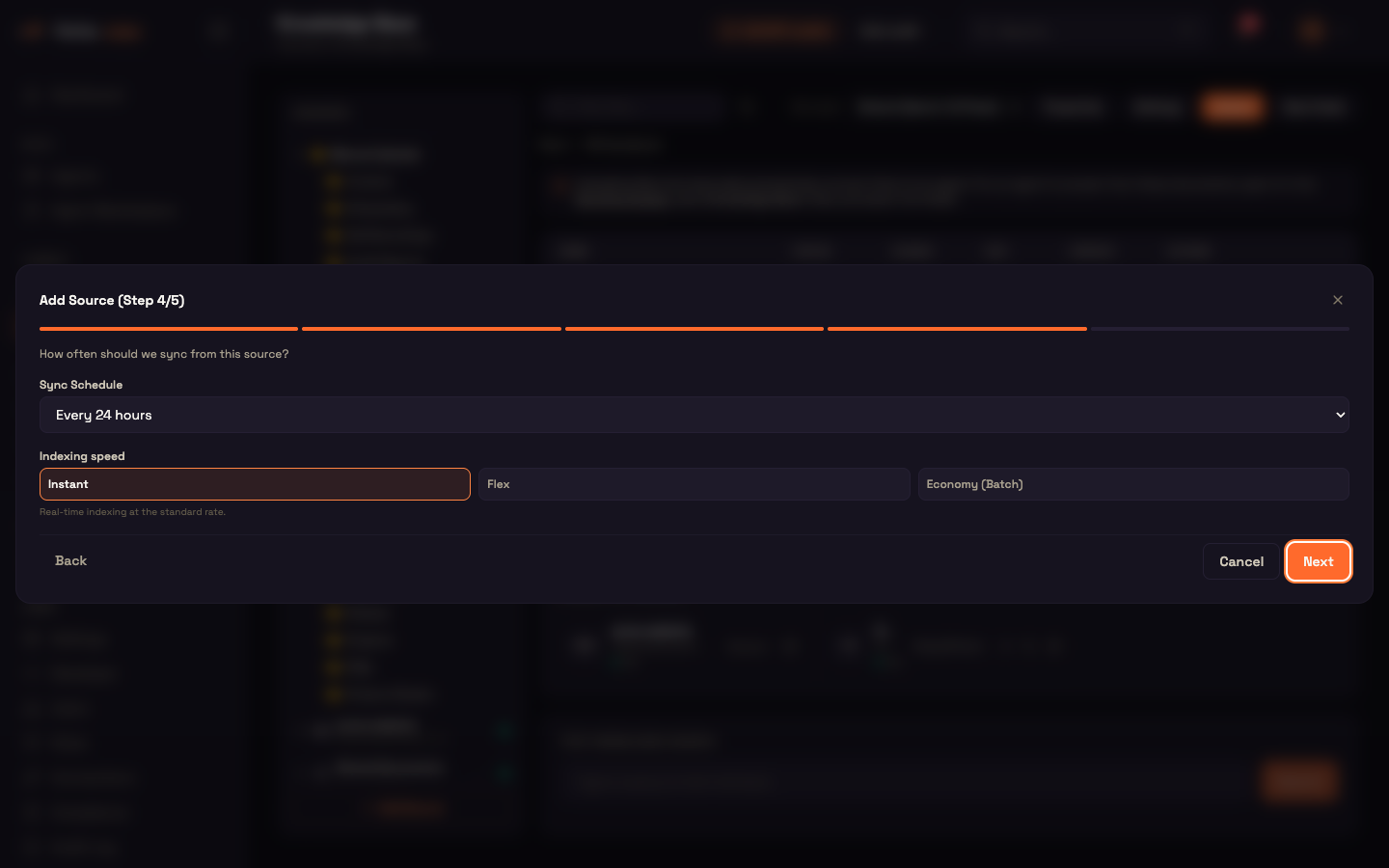
| Setting | Options | Default |
|---|---|---|
| Sync Schedule | Every 5 minutes, 15 minutes, 1 hour, 6 hours, 12 hours, 24 hours, or Custom cron (a standard five-field schedule such as 0 */3 * * *) | Every 24 hours |
| Live updates (near-instant) | On / off — S3, Google Drive and OneDrive only | Off |
| Indexing speed | Instant, Flex, Economy (Batch) | Instant |
Live updates pick up a change in the source within seconds, instead of waiting for the next scheduled sync; the schedule still runs as a safety net. For OneDrive it covers every folder and library you selected. S3-compatible storage from other providers usually can't send change notifications, so those connectors rely on the schedule.
Indexing speed works like Processing on upload: Instant is real-time at the standard rate, Flex is cheaper and finishes within minutes, and Economy (Batch) is about 50% cheaper and finishes within 24 hours — a good fit for a large first sync.
Managing a connector
Each connector has a card under Connected Sources:
- its status — Idle, Syncing…, Discovering…, Review or an error;
- a schedule menu, where you can change the frequency or choose Manual only;
- a sync button to sync now (Discover / Review / View for a website);
- a delete button, which removes the connector and its synced folder.
Index or search in place
Google Drive and OneDrive connectors ask How should the agent answer over these files?
| Option | What happens | Trade-off |
|---|---|---|
| Download & index (default) | Files are downloaded (only changes after the first sync) and indexed in your Knowledge Base. | Best answer quality and works on every channel; each document costs credits to index, and a copy is stored. |
| Use Google Drive native search | Nothing is downloaded. The agent searches your Drive when a question comes in. | No indexing cost and files stay in Google Workspace. Keyword search only, so it finds less than indexing. The agent also needs the Google Drive integration connected. |
| Use Microsoft 365 native search | Nothing is downloaded. The connector's folders are searched live in Microsoft 365 when a question comes in. | No indexing cost and files never leave Microsoft 365. |
A searched-in-place connector's folder stays empty in the Knowledge Base and says "Federated source — searched live in …". It has no schedule or indexing step, and a Federated label marks its card. Test Knowledge Search and your agents search it live, exactly the same way. Switching a connector to search in place removes any copy that was indexed before.
Keeping folders in step with the source
Every sync — scheduled or live — keeps the connector's folder faithful to the source:
- Renamed or moved folders are renamed or moved in the Knowledge Base, not duplicated.
- Deleted files are removed from search and from storage, so the agent can no longer answer from them.
- Changed files are re-indexed.
- Deleted folders are removed along with their files.
For S3, which has no real folders, a folder counts as deleted once its prefix is empty.
Worked example — syncing a Drive folder
Setup. Asha adds a Google Drive connector for Acme Diagnostics' shared Lab Reports folder: she pastes its folder ID, keeps Download & index, chooses Every 6 hours, and turns on Live updates.
Action. A colleague drops a new report PDF into Lab Reports in Google Drive.
Result. Within seconds the connector syncs just that file and indexes it. When a customer, Priya, asks the support agent about it a few minutes later, the answer is already there.
What just happened. The live update only told Perfox that something changed; the connector then ran the same change-only sync the schedule would have run. The six-hourly sync stays in place as a safety net.
Reference
| Setting | Values | Default | Where |
|---|---|---|---|
| Provider | Amazon S3, Google Drive, OneDrive, Website | — | Step 1 |
| Credential | A connection of the matching type (not for Website) | — | Step 2 |
| S3 region | Any region | ap-south-1 | Step 3 |
| Drive / OneDrive answering | Download & index, or native search | Download & index | Step 3 |
| OneDrive include subfolders | On / off | On | Step 3 |
| Website crawl depth | 0–4 | 2 | Step 3 |
| Website same domain only | On / off | On | Step 3 |
| Website file types | Pages always; PDFs, Images, Documents, Other | Pages only | Step 3 |
| Website max file size | 1–200 MB | 25 MB | Step 3 |
| Website max total files | 1–5,000 | 500 | Step 3 |
| Website page indexing depth | Lite, Full | Lite | Step 3 |
| Sync schedule | 5 min – 24 h, or custom cron | Every 24 hours | Step 4 / card |
| Live updates | On / off (not Website) | Off | Step 4 |
| Indexing speed | Instant, Flex, Economy (Batch) | Instant | Step 4 |
What's next
- Knowledge Base Overview — the page, files table and folder settings.
- Uploading & Formats — which file types can be read.
- Retrieval & RAG — how indexed and live-searched folders are searched.
- Versioning & Folders — folder summaries and versions.