Knowledge Base overview
When a customer asks your agent "what's your return policy?" or "can you send me the product brochure?", the answer has to come from somewhere. That somewhere is the Knowledge Base: the private search index your agents draw on to answer from your own documents.
This page is for anyone who loads content and keeps it current. By the end you'll know how to add files, connect live sources, choose how a folder is indexed, check what the agent will find, and wire a folder to an agent.
What the Knowledge Base is
Open it from the sidebar: Connect → Knowledge Base.
The Knowledge Base is a file manager over your private search index. Files you add are split into passages and indexed for search; the original files are kept safely in storage. It is a search index over your documents, not your system of record — see Knowledge Base & RAG.
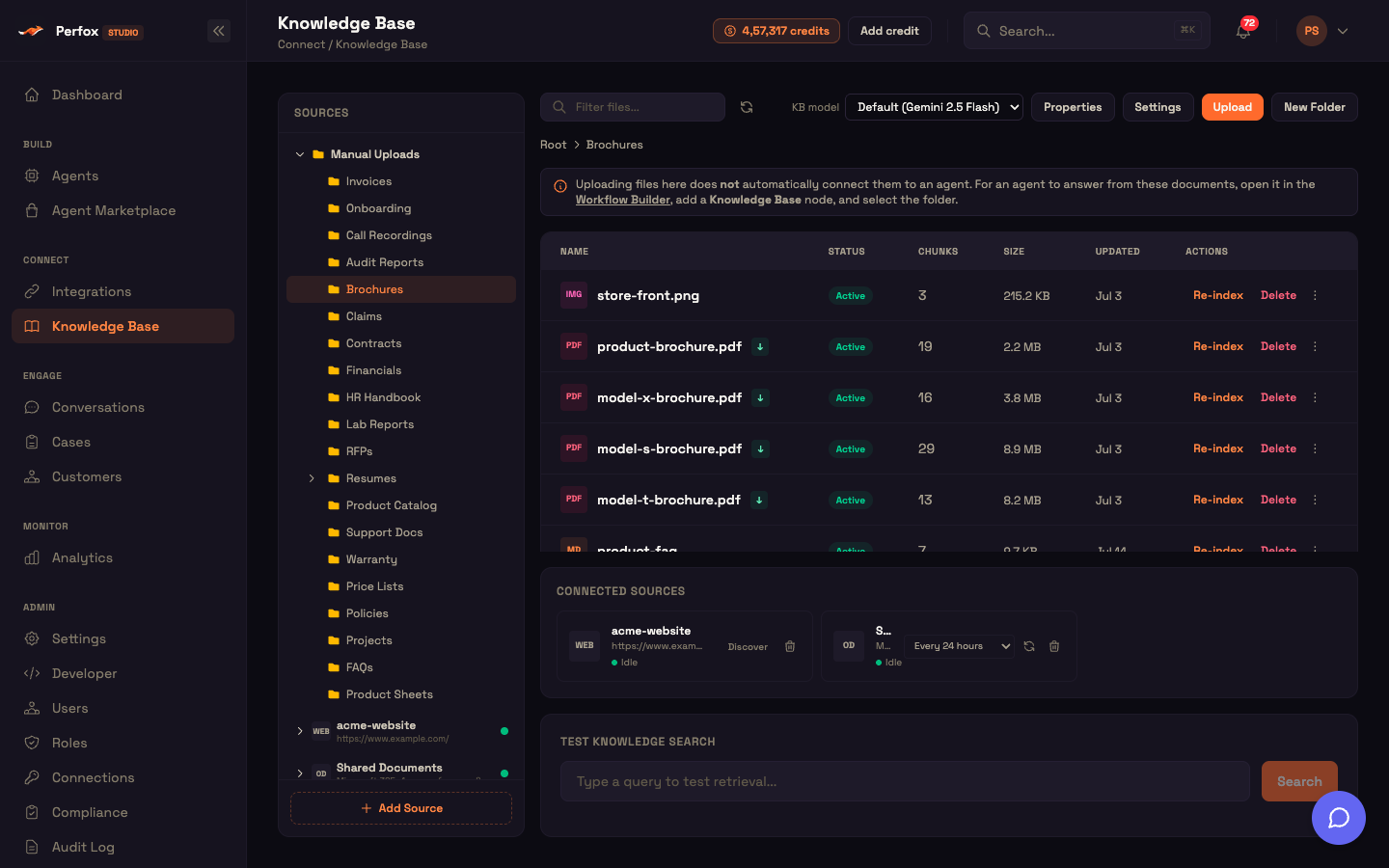
The page has four parts:
- a Sources tree on the left: your folders, grouped under Manual Uploads, plus one group per connected source;
- a files table on the right for the selected folder, with a toolbar above it;
- a Connected Sources strip listing each connector, with its schedule and sync controls;
- a Test Knowledge Search box at the bottom, to check what a question retrieves.
Content arrives four ways: the Upload window (files, a whole folder, or drag-and-drop), a connector that keeps a folder in sync, the public REST API, and files your visitors attach in chat.
Uploading does not connect a file to an agent
The page says so in a banner above the table: adding a file makes it searchable, but no agent uses it until you attach its folder to the agent's Knowledge sub-node. See Knowledge Base in the agent.
The toolbar
Above the files table:
| Control | What it does |
|---|---|
| Filter files… | Filters the current folder by name. It searches the whole folder, not only the rows already loaded. |
| Refresh (circular arrow) | Reloads folders, files and connectors quietly, without a flicker. |
| KB model | The default AI model used to read documents and images, and to transcribe audio, when files are indexed. Default uses the recommended model; pick another to change it for every future upload. |
| Properties | A read-only summary of the selected folder (or of the whole Knowledge Base at Root). See Versioning & Folders. |
| Settings | The folder's settings: chat downloads, document versioning and indexing mode. See Folder settings. |
| Upload | Opens the Upload window for the selected folder. |
| New Folder | Creates a folder inside the selected one. |
Upload and New Folder are hidden inside a connector's folder, because a connector owns that content.
The Sources tree
The left pane, Sources, is how you move around:
- Nested folders. Folders nest inside one another. A chevron expands a folder with sub-folders.
- Manual Uploads holds the folders you create and upload into yourself. Click it (or Root in the breadcrumb) to see the top level.
- One group per connector. Each shows the source type (for example WEB or OD for OneDrive), the connection name, the exact location it covers (a website address, or "Microsoft 365 · 1 source"), and a status dot. While it works, the dot becomes Syncing…, or Discovering… for a website.
- Your place is remembered. Expanded folders stay expanded after a reload, and the selected folder is part of the page address, so you can share a link to it and use Back and Forward.
- Add Source at the bottom opens the connector wizard.
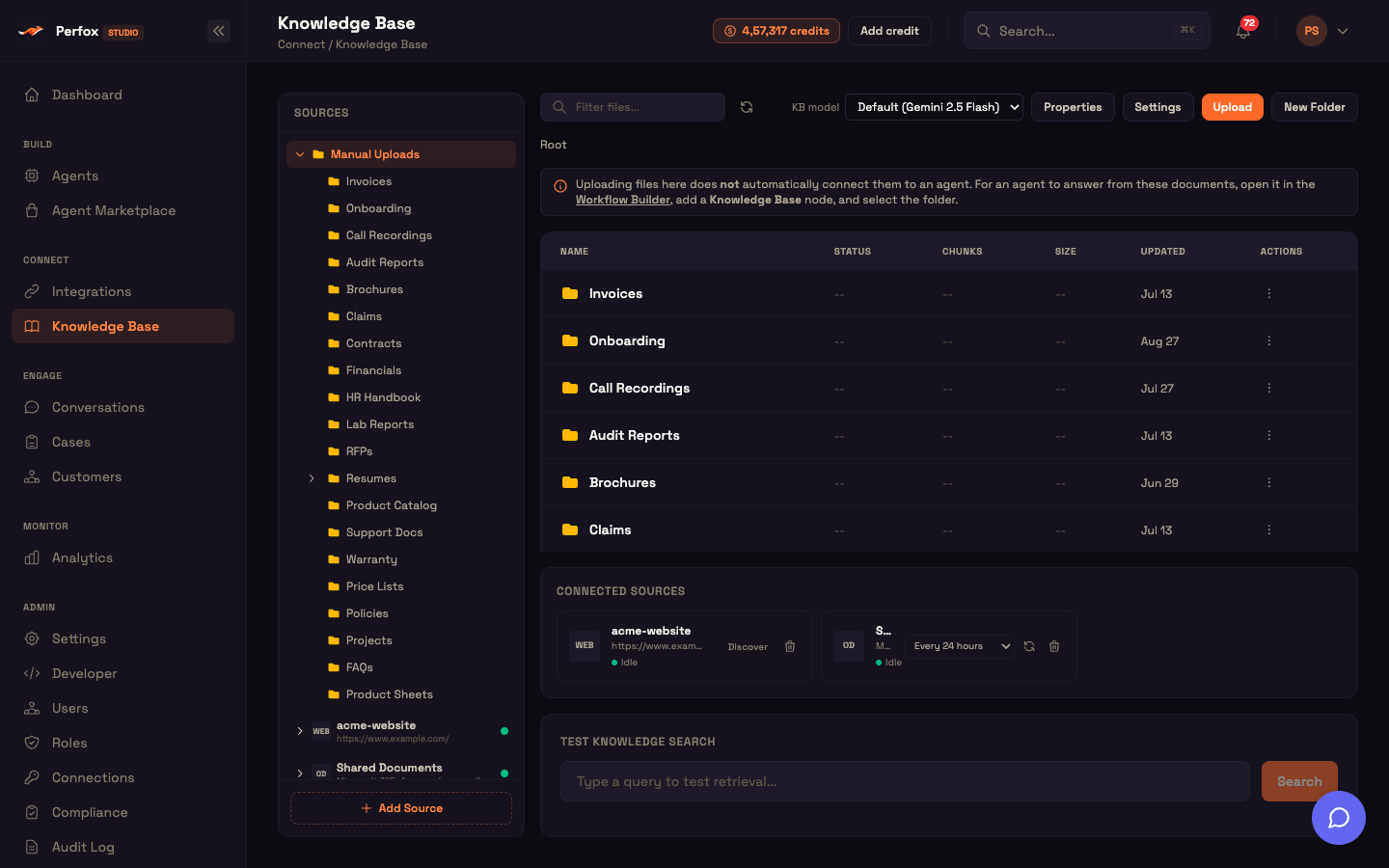
The files table
The table lists the selected folder's contents. Sub-folders come first (click one to open it), then files.
| Column | What it shows |
|---|---|
| Name | A file-type chip (PDF, MD, IMG…) and the file name. A green ↓ badge means the agent may hand this file to customers in chat. A v2 (or higher) badge marks a newer version of a versioned document. |
| Status | Where the file is in indexing — see File status. |
| Chunks | How many searchable passages the file became. |
| Size | File size. |
| Updated | When the file last changed. |
| Actions | Re-index, Delete, and a ⋮ menu. |
Click a column heading to sort by it; sorting covers the whole folder, not just the loaded rows. The table shows 50 files at a time with Load more at the bottom ("Showing N of M files").
An empty folder tells you what to do next: upload files or create sub-folders, trigger a sync for a connector folder, or — for a live-searched connector — that the files stay in the source.
Row actions
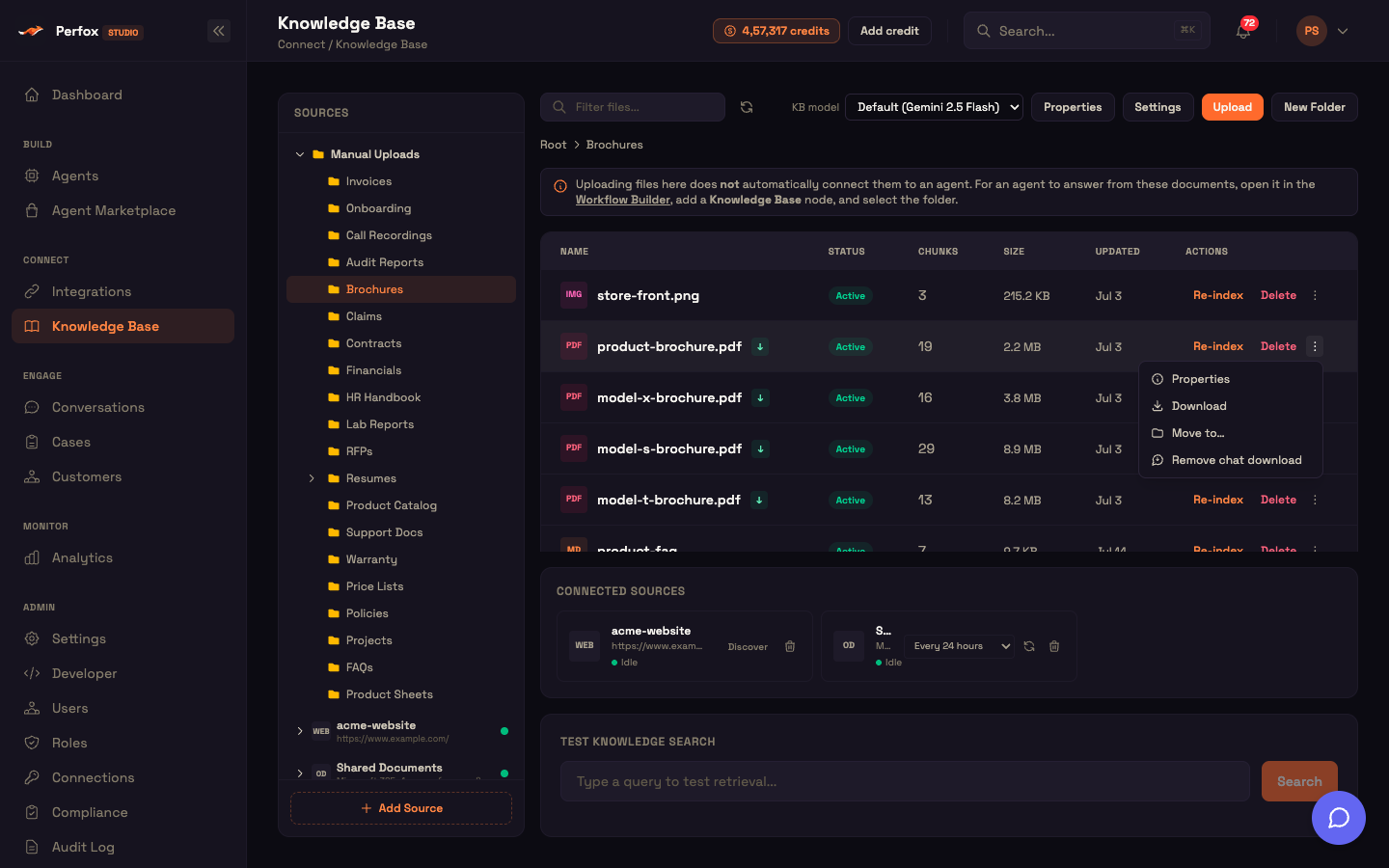
- Re-index re-reads and re-indexes the file (below).
- Delete removes the file.
- ⋮ → Properties opens the file's details (File Properties).
- ⋮ → Download opens the original file through a secure, short-lived link.
- ⋮ → Move to… moves the file to another folder.
- ⋮ → Allow chat download / Remove chat download lets the agent send (or stop sending) this file to customers (Downloadable in chat).
- ⋮ → Version history appears on versioned files and lists every version, with a download for each.
Folder rows have their own ⋮ menu: Properties, Rename, Move to…, Settings and Delete (which deletes the folder and everything in it).
File status
| Status | Badge | Meaning |
|---|---|---|
| Pending | yellow | Uploaded and queued for indexing. |
| Processing | blue | Being read, split into passages and indexed. |
| Active | green | Indexed and searchable. |
| Error | red | Indexing failed. The reason is shown on the row, with the full text on hover. |
Indexing runs in the background and usually takes 5–30 seconds for an ordinary document. While any file is pending or processing, the page checks again every few seconds and updates the badge on its own — no reload needed. Use Re-index to retry a file that failed.
File Properties
⋮ → Properties opens a read-only view of one file:
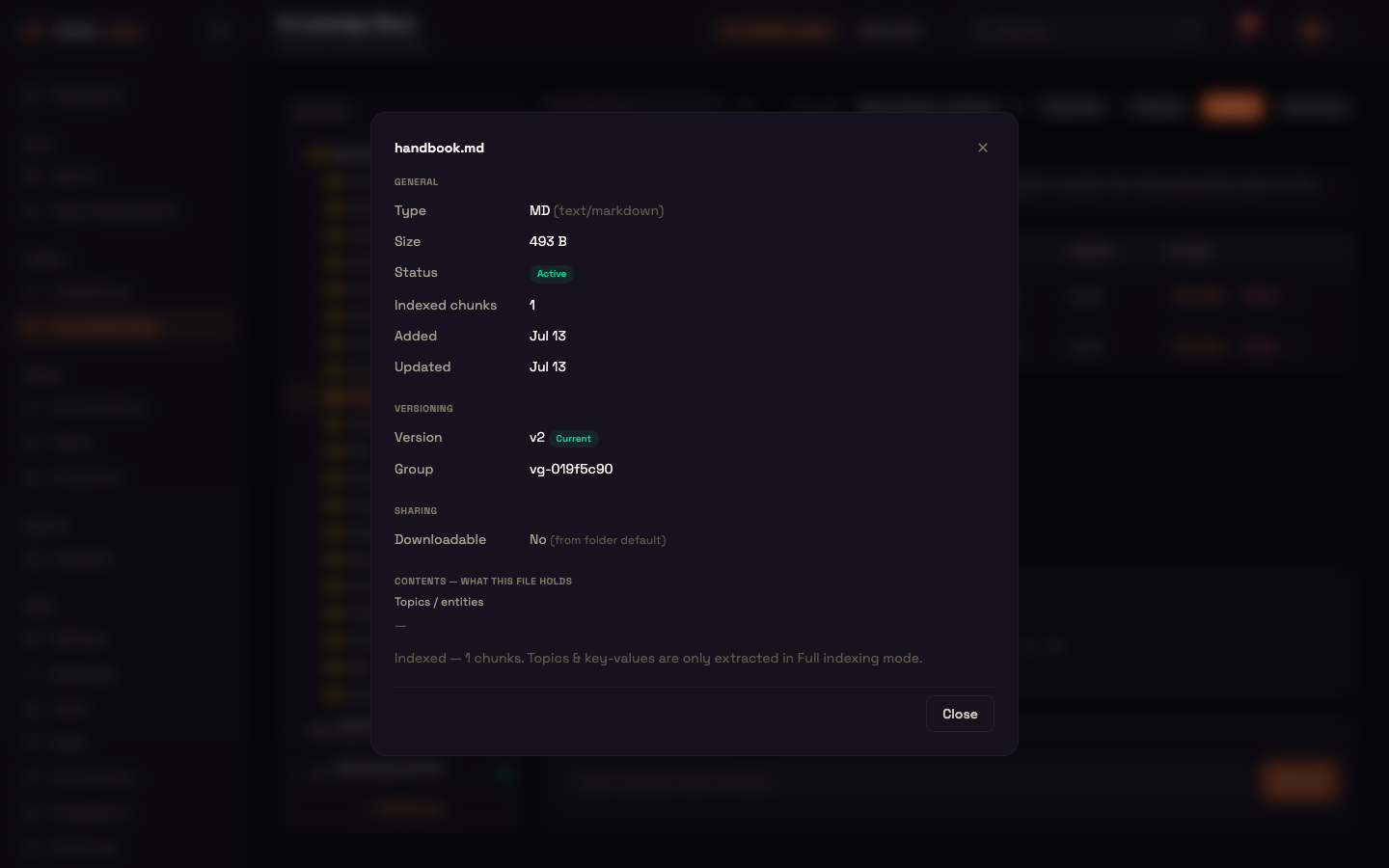
- General — type, size, status, number of indexed passages, and when it was added and updated.
- Versioning — the version number, a Current or Superseded badge, and the version group (versioned files only).
- Sharing — whether the file can be downloaded in chat, and whether that comes from the file itself or from the folder default.
- Tags — any tags attached to the file, for example to link a customer's own document to a record in your system.
- Contents — what this file holds — the topics, names and key values found in the file. These are extracted for folders that use a use case (see Indexing mode); a file indexed for plain search shows only its passage count here.
Uploading files
Click Upload — or drop files or a folder anywhere on the page — to open Upload to Knowledge Base.
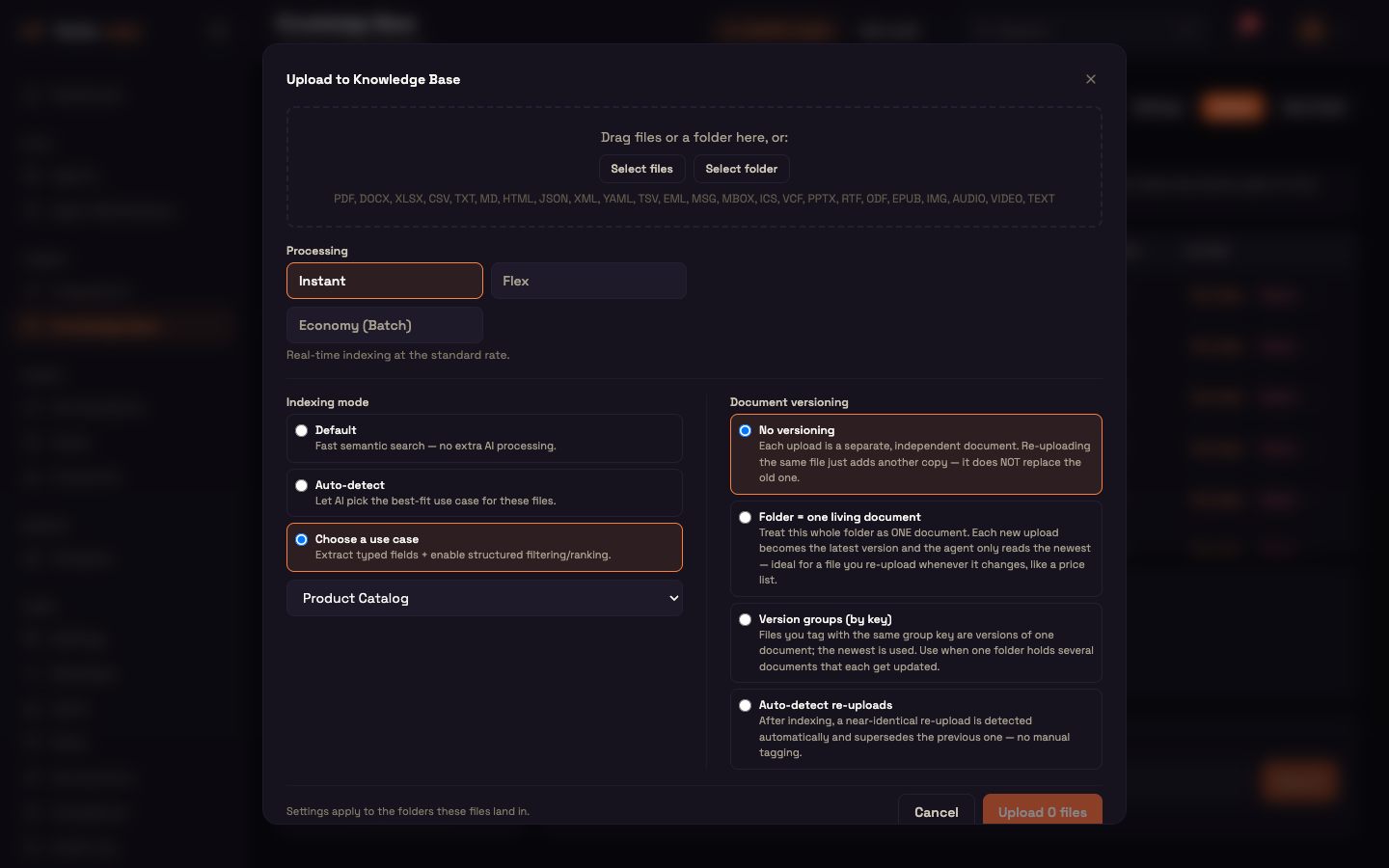
Choose what to upload. Drag files or a folder into the box, or use Select files / Select folder. Selecting a folder includes everything inside it. The accepted types are listed in the box (PDF, Office, text and data files, email and calendar files, images, audio and video); anything else is counted and skipped. See Uploading & Formats for the full list.
Document name (one file only) — the display name, prefilled from the file name.
Processing — how fast, and at what cost, files are read:
Option Trade-off Instant (default) Real-time indexing at the standard rate. Flex Cheaper; finishes within minutes. Economy (Batch) About 50% cheaper; finishes within 24 hours. Best for large imports. Indexing mode — Default, Auto-detect, or Choose a use case (Indexing mode).
Document versioning — how re-uploads of the same document are handled (Versioning).
Click Upload & Process (one file) or Upload N files (several).
Indexing mode and versioning are folder settings: the note at the bottom of the window reminds you they apply to the folders the files land in.
One file or many. A single file uploads straight away (up to 200 MB). Several files or a folder run as a resumable upload that handles very large imports (around 100,000 files): your browser sends the files directly to storage, progress is shown as it goes (uploaded, registered, indexed, failed, skipped), the folder structure you picked is recreated inside the target folder, and indexing carries on even if you close the window. If the browser is interrupted, the upload resumes where it left off. Credits are checked before the upload starts; if you run out part-way, registration pauses and you can resume after topping up.
Worked example — uploading a product catalogue.
- Setup: Asha, an admin at Acme Store, has a folder on her laptop called
product-catalogue/with 340 PDF brochures. - Action: She creates a Product Catalog folder, opens Upload, drops the local folder into the window, picks Economy (Batch) because nothing is urgent, sets Indexing mode to Choose a use case → Product Catalog, and clicks Upload 340 files.
- Result: Progress climbs while the files upload. She closes the tab; the next morning the folder shows 340 Active files, and folder Settings reports "340 of 340 files processed".
- What just happened: Each brochure was stored, indexed for search, and — because of the use case — had one record per product and price extracted. When a customer asks "what do you have under ₹2,000?", the agent can filter on the real prices instead of guessing from passages.
Re-indexing a file
Re-index re-reads the file and rebuilds its passages without uploading it again. The window lets you pick Instant or Flex and starts on the choice the file was last indexed with. Use it when a file failed, when its content was read poorly, or after you change the KB model.
Indexing mode
Each folder has an indexing mode, set when you upload or in folder Settings:
| Mode | What it does |
|---|---|
| Default | Fast semantic search — no extra AI processing. |
| Auto-detect | AI suggests the best-fit use case from the folder's contents, with a confidence score and a one-line reason. You confirm before anything is applied. |
| Choose a use case | Also extracts typed fields so the agent can filter, rank and compare, and read whole documents — for tasks like screening, ranking or comparison. |
Applying a use case queues the folder's files for processing in the background ("N file(s) queued"). Files added later by a multi-file upload are processed when the upload finishes; after a single-file upload or a connector sync, click Apply use case again to process the new files. The settings panel then shows Active: use case with progress ("7 of 7 files processed") and, for use cases that sort documents into categories, a coverage chart where categories with no documents yet show in red. A use case never removes normal search; it adds to it. The twelve use cases and what each extracts are described in Extraction & Understanding.
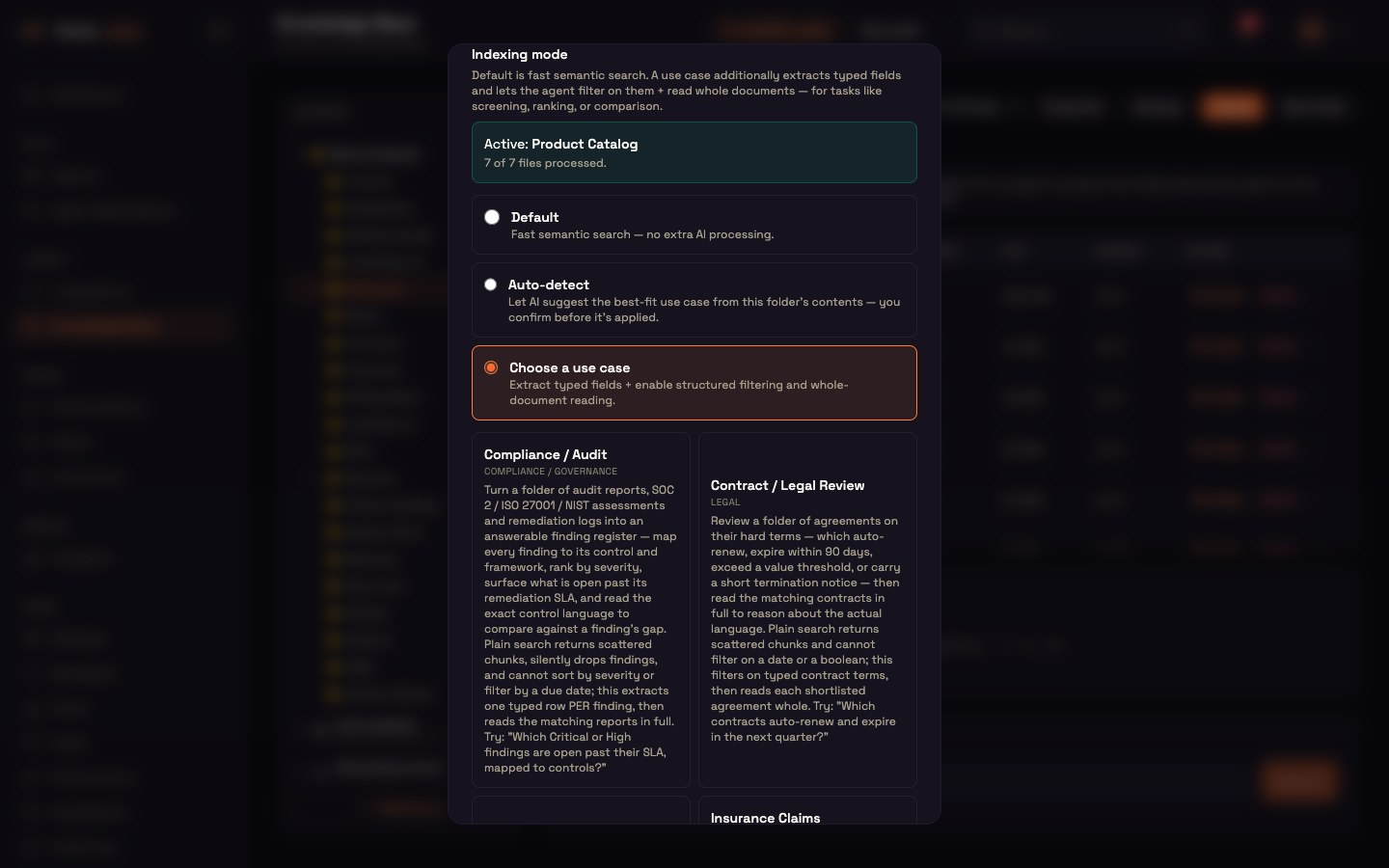
Folder settings
Settings opens the selected folder's settings. At Root, the same window sets the defaults for files that are not in any folder.
| Setting | Default | Effect |
|---|---|---|
| Allow downloads in chat | off | The agent may hand files in this folder to customers as downloads. A file's own setting wins. |
| Document versioning | No versioning | How re-uploads are grouped — see Versioning. |
| Keep version history | on | Shown once versioning is on. Superseded versions stay listed in Version history; the agent always answers from the latest version. |
| Indexing mode | Default | Applied with its own Apply button — see Indexing mode. |
Click Save settings to keep the first three. Each folder also keeps an automatic summary of what it contains, which helps the agent decide where to look — see Versioning & Folders.
Downloadable in chat
"Downloadable in chat" decides whether the agent may send a file to a customer during a conversation — for example a brochure. It is separate from Download, which is you opening the file.
- A file's own setting (⋮ → Allow / Remove chat download) wins over
- the folder's Allow downloads in chat, and
- if neither is set, the file is not downloadable.
Downloadable files show a green ↓ in the table, and Properties → Sharing tells you where the setting came from.
Versioning
A folder's Document versioning decides how re-uploads are grouped, so the agent answers from the current version only:
| Mode | Behaviour |
|---|---|
| No versioning (default) | Each upload is a separate document. Re-uploading the same file adds another copy; it does not replace the old one. |
| Folder = one living document | The whole folder is one document. Each new upload becomes the latest version and the agent reads only the newest — ideal for a price list you re-upload whenever it changes. |
| Version groups (by key) | Files you tag with the same group key are versions of one document; the newest is used. Use this when one folder holds several documents that each get updated. |
| Auto-detect re-uploads | After indexing, a near-identical re-upload is detected automatically and replaces the previous version — no tagging needed. |
Details and a worked example: Versioning & Folders.
Connectors — keeping a folder in sync
Add Source opens a five-step wizard that keeps a folder in sync with an outside source:
| Connector | What it syncs | Connection needed |
|---|---|---|
| Amazon S3 | An S3 or S3-compatible bucket, optionally limited to a prefix | Amazon S3 |
| Google Drive | A Drive folder | Google Drive |
| OneDrive | OneDrive, SharePoint and Teams folders | Office 365 |
| Website | Pages crawled from a public web address | None |
You create the connection first on Admin → Connections; the wizard only offers connections of the matching type. Each connector has a sync schedule (every 5 minutes to every 24 hours, or a custom schedule), an indexing speed (Instant, Flex or Economy), and — for S3, Google Drive and OneDrive — optional Live updates that pick up a change within seconds. Google Drive and OneDrive can instead be searched live in place, with nothing downloaded or indexed.
Each connector appears in Connected Sources with its status, a schedule menu (including Manual only), a sync now button (or Discover for a website), and delete. Deleting a connector also removes its synced folder. Full setup: Connectors.
Shared and per-customer files
Files you add through this page or a connector are shared: any conversation of an agent wired to that folder can find them. Documents that belong to one customer — for example a report uploaded for them through the API, or a file they attach in chat — are private to that customer. A conversation sees that customer's own documents plus the shared ones, never another customer's.
Test Knowledge Search
Test Knowledge Search at the bottom of the page shows what a question retrieves, without wiring an agent.

- Type a question and click Search. The top five matching passages are listed, each with the file it came from.
- The search covers the selected folder and its sub-folders; at Root it covers the whole Knowledge Base. Live-searched connectors are searched in the source, as the agent would.
- Results show their rank (#1, #2…) rather than a score.
- Clear empties the box and the results.
Knowledge Base in the agent
An agent only answers from a folder once it is attached. On the agent canvas, connect a Knowledge sub-node to the AI Agent's Knowledge port and tick the folders it may use. Folders are live: files added later, and new sub-folders, are included on the next message with no change to the agent. Details: Knowledge Base in the Agent and the Knowledge sub-node.
Next steps
- Uploading & Formats — accepted file types, large uploads and processing speed.
- Connectors (Drive, S3, Web…) — set up and schedule each source.
- Extraction & Understanding — use cases and what they extract.
- Retrieval & RAG — how the agent finds the right passages.
- Versioning & Folders — versions, folder summaries and properties.
- Knowledge Base in the Agent — wiring folders to an agent.