Suppression List
A customer asks you to stop messaging them. Another keeps sending abuse to your WhatsApp number and calling your line. The Suppression List handles both: one list of phone numbers and email addresses your workspace must never contact, must stop answering, or both.
This page is for admins and operators who manage do-not-contact requests. By the end you'll know how to add and remove entries, what each direction blocks, and which replies still get through.
Go to Studio → Engage → Suppression List.
What's on the page
- The header shows how many contacts are on the list, for example
12 suppressed contacts. - Channel filter: Any channel, or only entries for All channels, SMS only, WhatsApp only, Email only, Phone only, or RCS only.
- Search matches a phone number, email address, or note.
- + Add entry opens the form to add someone.
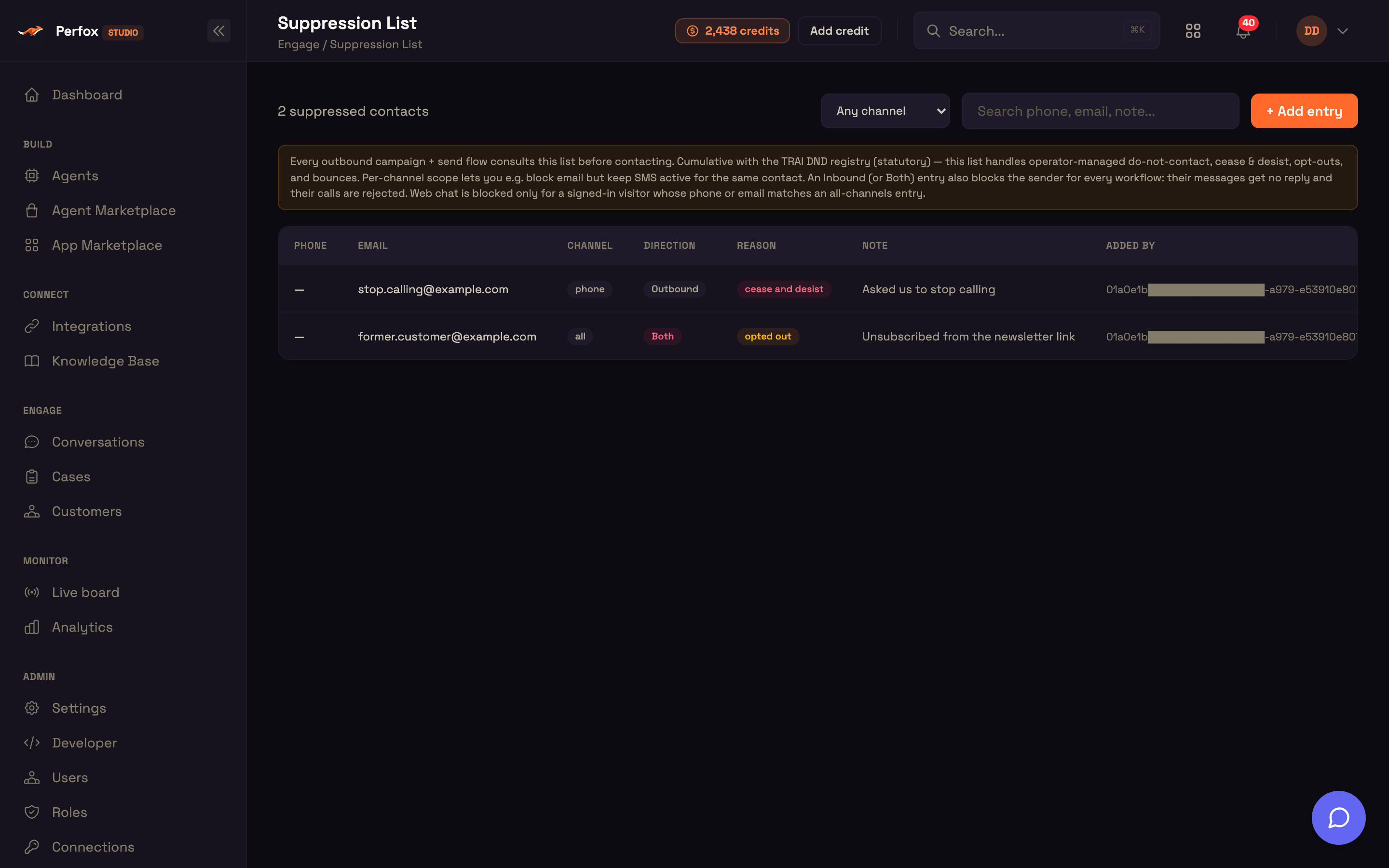
Each entry shows:
| Column | What it shows |
|---|---|
| Phone | The phone number, if the entry has one |
| The email address, if the entry has one | |
| Channel | Which channel the entry covers, or all |
| Direction | Outbound, Inbound, or Both (see Directions) |
| Reason | Why the contact is on the list |
| Note | Your note, if you added one |
| Added by | Who added the entry |
On a small screen each entry becomes a card. With nothing on the list yet, the page says No suppressed contacts and offers Add an entry.
To take someone off the list, click Remove, then Confirm remove.
Viewing the list needs the Customers: read permission. Adding and removing entries needs Customers: write.
Add an entry
Click + Add entry and fill in Add to suppression list:
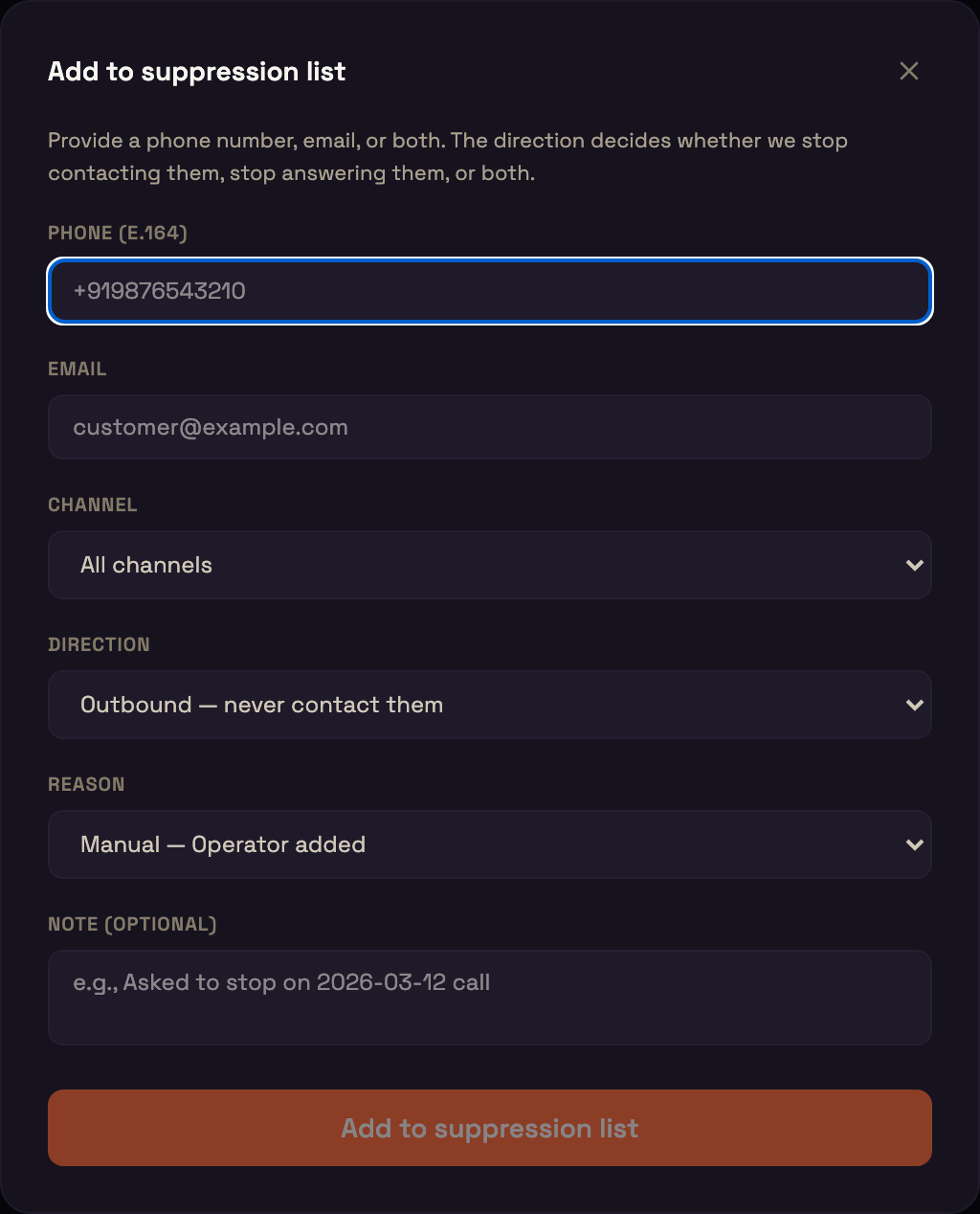
| Field | What to enter |
|---|---|
| Phone (E.164) | The number in international format, for example +919876543210 |
| The email address | |
| Channel | All channels, or one channel: SMS, WhatsApp, Email, Phone, or RCS |
| Direction | Outbound, Inbound, or Both |
| Reason | One of the reasons below |
| Note (optional) | Anything your team should know, for example "Asked to stop on 12 March call" |
You need a phone number, an email address, or both.
| Reason | Use it when |
|---|---|
| Manual | Someone on your team added the contact |
| Cease & Desist | The customer asked you to stop |
| Opted out | The customer unsubscribed through a link |
| Bounced | The carrier or mail server rejected messages to them |
| Spam complaint | The customer marked your messages as spam |
| Imported | The entry came from a file upload |
A channel-specific entry lets you, for example, stop emailing someone while still sending them SMS. Adding the same phone number or email again, with the same channel and direction, updates the existing entry's reason and note instead of creating a duplicate. An Inbound entry for someone who already has an Outbound entry is a separate entry, so it never lifts the outbound block.
Directions
Every entry blocks in one direction, or both:
| Direction | What it does |
|---|---|
| Outbound (the default) | Never contact them |
| Inbound | Ignore what they send: no reply, and calls are rejected |
| Both | Never contact them, and ignore what they send |
Entries added before directions existed count as Outbound.
Outbound: never contact them
Before any SMS, WhatsApp, RCS, or email goes out, Perfox checks the list for an entry covering that channel, or all channels. If there is one, the send is refused and the reason names the Suppression List, so you know where to remove the entry if it's a mistake.
Replies to the customer's own message. When the customer writes to you first, the reply can still go out if the reason is Opted out or Imported: those mean "no marketing", not "never contact". Cease & Desist, Spam complaint, Bounced, and Manual entries block even a reply.
If the list can't be checked for any reason, the send is refused rather than risk contacting someone on it.
Inbound: stop answering them
An Inbound or Both entry blocks the sender for every agent in your workspace:
- SMS, WhatsApp, and email from them are dropped before any conversation is created, and nothing is sent back.
- Phone calls from them are hung up.
- Web chat is blocked only when the visitor is identified and their phone number or email matches an All channels entry. An anonymous visitor is never blocked.
If the list can't be checked for any reason, the message or call goes through as normal, so a temporary problem never silences all your customers.
The Suppression List works alongside the national Do Not Disturb (TRAI DND) registry, not instead of it.
Worked example: blocking an abusive sender
Setup: Asha manages Acme Support's WhatsApp line. One number keeps sending abusive messages and calling the support line. Acme Support still wants to be able to send that person a final account notice.
Action: Asha opens Engage → Suppression List, clicks + Add entry, enters the phone number, leaves Channel on All channels, picks Direction: Inbound, Reason: Manual, and adds the note "Abusive messages — blocked on 3 Nov". She clicks Add to suppression list.
Result: The entry appears with an Inbound badge. The sender's next WhatsApp message gets no reply and no conversation, and their call is hung up. Because the entry is inbound only, Acme Support can still send them the account notice.
What just happened: the direction decided what the entry blocks. An Outbound entry would have stopped the notice but kept answering them; Both would have done both.
Where to go next
- Conversations: see the conversations you still have with a contact before you add them.
- Customers: one record per person across every channel.
- Channels: how each channel sends and receives.