Messaging Apps
A customer opens Telegram, finds Acme Diagnostics' bot and asks whether their report is ready. A colleague asks the same question from Slack, another from Microsoft Teams. Each gets an answer right where they asked. This page shows how to connect your agent to eight messaging apps: Telegram, Slack, Facebook Messenger, Instagram Direct, Microsoft Teams, Discord, Google Chat and RCS (the business messages in a phone's Messages app).
All eight work the same way. The only part that differs is how you connect each app, which is covered app by app below.
How it works
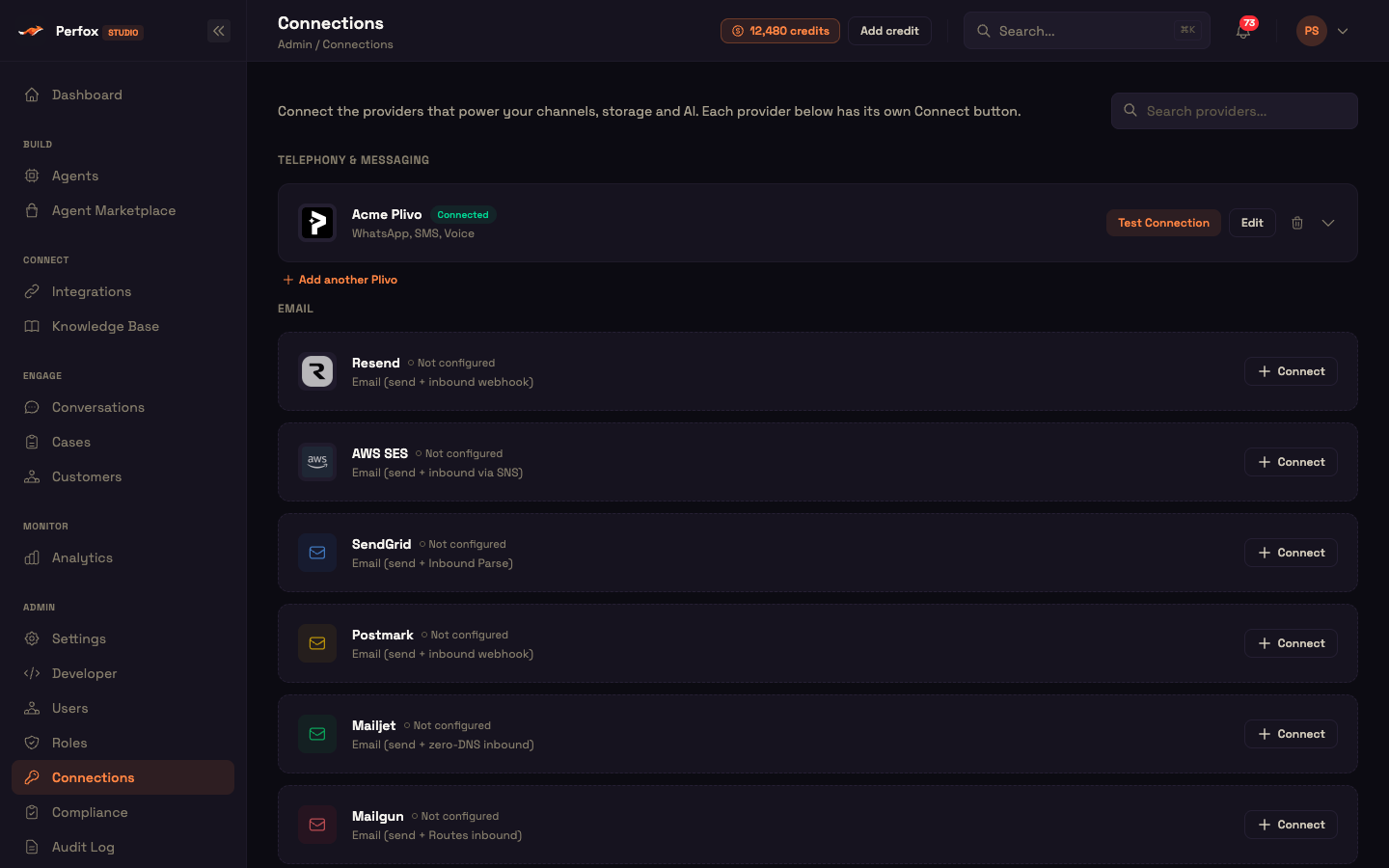
- Connect the app. Open Admin → Connections and find the Messaging apps section. Open the app's card, fill in the fields, click Save, then press Test. Test checks your credentials with the platform and learns which bot, app or Page this is. The card then names it ("Bot @…", "App …", "Page …", "Posts as …", "Agent …" or "App ID …"). Until then it reads Not connected yet — Save, then press Test. Telegram is fully connected at this point. For every other app, Test shows the one step left in that platform's console and the Webhook URL to paste there, with a Copy button. Each connection has its own Webhook URL.
- Add the trigger. In the agent builder, each app has its own trigger ("On a message to your … bot"). Under Business contact, pick the connected bot. You have to pick one, because if you connect several bots a trigger without one would answer all of them.
- Let the agent reply. Connect a Chat Sender action (picker: Messaging) to the AI Agent's Action port and set Messaging app to the same app. There's no Send from or Send to: the reply always goes back to the chat the customer wrote from, through the bot they wrote to. A Chat Sender covers only the app it's set to, and it works as an action the AI uses, not as a step in the flow.
No Chat Sender, no reply
Without a Chat Sender for that app, an incoming message still starts your agent and its answer shows up in Conversations, but nothing is sent back. See Channel Overview.
What the agent can and can't do
- Direct conversations only. The agent answers one-to-one chats with your bot. Group chats, channels and spaces are ignored, and so are messages from other bots and edits. (On Discord, people use the
/askcommand instead; see below.) - The customer writes first. A bot can't start the conversation.
- Text in, text out. When someone sends a photo, file, voice note, sticker or location, the agent sees a short note such as "[photo]" or "[file: report.pdf]" next to any caption. It knows something was sent, but it doesn't read the file. The agent replies with text.
- Long replies are split, never cut. A reply longer than the app allows goes out as several messages, split between paragraphs or lines.
| App | Longest single message |
|---|---|
| Telegram | 4,096 characters |
| Slack | 40,000 characters |
| Facebook Messenger | 2,000 characters |
| Instagram Direct | 1,000 characters |
| Microsoft Teams | 7,000 characters |
| Discord | 2,000 characters |
| Google Chat | 4,096 characters |
| RCS | 3,072 characters |
- The rest works as on WhatsApp. Conversations, customer records, memory, and an operator taking over and handing back. A message within 15 minutes of a closed conversation reopens it.
- Who the customer is. A person is recognised by their account on that app, so the same person on Telegram and on Slack is two customers. RCS is the exception: it uses the phone number, so an RCS customer is the same customer as their SMS, WhatsApp and calls.
Telegram
- In Telegram, open @BotFather and create a bot with
/newbot. Copy the bot token it gives you. - On the Telegram bot card, paste the Bot token, click Save, then press Test.
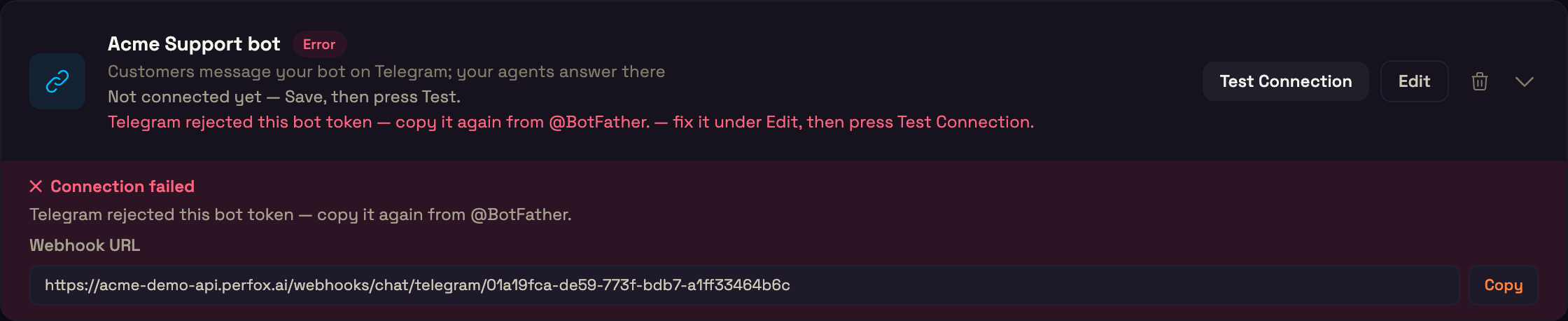
That's all. Test checks the token, learns your bot's @username and registers the webhook with Telegram for you (with a new secret every time you press Test), so there's nothing to paste anywhere. If the token is wrong, the card says "Telegram rejected this bot token — copy it again from @BotFather." Deleting the connection also removes the webhook from Telegram.
Only private chats with the bot reach the agent. Replies are formatted for Telegram (bold, links and so on); if Telegram refuses the formatting, the reply is sent again as plain text.
Slack
- Create a Slack app with a bot user.
- On the Slack app card, paste the Bot User OAuth Token (
xoxb-…, from OAuth & Permissions) and the Signing Secret (from Basic Information → App Credentials). Save, then press Test. - In your Slack app:
- Under Event Subscriptions, turn events on, paste the Webhook URL as the Request URL, and subscribe to the bot event
message.im. - Under OAuth & Permissions, give the bot
chat:writeandim:history. - In App Home, allow users to message the app.
- Under Event Subscriptions, turn events on, paste the Webhook URL as the Request URL, and subscribe to the bot event
The card then shows the app and its Slack workspace. Only direct messages to the app reach the agent. Each person is recognised within their own Slack workspace, so people from two workspaces are never mixed up.
Facebook Messenger and Instagram Direct
Both connect through your Facebook Page and a Meta app.
- In Meta Business, generate a long-lived Page access token for your Page with
pages_messaging. For Instagram Direct, also addinstagram_manage_messages, and use the Page that's linked to your Instagram professional account. - On the Facebook Messenger or Instagram Direct card, paste the Page access token and the App Secret (Meta app → App settings → Basic). Save, then press Test.
- Test learns your Page (and its Instagram account), subscribes the Page to messages and shows a Verify Token. In your Meta app, open Webhooks → Page (Messenger) or Webhooks → Instagram, paste the Webhook URL as the Callback URL along with the Verify Token, and subscribe to the messages field.
If the Page has no Instagram professional account linked, the Instagram card says so; link one in Meta Business settings and press Test again. Only messages sent to this connection's own Page or Instagram account reach the agent.
Microsoft Teams
- In the Azure portal, create an Azure Bot.
- On the Microsoft Teams bot card, enter the Microsoft App ID (Azure Bot → Configuration), the Client secret (the app registration → Certificates & secrets) and, only for a single-tenant bot, the App Tenant ID. Save, then press Test. Test checks that Microsoft accepts the App ID and secret.
- In the Azure portal → your Azure Bot → Configuration, paste the Webhook URL as the Messaging endpoint. Under Channels, add Microsoft Teams.
- Install the bot in Teams (Developer Portal → your app → set the bot to this App ID).
The agent answers one-to-one chats with the bot.
Discord
- In the Discord Developer Portal, create an application with a bot.
- On the Discord app card, paste the Bot token (Bot → Reset Token) and the Public Key (General Information). Save, then press Test. Test learns your application and registers the /ask command.
- In the Developer Portal → your application → General Information, paste the Webhook URL as the Interactions Endpoint URL and save. Then install the app to a server or to users (Installation).
People ask with /ask followed by their question. Plain messages to the bot aren't read in this version. In a direct message with the bot, the answer is shown normally. In a server channel or a group DM, only the person who asked can see it, because the answer can draw on their own history.
Google Chat
- In Google Cloud, create a Google Chat app and a service account for it to post as.
- On the Google Chat app card, enter the Cloud project number (the project's Project info) and paste the Service account key (JSON). Save, then press Test. The card then shows which account the app posts as.
- In Google Cloud → Google Chat API → Configuration, under Connection settings choose HTTP endpoint URL and paste the Webhook URL. Set Authentication Audience to Project Number, and make the app available to the people who should reach it.
The agent answers direct messages with the app.
RCS
RCS messages arrive in your customers' phone Messages app, through an RCS Business Messaging agent.
- In the RBM Developer Console, set up your agent and a service account.
- On the RCS Business Messaging card, enter the Agent ID, paste the Service account key (JSON), and choose any secret as the Webhook client token. Save, then press Test.
- In the RBM Developer Console → your agent → Integrations, configure the webhook: paste the Webhook URL and the same client token, then click Verify.
What's different on RCS:
- Billed per message. Google or the carrier bills your own RBM account for each message. To protect you, your workspace can send up to 2,000 RCS messages in any 24 hours. Each part of a split reply counts. Past that, sends are refused with the reason.
- The Suppression List applies, as on SMS and WhatsApp (choose RCS only for an RCS-only entry). An outbound entry stops messages to that number. A reply to someone's own message still goes through if they opted out of marketing or were imported, but never for other reasons. An inbound entry ignores what they send.
- Phone-number identity. The customer is the same person as on SMS, WhatsApp and calls.
- Suggestions. When a customer taps a suggested reply, the agent receives its text.
When something goes wrong
| What you see | What it means |
|---|---|
| The card still says Not connected yet | Press Test after saving |
| The agent ran but the customer got nothing | There's no Chat Sender set to that app on the AI Agent |
| A notification that a reply was refused | None of your connected bots owns the account the reply would go from. The link opens Connections |
| The card is in error with a reason | The platform rejected the credentials (for example a revoked token). Fix it under Edit, then press Test Connection |
| Nothing arrives at all | The Webhook URL (or, for Messenger and Instagram, the Verify Token) hasn't been pasted in the platform's console yet |
Where to go next
- Channel Overview: every channel and when a Sender is needed.
- Sender Nodes: the Chat Sender and the other Senders.
- Trigger Nodes: the messaging-app triggers.
- Customer Identity: how customers are recognised across channels.