Operator console
You're on the support team, and the AI has just decided a caller needs a person. This page walks you through what you do next: getting ready for calls, answering, using the call controls, transferring, handing the call back to the AI, and wrapping up. It also covers taking over a chat, WhatsApp, SMS or email conversation.
Everything here happens on Engage → Conversations. For how hand-offs are set up, see Set up the Operator node.
Get ready for calls
- Open Engage → Conversations.
- Click Go online. You see this button only if an agent's Operator node lists you; its tooltip names the agents you take calls for.
The console now reads Ready for calls, with Taking calls for and the agents that list you. You stay in rotation for every one of those agents, including between calls, until you click Go offline.
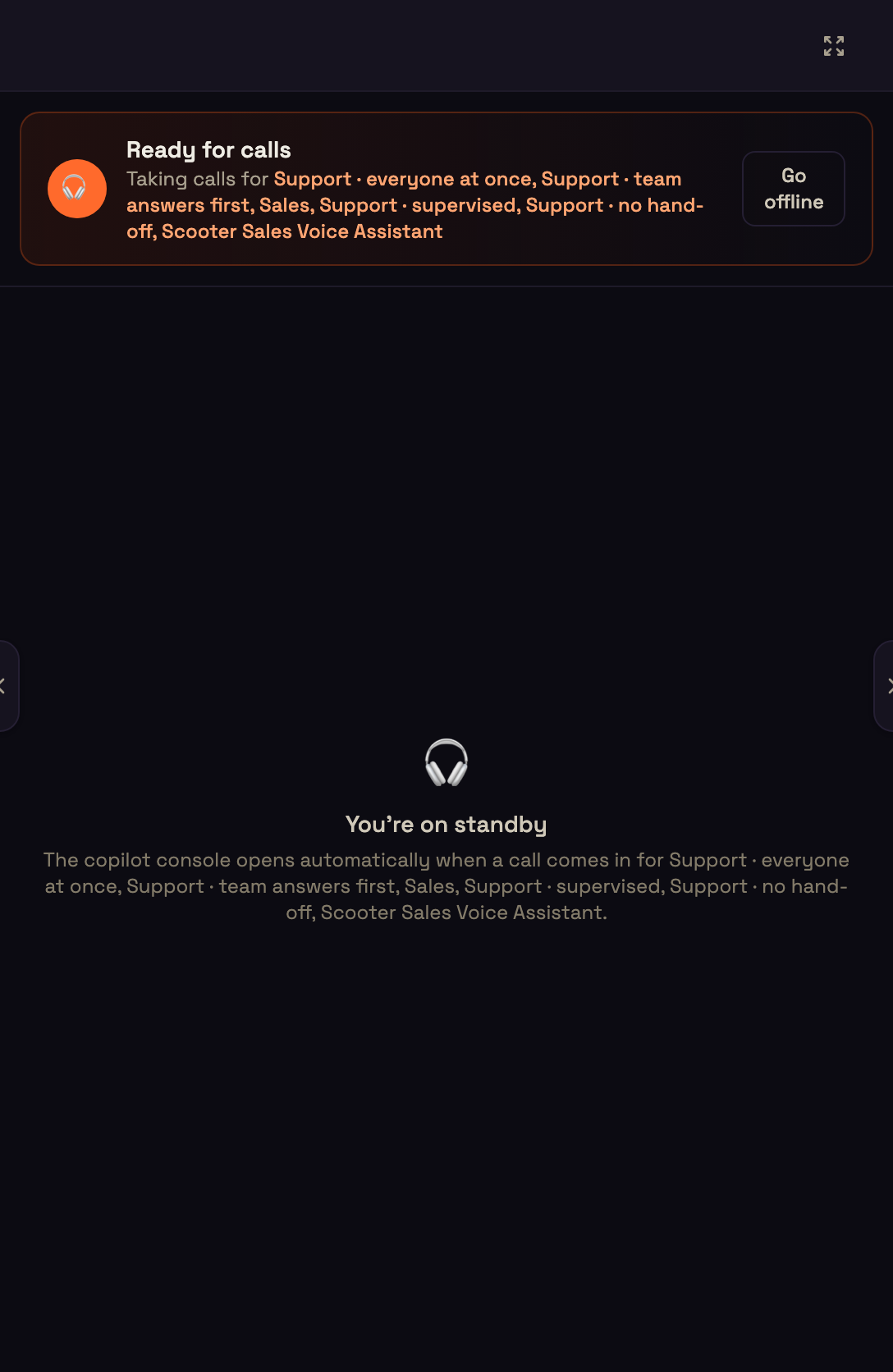
When a call comes for you, the console rings:
- AI is handing you a call when the AI is handing off, with the reason the AI gave.
- Incoming call for a caller waiting for an operator.
Click ✔ Answer to join, or Decline to pass it to the next operator.

On the call
The call panel has two rows.
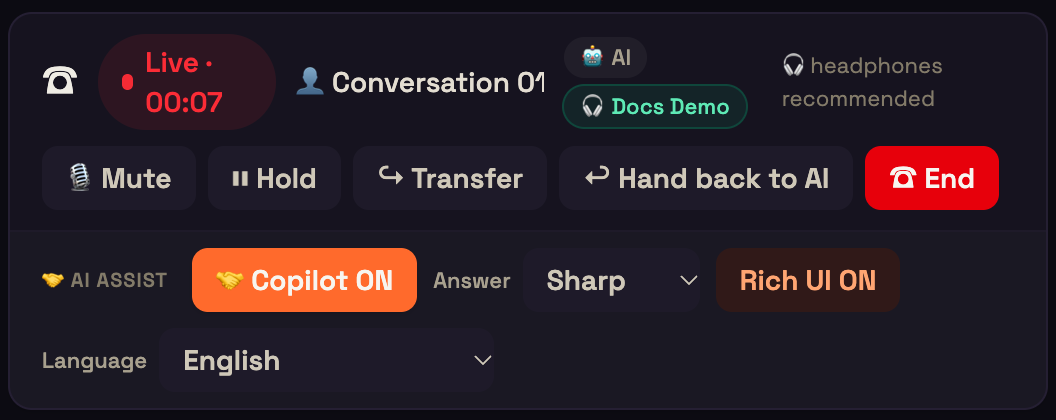
Phone controls
| Control | What it does |
|---|---|
| Roster | Who is on the call and who is talking, for example AI (listening) · Web operator (talking) · Supervisor (listening). A phone operator shows as Phone operator. |
| 🎙 Mute | The customer stops hearing you. |
| ⏸ Hold / ▶ Resume | Puts the customer on hold. They hear the agent's On hold by an operator sound. |
| ↪ Transfer | Passes the call on. See Transfer a call. |
| ↩ Hand back to AI | Shown on a call the AI handed to you. You leave and the AI continues. |
| ☎ End | Ends the call for everyone. The transcript stays in the conversation. |
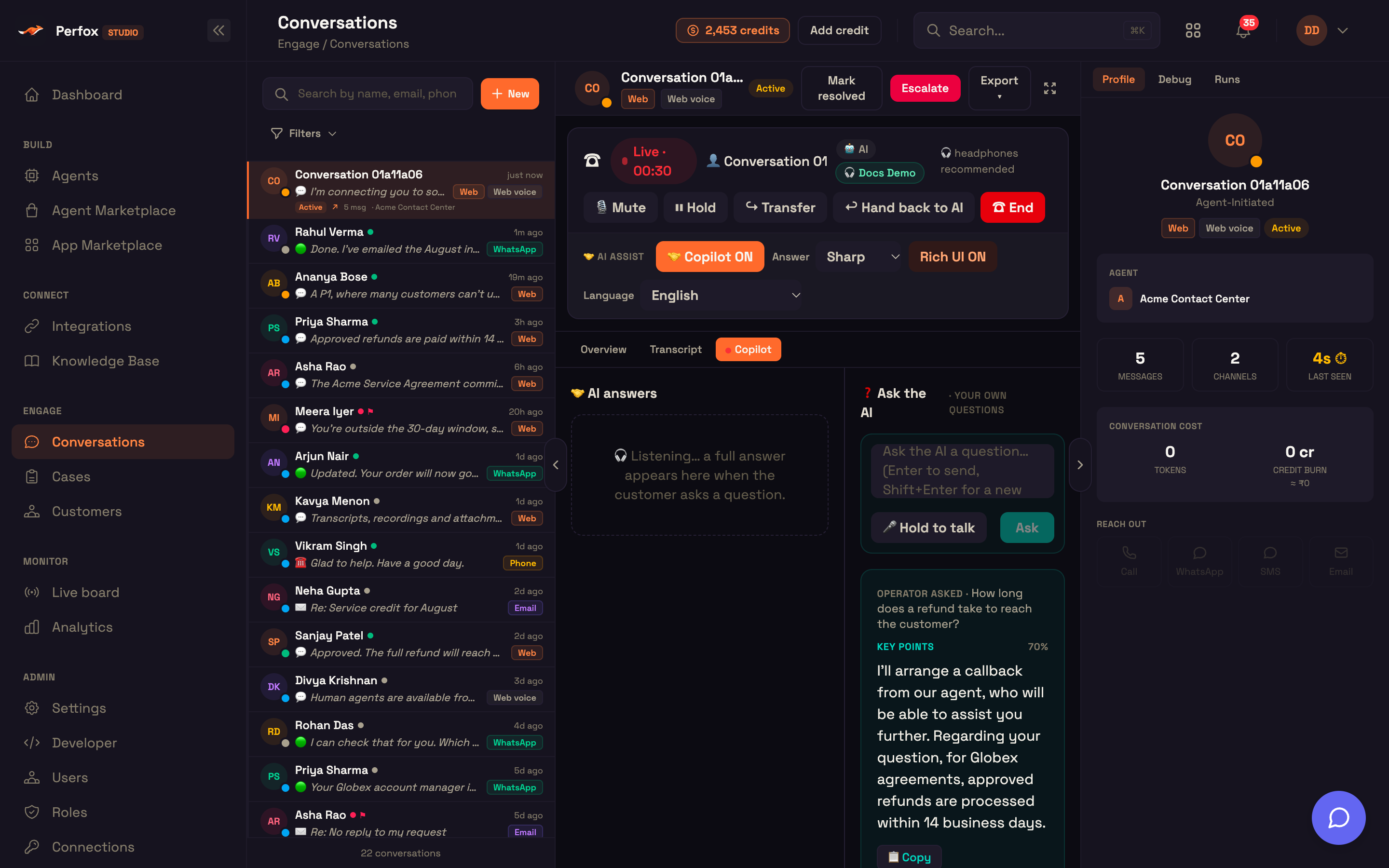
AI assist: Copilot on or off, answer length, rich views, language, the AI answers cards, and the private Ask the AI box. See Copilot.
Hand the call back to the AI
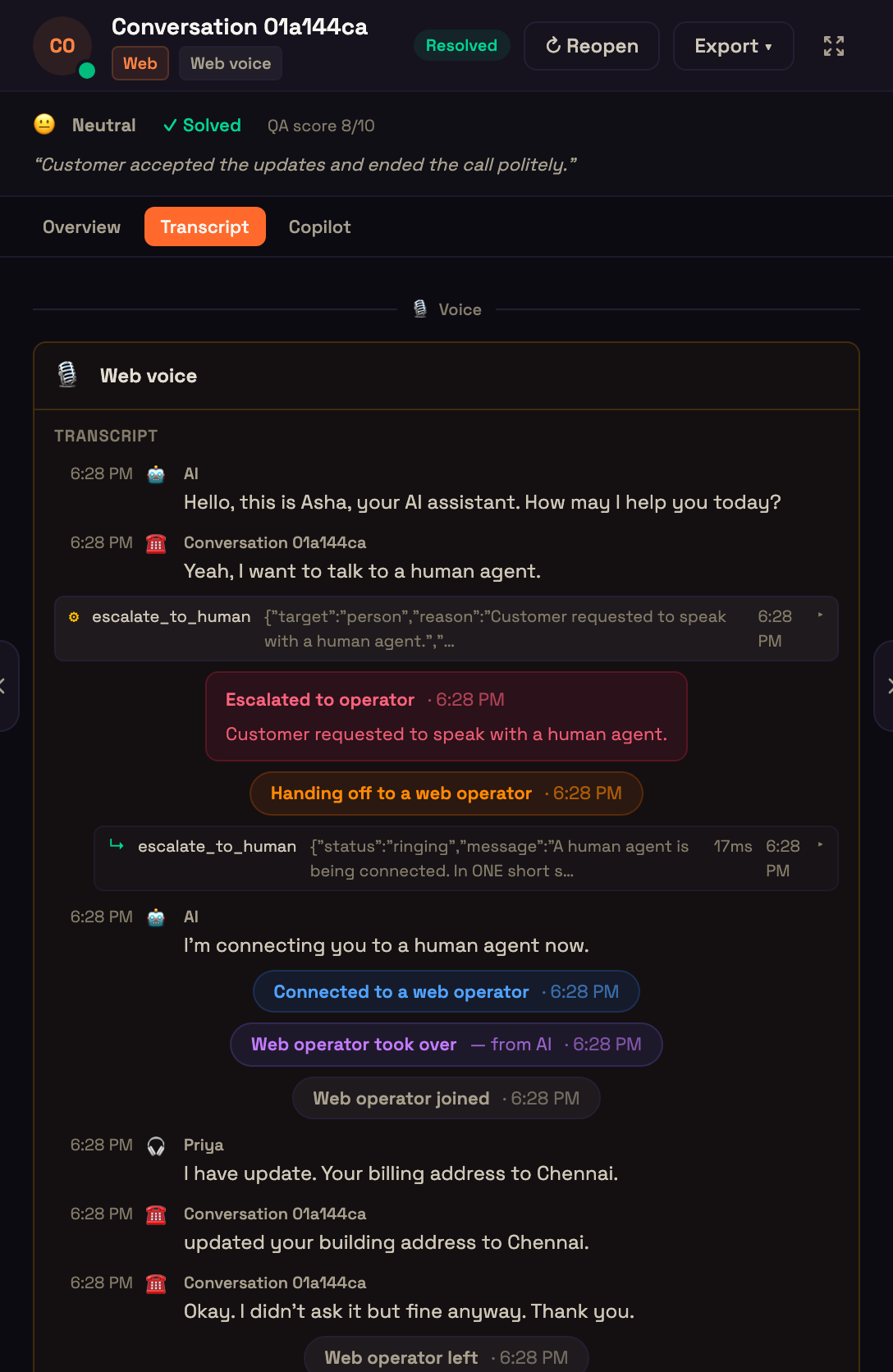
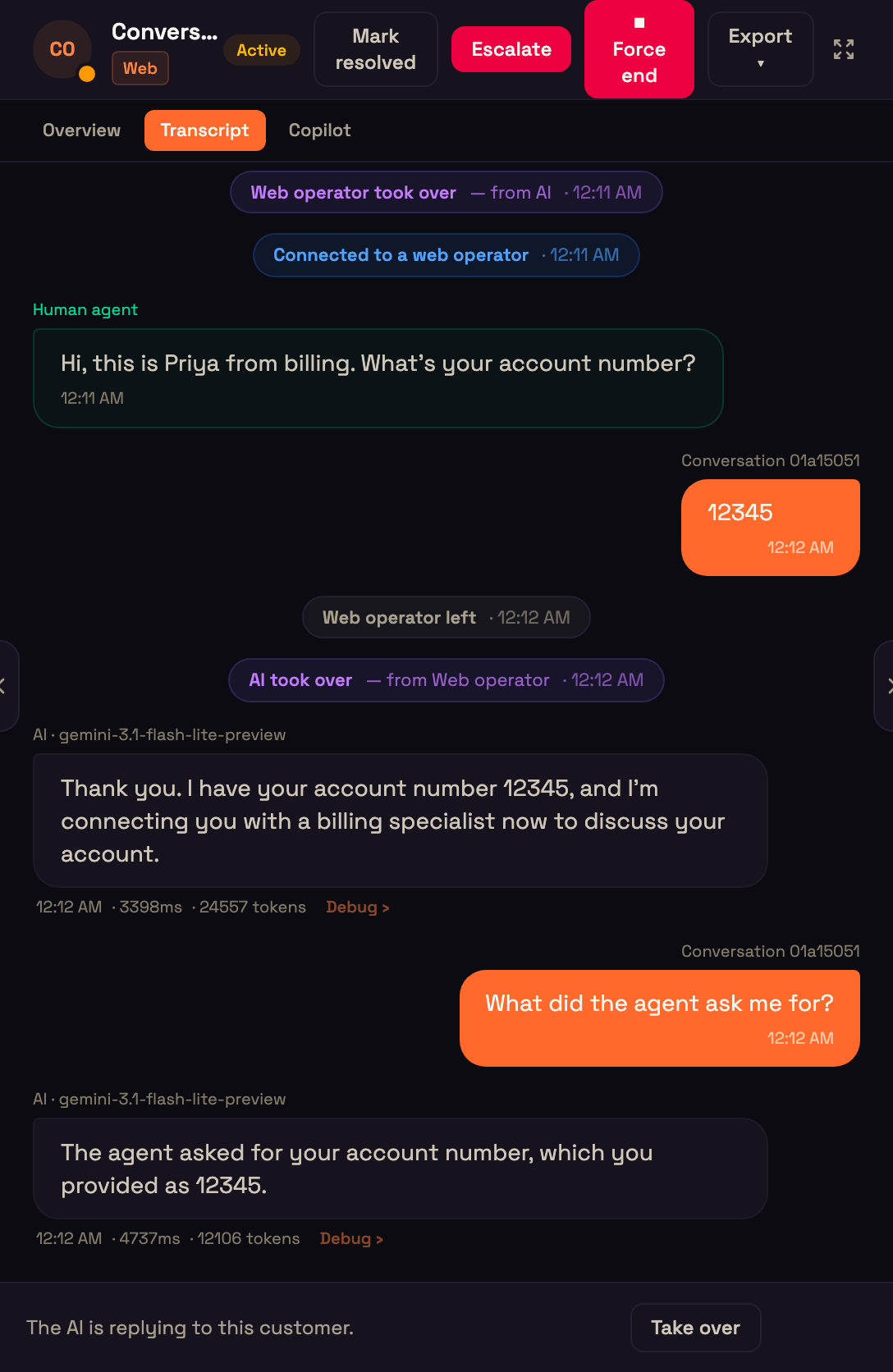
Click ↩ Hand back to AI. You leave the call, the AI takes the floor again, is told what happened while you were on, and carries on. The transcript records Web operator left and AI took over — from Web operator.
If you drop out some other way, for example you close the tab or lose your connection for more than 15 seconds, the agent's When the person leaves the call setting decides: the AI takes the call back, or the call ends.
When a supervisor takes over
If a supervisor takes over your call, you become a listener: you keep hearing the call, but the customer can no longer hear you. The console says A supervisor took over this call — you are listening; the customer can no longer hear you., and your call controls are replaced by ⇥ Leave, which stops listening while the supervisor keeps the call.
The transcript
The Transcript tab is one timeline: the AI's turns, the hand-off, Web operator joined, and every spoken line labelled with who said it. While a person has the floor the AI stays muted, and anything it produced in that time is left out of the transcript, the customer's chat history and the conversation's scoring. The line the AI was in the middle of when you joined was partly heard, so it's kept and marked ✂ interrupted.
Transfer a call
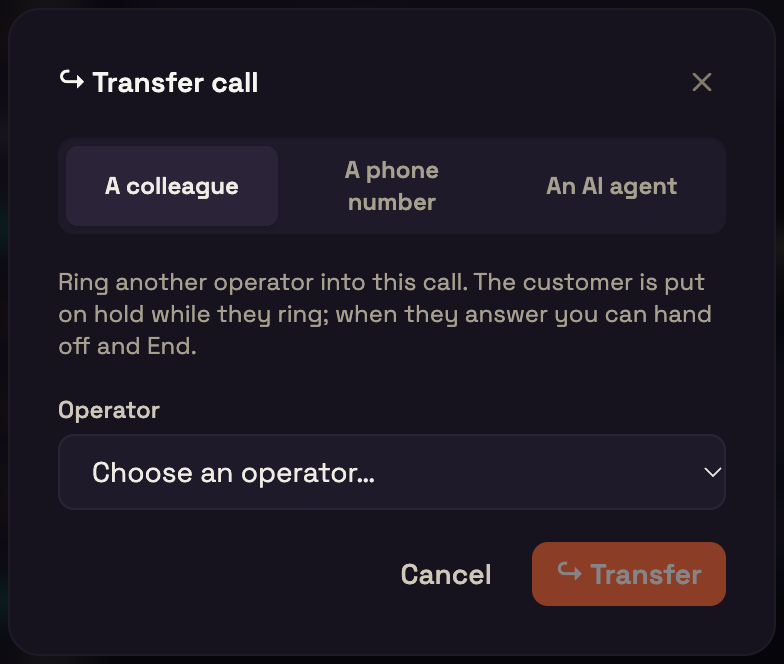
Click ↪ Transfer. The Transfer call dialog has three tabs.
| Tab | What happens |
|---|---|
| A colleague | Pick someone from Choose an operator… (colleagues on shift; anyone not available shows their status). It's a warm transfer: the customer is put on hold while your colleague is rung into the same call. Once they answer, you leave with ☎ End. |
| A phone number | Enter a number. Perfox rings it; when they pick up, they hear why the customer wants a person and are joined straight in. Keep talking to the customer until they join. The recording and transcript keep running. The call is placed from the agent's own phone number (the one on its Phone Call trigger); if the agent has none that your Plivo connection lists, the transfer is refused with that reason and your admins are notified. |
| An AI agent | Pick another published agent. It takes the call with its own persona, tools and voice, and hears the call so far, including what you handled. You leave the call. If no other agent can take calls, the tab says No other published agent can take a call. |
Only the operator currently on the call can transfer it.
Wrap up
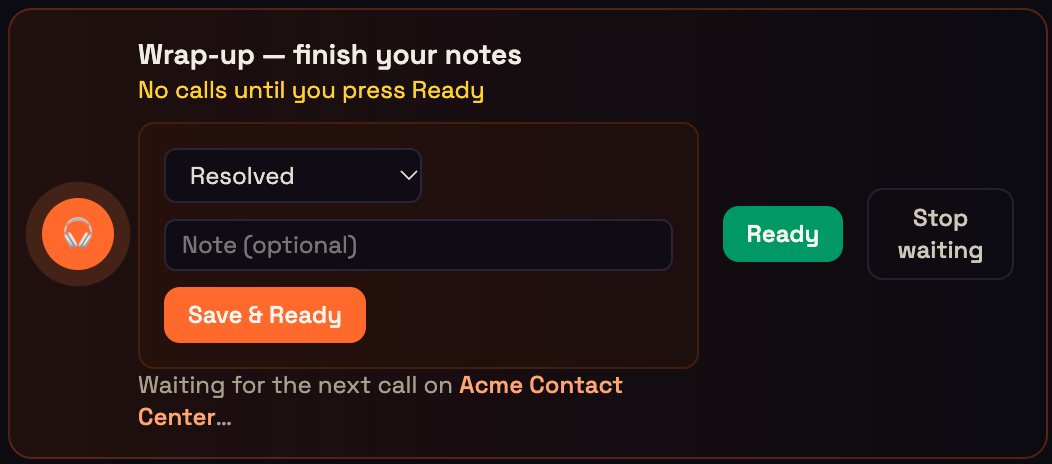
When a call ends or you hand it back, you go into wrap-up for the wrap-up time set on the agent's Operator node: your own row's time, else the team default (30 seconds unless your admin changed it). You aren't offered new work during wrap-up. The console reads Wrap-up — finish your notes, with a countdown (Next call in …s), or No calls until you press Ready if your wrap-up is set to 0.
The wrap-up panel shows:
- the AI's summary of the call, once it's ready;
- a Disposition: Resolved (the default), Needs follow-up, Escalated, or Not resolved;
- a Note (optional).
Click Save & Ready to save and take the next call, or just Ready. If you do nothing, the next call is offered when the countdown ends. The disposition and note are saved on the conversation and in its timeline. Only an operator who handled the conversation can save its wrap-up.
Take over a text conversation
Chats, WhatsApp, SMS and email don't ring. You step in from the conversation itself.
Open the conversation's Transcript tab. The bar at the bottom reads The AI is replying to this customer. If the AI asked for a person, it reads Waiting for a person — the AI asked for one, with the AI's reason, or Offered to you.
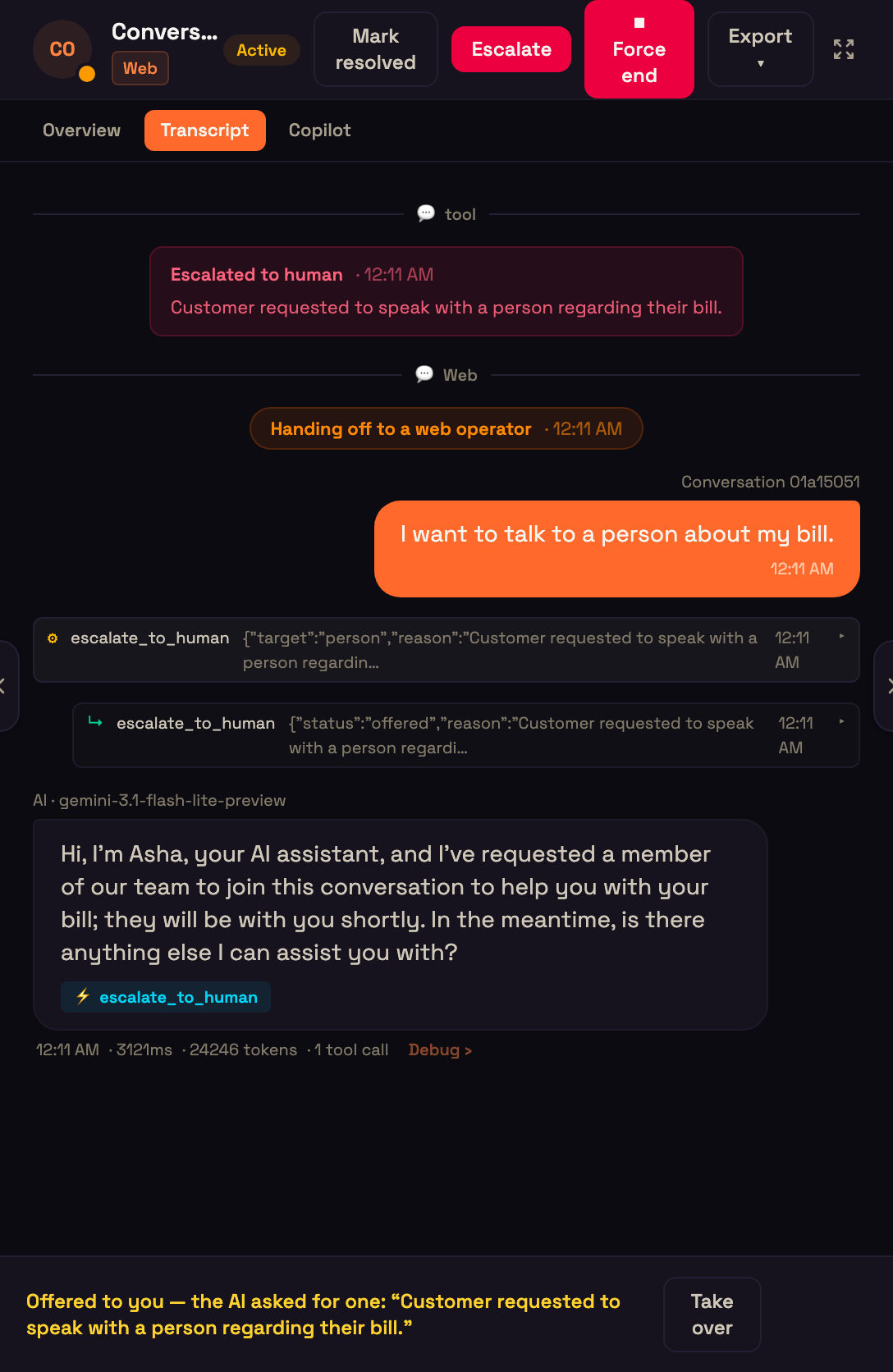
Click Take over. The bar reads You are replying — the AI is paused until you hand back. New customer messages are held for you, and the AI doesn't reply.
Type in the reply box and press Enter (Shift+Enter for a new line). Your reply goes out on the channel the customer last wrote on; for email, in the same thread.
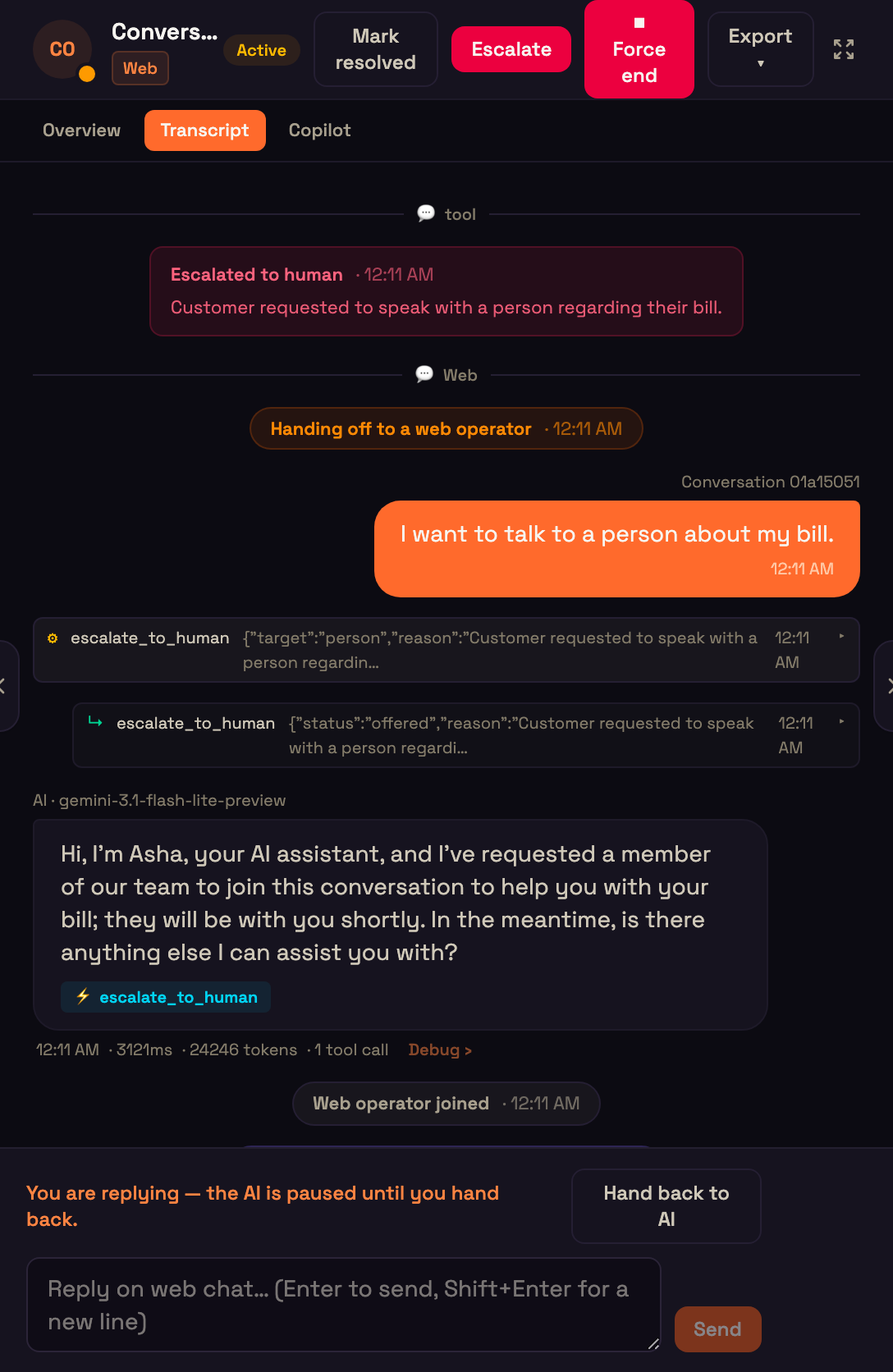
Click Hand back to AI when you're done.
On hand-back, the transcript records Web operator left and AI took over — from Web operator. If the customer asked something you didn't answer, the AI answers it straight away, exactly once. A message that arrives at the moment you hand back gets one reply covering both.
Things to know
- Take over isn't available while a voice call is live on the conversation. Use the call panel instead.
- If a colleague is replying, the bar reads "name is replying — the AI is paused." A supervisor the agent's Operator node lists with Take over ticked sees Release to AI to hand it back for them. On an agent still on the older settings, anyone with the Supervise live conversations permission sees it instead.
- WhatsApp: outside Meta's 24-hour customer-service window, a free-text reply is refused and shown as failed. Send an approved template instead.
Where to go next
- Contact Center overview: how hand-offs reach you, and the settings behind them.
- Copilot: the AI assist row in detail.
- Live board & supervising: what your team lead sees.