Live board & supervising
It's Monday morning and the queue is building. As team lead, you want to know at a glance who is waiting, which of your people are free, and which calls need you. The Live board shows the floor as it is right now, and lets you listen in, coach an operator, or take a call over yourself.
This page is for team leads and admins. For setting up hand-offs, see Set up the Operator node.
Who can see it
Open Monitor → Live board. It's in your menu if an agent's Operator node lists you as a supervisor, or if your role has the Supervise live conversations permission (the built-in Admin role has it). Without either, the page tells you that you don't have permission. You must also be fully signed in: if two-step verification applies to your account, complete it first, or the supervise actions are refused.
What you see is decided conversation by conversation, by the agent handling it:
- An agent on the current Operator settings shows its conversations only to the supervisors listed on its Operator node's Supervision tab, and you can use only the actions ticked there. A role adds nothing for these agents.
- An agent still on the older settings follows the role permission.
To make someone a supervisor, open the agent's Operator node, go to Supervision, add them (a Studio user or an External ID from your own app) and tick what they can do: Listen in, Whisper, Take over. See Set up the Operator node.
The board refreshes every 3 seconds.
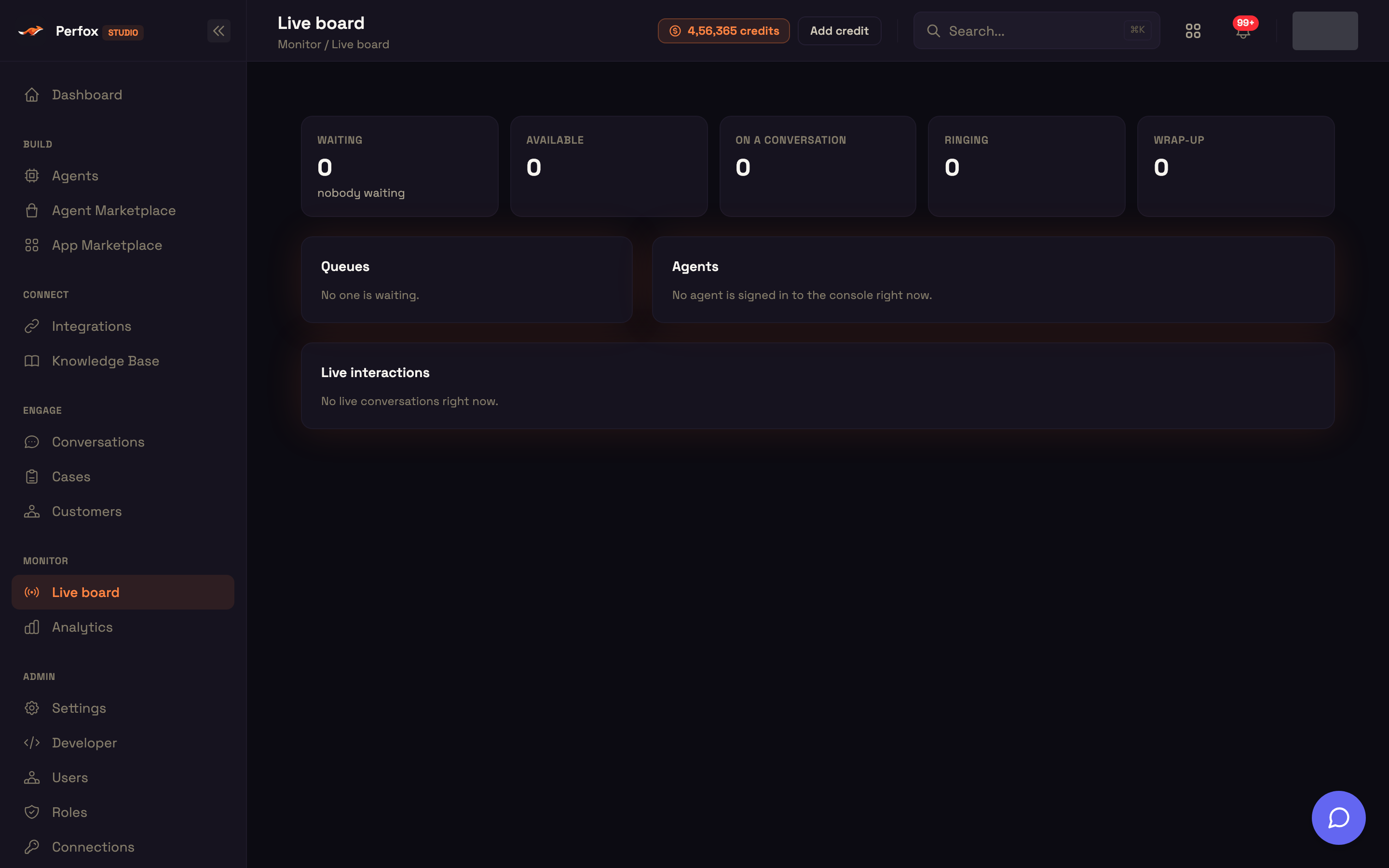
What's on the board
Tiles
| Tile | Shows |
|---|---|
| Waiting | Customers waiting for a person, and the longest wait (or "nobody waiting"). |
| Available | Operators ready for work. |
| On a conversation | Operators handling a call or chat. |
| Ringing | Operators being rung right now. |
| Wrap-up | Operators finishing notes after a call. |
Queues
One line per skill (General for hand-offs that ask for no skill): how many are waiting and the longest wait. Click a queue to show only the people waiting in it in Live interactions; Show all clears it.
Agents
Everyone signed in to the operator console, with their state: Available, Ringing, On a conversation, Wrap-up, or Away. Each shows Open conversation when they're on one, or how long they've been idle. Click a name to open their user record. Their skills, chats at once and wrap-up time are set on each agent's Operator node.
Live interactions
Every live conversation:
| Column | Shows |
|---|---|
| Conversation | Link to the conversation. |
| State | Waiting in queue (with the skill), Ringing an agent, With an agent, or With the AI. |
| Channel | The channel it's on. |
| Agent | The operator handling it. |
| For | Time in the current state. |
Monitor, Whisper and Take over
Live voice calls show supervise buttons on their row (not while the customer is waiting in the queue or being rung through). Each button appears only if you may use it on that agent: the Operator node's ticked Listen in (Monitor), Whisper and Take over, or every button if you hold the role permission and the agent is still on the older settings.
| Button | What it does | Who hears you |
|---|---|---|
| Monitor | Join and listen. | Nobody |
| Whisper | Shown when an operator is on the call. Speak to the operator, for example to coach them. | The operator only, never the customer |
| Take over | Talk to the customer yourself. | The customer |
Take over works on any live AI call, and on a call a person already has.
- From the AI: the AI stops and you talk to the customer. When you're done, Hand back to AI & leave gives the call back to the AI.
- From a web or phone operator: once you're on the call, they become a listener. They keep hearing it, the customer no longer hears them, and you hold the call's controls. Their console says "A supervisor took over this call — you are listening". When you click Leave the call, the agent's When the person leaves the call setting applies (back to the AI, or end the call); the person you took over from doesn't get the call back.
Take over is refused while a hand-off or transfer is still connecting ("An operator is being connected to this call right now — monitor it, or try again in a moment."), and on an operator's own outbound call with no AI on it.
While you're on a call, a bar at the top reads Monitoring, Whispering to the agent or On the call (took over), with Leave. Clicking another button switches to it. The operator sees you in their call roster, and every monitor, whisper and take-over is recorded in the conversation's timeline. If another supervisor takes over a call you're on, you're dropped from it with the notice Another supervisor took over this call.
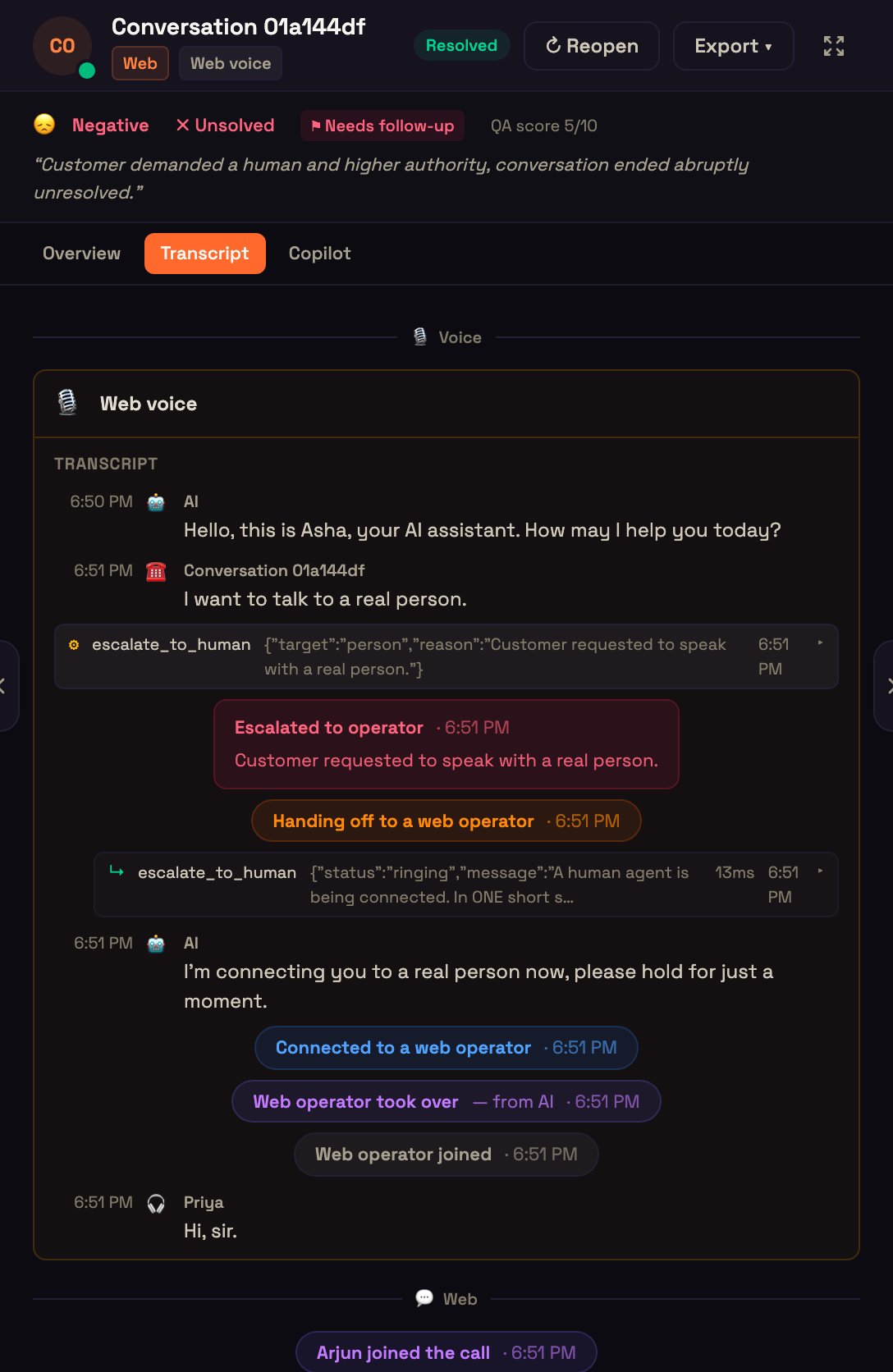
Voicemail
When an agent's Operator node is set to Routing → If nobody answers → Take a voicemail, a caller nobody could take leaves a message. It lasts up to 60 seconds and ends after 4 seconds of silence once they've spoken, or after 10 seconds if they never speak.
Your team is notified with a link to the conversation. In its transcript, ▶ Play voicemail plays just the message from the call recording. This works for phone and web calls alike.
Contact-center analytics
For history rather than the live floor, Monitor → Analytics has a Contact center row over the selected time range. It's hidden if your agents have never handed off to a person.
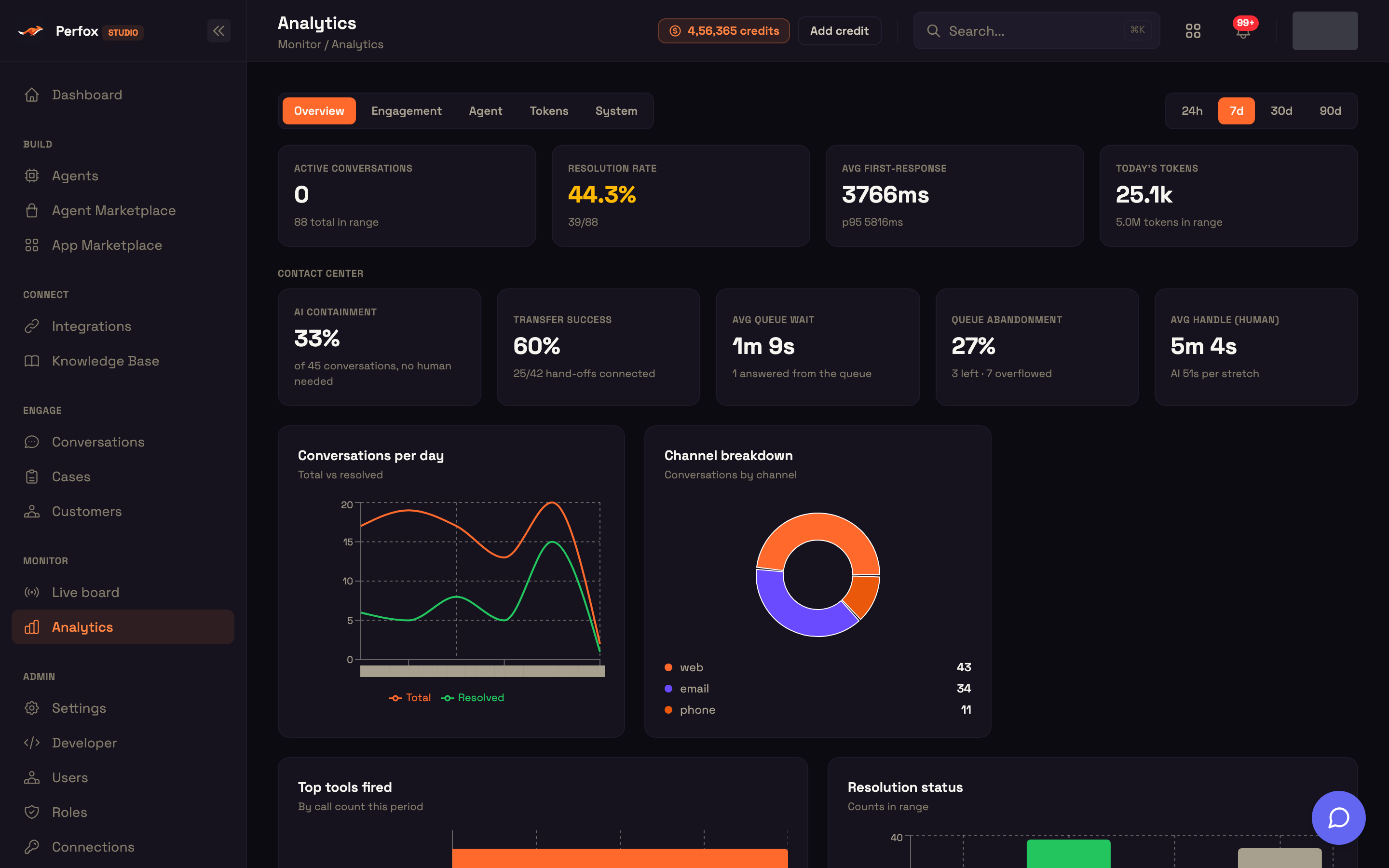
| Tile | Shows |
|---|---|
| AI containment | Share of conversations that never needed a person. |
| Transfer success | Hand-offs that reached a person, out of those requested. |
| Avg queue wait | Average wait for customers answered from the queue. |
| Queue abandonment | Share who left the queue, plus how many overflowed to a callback or voicemail. |
| Avg handle (human) | Average time a person handled a stretch, next to the AI's. |
Click any tile to open Conversations filtered to exactly the conversations it counts, over the same dates. If the range holds more than 5,000 conversations, the row is computed over the latest 5,000 and says so. See Analytics.
Supervisor alerts
On the Operator node's Supervision tab you can also choose when listed supervisors are alerted: when a customer waits longer than a number of seconds you set (10–3600), when nobody answered a hand-off, and on every hand-off. Alerts and the supervise buttons are shown in Perfox Studio; supervisors added by External ID are recorded but don't get them in your own app yet.
Where to go next
- Contact Center overview: how hand-offs reach your team.
- Operator console: what your operators see.
- Cases: following up after the conversation.